To create and submit a report while on shift, follow these steps:
1. Open the Cerely app on your phone
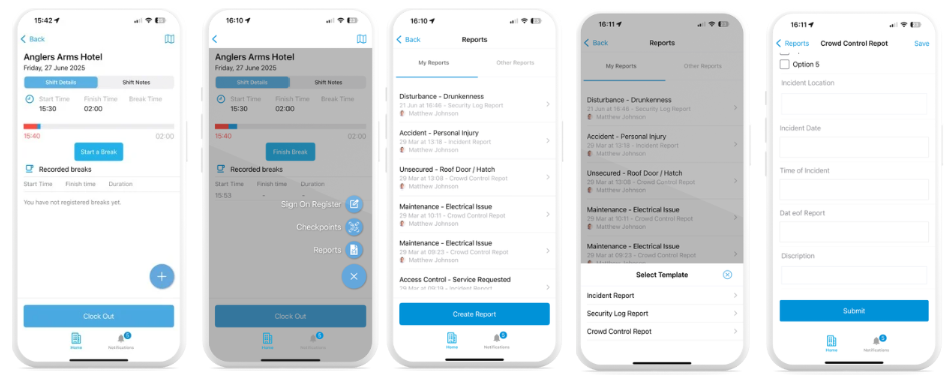
2. From the Clocked In shift screen, tap the ‘+’ button at the bottom right corner of the screen
3. From the menu, select the ‘Reports’ option
4. Tap ‘Create Report’ and choose one report type from the list
5. Complete all required fields in the report form
Ensure that all information is clear and accurate.
6. Once the report is complete, tap ‘Submit’ to send it to your manager
Your report will now be logged and available for your manager to review
Was this article helpful?
That’s Great!
Thank you for your feedback
Sorry! We couldn't be helpful
Thank you for your feedback
Feedback sent
We appreciate your effort and will try to fix the article