Custom reports allow you to create tailored report forms specific to individual sites, giving you complete flexibility over the information captured during a shift. This article outlines the steps to build a custom report for a site and make it available for use by employees through the Cerely mobile app.
1. Navigate to the Sites tab from the main menu
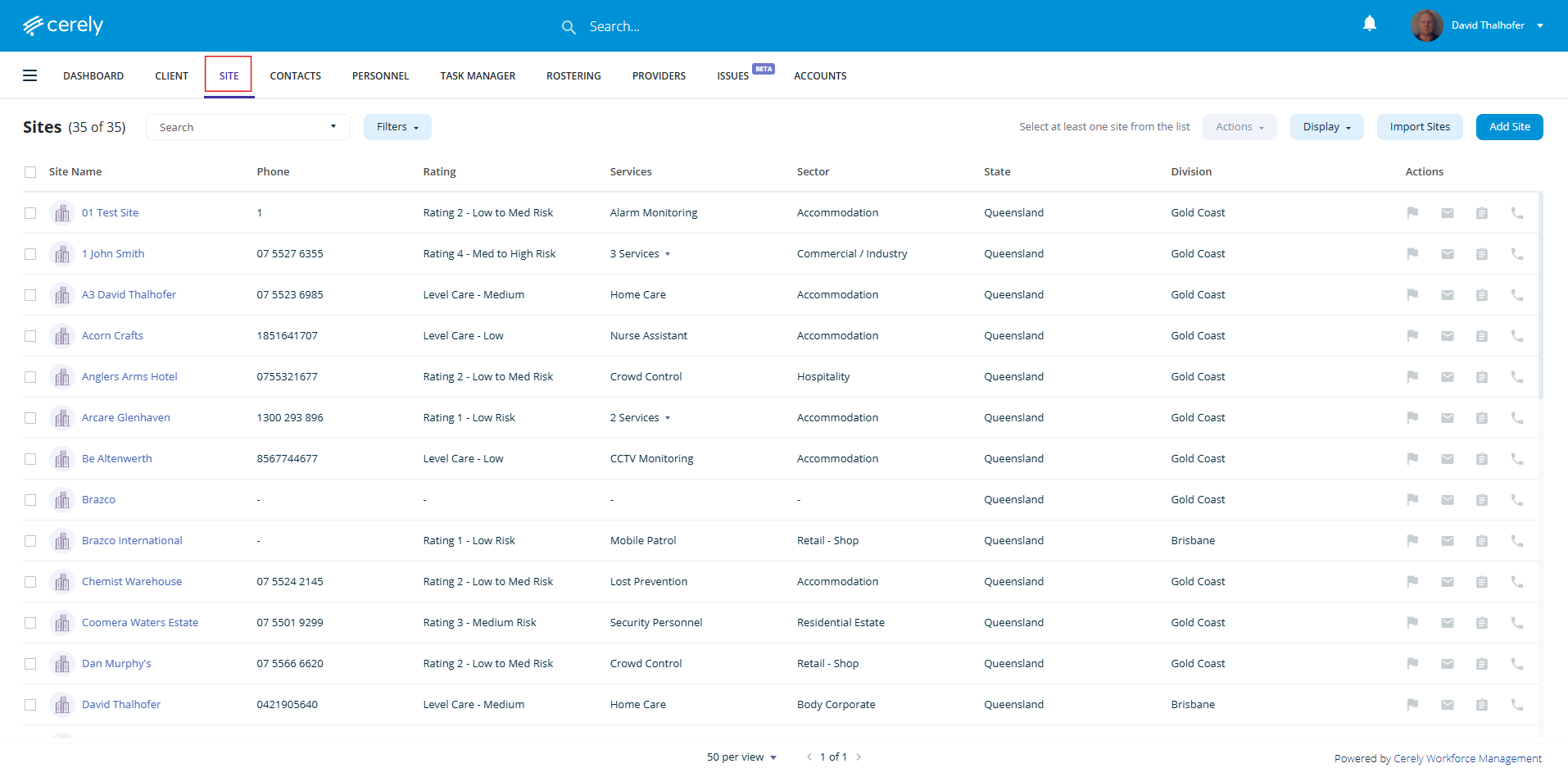
2. Select the Site you wish to build a custom report
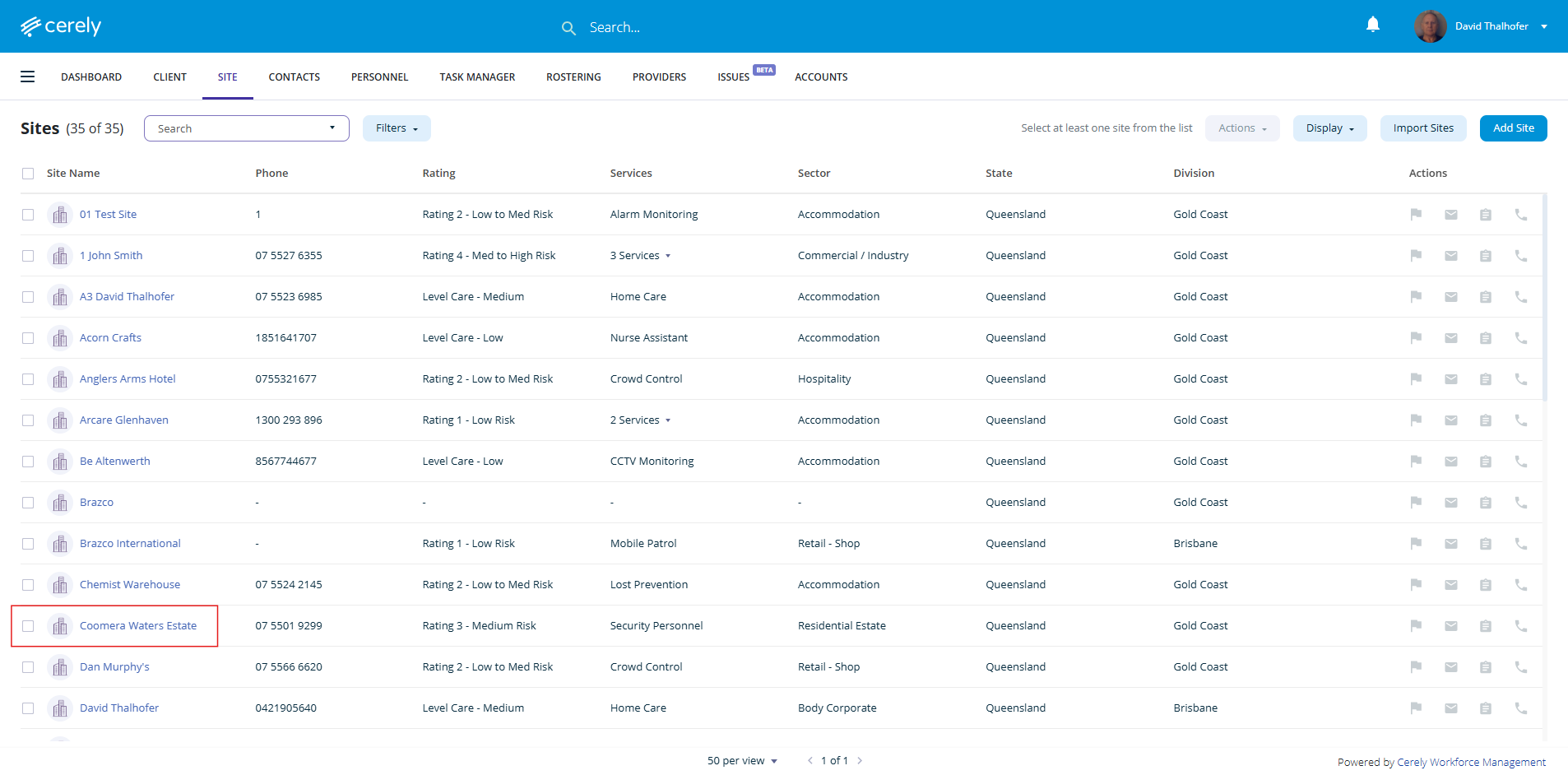
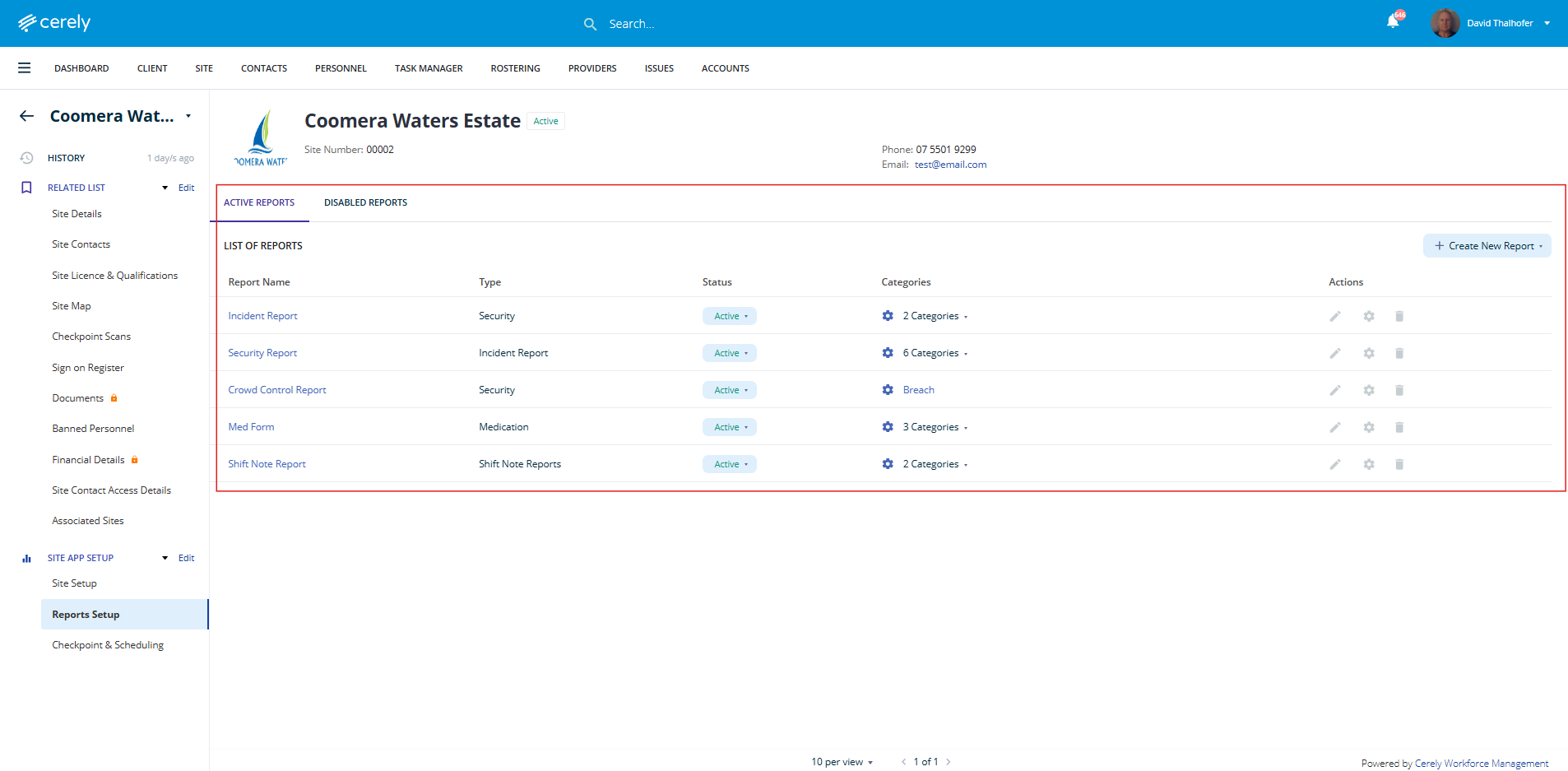
3. From the left-hand menu, select Reports Setup
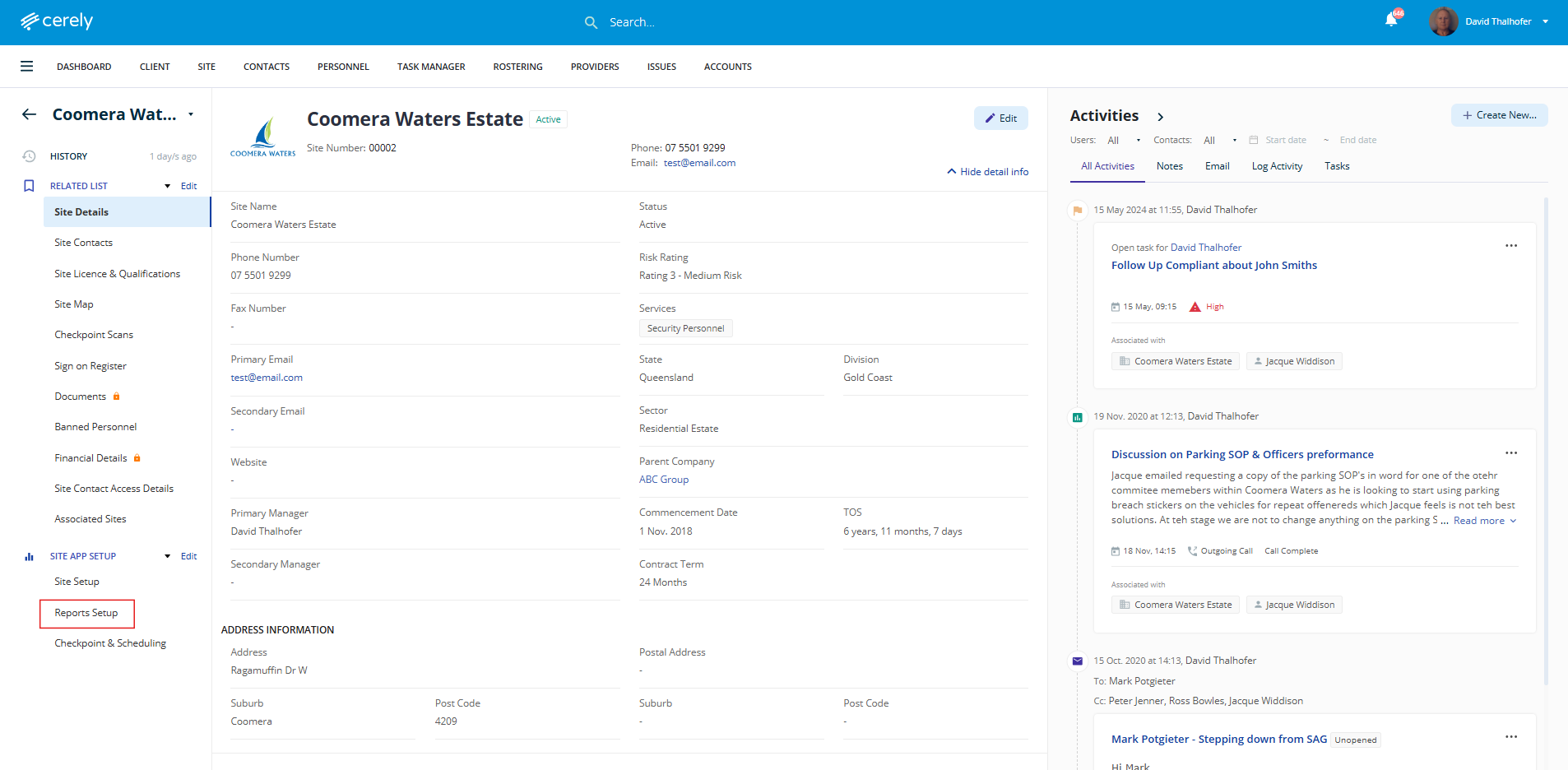
4. Click on the + Create New Report button on the right hand side and from the drop down menu select +Build Custom Report
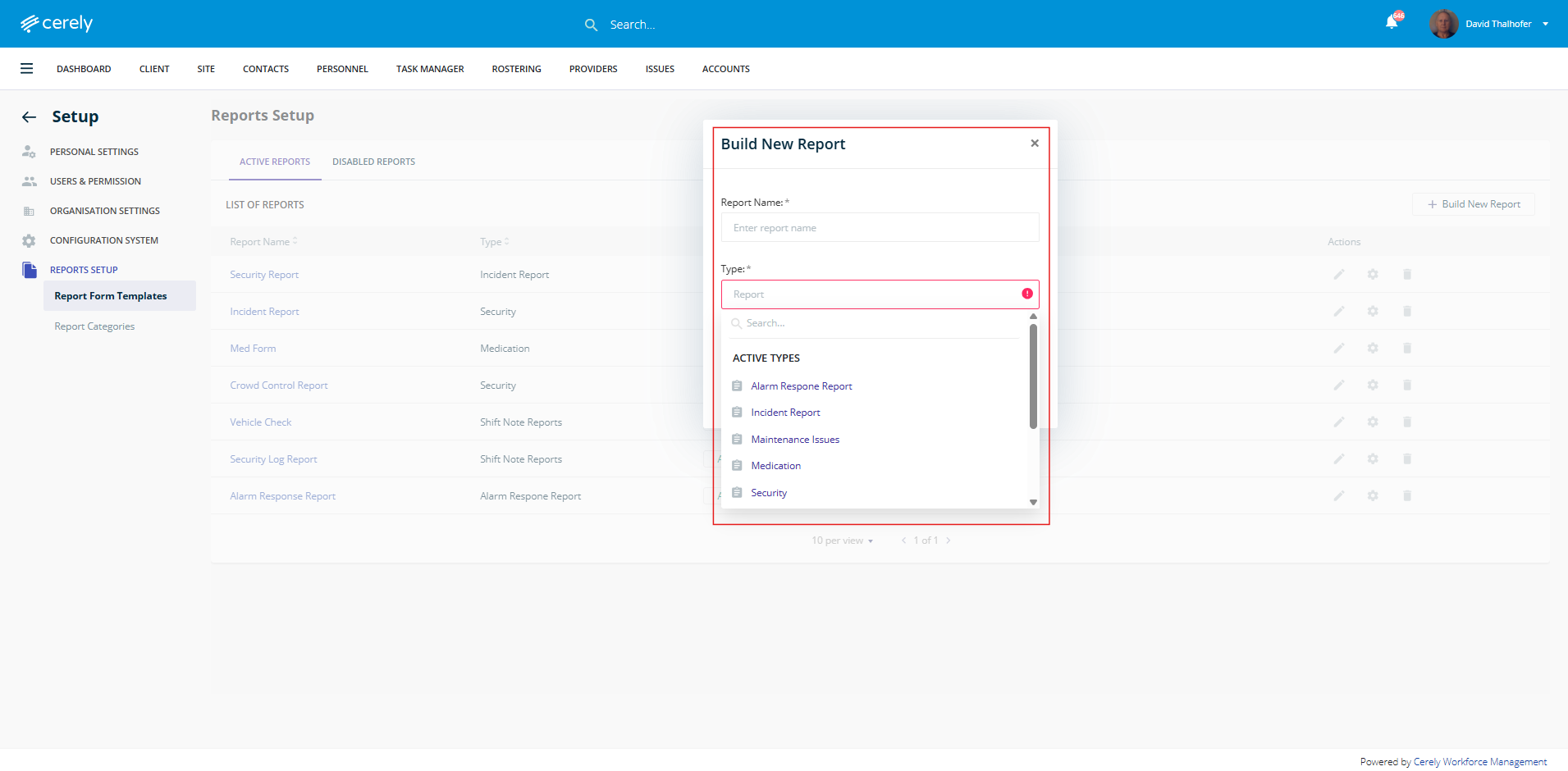
5. In the pop-up box, Enter a Report Name and select a Type of Report from the dropdown or create a new report type category
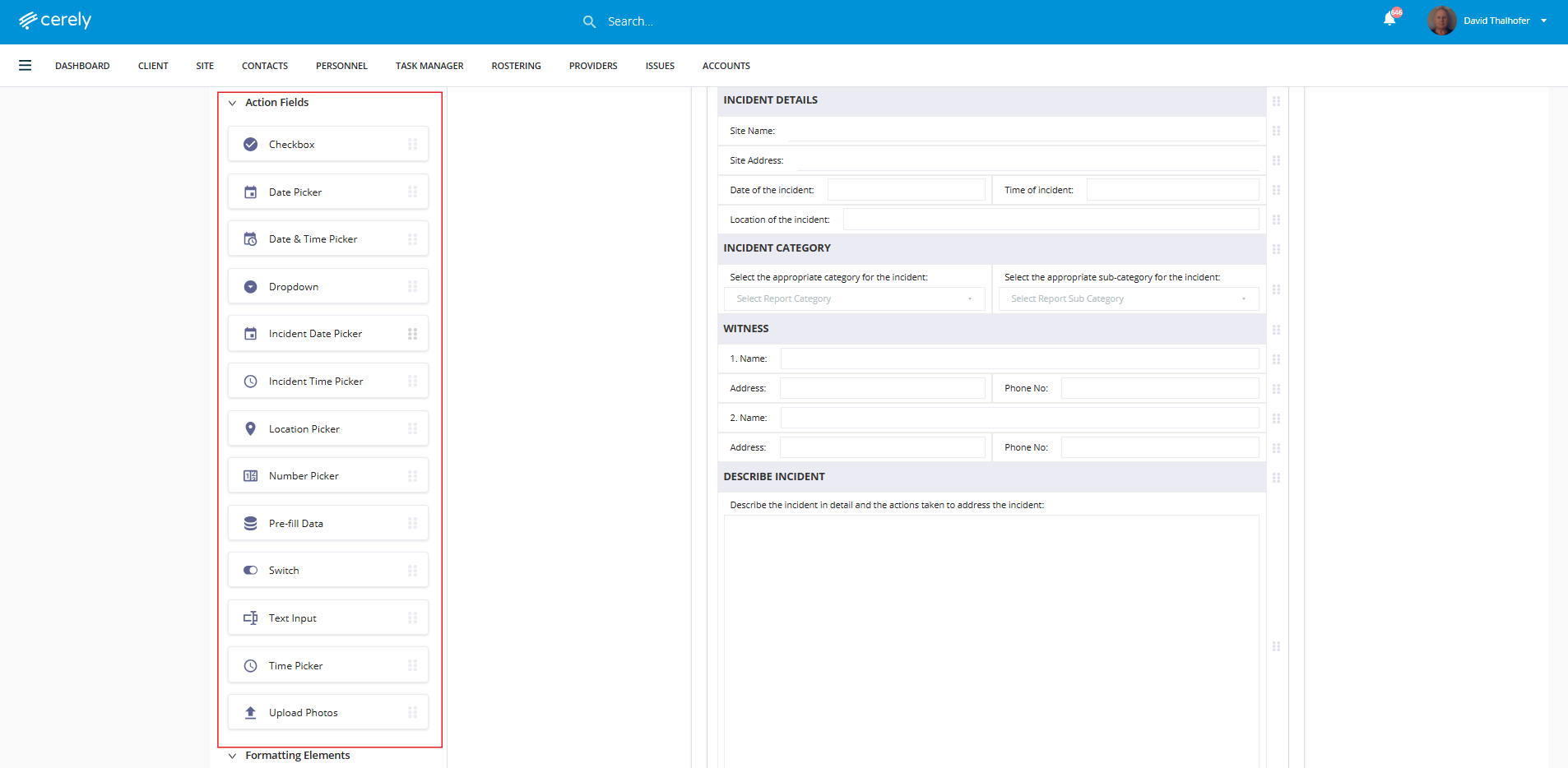
6. Drag and drop the fields you want included in your report
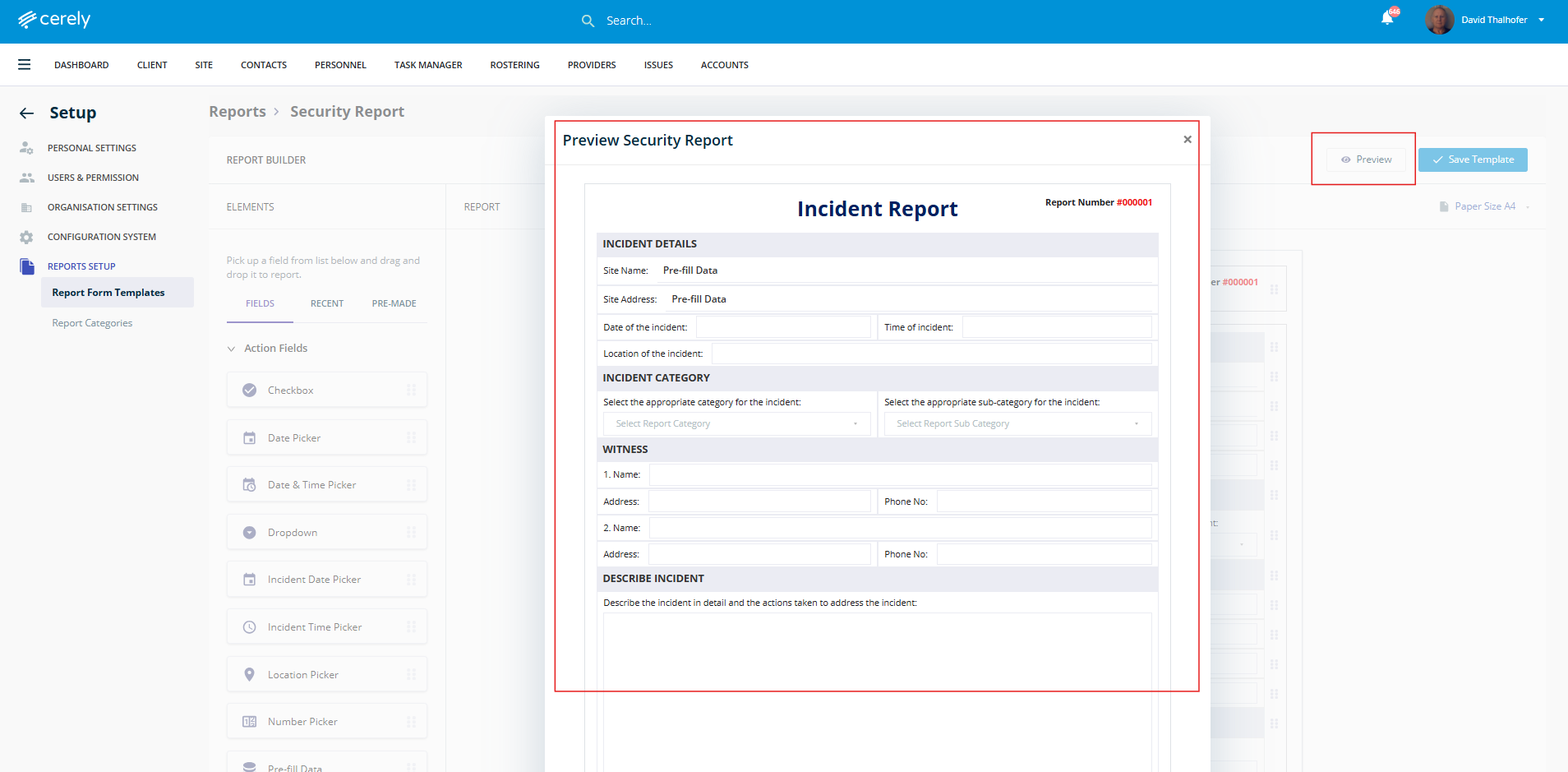
7. Click the Preview button to review the layout and structure of the report template
8. When satisfied with the report, click the Save Template button on the right hand side
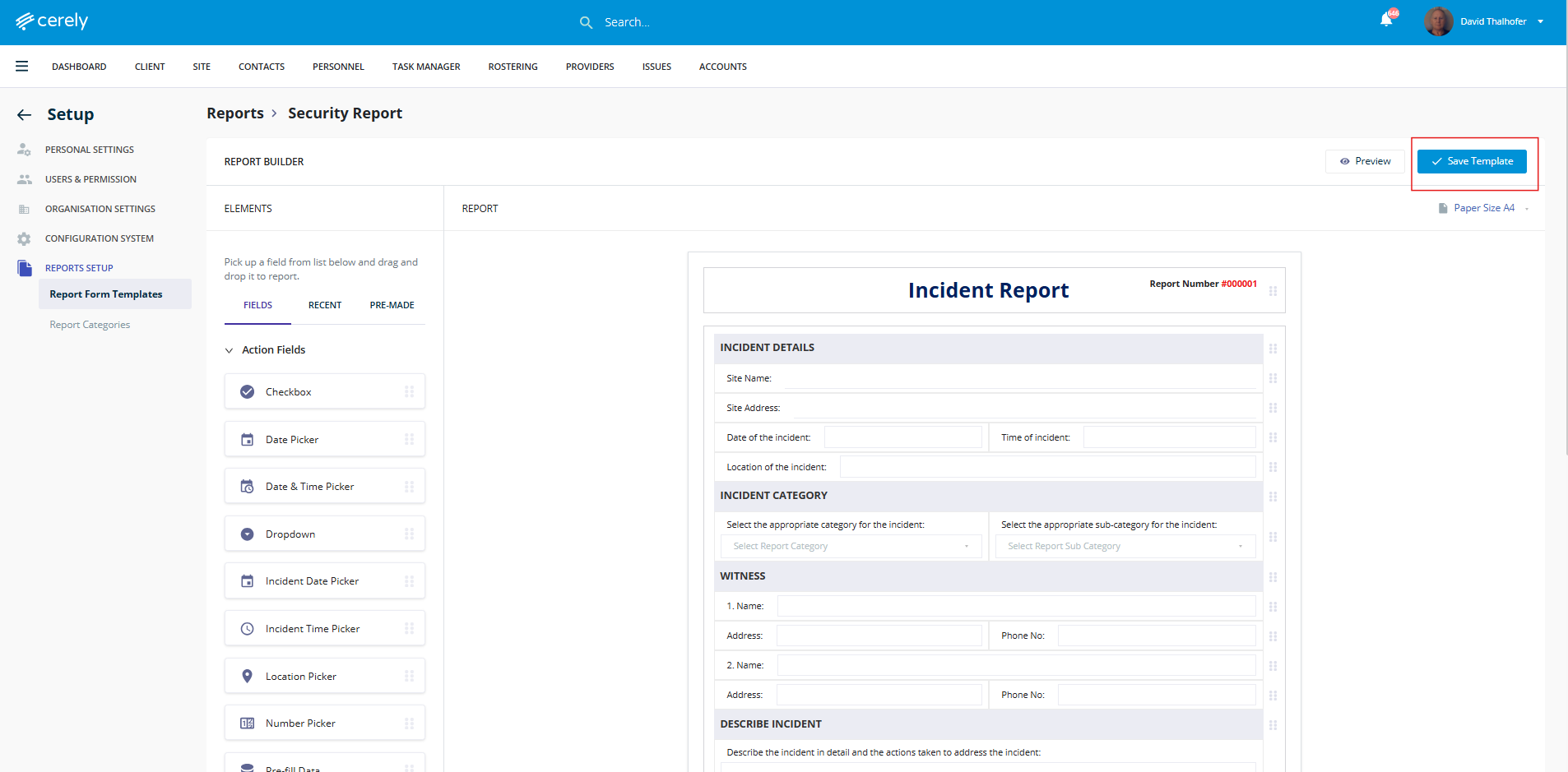
9. The custom report is now saved to the site and available for use at this site only
Was this article helpful?
That’s Great!
Thank you for your feedback
Sorry! We couldn't be helpful
Thank you for your feedback
Feedback sent
We appreciate your effort and will try to fix the article