To review or update a shift in your timesheet, follow these steps:
1. From the Cerely Home screen, tap ‘Timesheets’
2. The app will display all rostered shifts for the current pay period
3. Select the shift you want to review, edit, or update
4. Check that all timesheet details are accurate, including:
Date
Start and Finish Times
Break Times
5. If you make any changes:
You will be required to provide a comment or reason
A signature may also be required depending on your employer’s settings
6. Once all details are correct and any changes are complete, sign the timesheet
7. Tap ‘Submit’ to send your timesheet to your manager for approval
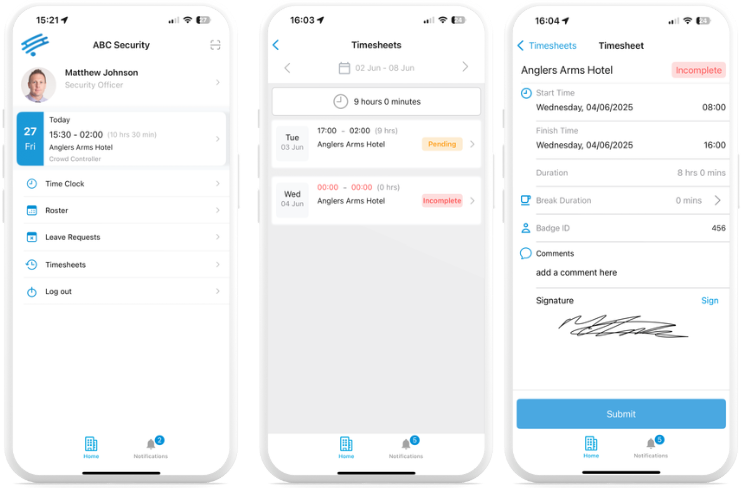
Your updated timesheet will now be submitted for review
Was this article helpful?
That’s Great!
Thank you for your feedback
Sorry! We couldn't be helpful
Thank you for your feedback
Feedback sent
We appreciate your effort and will try to fix the article