To accurately record your time using the Cerely app, follow these steps:
Important:
Location Services must be enabled on your phone for the app to function correctly.
You will not be able to clock in unless you are physically located at the job site.
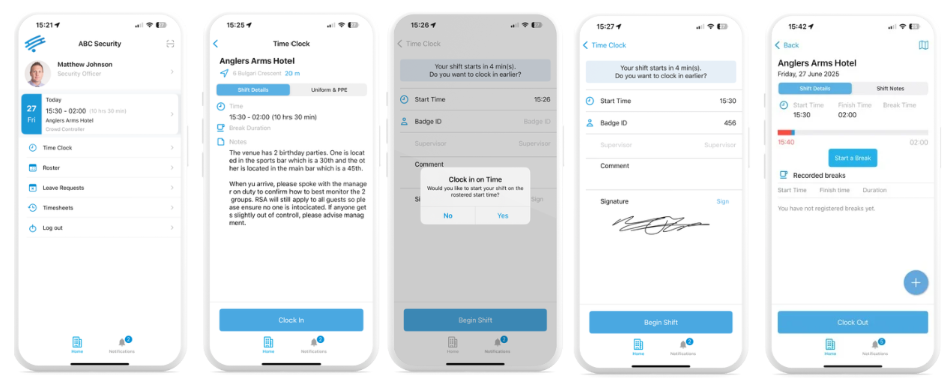
1. Open the Cerely app on your phone
2. From the Home screen, locate your next shift listed beneath your name
3. Tap the Time Clock button to begin the clock-in process
4. Review the Clock In details, then tap ‘Clock In’
5. You’ll be asked to confirm whether you’re starting at your rostered time:
Select Yes to clock in at the scheduled start time
Select No to clock in at the current time
You may be required to add a comment if your start time differs from the scheduled time. (If required by your employer)
6. Complete any required fields:
Badge ID: Required for Crowd Control in some states
Supervisor: Required for QLD users with a Restricted Security Licence
Comment: May be optional or mandatory depending on your setup. Use this to explain early/late arrival or provide notes for your manager
Signature: Required for Crowd Control if enabled
7. Once all fields are completed, tap ‘Begin Shift’ to complete clock in
8. To Clock Out
- Open your shift from the Home or Roster screen
- Tap ‘Clock Out’ when your shift ends
Confirm your end time and add any final comments if required
If prompted, provide a signature to complete the clock-out process
9. Recording a Break
If your shift includes a scheduled break:
- Return to the shift screen and tap ‘Start Break’
- Enter the start time for your break
- When your break ends, tap ‘Finish Break’ and enter the end time
Was this article helpful?
That’s Great!
Thank you for your feedback
Sorry! We couldn't be helpful
Thank you for your feedback
Feedback sent
We appreciate your effort and will try to fix the article