To ensure your company's information is accurate and up-to-date, follow these steps to add your company licenses in the system:
1. Click on your profile icon in the top right-hand corner of the screen
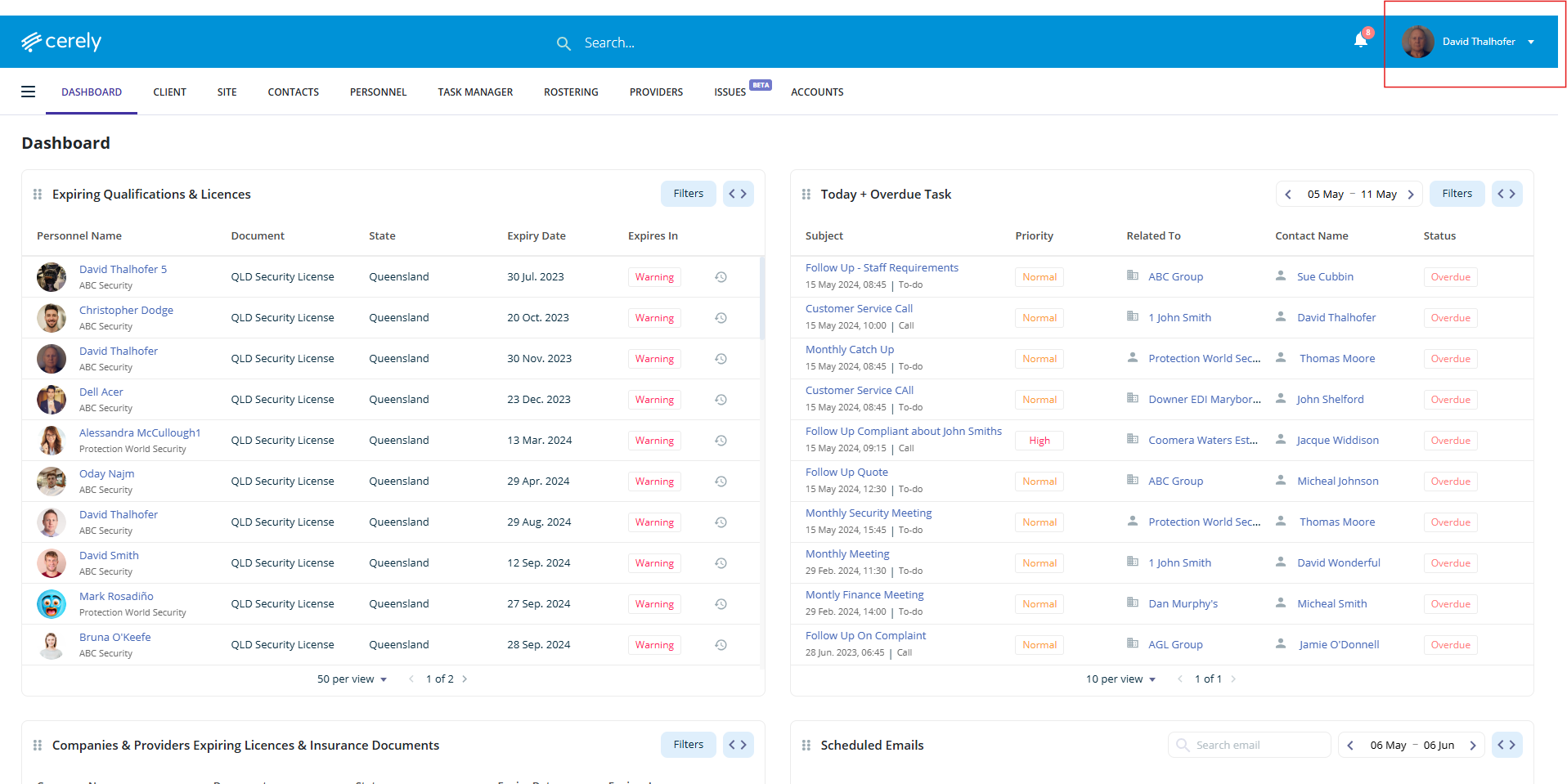
2. Select setup from the dropdown menu
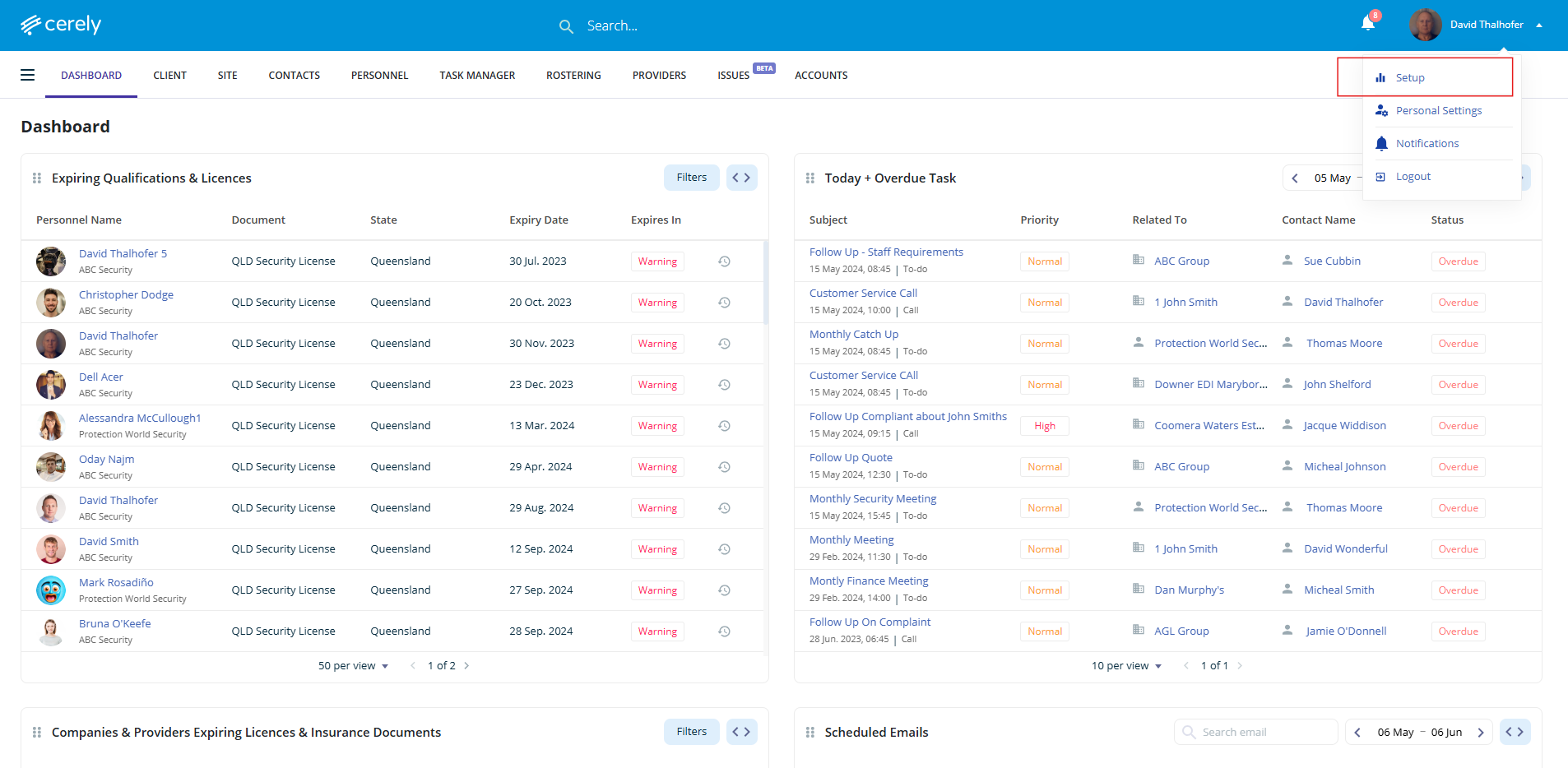
3. Under organisation settings, select your organisation name
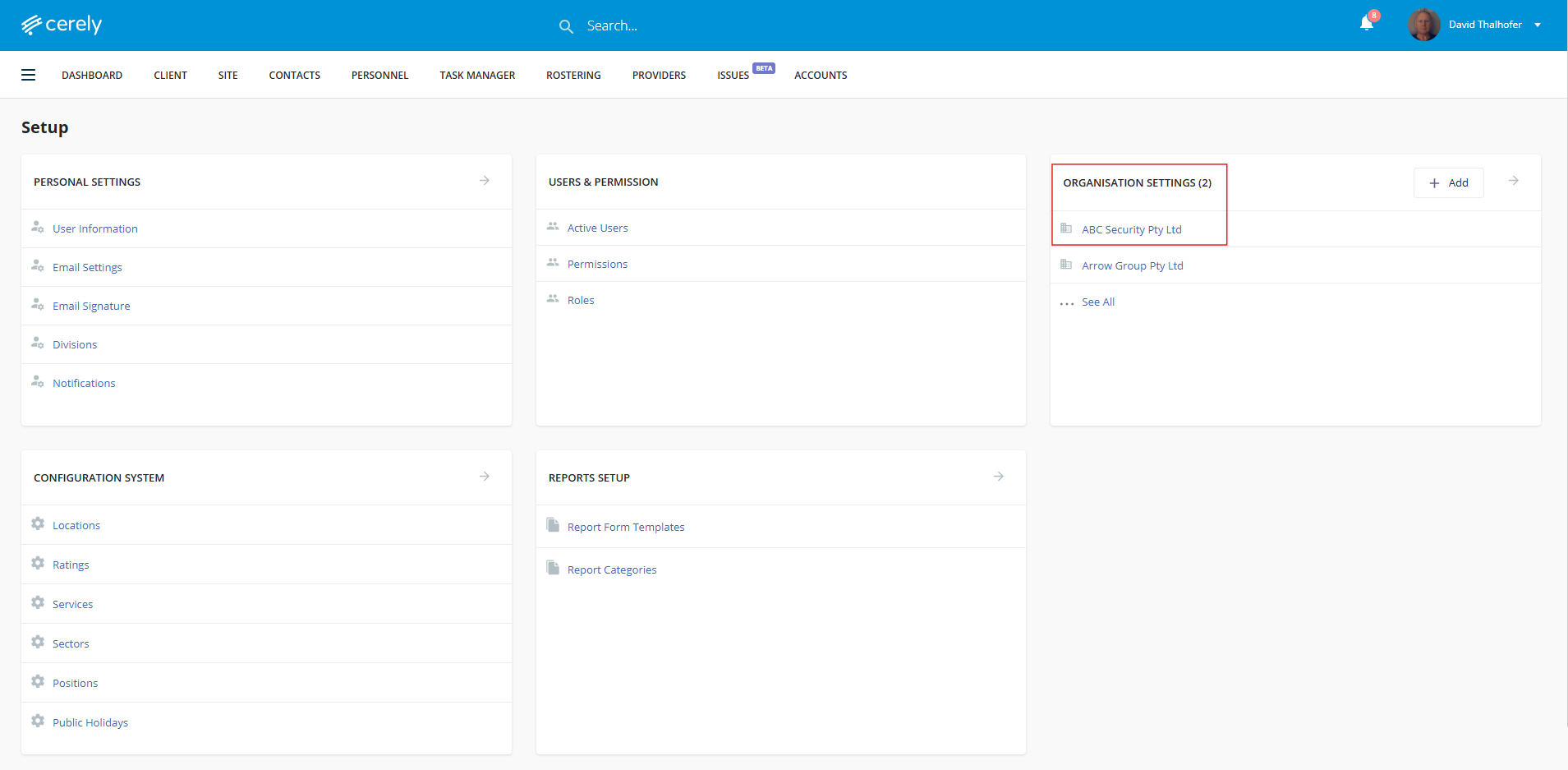
4. In the left-hand menu, click on licences & insurances
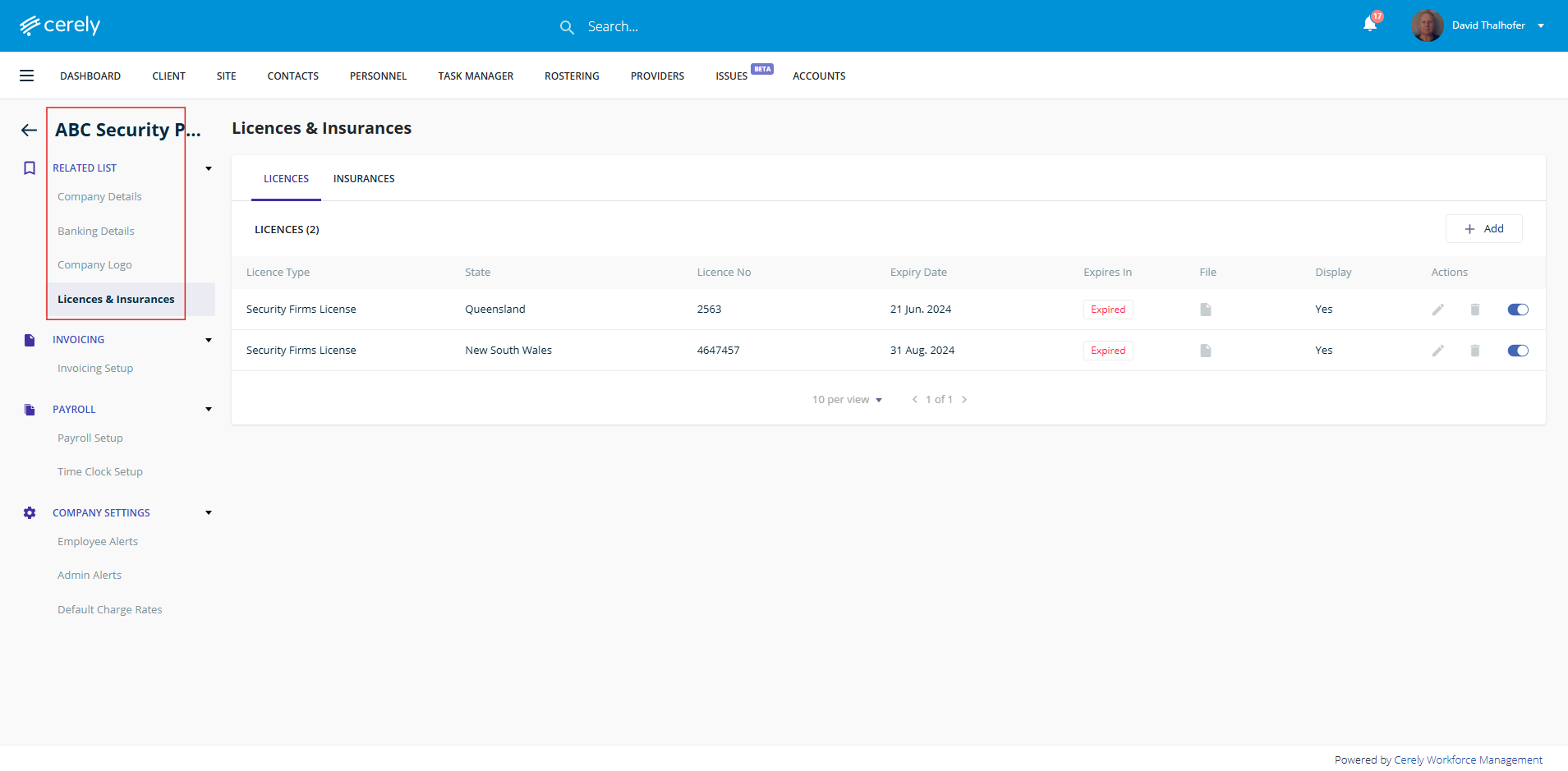
5. Click on the licences tab
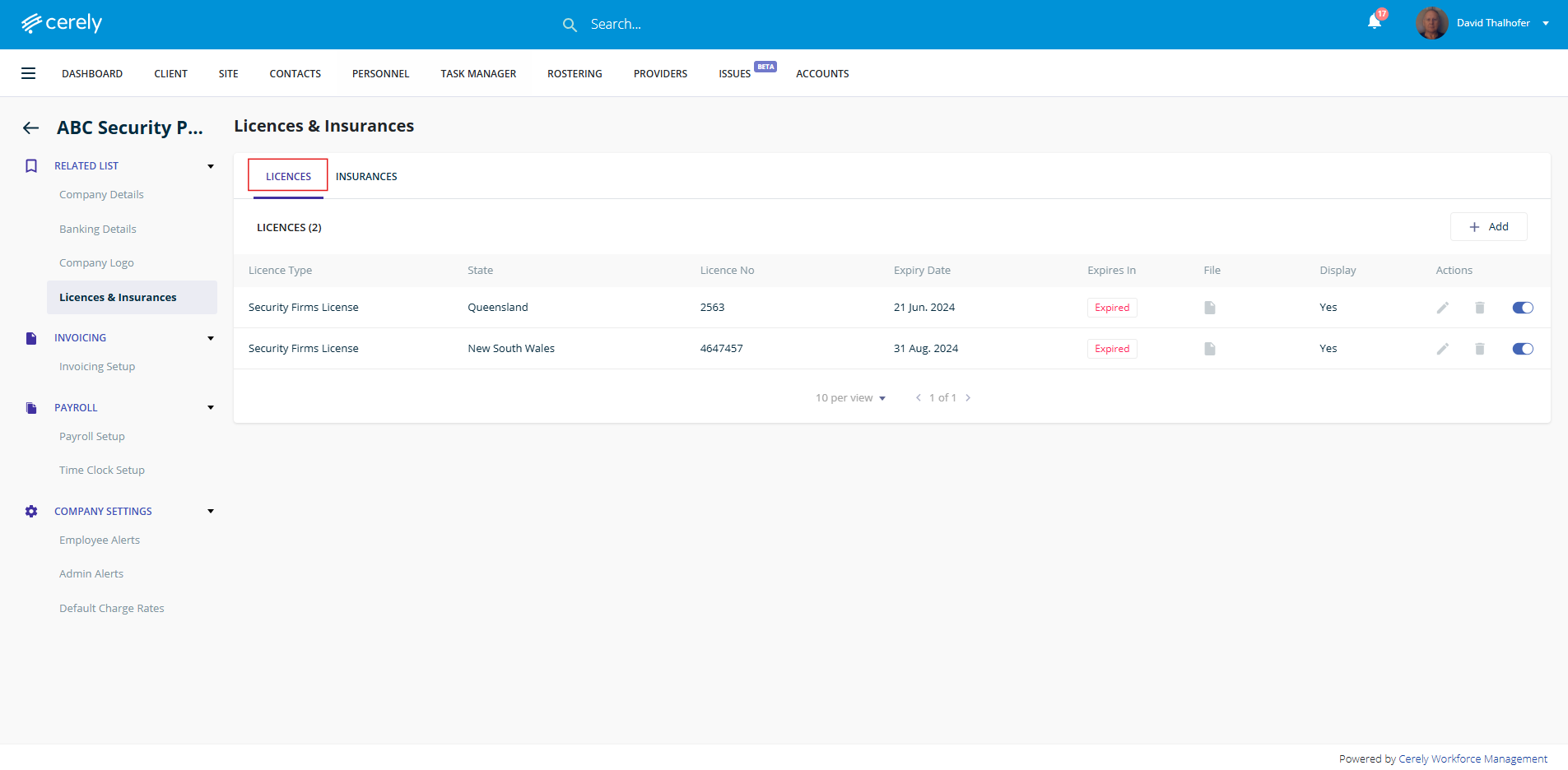
6. Click add
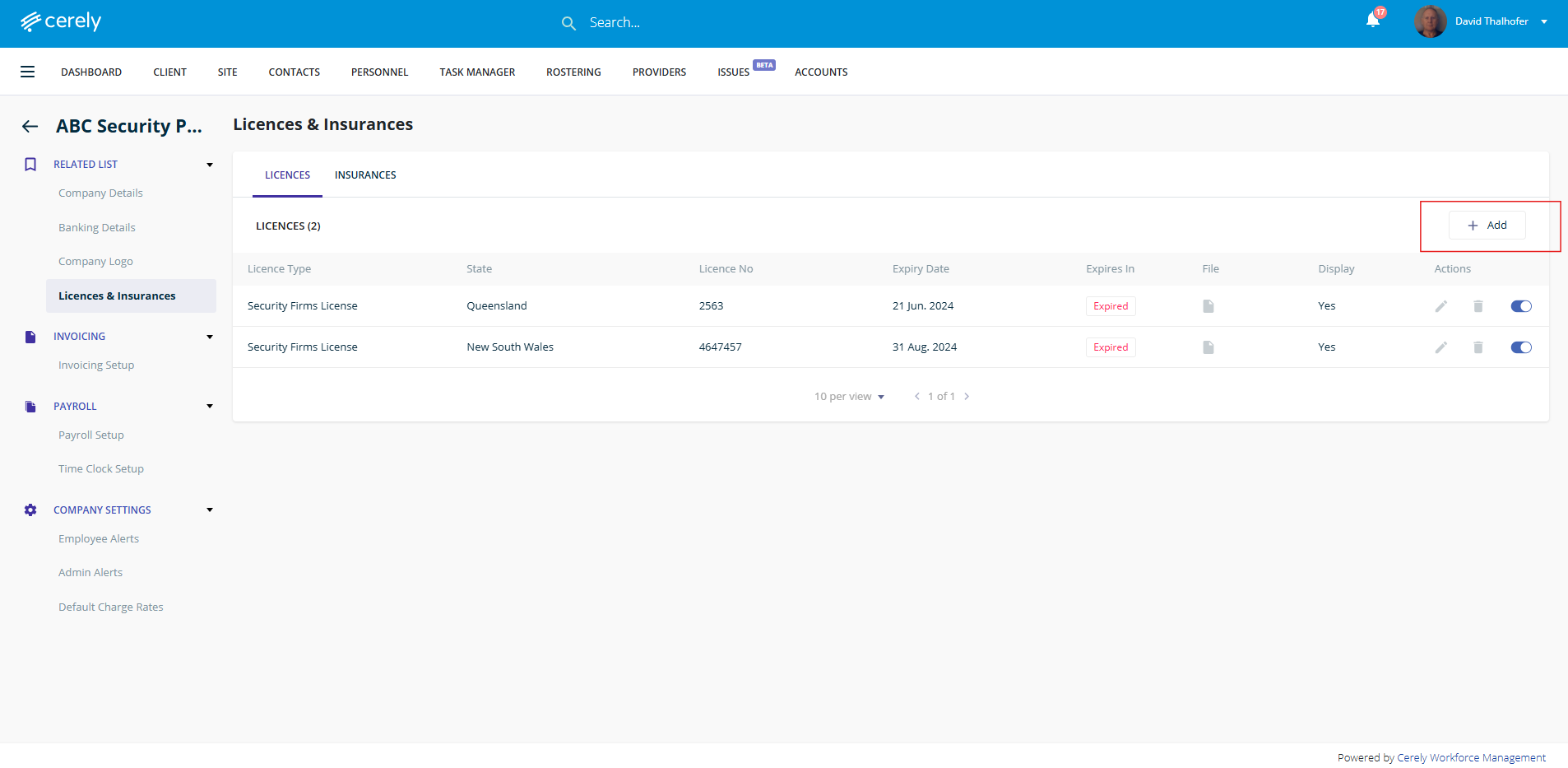
7. To record and monitor a company firm license or could be know as master licence within the platform, follow these step
- State - Select the relevant state from the dropdown menu where the licence is issued
- Licence Type - Choose the applicable licence type from the dropdown list
- Licence Number - Enter the unique licence number as printed on the official document
- Expiry Date - Select the expiry date of the licence
- Enforce Expiry - Select Yes or No to determine whether the platform will enforce expiry monitoring and compliance alerts
- Display in Register - Select Yes or No to control whether this licence will appear in the Crowd Control Register (Sign-On Register in NSW)
- Upload Licence File - Upload a copy of the licence document for verification and compliance records
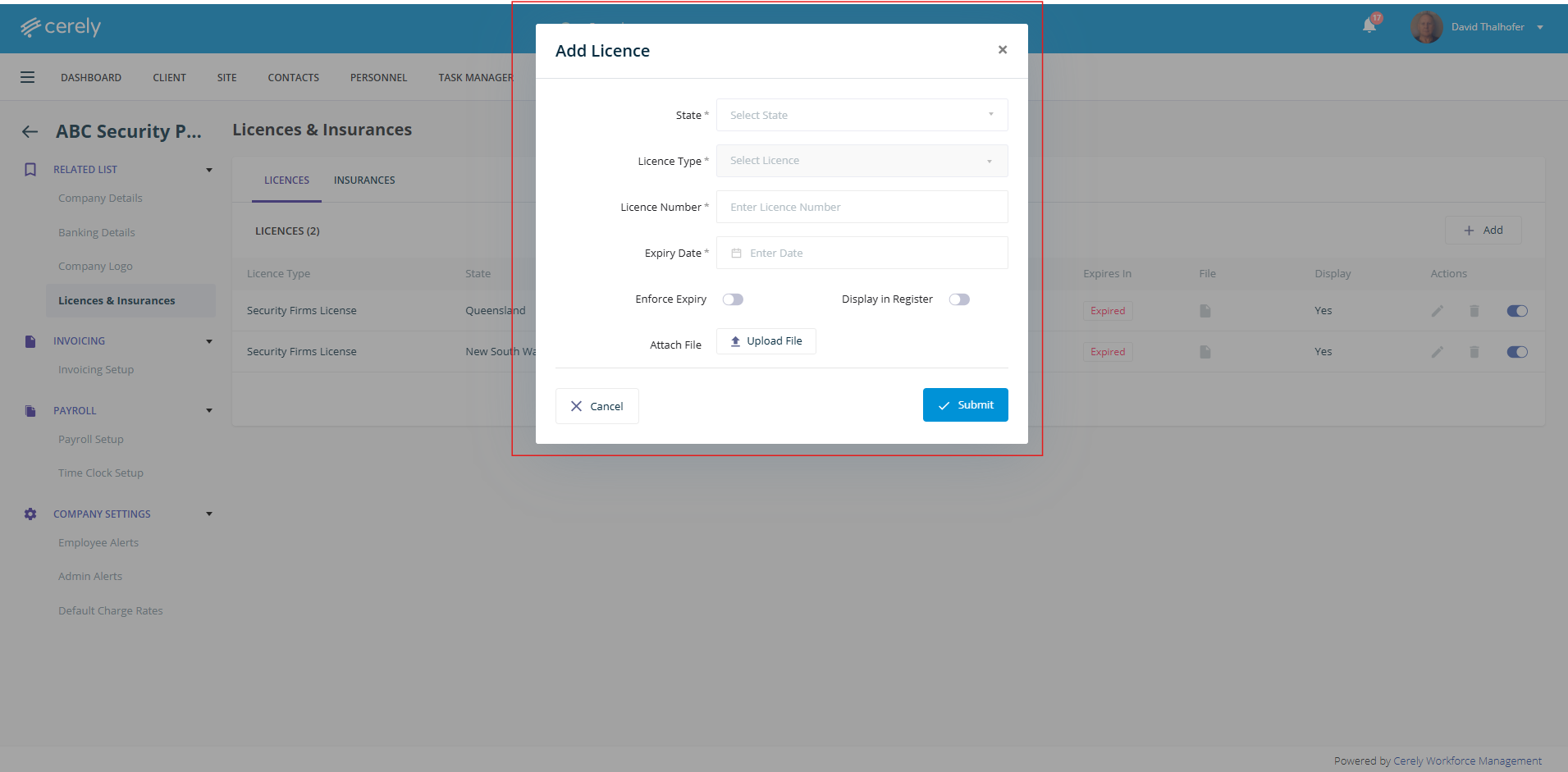
7. Click submit to save the licence details
Was this article helpful?
That’s Great!
Thank you for your feedback
Sorry! We couldn't be helpful
Thank you for your feedback
Feedback sent
We appreciate your effort and will try to fix the article