Completing an employee’s Qualifications and Experience ensures that shift assignments comply with licensing requirements, enable skill-based rostering, and allow the system to trigger compliance warnings where appropriate. This helps ensure employees are only rostered to shifts for which they are qualified.
1. Navigate to the Personnel tab from the main menu
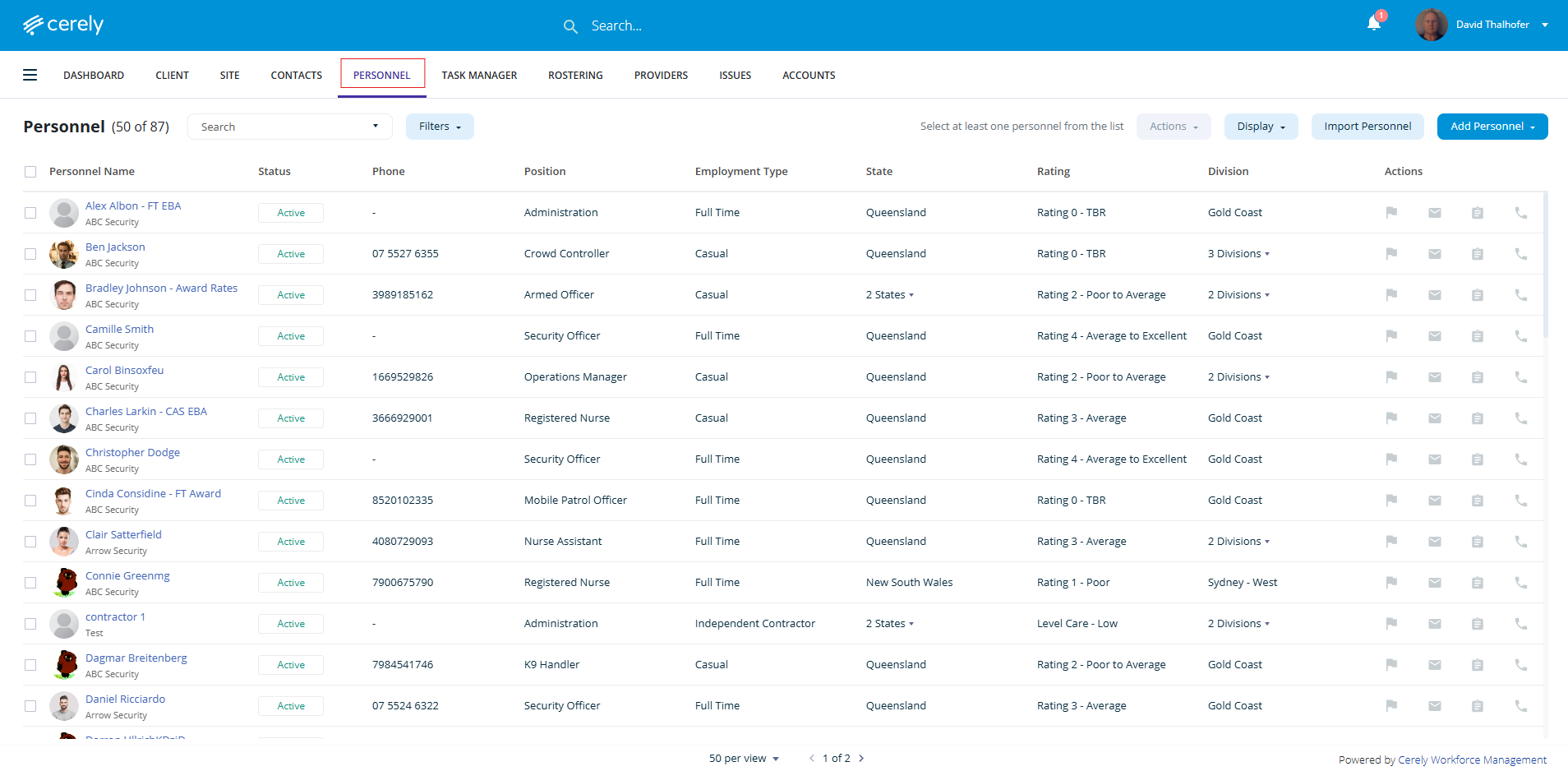
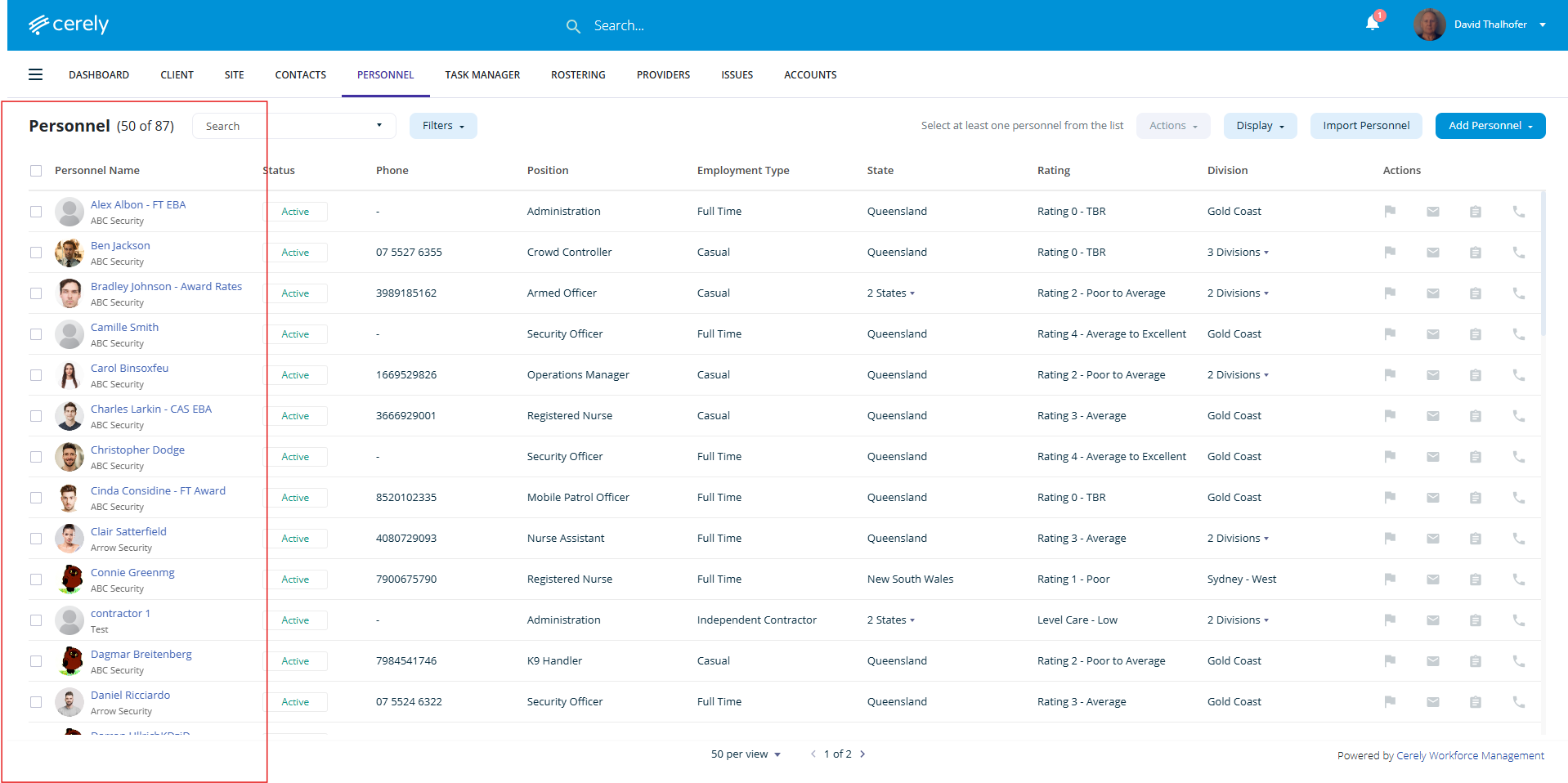
2. Select the employee from the list
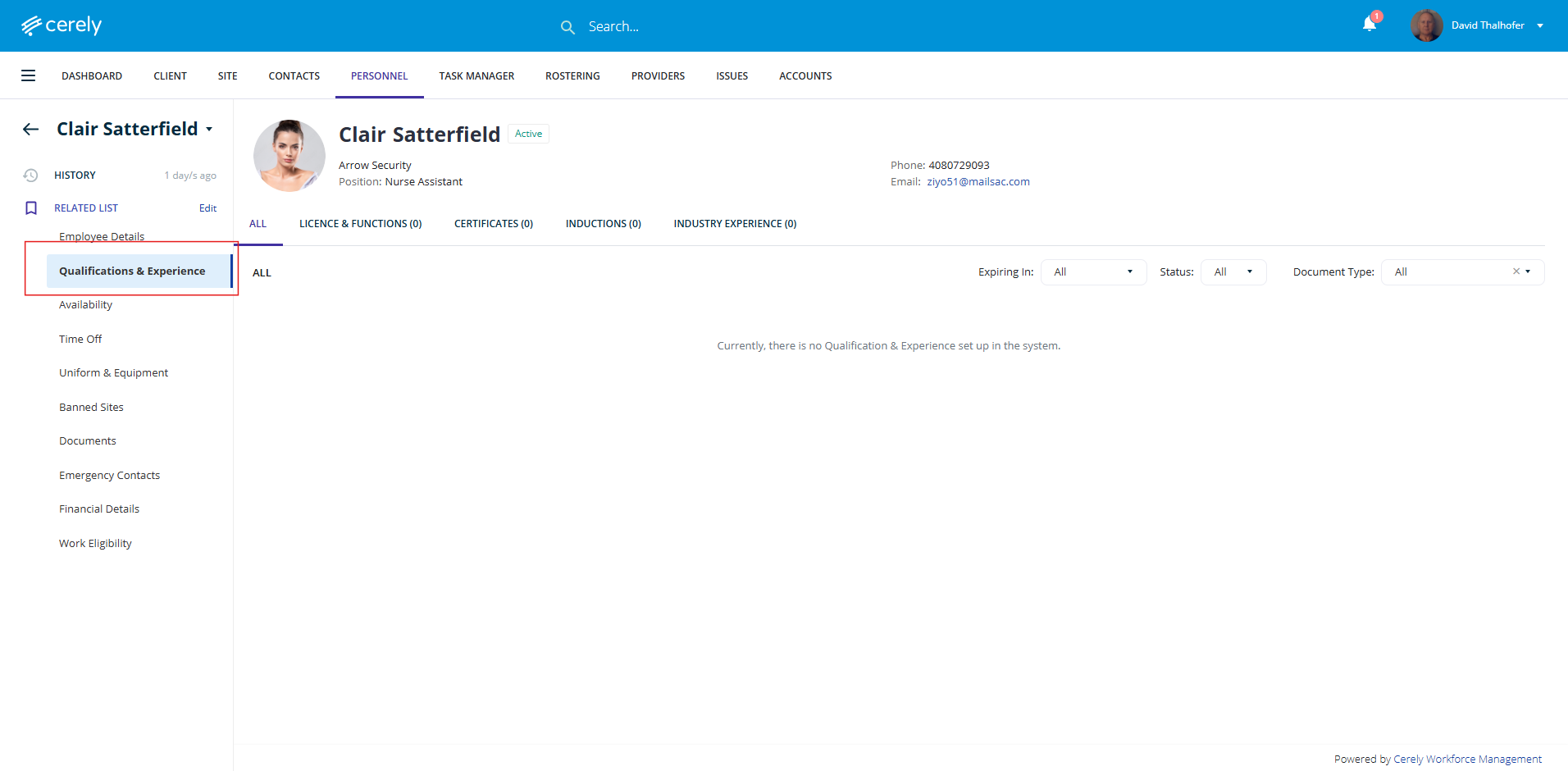
3. In the left-hand menu, click Qualifications & Experience
4. Navigate to the Licences & Functions section
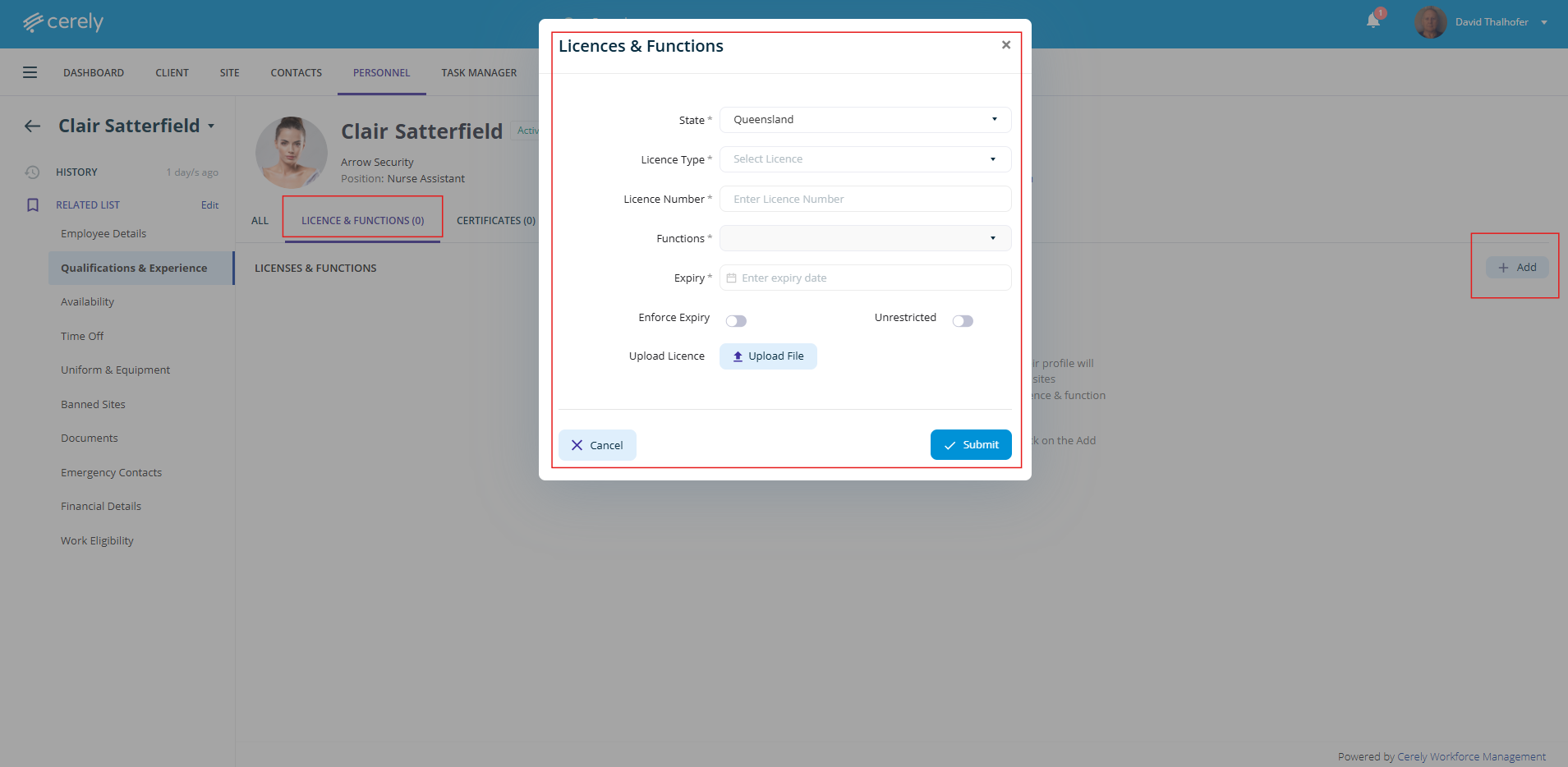
| Field | Description |
|---|---|
| Current Licence | Confirm the employee holds a valid licence |
| State | Select the state the licence applies to |
| Licence Type | Choose the relevant licence type from the dropdown |
| Licence Number | Enter the official licence number |
| Functions on Licence | List the endorsed functions (e.g. Crowd Controller, Security Officer) |
| Expiry Date | Select the licence expiry date |
| Enforce Expiry | Select Yes to restrict rostering if the licence is expired, or No to allow rostering with a system warning |
| Unrestricted | QLD only – Select Yes if the employee can work alone, or No if they must be rostered with someone holding an open licence |
| Upload Licence File | Upload a copy of the licence for compliance records |
Note: If Enforce Expiry is enabled, the employee will not be rostered once the licence has expired. If disabled, a system warning will display, but rostering will still be allowed.
Add Certificates, Site Inductions, and Industry Experience
In the same section, you can continue adding additional credentials that contribute to shift eligibility and compliance:
Add the following as needed:
Certificates (e.g., First Aid, Fire Warden, RSA)
Site Inductions (for specific client sites)
Industry Experience or specialised roles
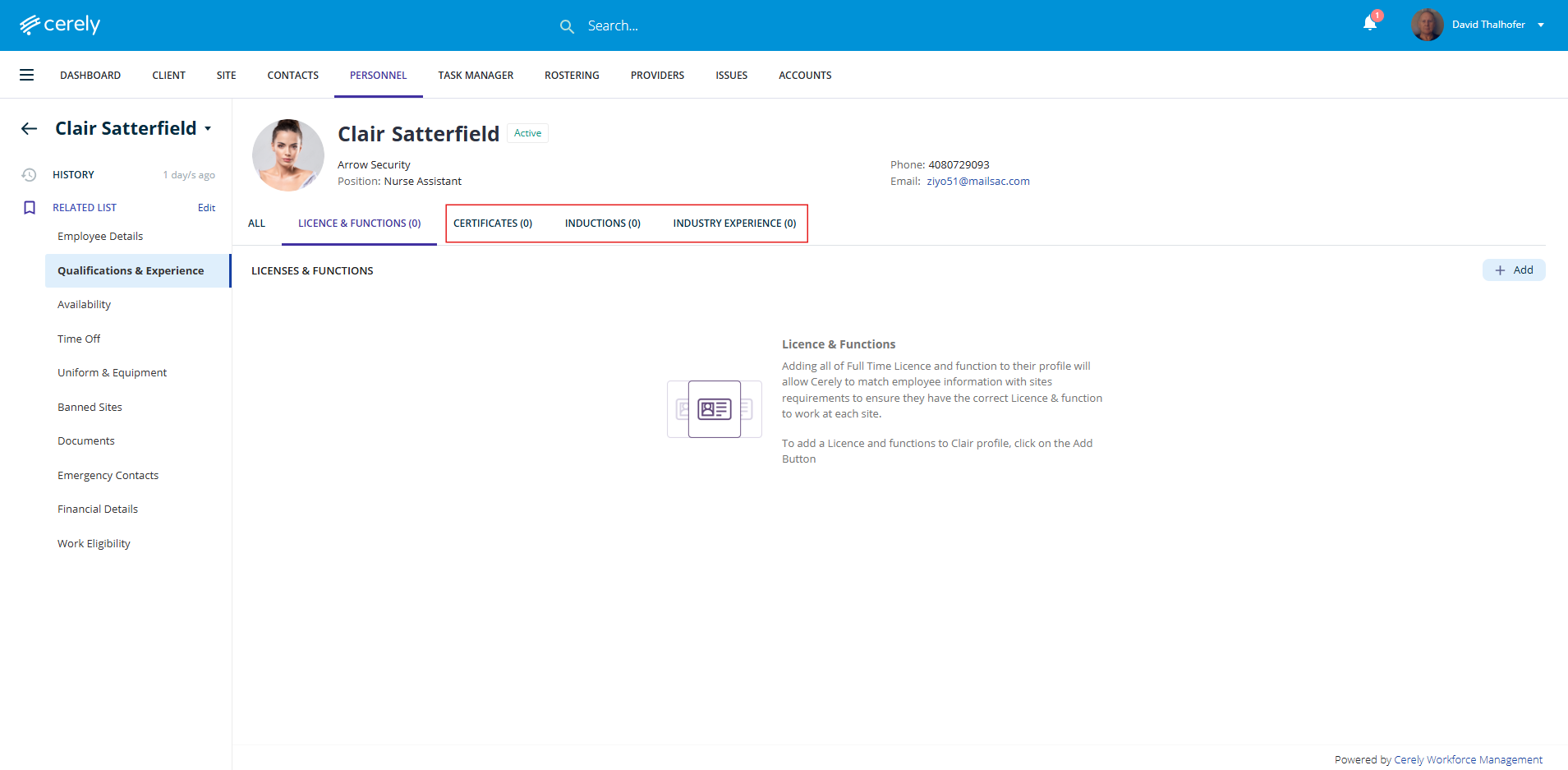
For each item, complete the following fields:
| Field | Description |
|---|---|
| Title / Description | Enter the certificate, induction, or skill name |
| Expiry Date | Select when it expires, if applicable |
| Enforce Expiry | Select Yes to prevent rostering past expiry, or No to allow with warning |
| Never Expires | Select this if the credential does not expire (e.g. completed site induction) |
| Upload Document | Upload supporting documentation such as certificates or induction records |
Was this article helpful?
That’s Great!
Thank you for your feedback
Sorry! We couldn't be helpful
Thank you for your feedback
Feedback sent
We appreciate your effort and will try to fix the article