You can upload important documents such as contracts, certifications, or visa records directly to an employee’s profile in Cerely.
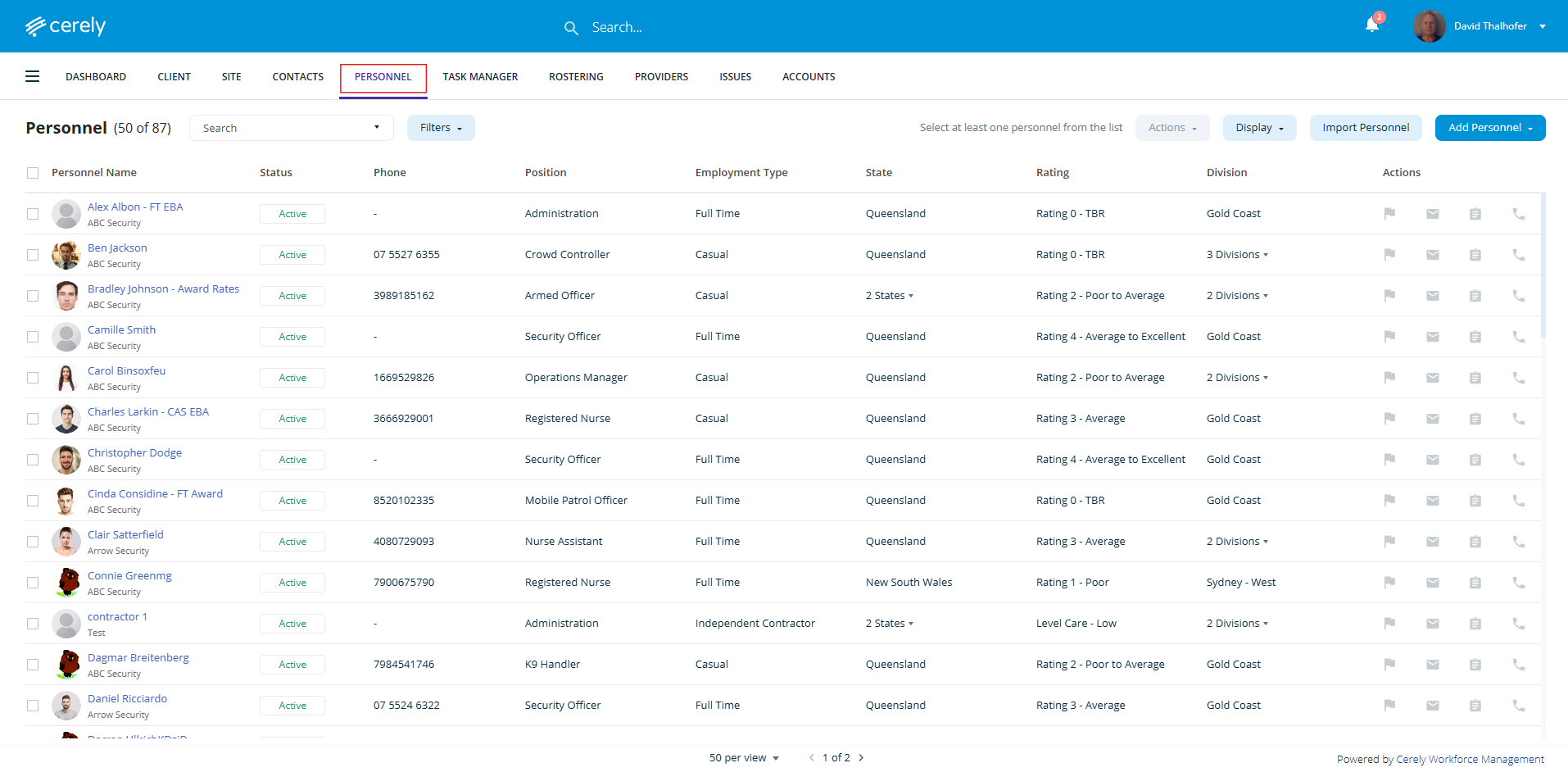
1. From the main menu, click on Personnel
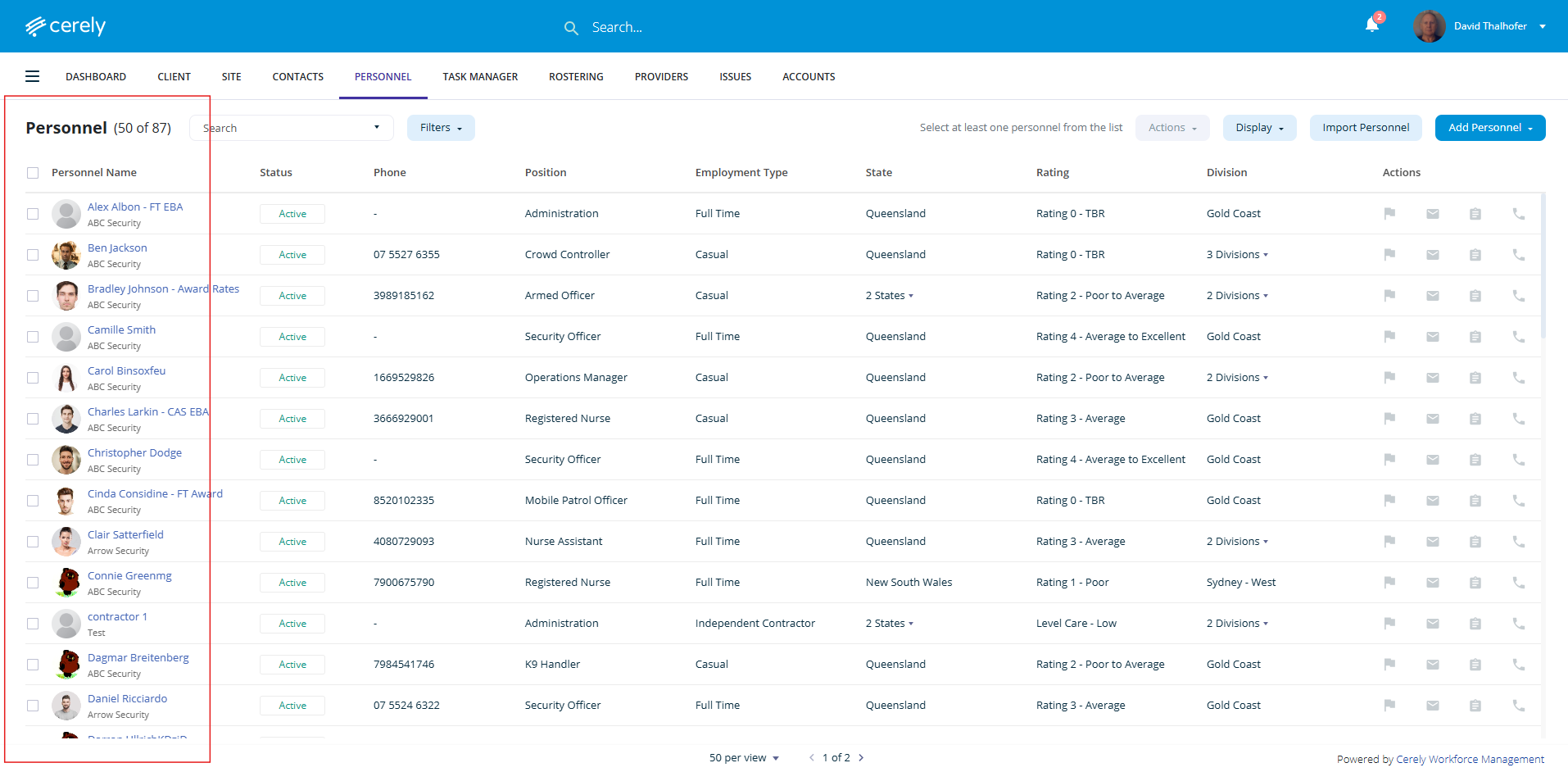
2. Choose the employee from the list whose profile you want to upload documents to
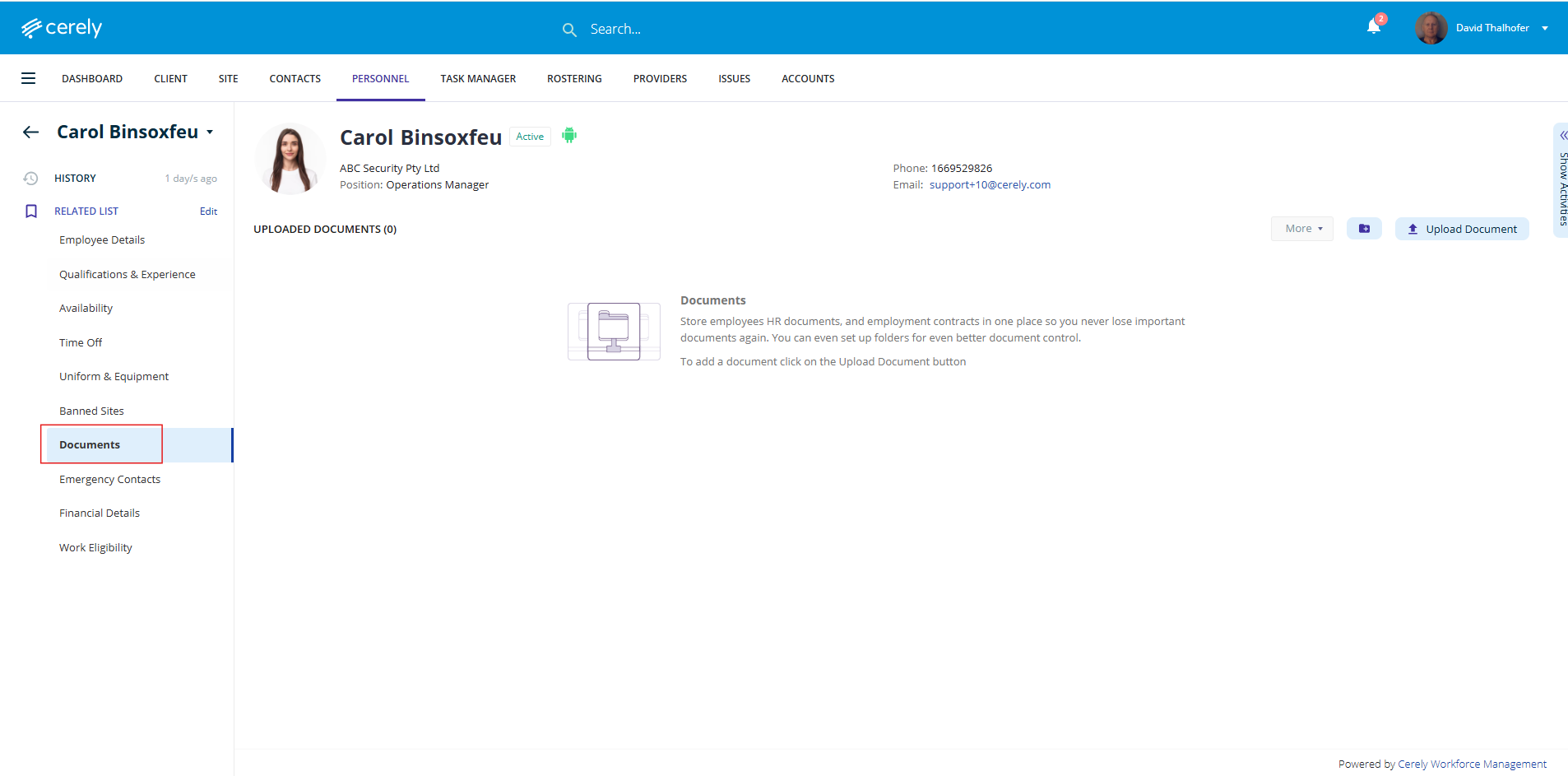
3. On the left-hand side menu of the employee’s profile, select Documents
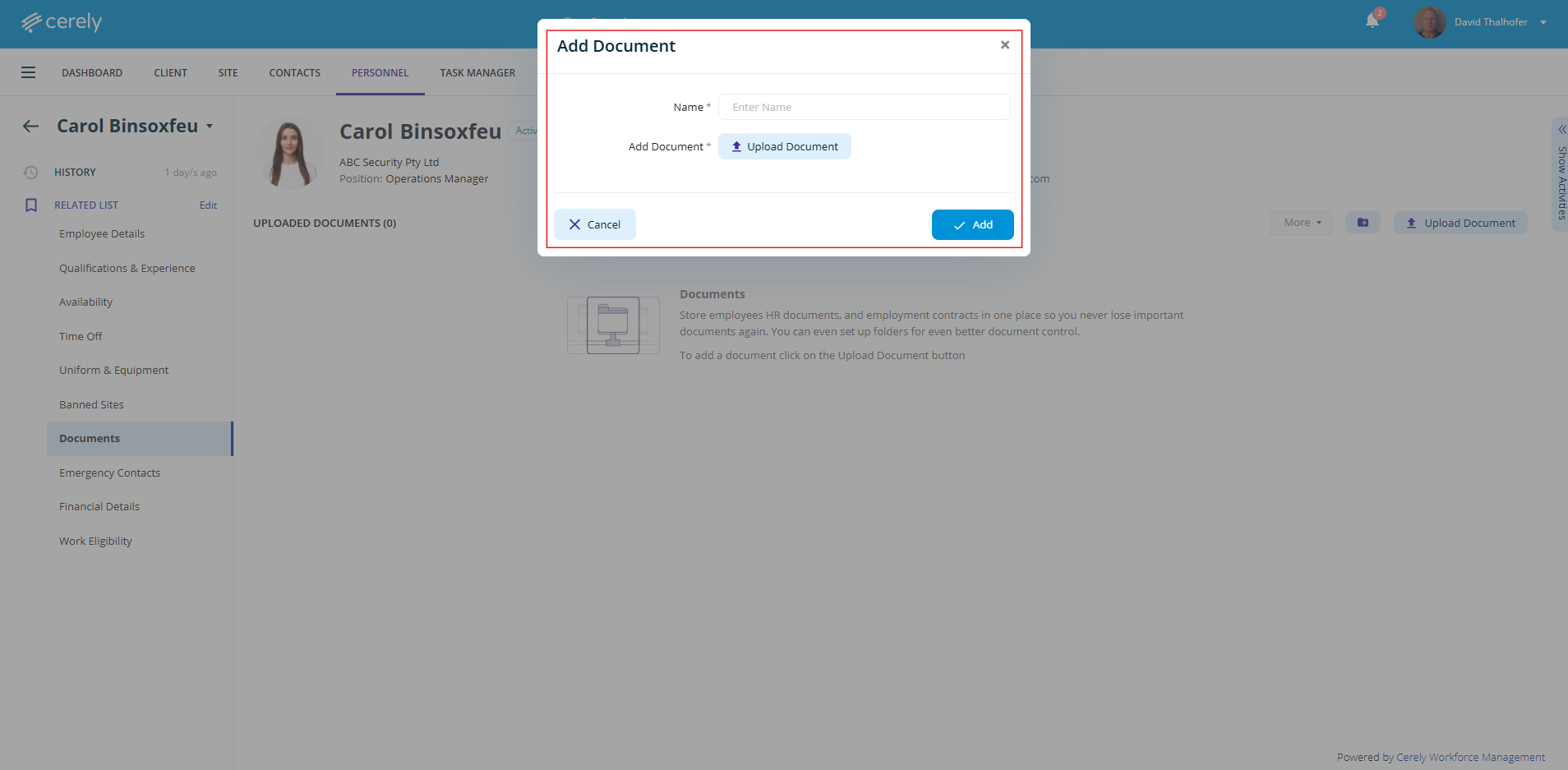
4. Upload Document
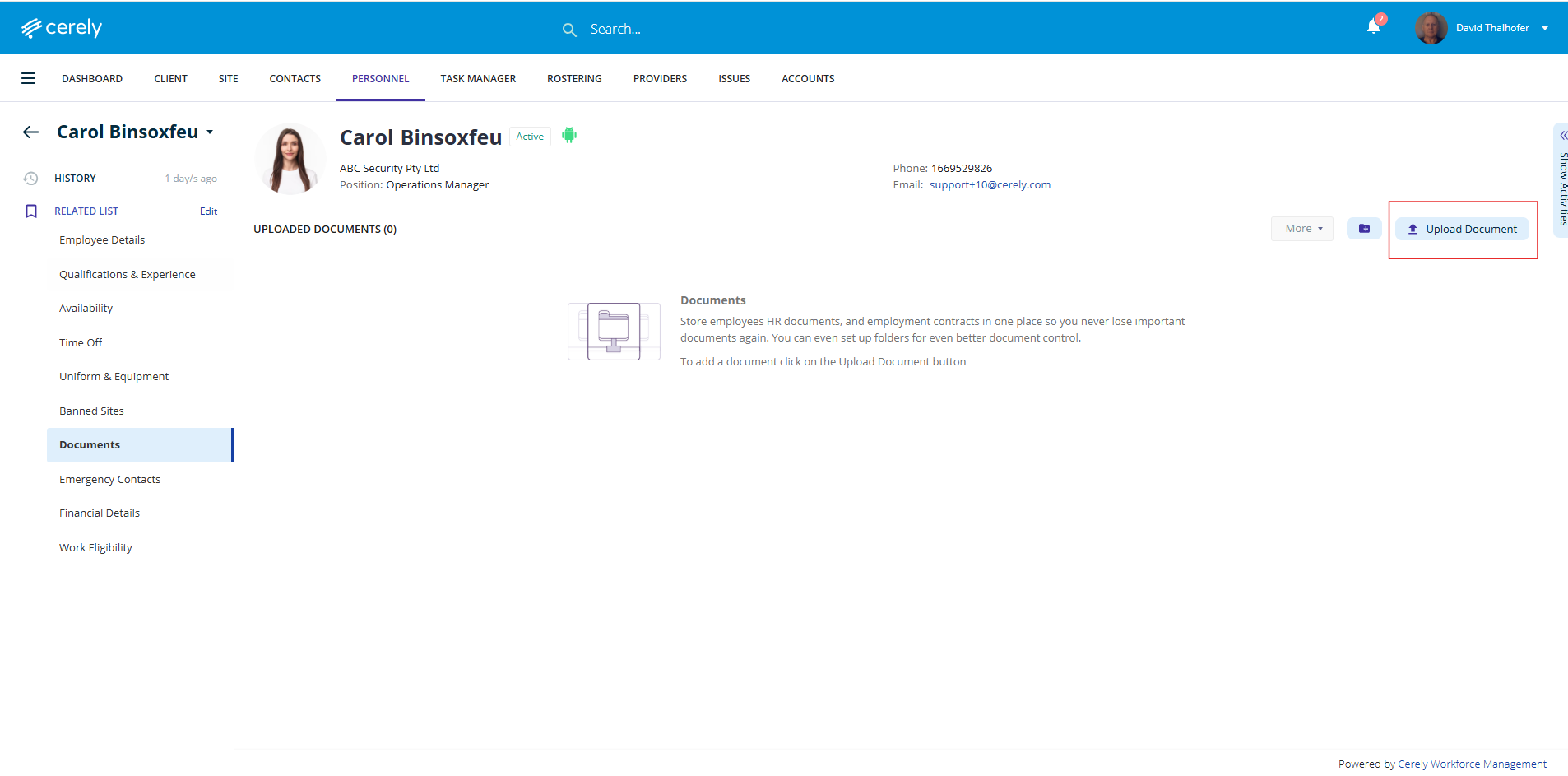
Click Upload Document
Enter the Document Name
Click Upload and choose the file from your device
Click Add to save the document to the employee’s profile
Was this article helpful?
That’s Great!
Thank you for your feedback
Sorry! We couldn't be helpful
Thank you for your feedback
Feedback sent
We appreciate your effort and will try to fix the article