Updating client details in Cerely ensures that your records remain accurate and reflect the most current information for billing, rostering, and reporting purposes. Use this feature to make changes to contact details, account managers, contract terms, and more.
1. Navigate to the client tab located in the top menu bar
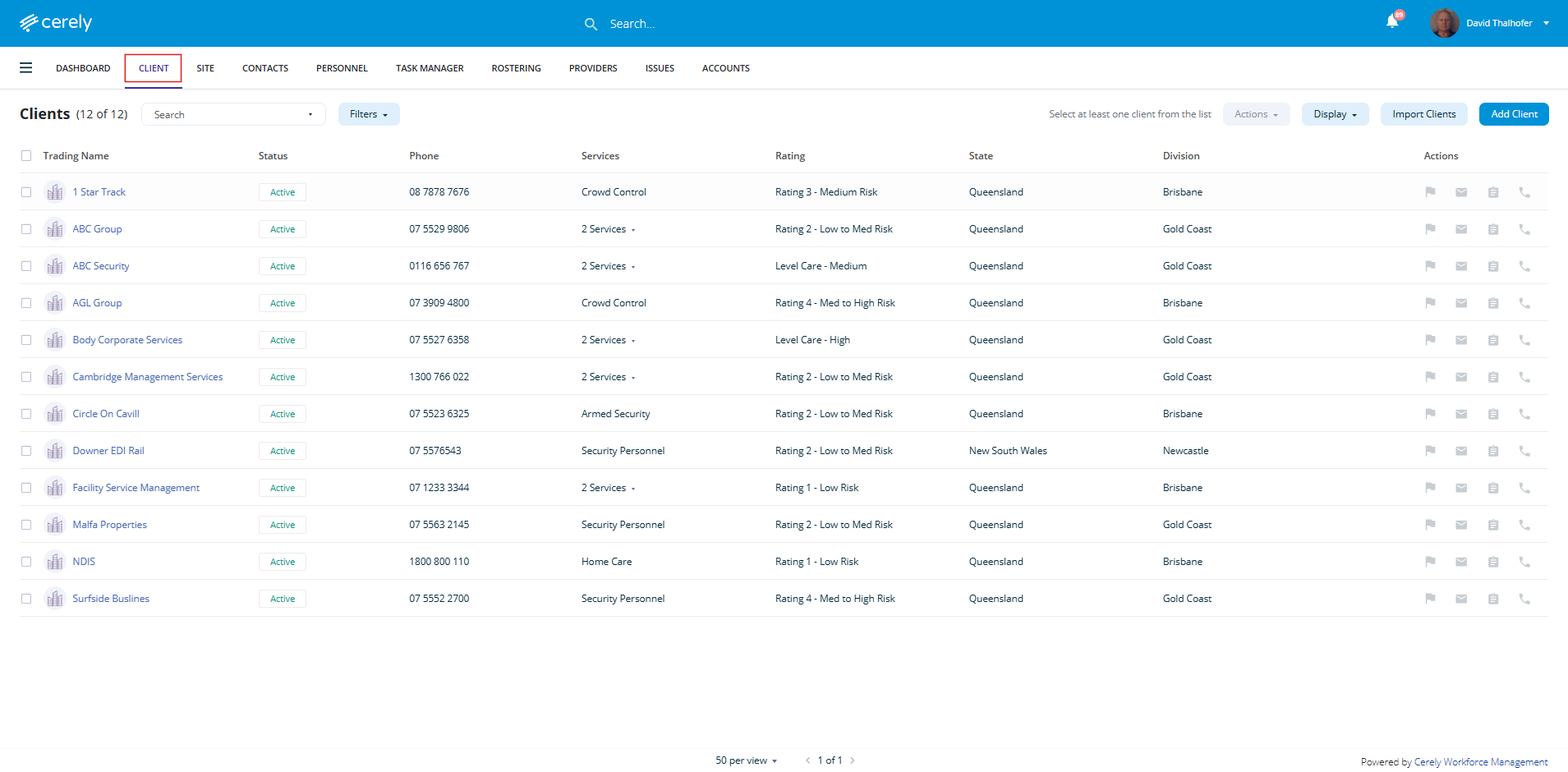
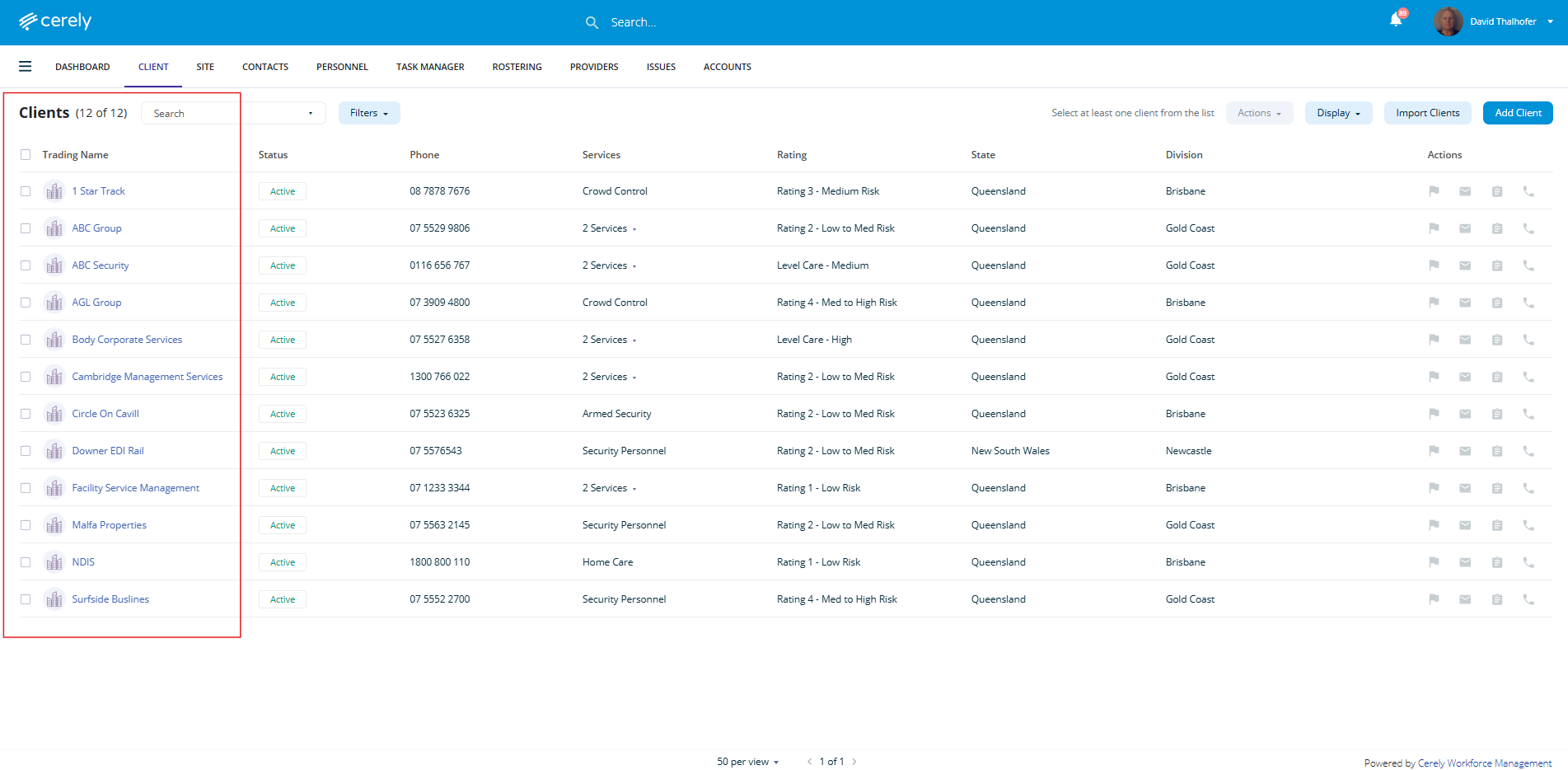
2. From the client list, click on the client name you wish to edit
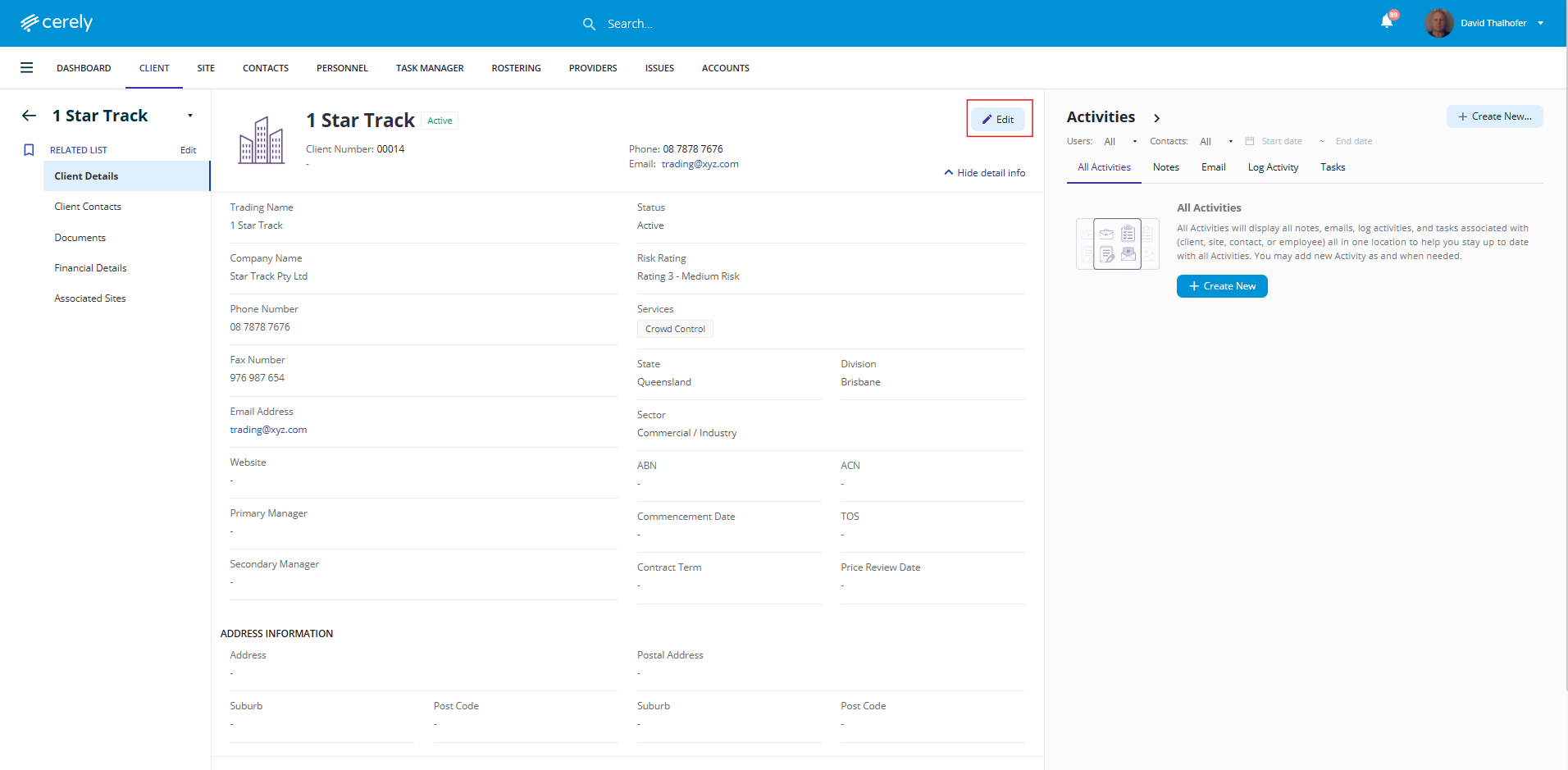
3. In the top right-hand corner of the client profile, click Edit to enable edit mode
4. Make updates to any relevant fields such as contact information, ABN/ACN, service dates, account managers, or address details etc...
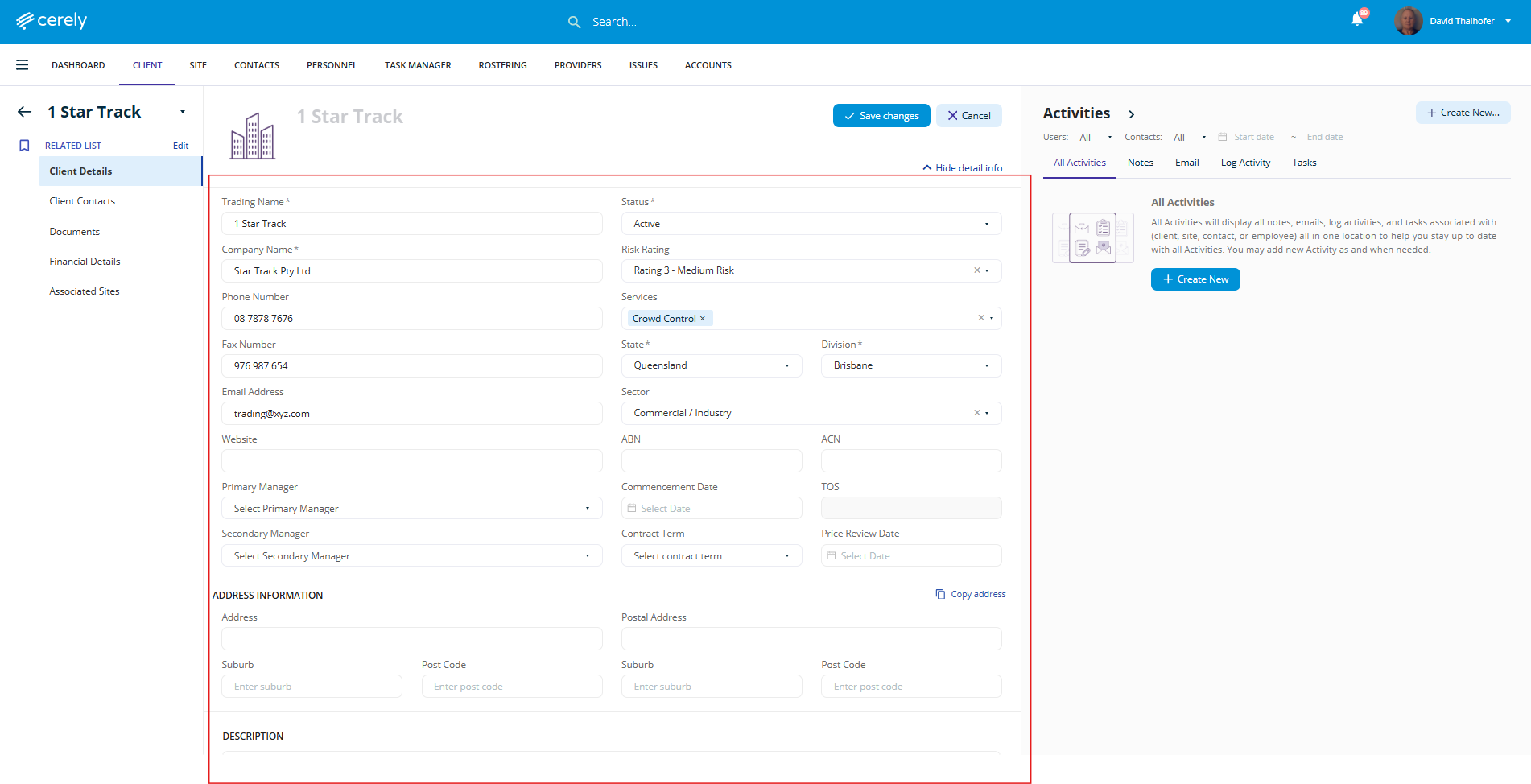
5. Once all updates are complete, click Save Changes to update the client’s record in the system
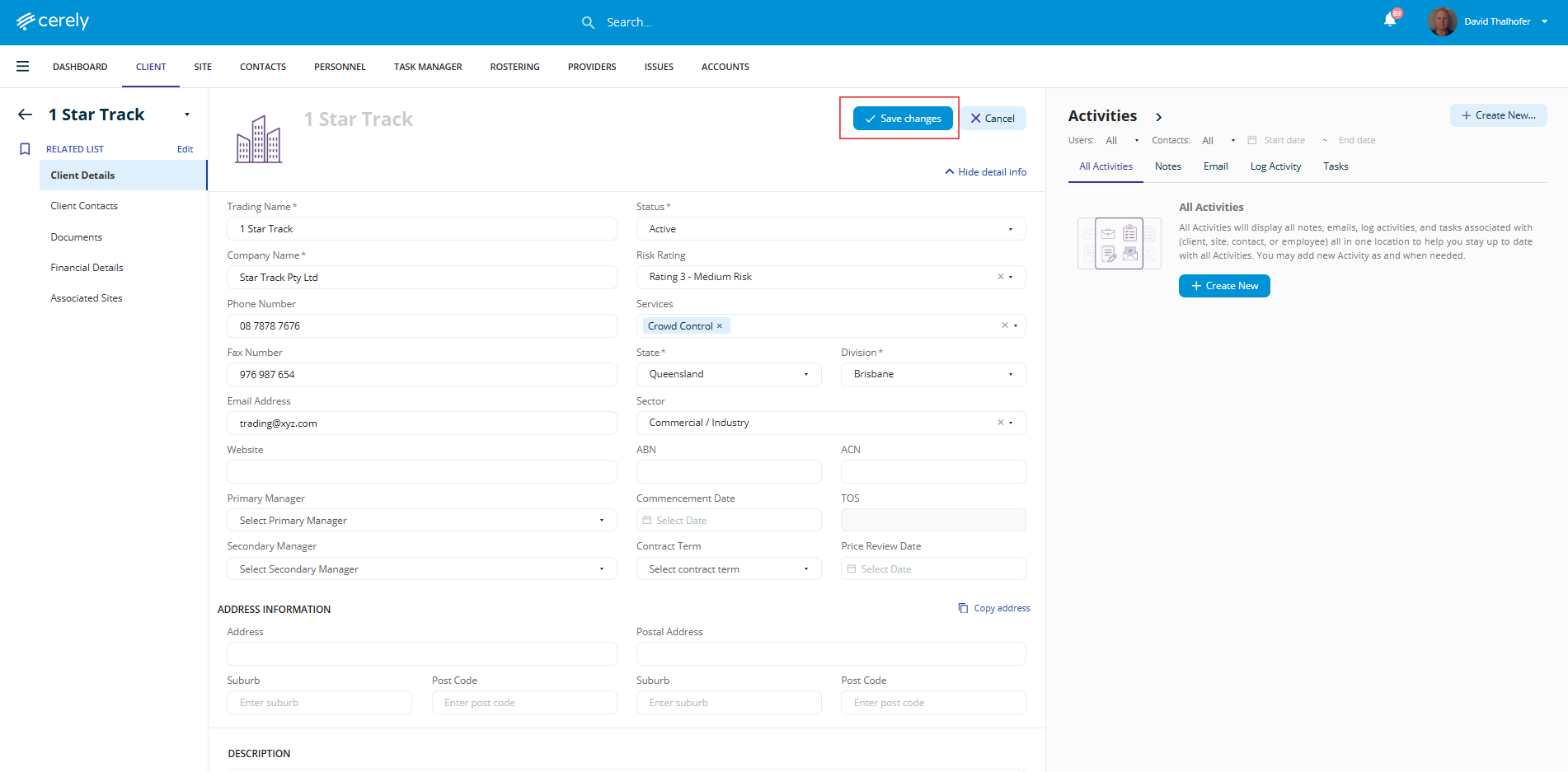
Your client’s details are now updated and available across billing, rostering, and reporting modules in Cerely.
Was this article helpful?
That’s Great!
Thank you for your feedback
Sorry! We couldn't be helpful
Thank you for your feedback
Feedback sent
We appreciate your effort and will try to fix the article