Cerely’s bulk email functionality makes it easy to communicate with a targeted list of contacts directly from the contacts tab. By applying specific filters, you can ensure your message reaches exactly the right audience — whether by location, role, service type, or division.
Step-by-Step Guide: Sending a Mass Email
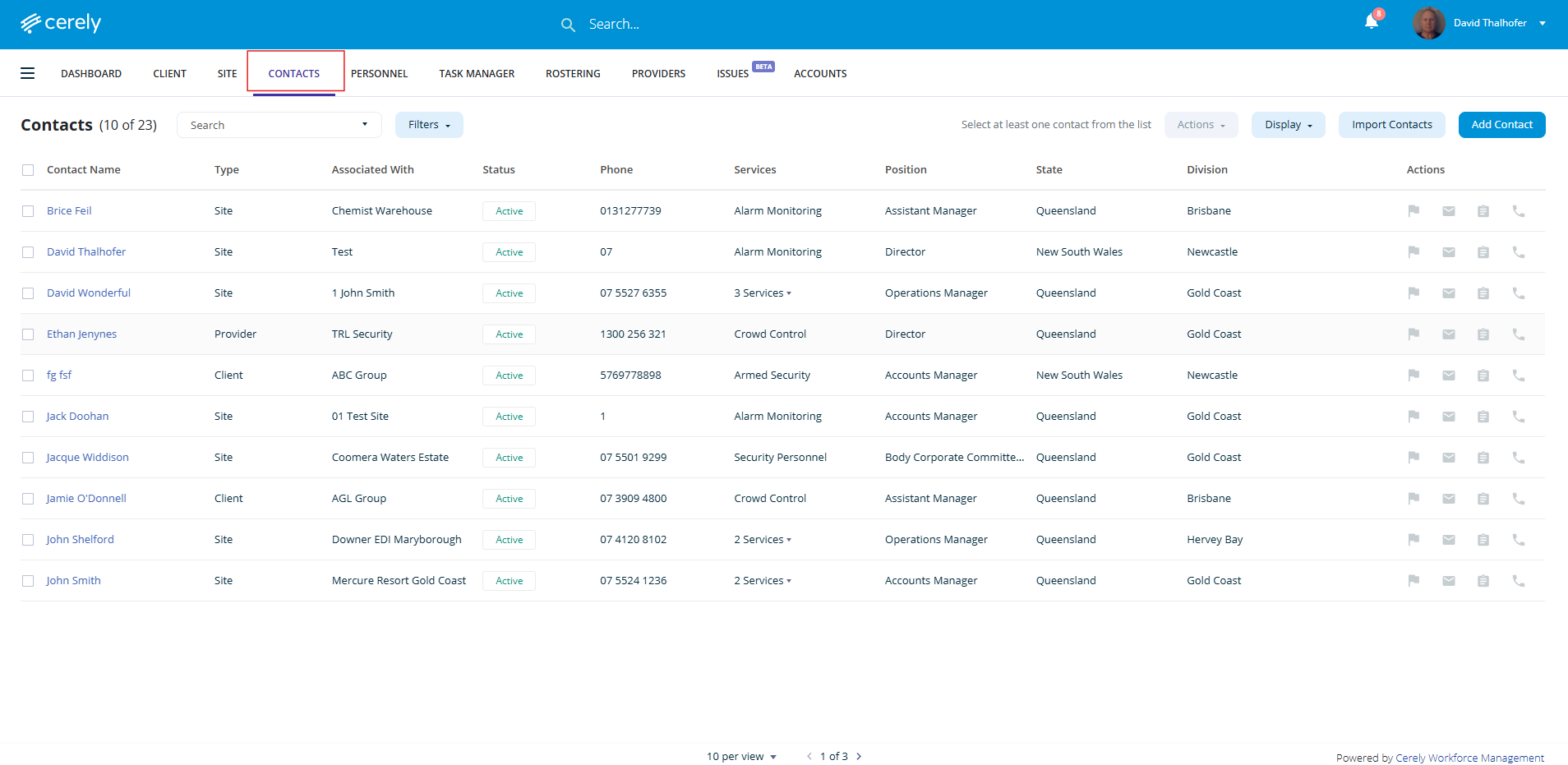
1. Navigate to the contacts tab
From the main menu in Cerely, go to the contacts tab
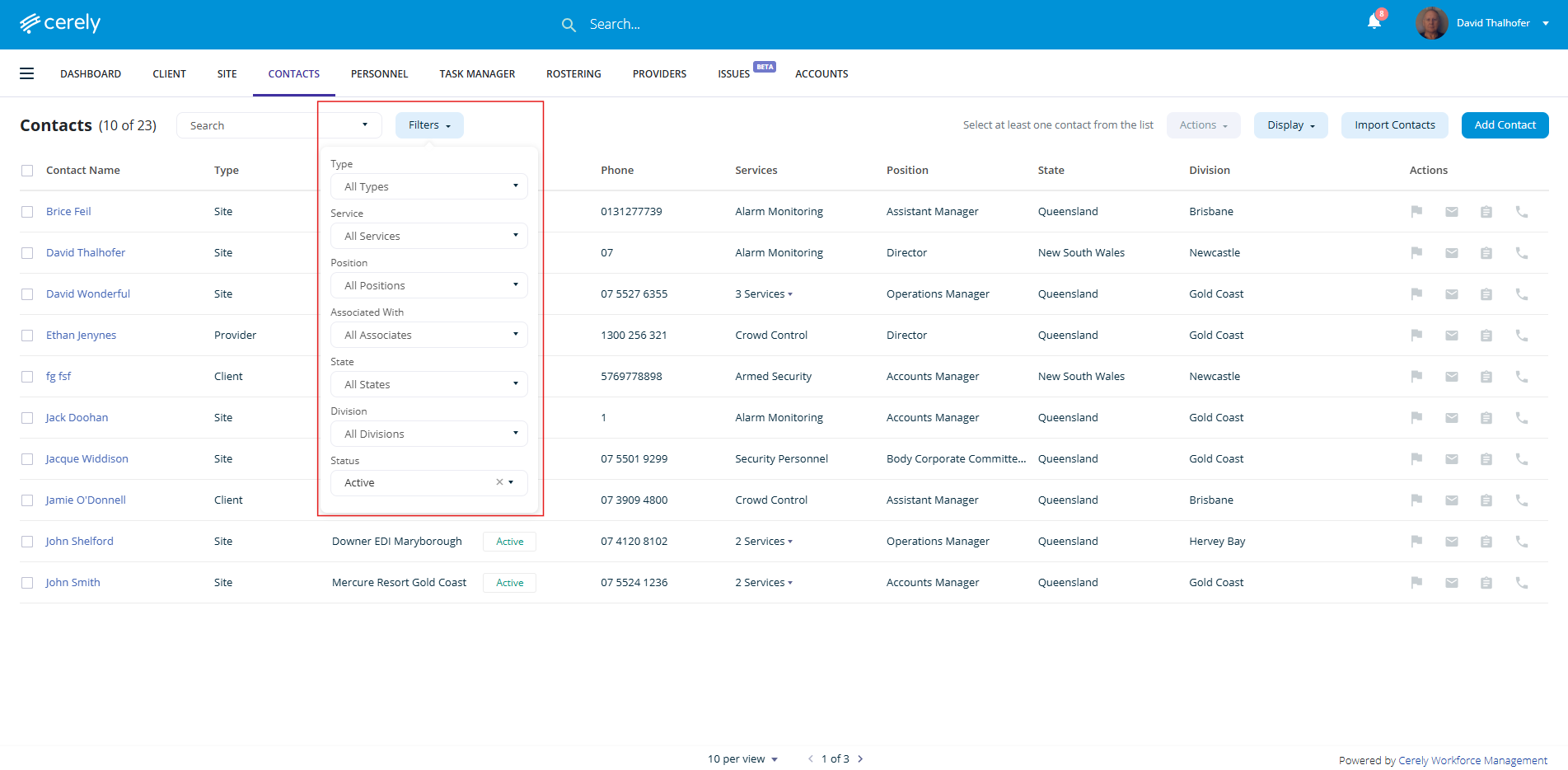
2. Apply filters to your contact list
Use the filter bar at the top of the contact list to refine your selection. You can apply one or more filters in multiple combinations to identify the appropriate recipients
Available filters include:
Type of contact
Choose which type of contact to include in your email:Clients (Head Office/Business that owns or manages a Group of sites)
Sites (Service Locations)
Providers (Sub-Contracting companies)
Type of services
Select one or more service types to target contacts associated with specific services, such as:Cash in Transit
Crowd Control
Mobile Patrol
Position level
Filter contacts by their job role or position, for example:Account Manager
Venue Manager
Operations Manager
Associated sites
Refine your contact list to only include individuals linked to specific sites.State
Target Sites based on their state or territory.Division
Use this filter to narrow results by your organisation's internal divisions — such as regions, departments, or teams.Status
Select:Active contacts
Inactive contacts
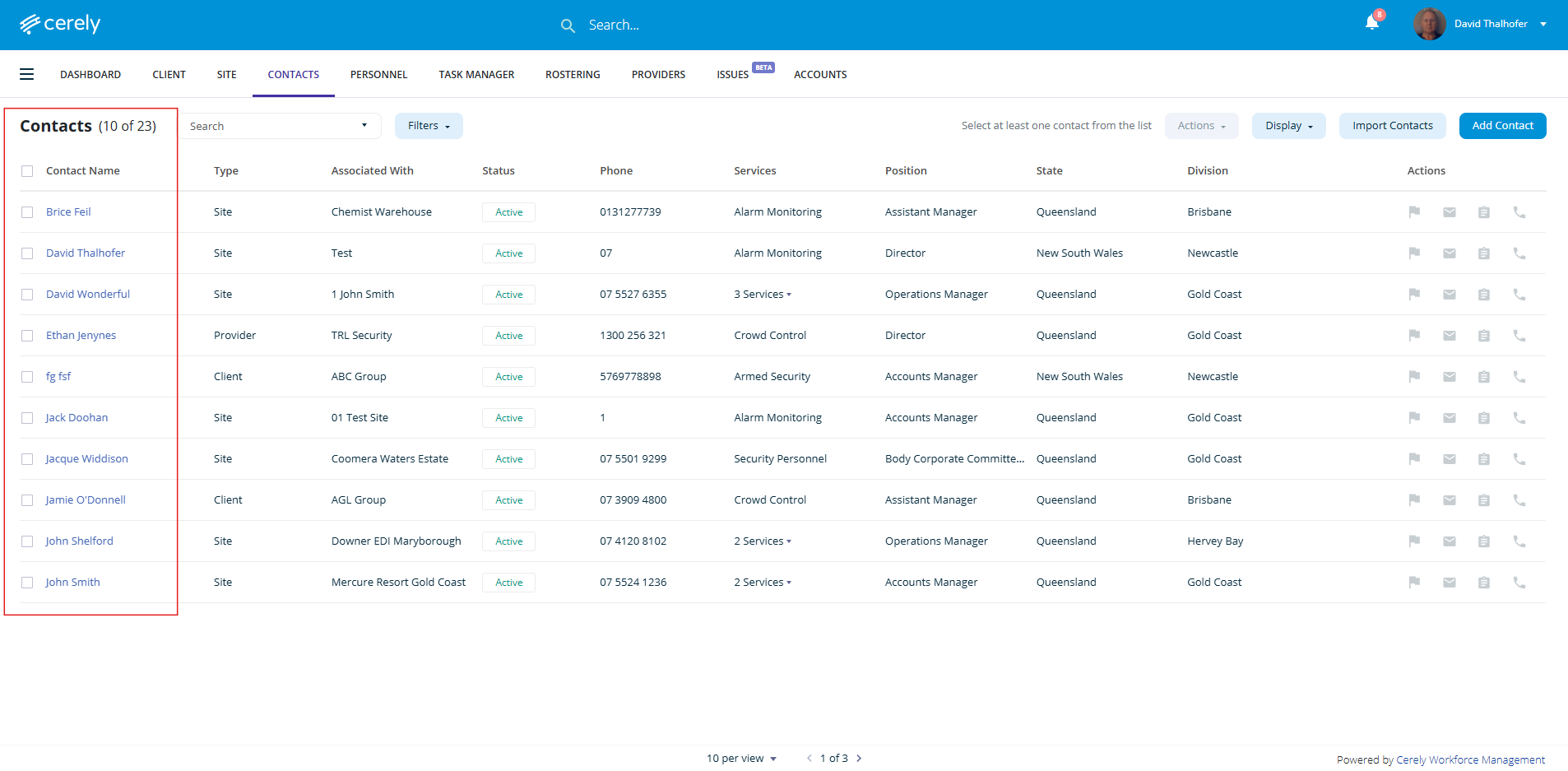
3. Select the contacts you want to email
Once you’ve filtered your contact list:
Use the checkbox at the top of the list to select all filtered contacts, or
Tick individual contacts you wish to include in the email
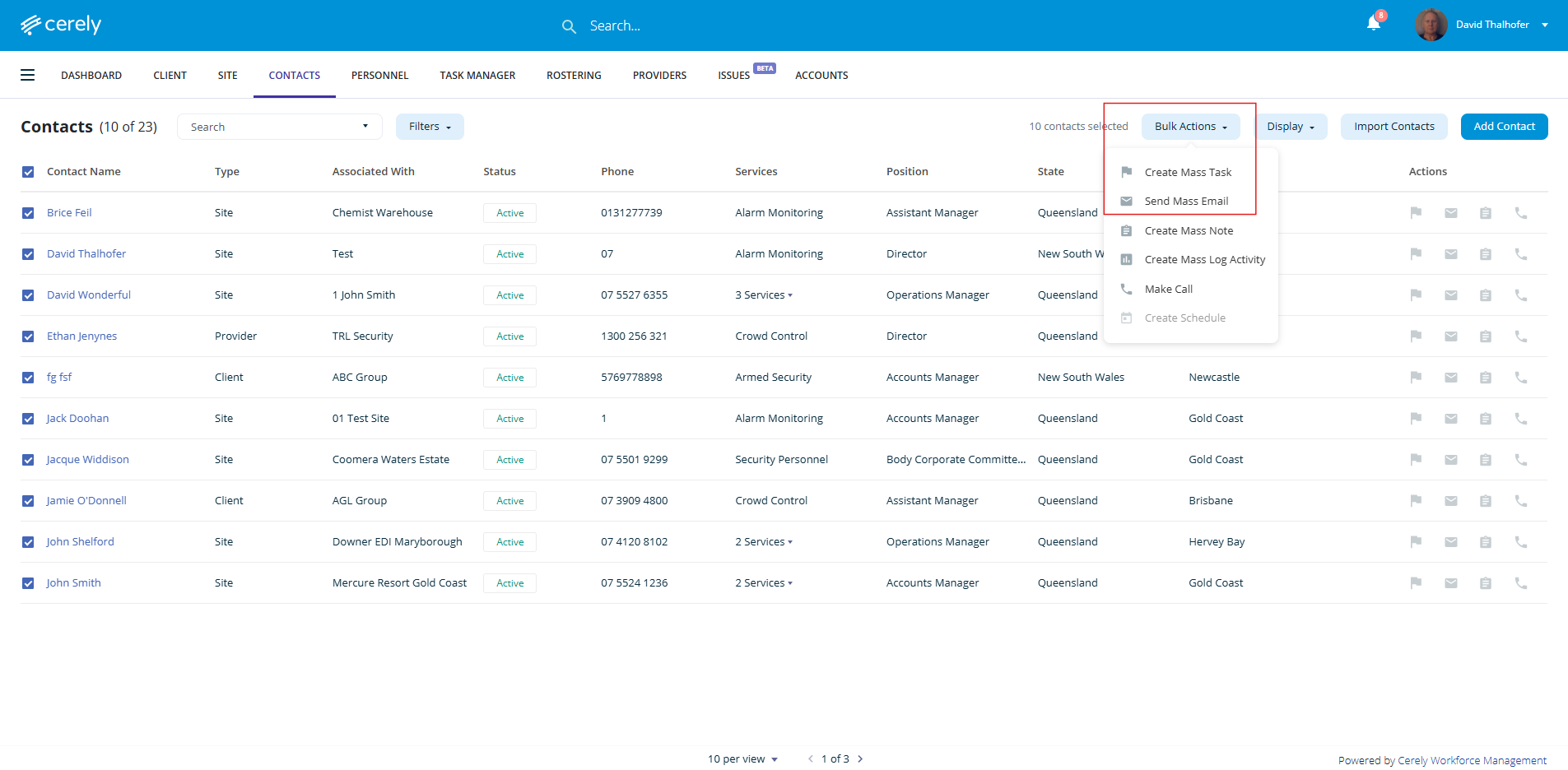
4. Use bulk actions to start the email
Click the bulk actions button in the toolbar
Select send mass email from the dropdown menu
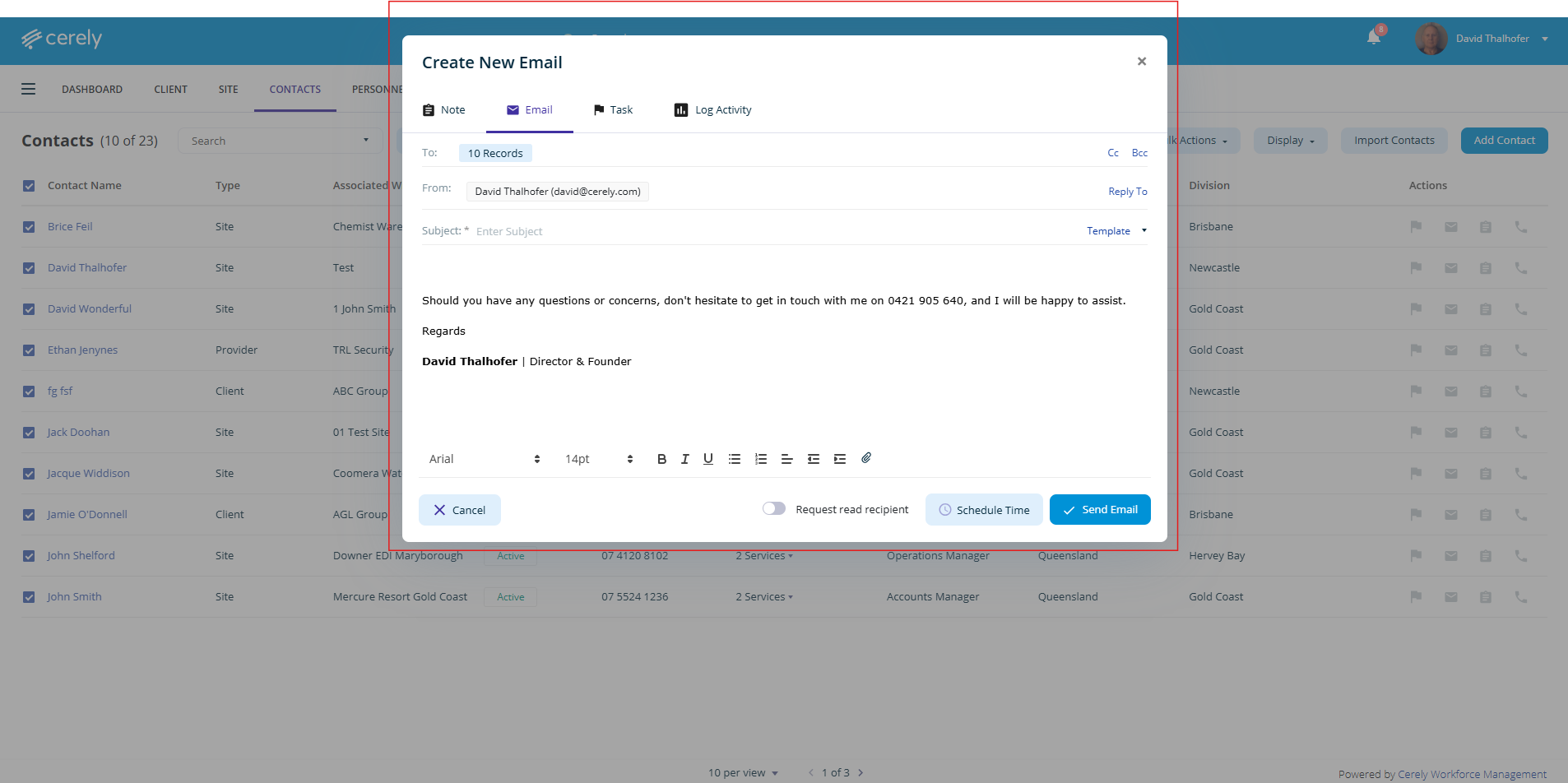
5. Compose the email
You’ll be taken to the email composition screen, where you can:
Write a new message tailored to the selected contacts
6. Send the Email
You can:
Send the email immediately
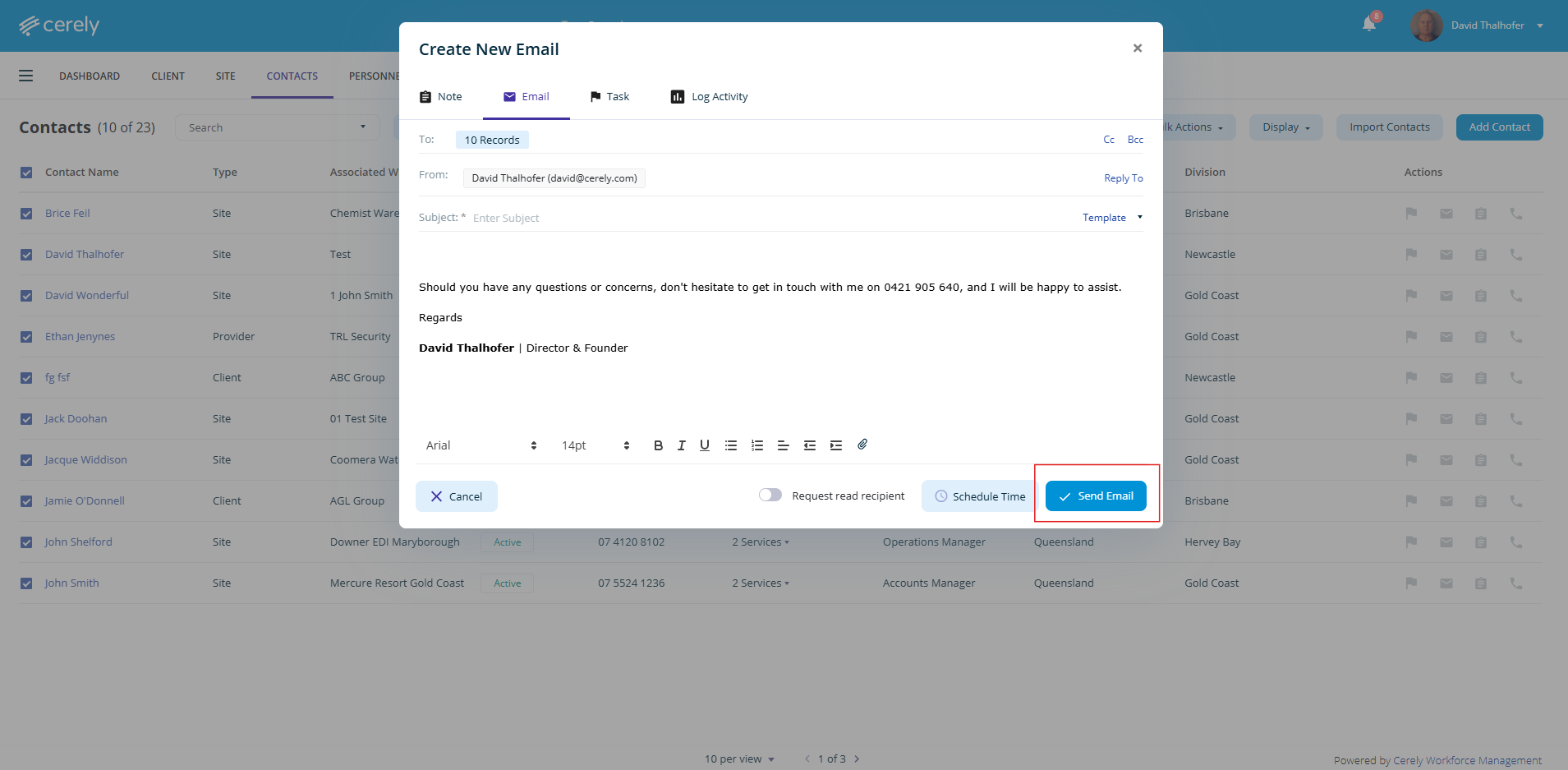
A record of the email will also appear in the activity timeline for each Contact, providing a clear audit trail of communications for your team.
Was this article helpful?
That’s Great!
Thank you for your feedback
Sorry! We couldn't be helpful
Thank you for your feedback
Feedback sent
We appreciate your effort and will try to fix the article