
Steps to Send a Personnel Invitation
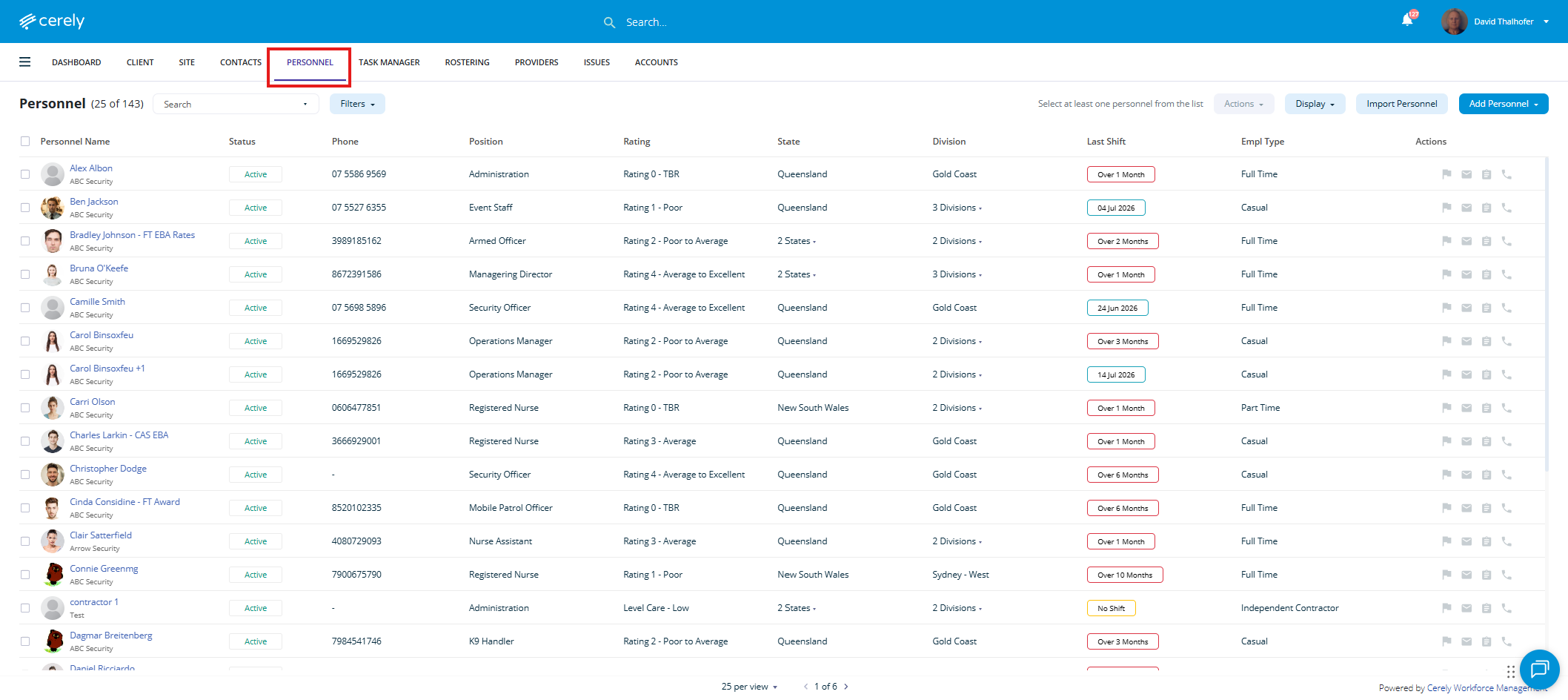
1. Navigate to Personnel
After logging into your Cerely account:
- From the main navigation menu, click on Personnel.
2. Locate Pending Personnel
When Personnel are first added to Cerely, their account status will display as Pending until an invitation has been sent.
By default, the Personnel screen displays Active Personnel.
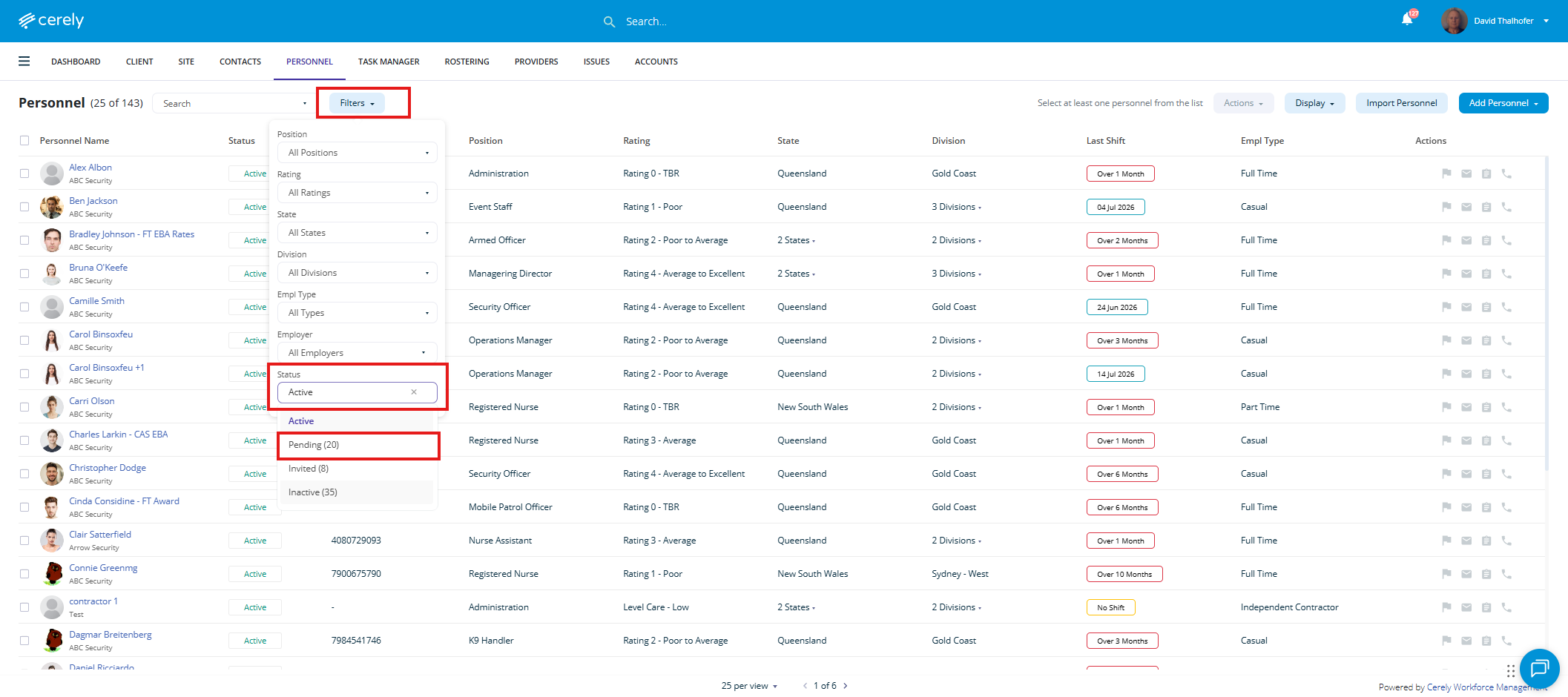
To locate Personnel who require their first invitation:
- Click the Filter button.
- From the Status dropdown options, select Pending.
- Once the Pending status has been selected, all Personnel with a Pending status will be displayed.
3. Search for Personnel (Optional)
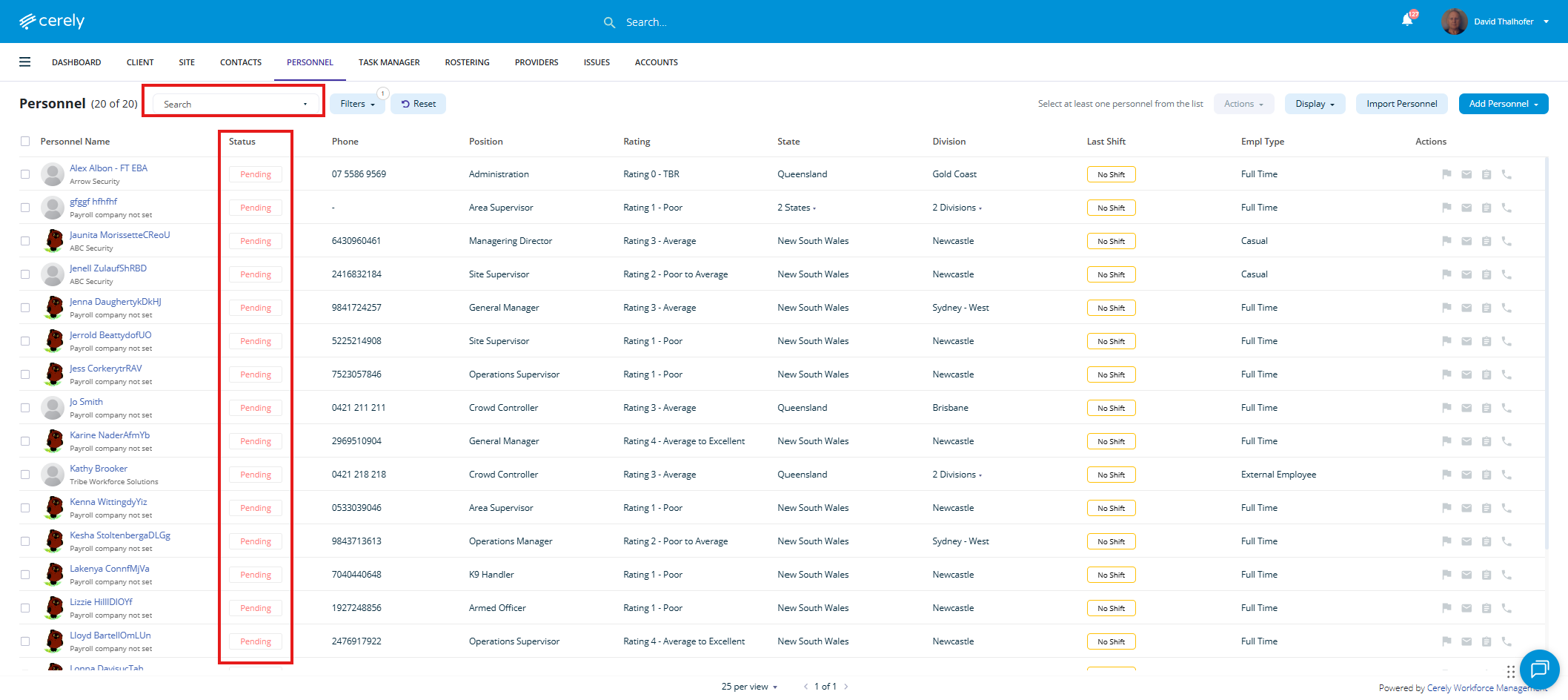
If there are a large number of Pending Personnel displayed:
- Click into the Search field located to the left of the Filter button.
- Enter the Personnel name.
- The list will automatically filter to display matching results.
4. Select Personnel to Send the Invitation
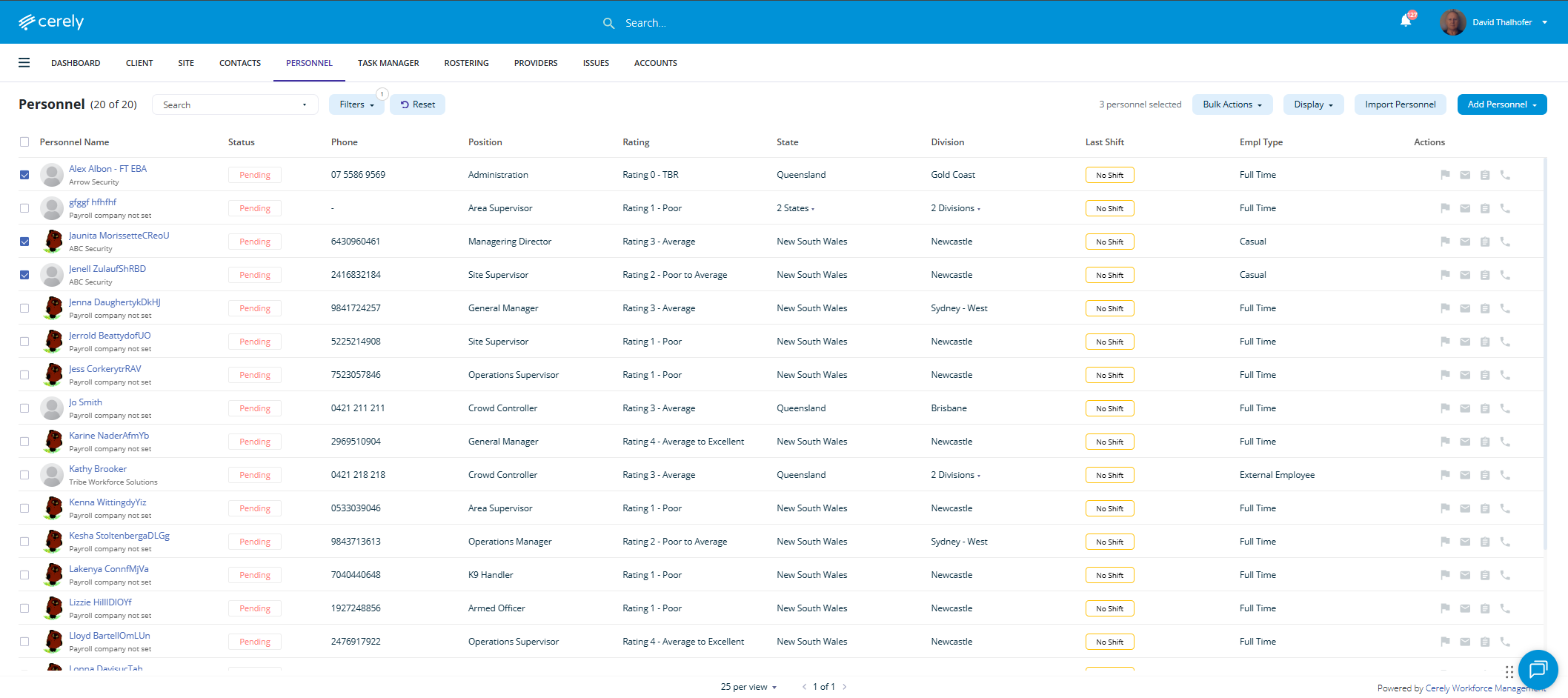
You can send invitations to one or multiple Pending Personnel at the same time.
- Select the checkbox next to the Personnel record(s) requiring an invitation.
- Multiple Personnel can be selected if invitations need to be sent in bulk.
Important Note: To send a Personnel invitation, the Personnel member must have a Payroll Company assigned under their Financial Details within their Personnel profile.
This is required so Cerely can identify which company the Personnel member is employed under before creating their account access.
If a Personnel member does not have a Payroll Company assigned, "Payroll company not set" will be displayed underneath their name in the Personnel list. The Personnel profile will need to be updated with the correct Payroll Company before the invitation can be sent.
5. Send the Personnel Invitation
Once the Personnel have been selected:
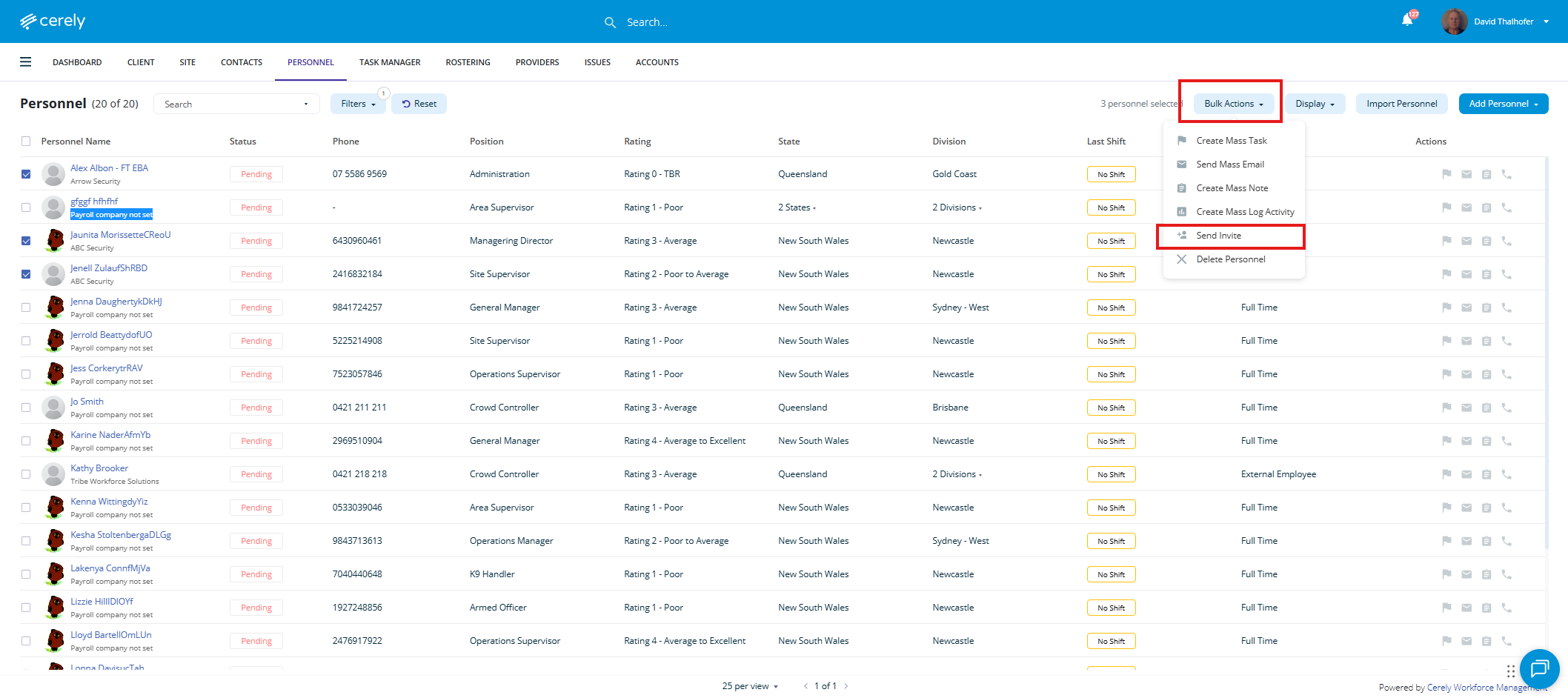
- Click the Action or Bulk Action button.
Note:
- If one Personnel record is selected, the button will display as Action.
- If multiple Personnel records are selected, the button will display as Bulk Action.From the dropdown menu, select Send Invite.
-
From the dropdown menu, select Send Invite.
6. Confirm Sending the Invitation
After selecting Send Invite:
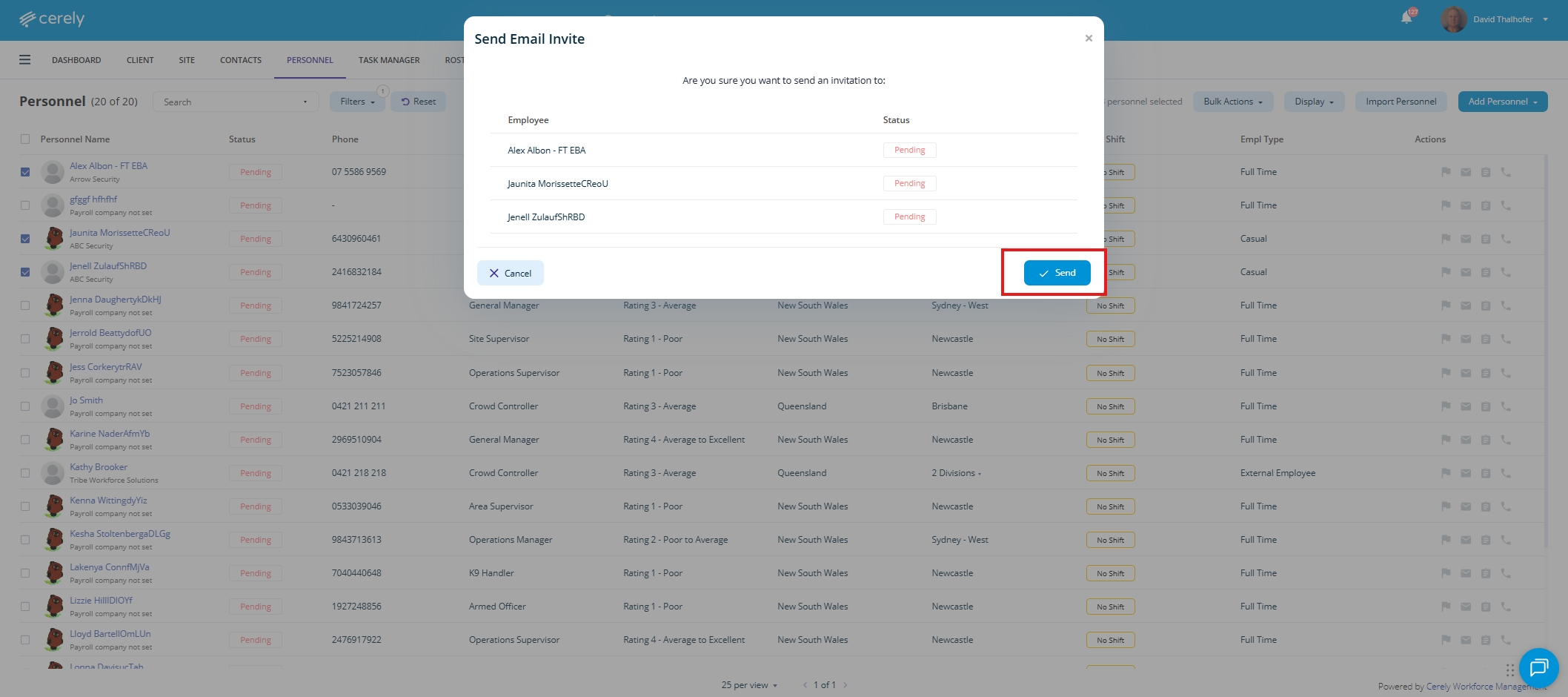
- The system will display a confirmation popup titled: "Send Email Invite"
- Review the confirmation.
- Click Send button.
7. Invitation Sent
Once confirmed:
- The popup will close automatically.
- Cerely will send the Personnel member their invitation email.
- The email will include:
- Instructions to access Cerely.
- Their username.
- Password setup instructions.
The Personnel status will update from Pending to Invited once the invitation has been successfully sent.