
Overview of Employee Setup Steps
When adding an employee, you will work through the following sections:
- Employee Details (Mandatory)
- Qualifications & Experience (Optional)
- Availability (Optional)
- Uniform & Equipment (Optional)
- Emergency Contacts (Optional)
- Financial Details (Mandatory)
- Work Eligibility (Optional)
Step 1 - Employee Details (Mandatory)
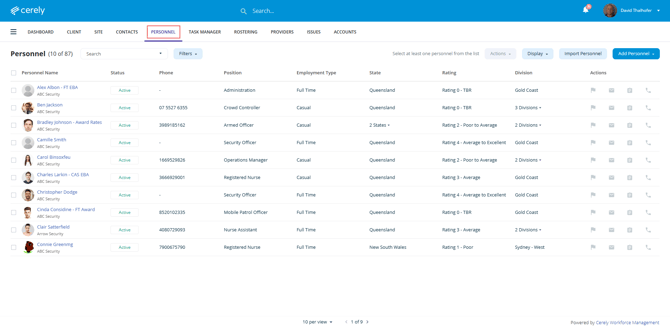
1. From the home screen in Cerely, click on the Personnel tab from the top main menu
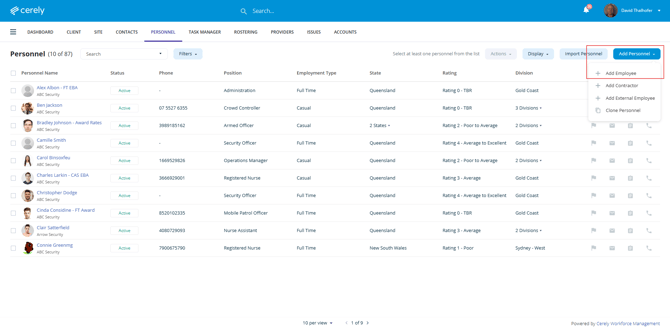
2. Click on the Add Personnel button from the right hand side menu and click on + Add Employee from the dropdown menu
3. Enter all of the employee’s details , completing all required fields
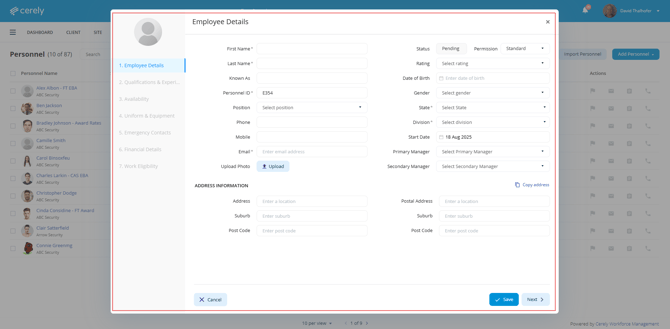
Employee Details to Complete
| Field | Description |
|---|---|
| First Name & Last Name | Enter the employee's legal name |
| Known As | Enter a preferred name or nickname (if applicable) |
| Personnel ID | Automatically generated by default. You may manually change this to match an employee’s badge or licence number |
| Position | Select the employee’s position from the dropdown |
| Phone / Mobile | Enter the employee’s contact number |
| Email Address | Enter the employee’s personal email address (used for login and notifications) |
| Upload Photo | Upload a headshot of the employee |
| Status | Remains as Pending until the employee accepts the Cerely invitation issued to them |
| Permission | Select either Standard or Supervisor access level |
| Rating | Optional – Add a performance rating for internal use |
| Date of Birth | Enter the employee’s birth date |
| State | Select the state(s) where the employee is authorised to work |
| Division | Select the division(s) where the employee may be rostered |
| Start Date | Enter the employee’s commencement date |
| Primary Manager | Select the employee’s main supervisor or direct manager |
| Secondary Manager | Optional – Select a backup manager |
| Address Information | Enter the employee’s residential address |
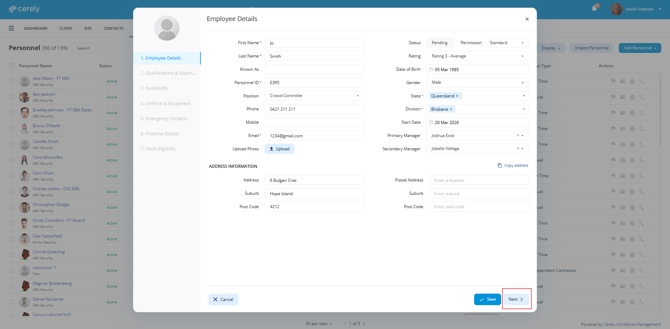
4. Click on the Next button
Step 2 - Qualifications & Experience (Optional)
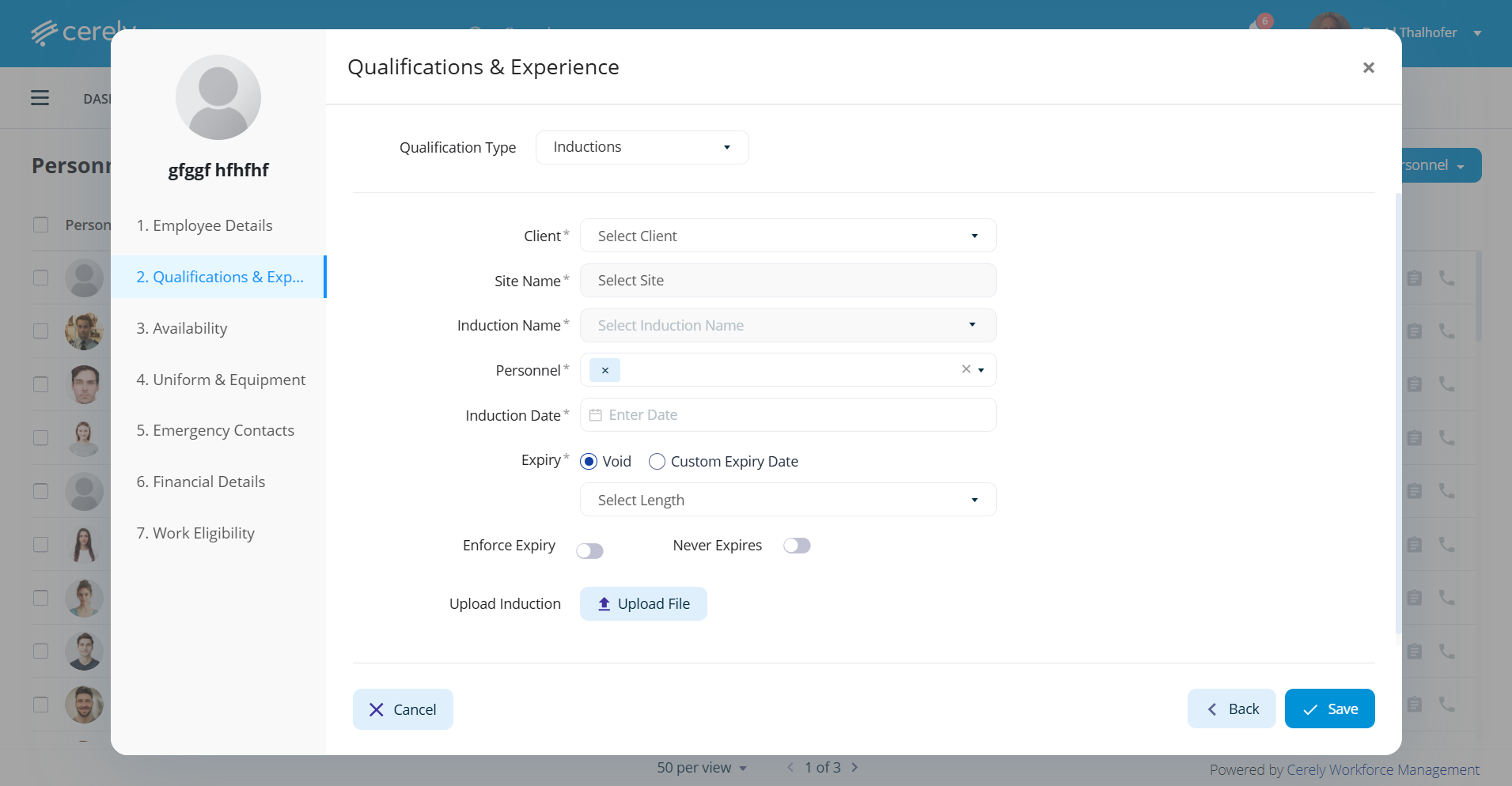
Inductions
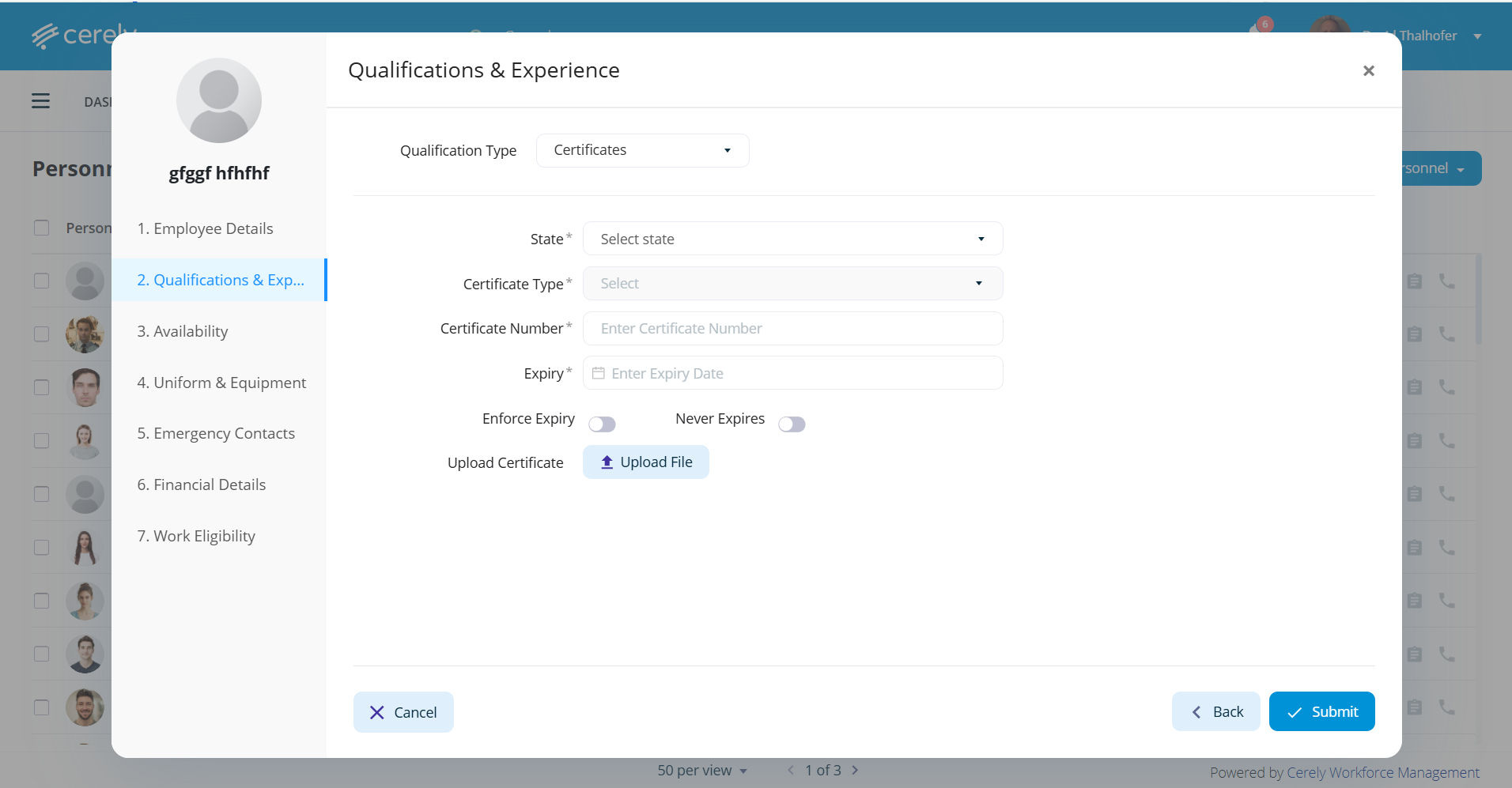
Certificates
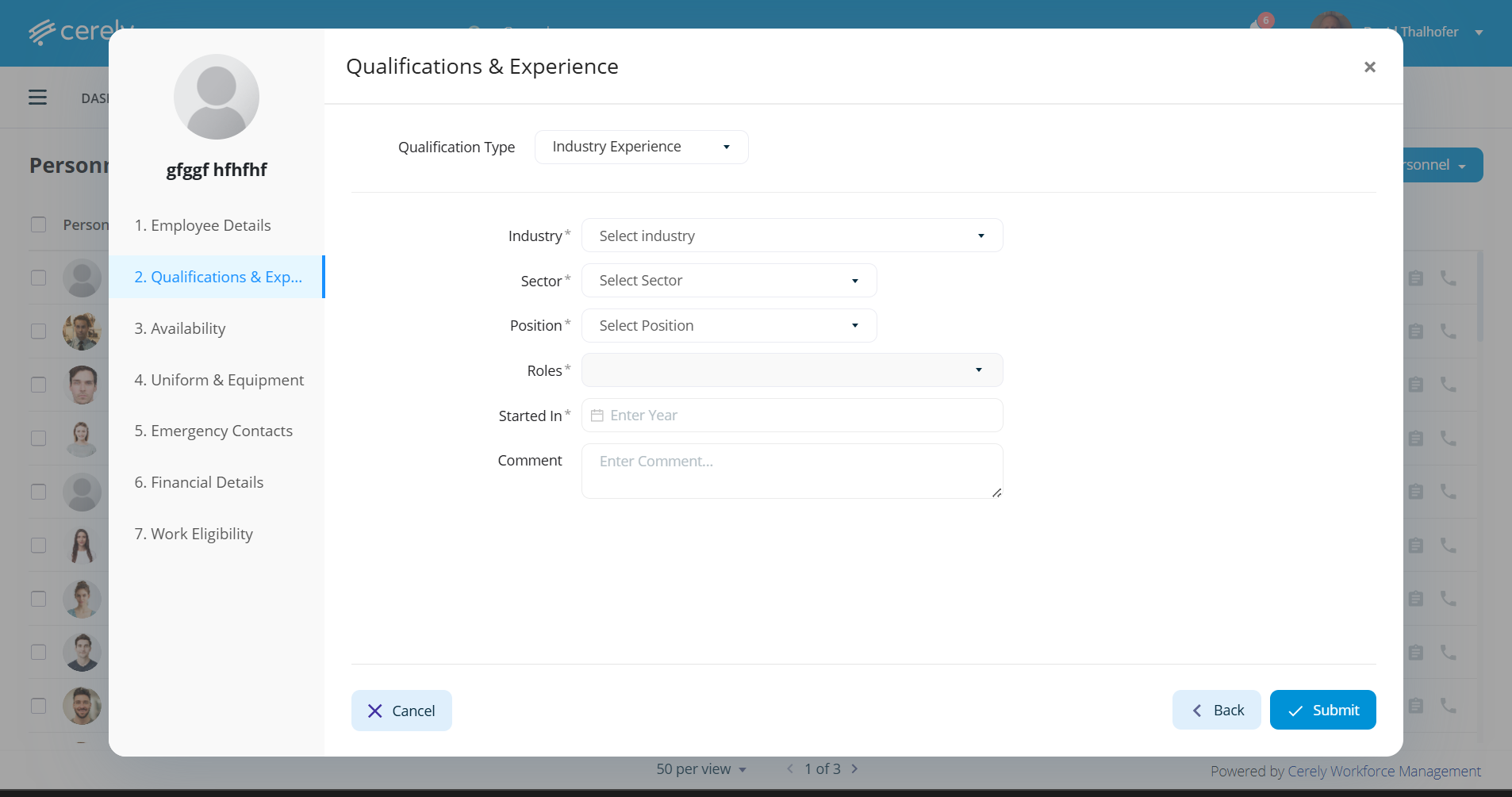
Industry Experience
1. Click on the +Add button
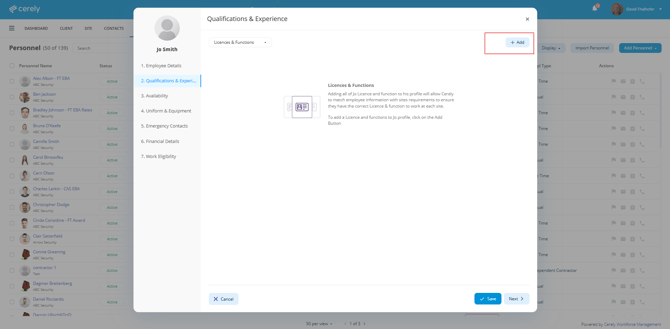
2. The next screen will default to add the qualification type, Licenses & Functions
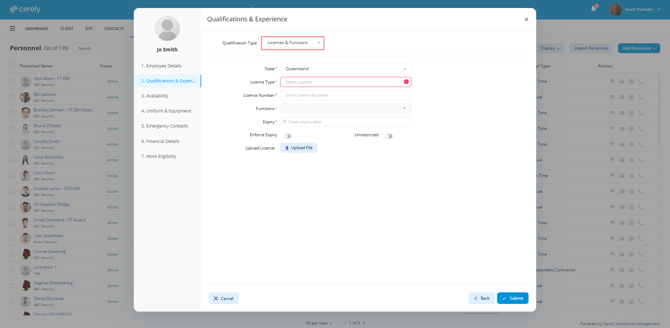
3. Enter Licenses & Functions information
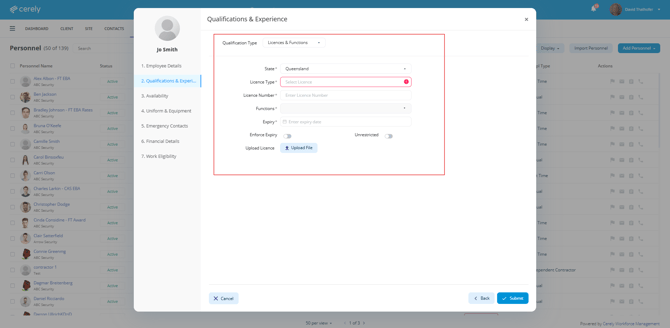
| Field | Description |
|---|---|
| State of Licence | Select the state in which the licence has been issued. |
| Licence Type | Select the licence type from the dropdown menu, or add a new licence type if it is not listed. |
| Functions | Select all applicable functions covered by the licence from the dropdown menu, or add new functions if required. |
| Licence Number | Enter the licence number. This will automatically be validated against the Office of Fair Trading (where applicable). |
| Expiry Date | Enter the licence expiry date. |
| Enforce Expiry | Toggle this on to prevent the employee from being rostered once the licence has expired. |
| Unrestricted | (QLD only) Toggle this on if the employee is authorised to work independently without supervision. |
| Attachments | Upload a copy of the licence for record-keeping and compliance purposes. |
4. Click on the submit button
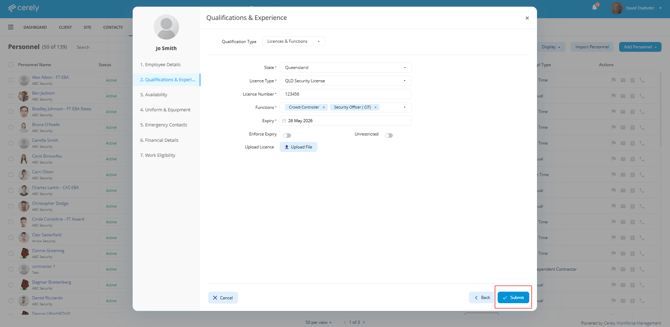
The Licence will now display in the employee's Qualifications and Experience list
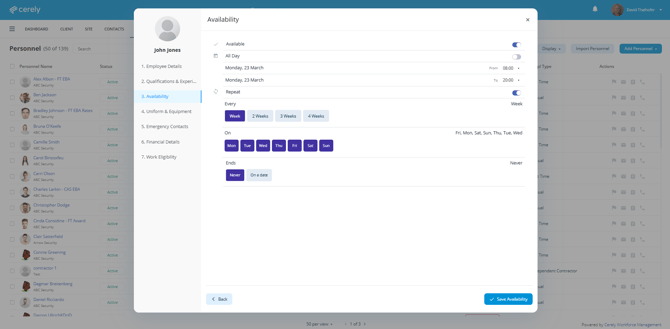
Step 3 - Availability (Optional)
1. Choose the date range you want to apply availability to
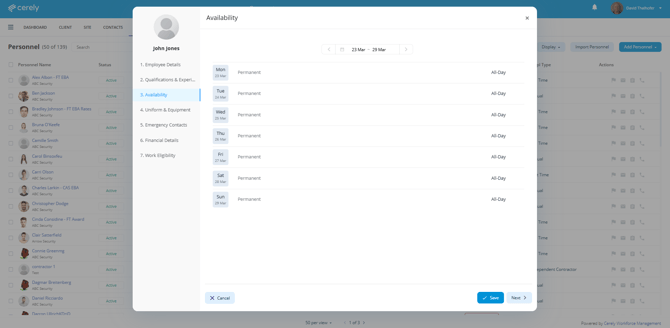
2. For each day:
- Toggle Available on or off
- Select All Day or set specific times
- Apply repeat settings if required
- Add an end date or leave as ends never
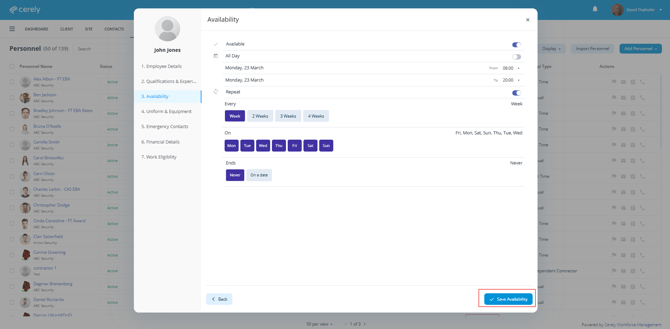
3. Click Save Availability
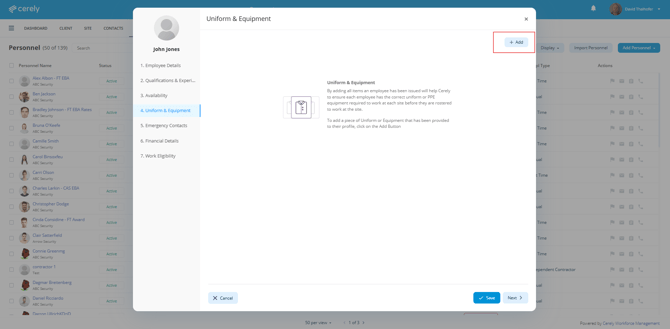
Step 4 - Uniform & Equipment (Optional)
1. Click on the + Add
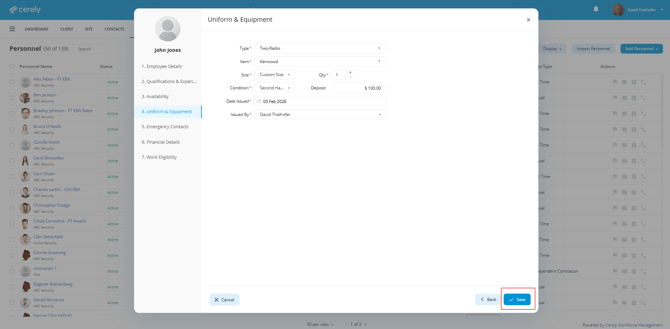
2. Enter the uniform or equipment information that has been issued to the employee
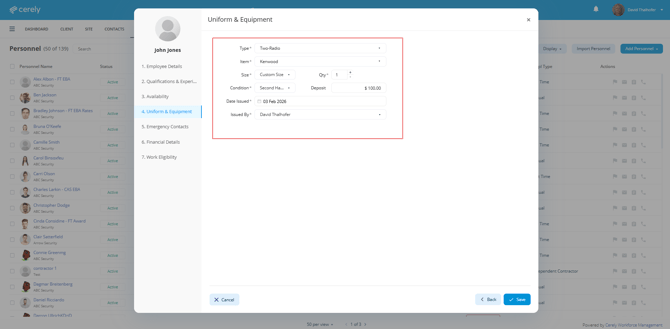
3. Click Save to record issued items
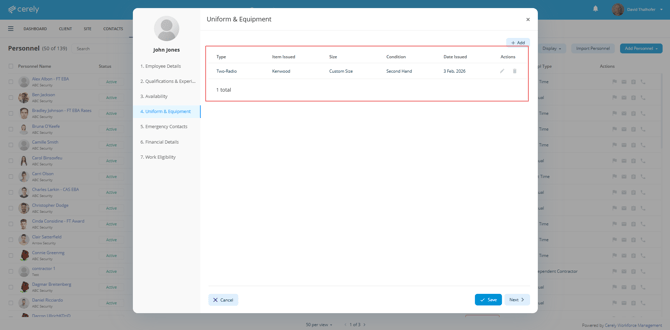
4. The recorded items issued will now be listed in the employee profile
Step 5 - Emergency Contacts (Optional)
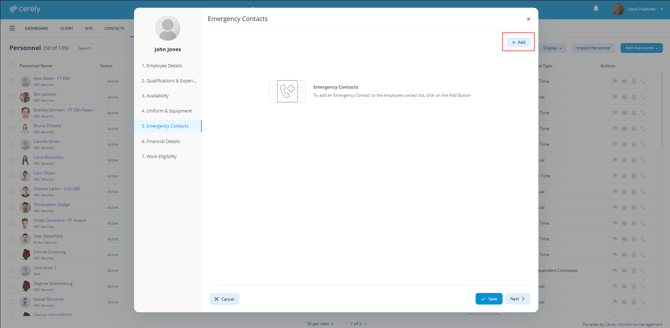
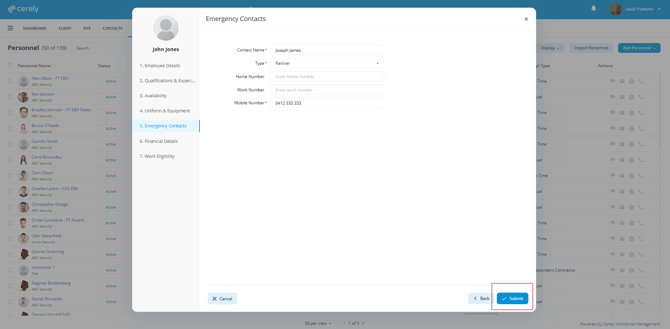
1. Click on the +Add button to enter emergency contacts details
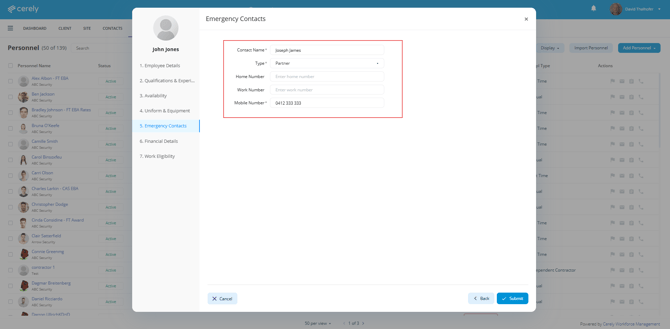
2. Enter the emergency contact details
Include:
- Contact name
- Relationship - select from the dropdown menu
- Contact number
3. Click on the Save button
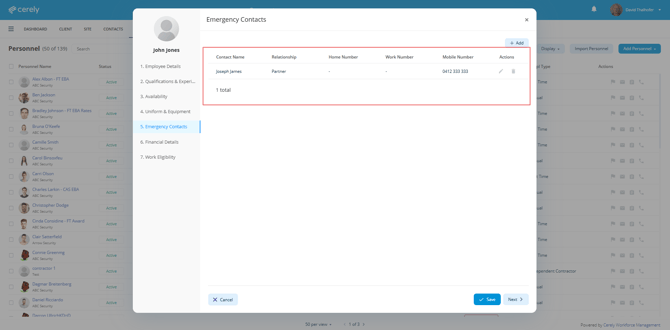
4. The emergency contact record will now be listed on the employee profile
Step 6 - Financial Details (Mandatory)
1. Enter the Financial Details into each of the fields required
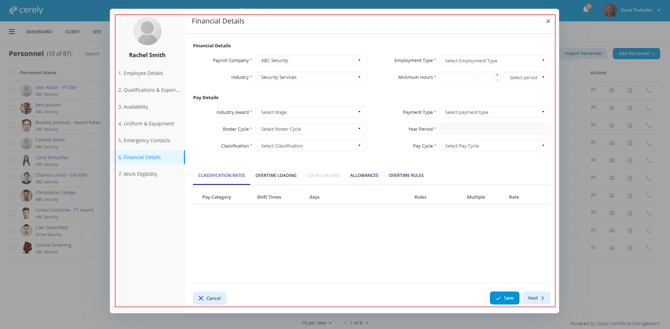
Financial Details to Complete
| Field | Description |
|---|---|
| Payroll Company | Select the entity the employee will be paid by |
| Industry | Choose the relevant industry for award or agreement application |
| Roster Cycle | Select the employee’s roster frequency (e.g., Weekly, Fortnightly) |
| Classification | Choose the appropriate level under the award or agreement |
| Employment Type | Select the employment category (e.g., Full-Time, Part-Time, Casual) |
| Minimum Hours | Enter the minimum hours guaranteed per cycle |
| Payment Type | Select the preferred method of payment (e.g. EFT) |
| Pay Cycle | Choose the payroll processing cycle (e.g. Weekly, Fortnightly) |
Note: All classification rates, overtime loadings, and allowances will populate automatically based on the selected Industry Award, Classification, and Employment Type.
2. Click on the next button once all information has been completed
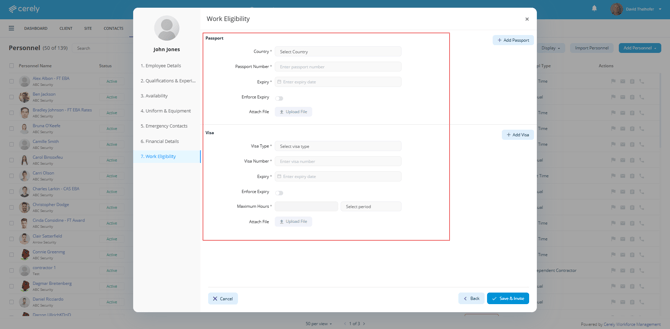
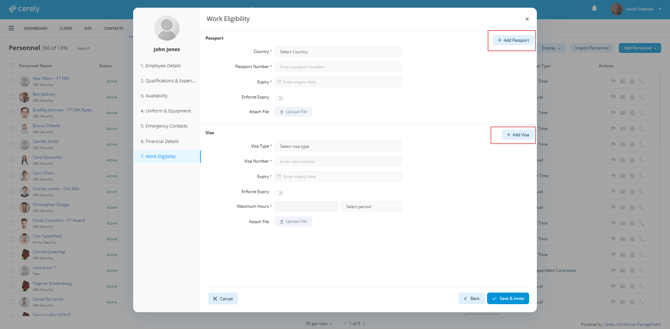
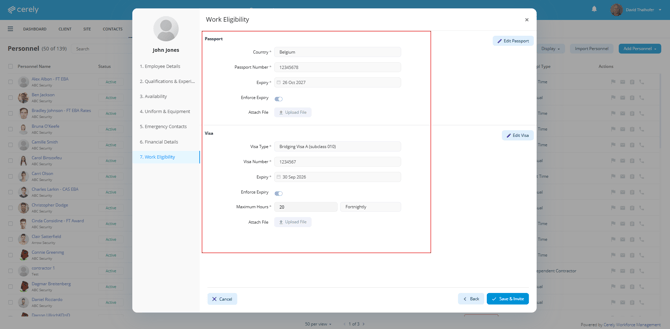
Step 7 - Work Eligibility (Optional)
1. Select
Final Step: Send Invitation
Once all of the details are completed:
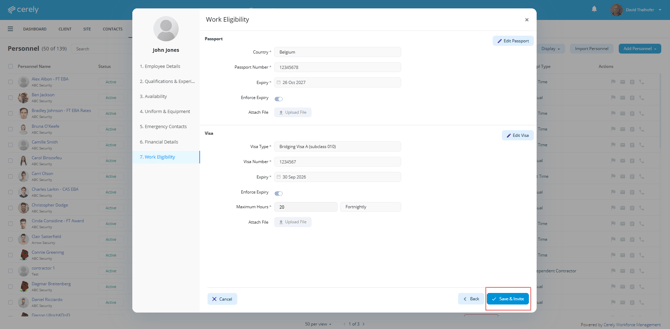
- Click Submit to save the employee profile
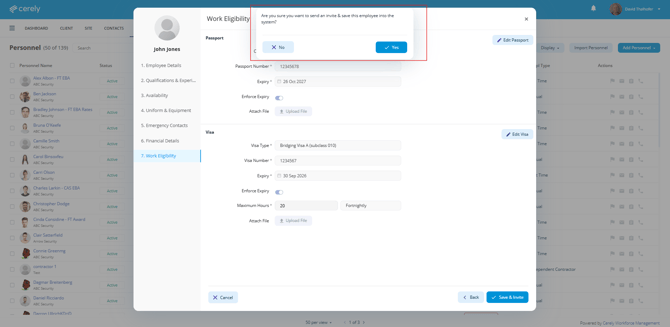
- Click Invite to send an activation email to the employee, enabling them to access the Cerely app