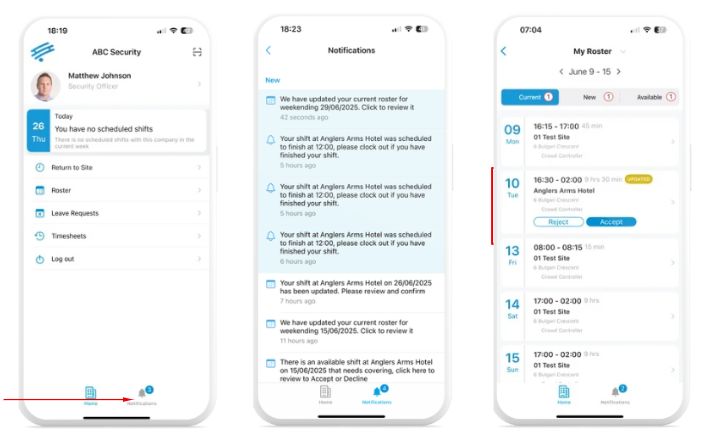
1. Open the Cerely app on your phone
2. Tap the ‘Notifications’ tab in the bottom menu to view updates such as:
- New shifts added
- Available shifts
- Cancelled shifts
3. You can view roster changes in two ways:
- Tap a notification to open the related shift or roster update directly
- Tap the ‘Roster’ tab to view your full shift list and any recent updates
Important: All changes to your roster will be sent via Cerely Notifications.
For urgent or last-minute changes, the Operations team may also call or text you directly