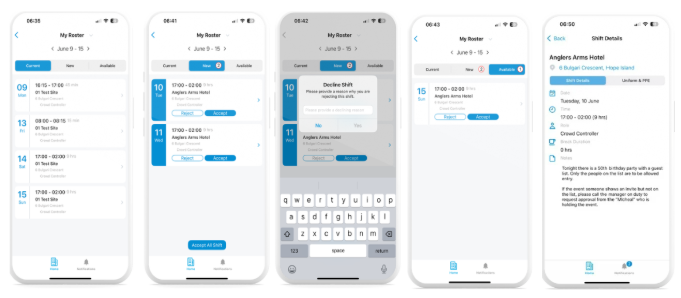
1. Open the Cerely app on your mobile device
2. From the Home screen, tap ‘Roster’ to go to the roster page
3. The Roster page has three tabs:
- Current: Displays all accepted shifts for the current week
- New: Shows shifts offered to you, which you can Accept or Reject (these may be for this week or future dates)
- Available: Lists extra shifts offered on a first-come, first-served basis
4. The app shows the current week’s date range (Monday to Sunday) by default in all tabs
5. In the Current tab:
- View your accepted shifts for the current week
- Tap on any shift to view full details
6. In the New tab:
- View new rostered shifts for this week or future dates
- Tap a shift to view its details
- Choose to Accept or Reject the shift
To view future rosters in the New tab:
- Tap the date field at the top of the screen
- A calendar will appear — select your desired date range
- The roster will update with shifts for the selected week
- Tap on a shift and choose to Accept or Reject
- If you Reject a shift, you will be asked to provide a reason
7. In the Available tab:
- View extra shifts offered for this week or in advance
- Tap a shift to view full details
- Choose to Accept or Reject the shift
If you Reject an available shift, a reason must be provided
Important: Always tap into each shift to view any important shift notes, site information, or uniform requirements before accepting