
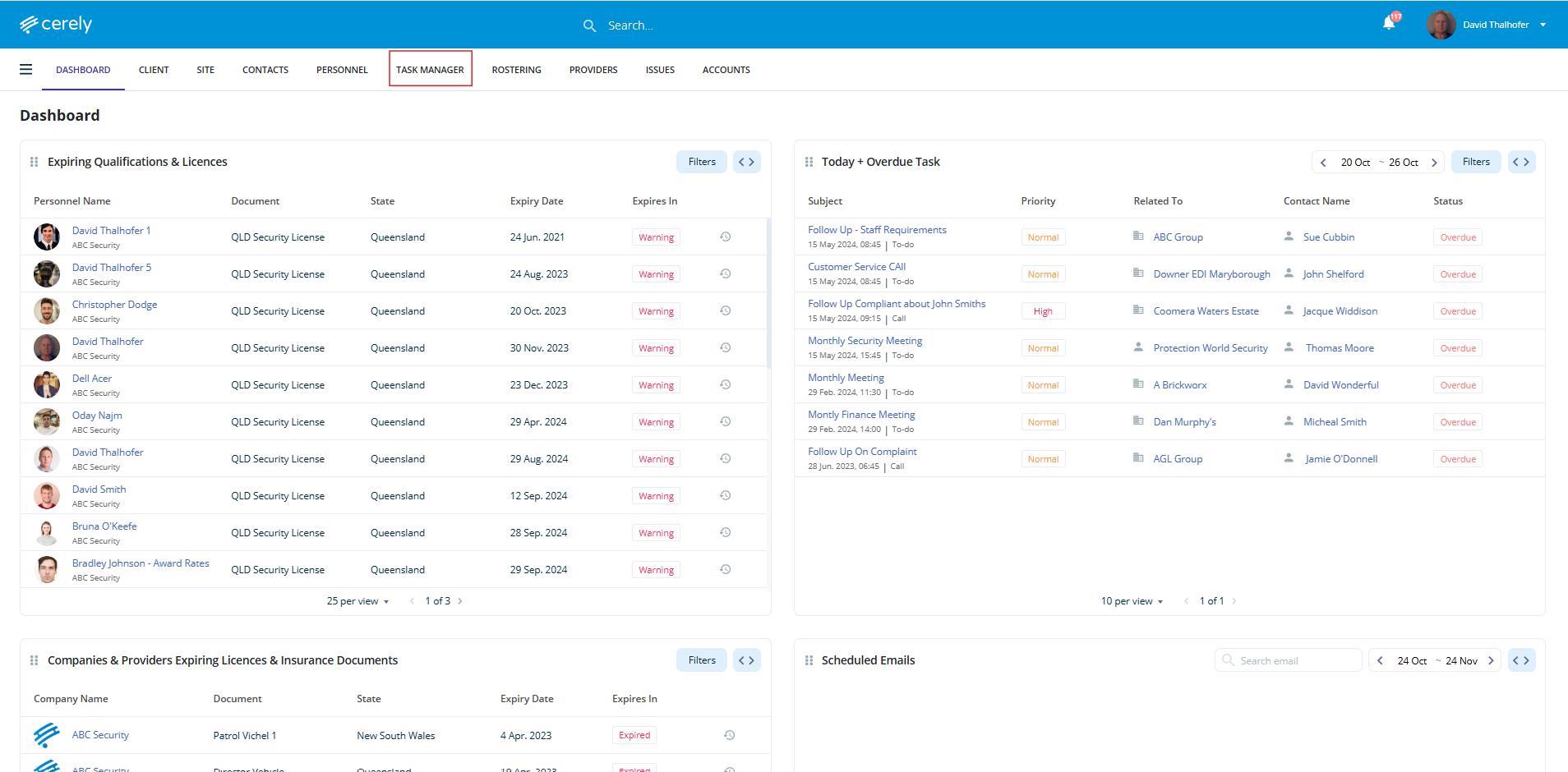
1. From the main menu on the Cerely dashboard, click on the Task Manager tab
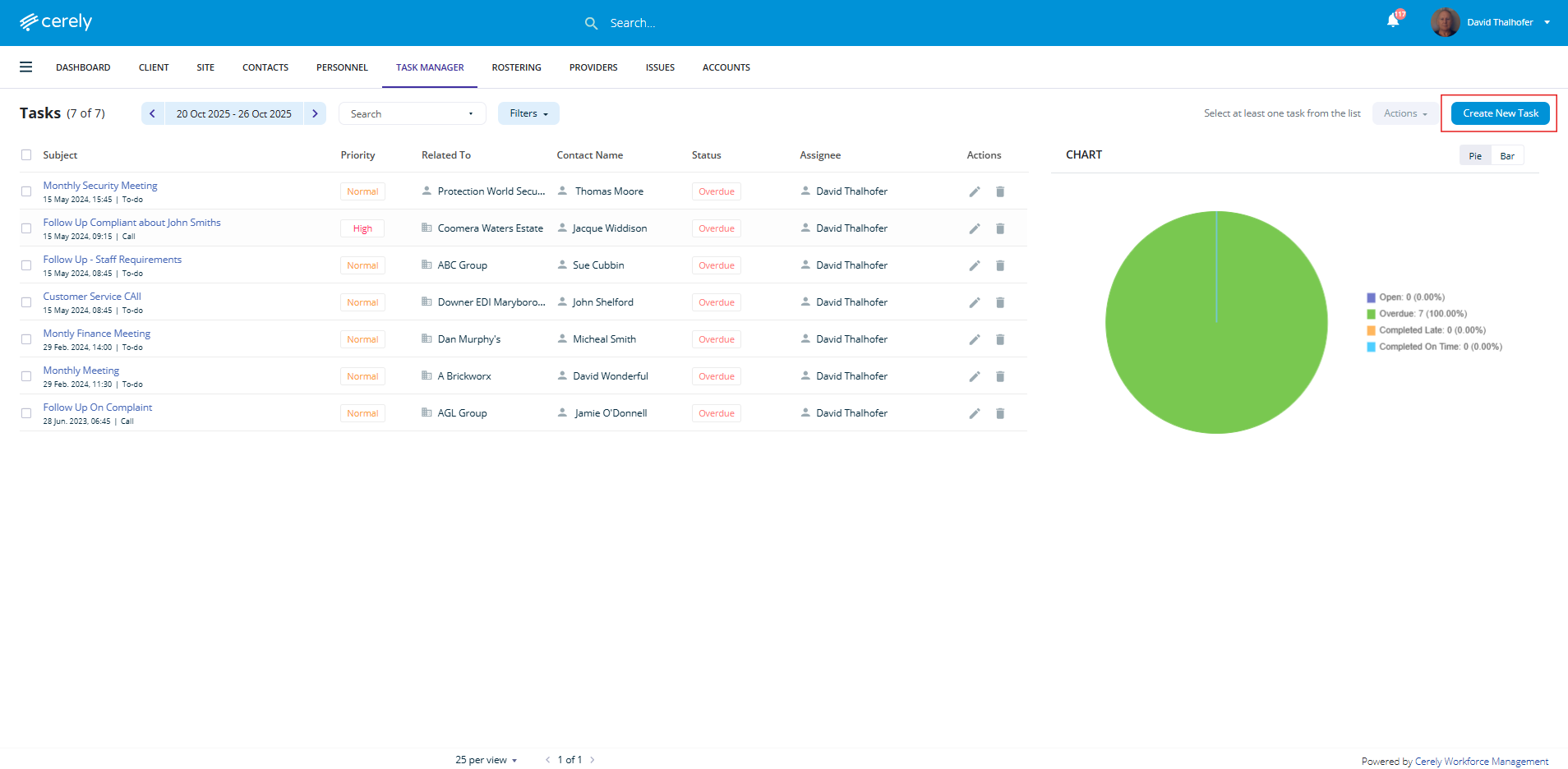
2. Click Create New Task from the right-hand side menu
The Create New Task pop-up siren will appear
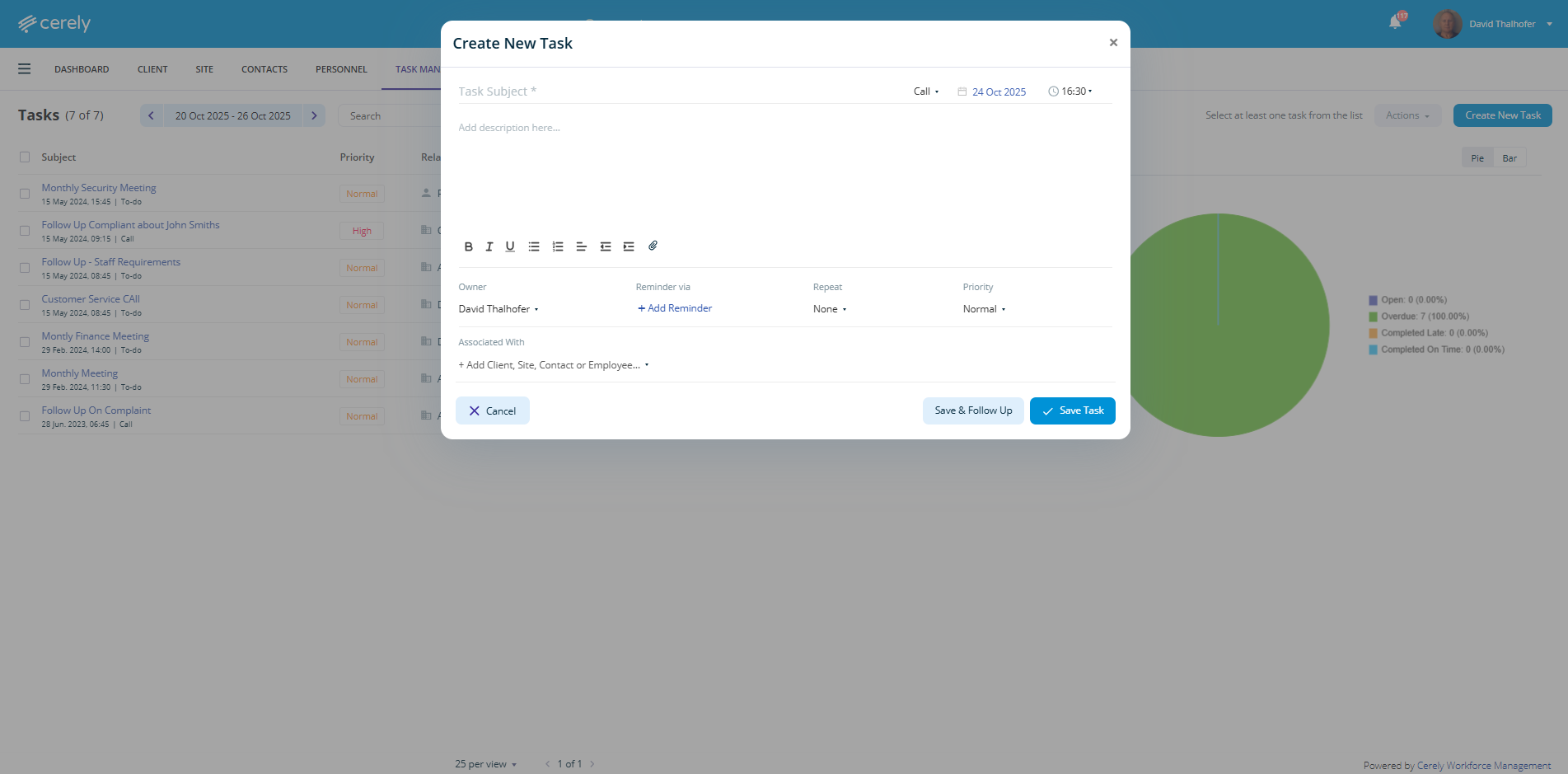
Complete the following fields as required:
| Field | Description |
|---|---|
| Task Subject | Enter the title or name of the task |
| Type | Select the type: Call, Email, or To-Do |
| Date & Time | Allocate the due date and time the task needs to be completed |
| Description | Add any important details or context for the task |
| Attachments | Upload any supporting documents or images (optional) |
| Owner | Select the user responsible for completing the task |
| Reminder | Choose how to be reminded: Email, Popup, or None, and set timeframe |
| Repeat Pattern | Select if the task should repeat (e.g. daily, weekly, monthly) |
| Priority | Set the task priority: Low, Medium, or High |
| Associate With | Link the task to a Client, Site, Employee, or Contact as needed |
3. Once all required fields are completed, click Save Task
4. After saving, the Task Manager Dashboard will display with the Task Dashboard View set to the current week by default.
The newly created task will appear on the dashboard for the date it was scheduled. You can confirm the task has been created by adjusting the date filter if required.
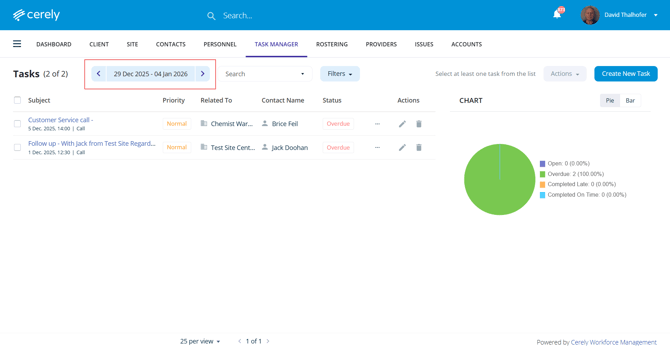
5. The Task Manager dashboard includes filters to help you quickly locate and manage tasks.
You can filter tasks by:
- User Task – view tasks assigned to specific users
- Priority – High, Medium, or Low
- Related To – Client, Site, Employee, or Contact
- Contact Name – tasks linked to a specific contact
- Status – such as overdue tasks, todays tasks, closed, next 7 days tasks.