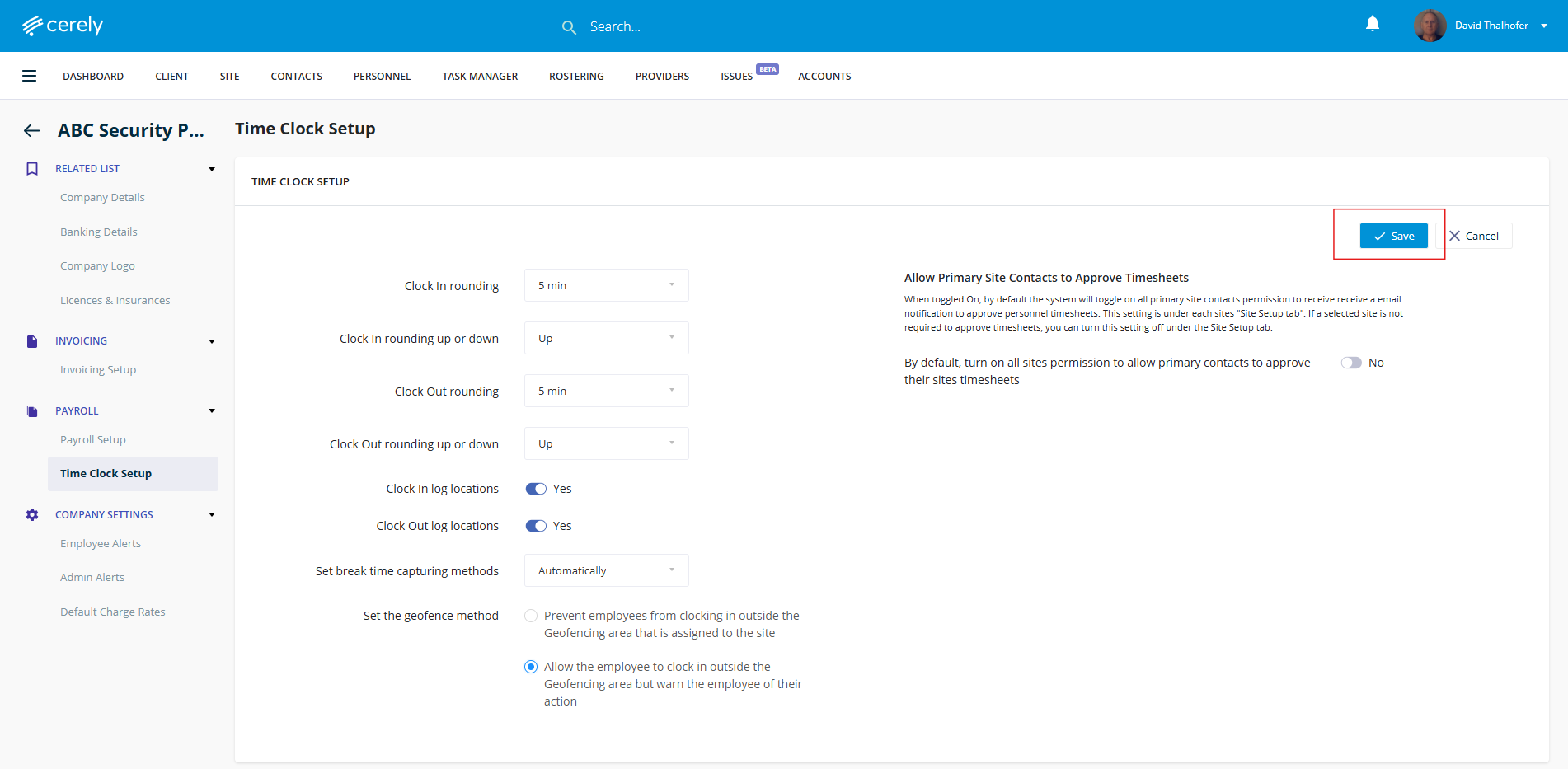
1. From the main menu, click your Profile Icon in the top right-hand corner
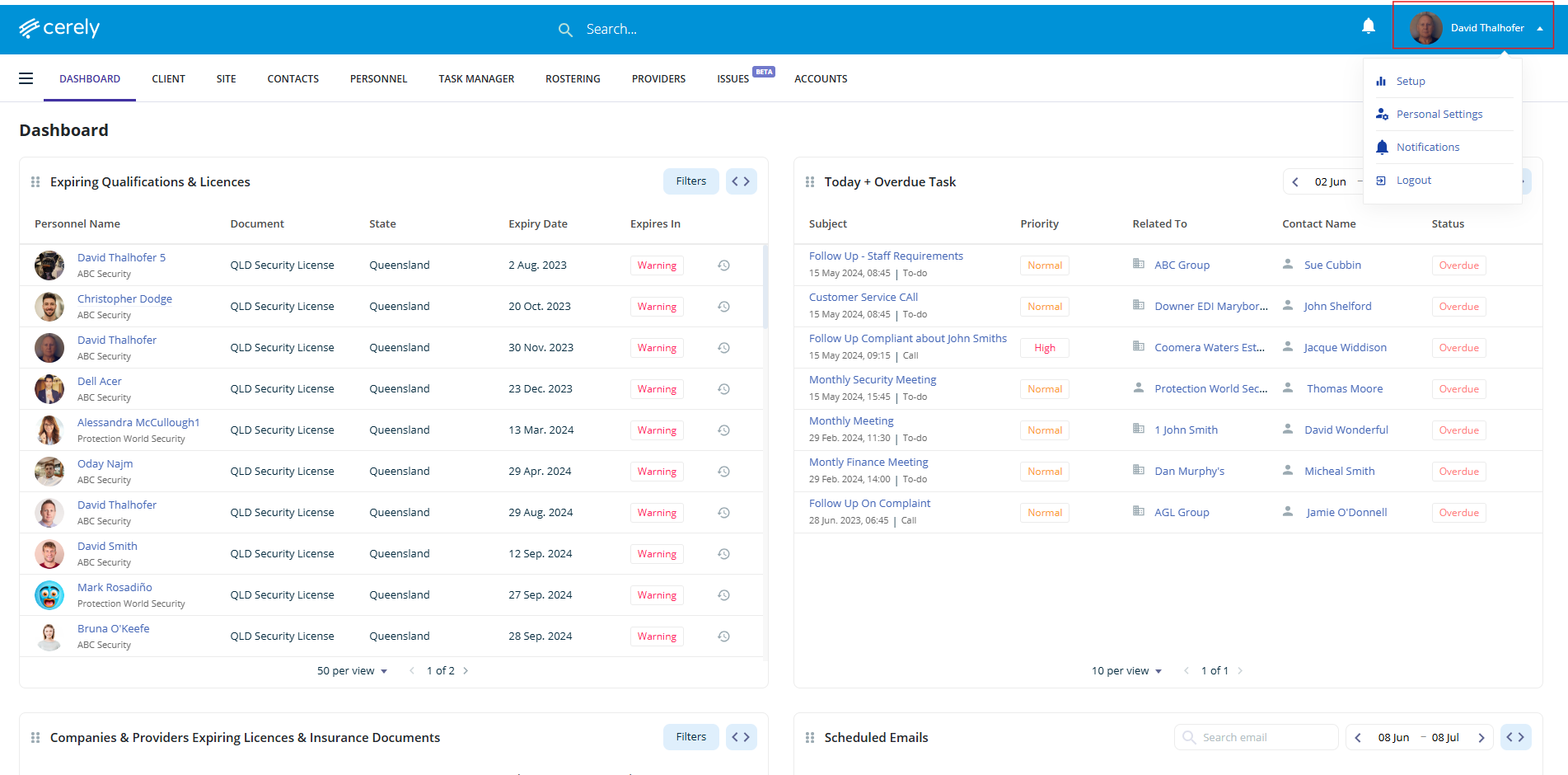
2. Click on Setup from the dropdown menu
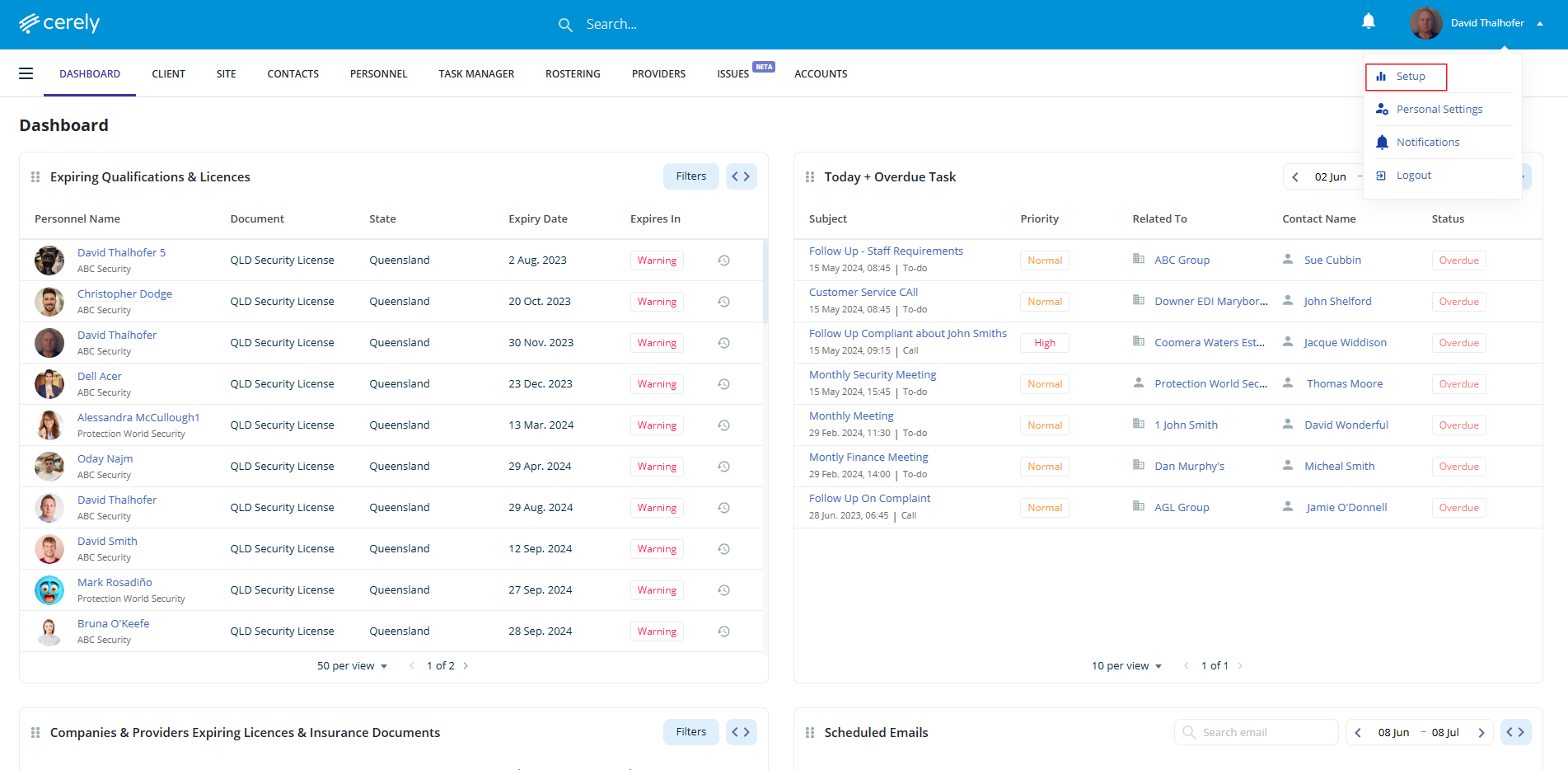
3. From the Setup screen under Organisation Settings, click on your company name
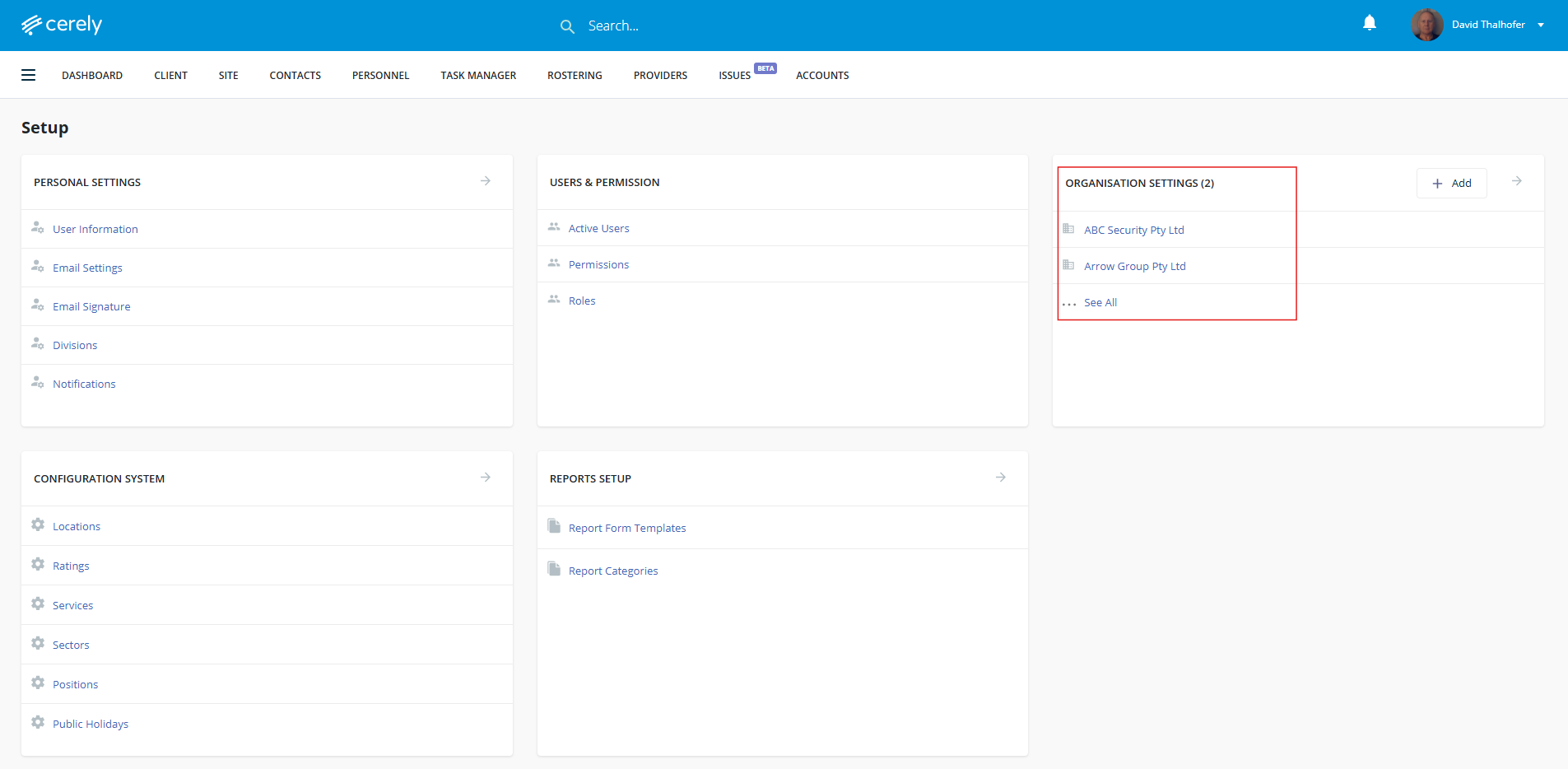
4. In the left-hand menu, under Payroll click on Time Clock Setup
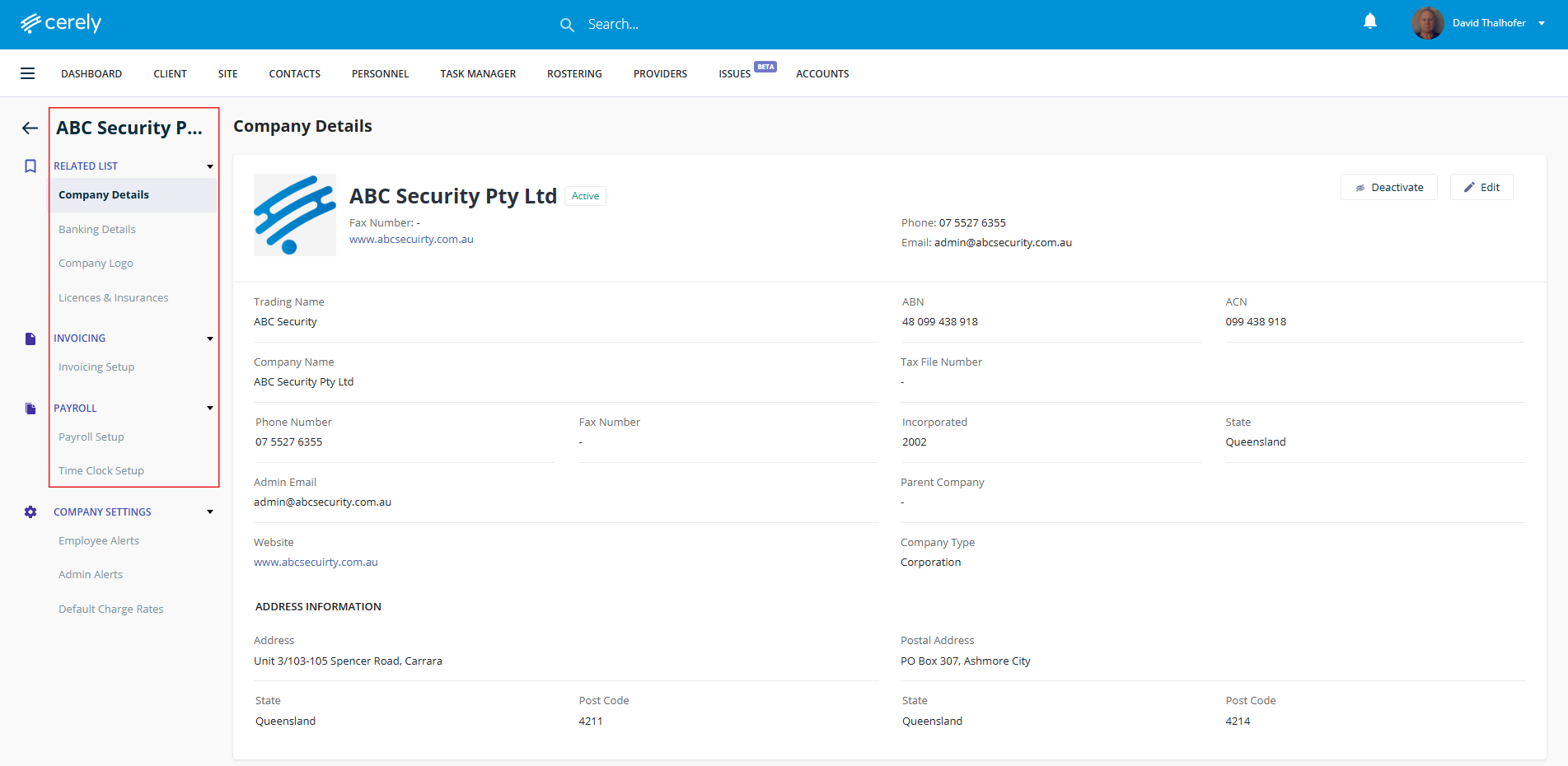
5. Click on the edit button
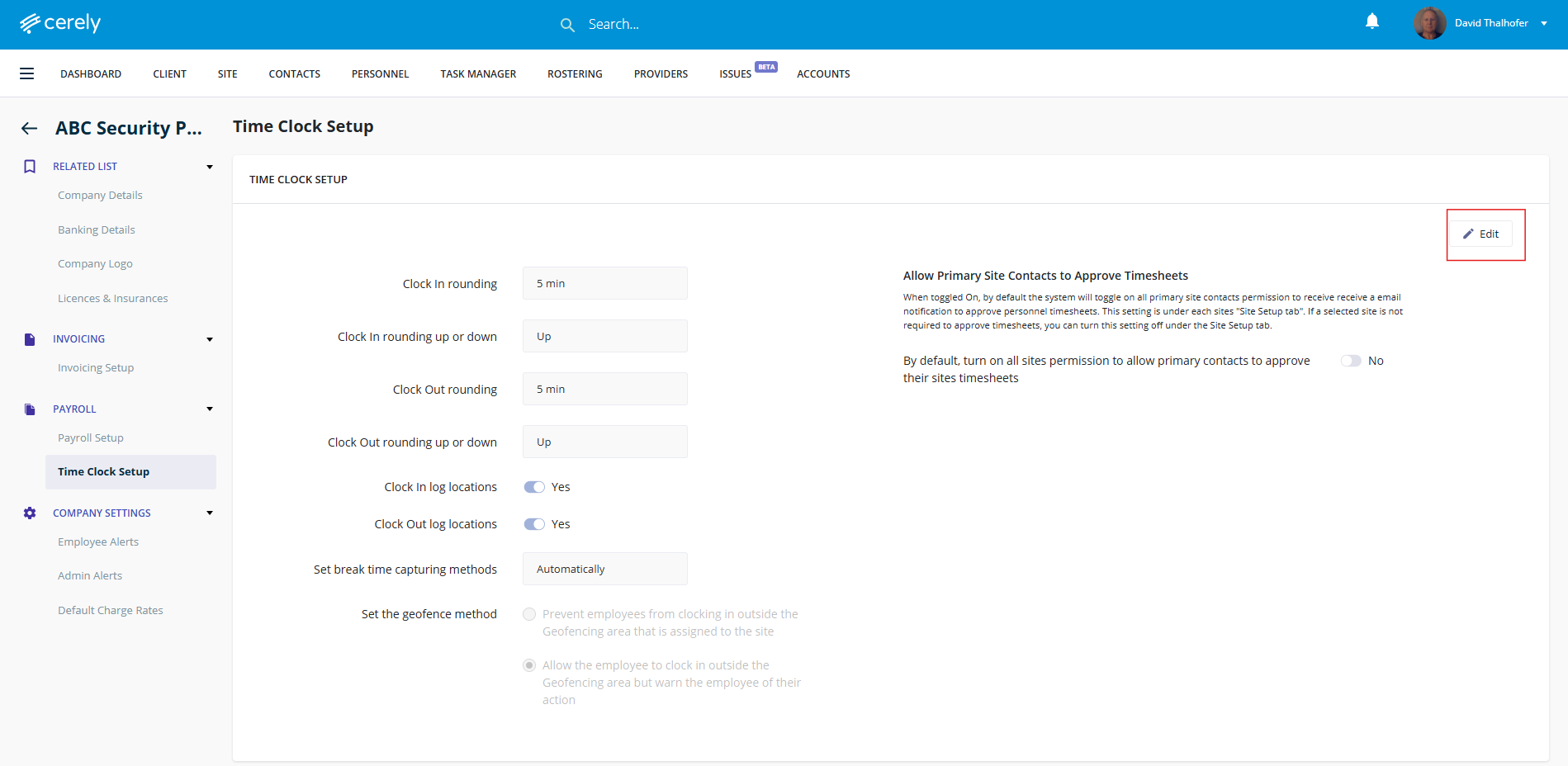
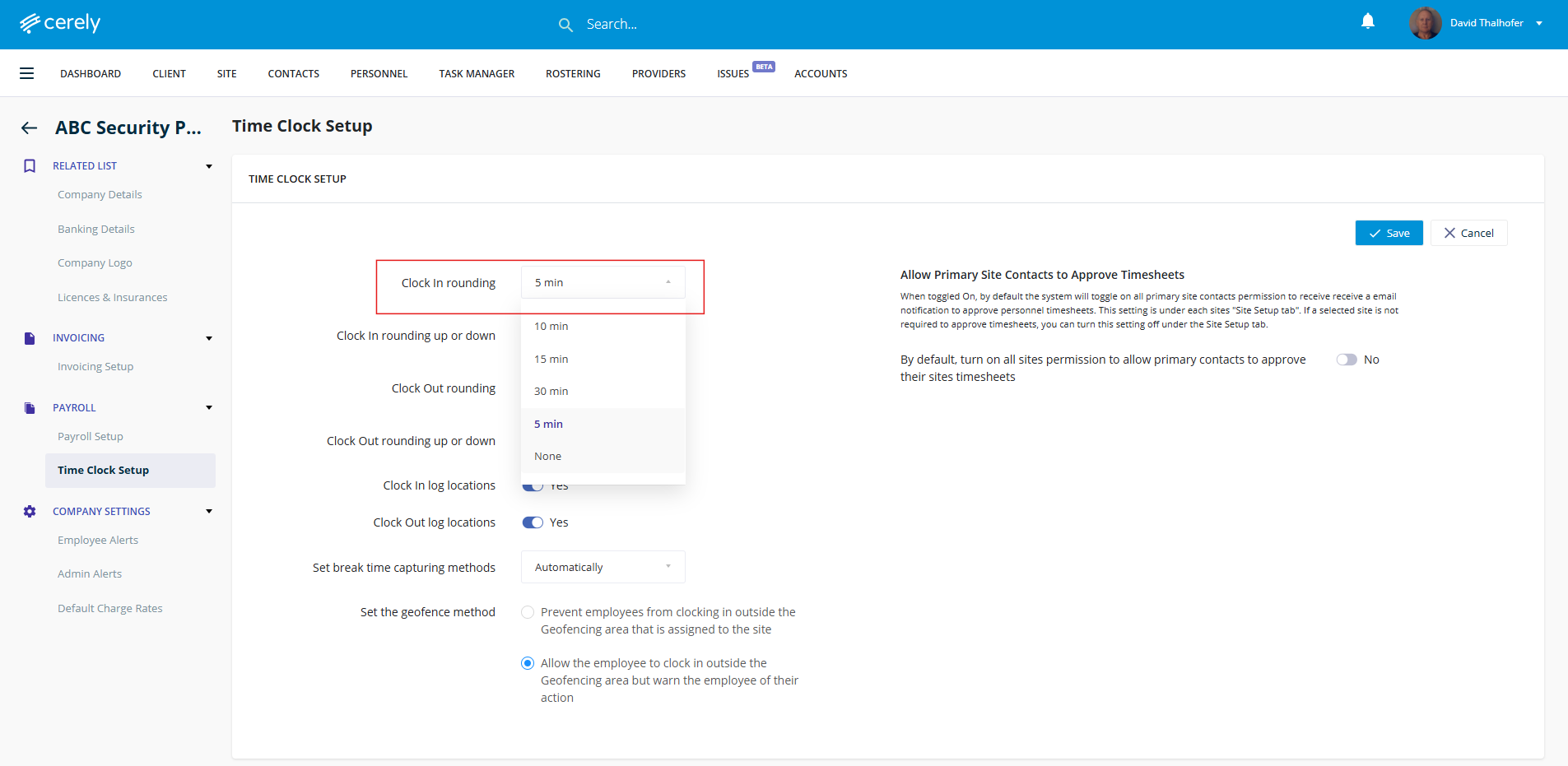
6. Choose your preferred clock in rounding options (from None up to 30 minutes). (This rounds the clock-in time based on your selection.)
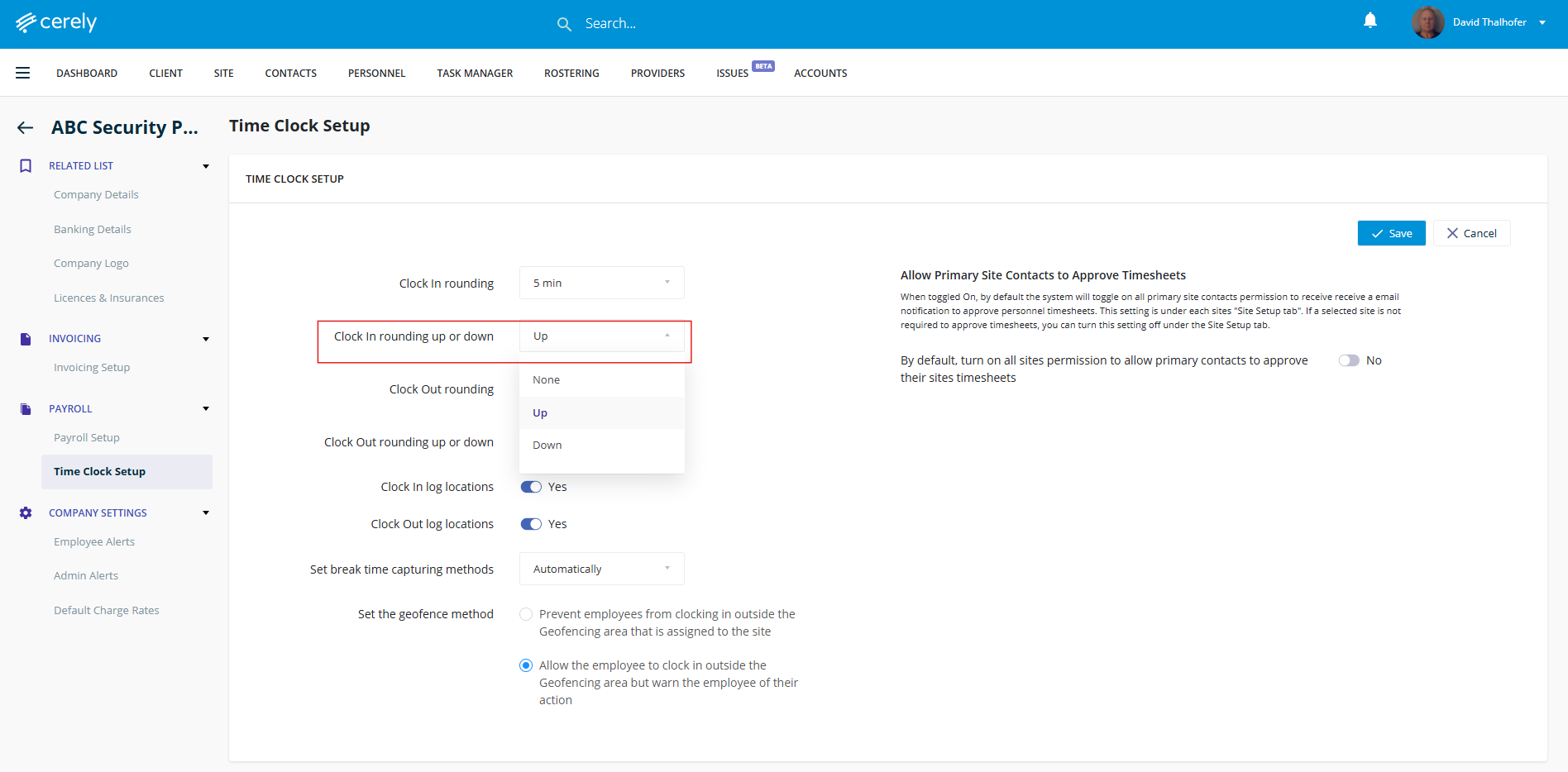
7. Select your clock in rounding option: none, up, or down
8. Choose your preferred clock out rounding options (from None up to 30 minutes). (This rounds the clock-out time based on your selection.)
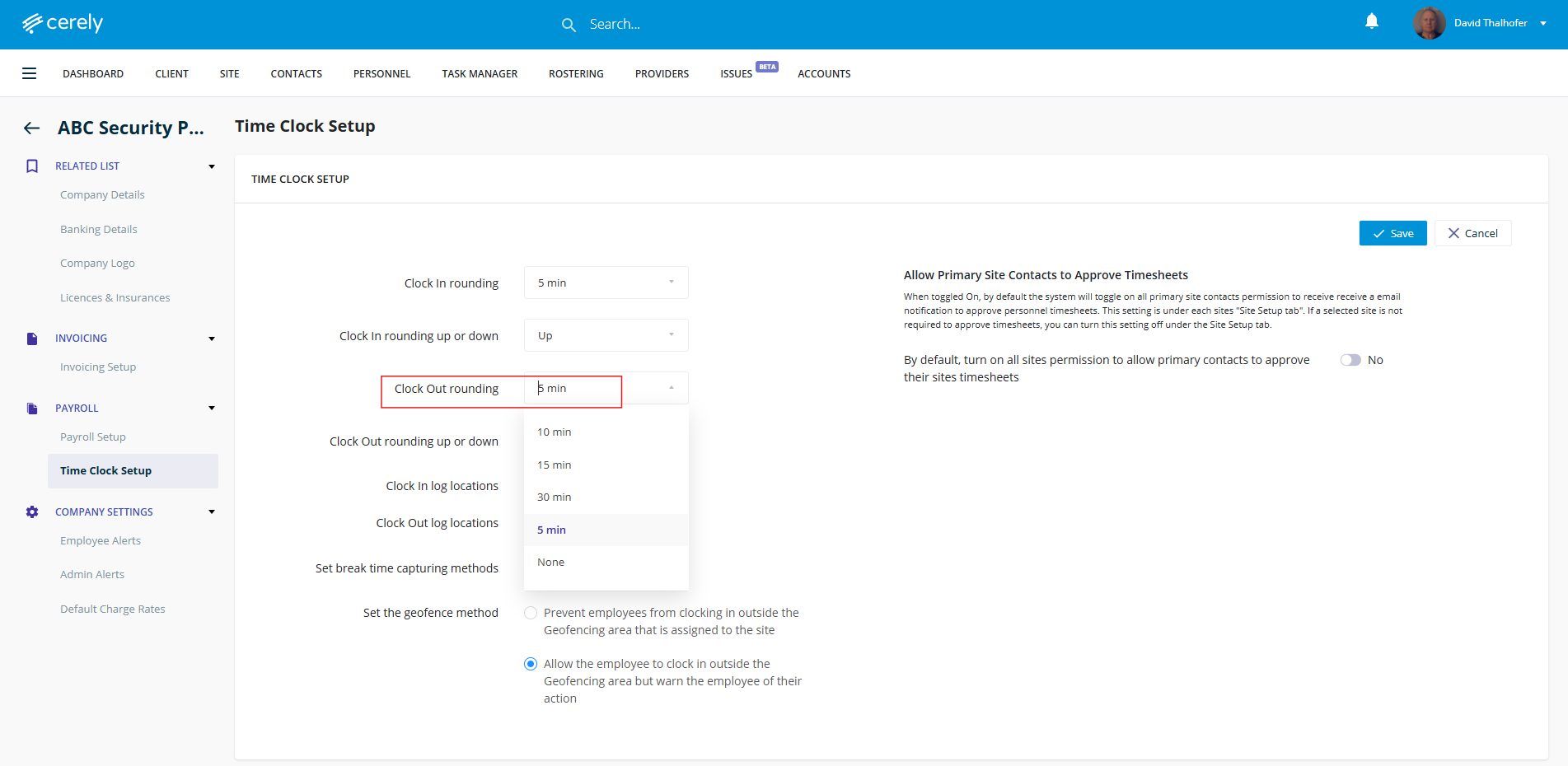
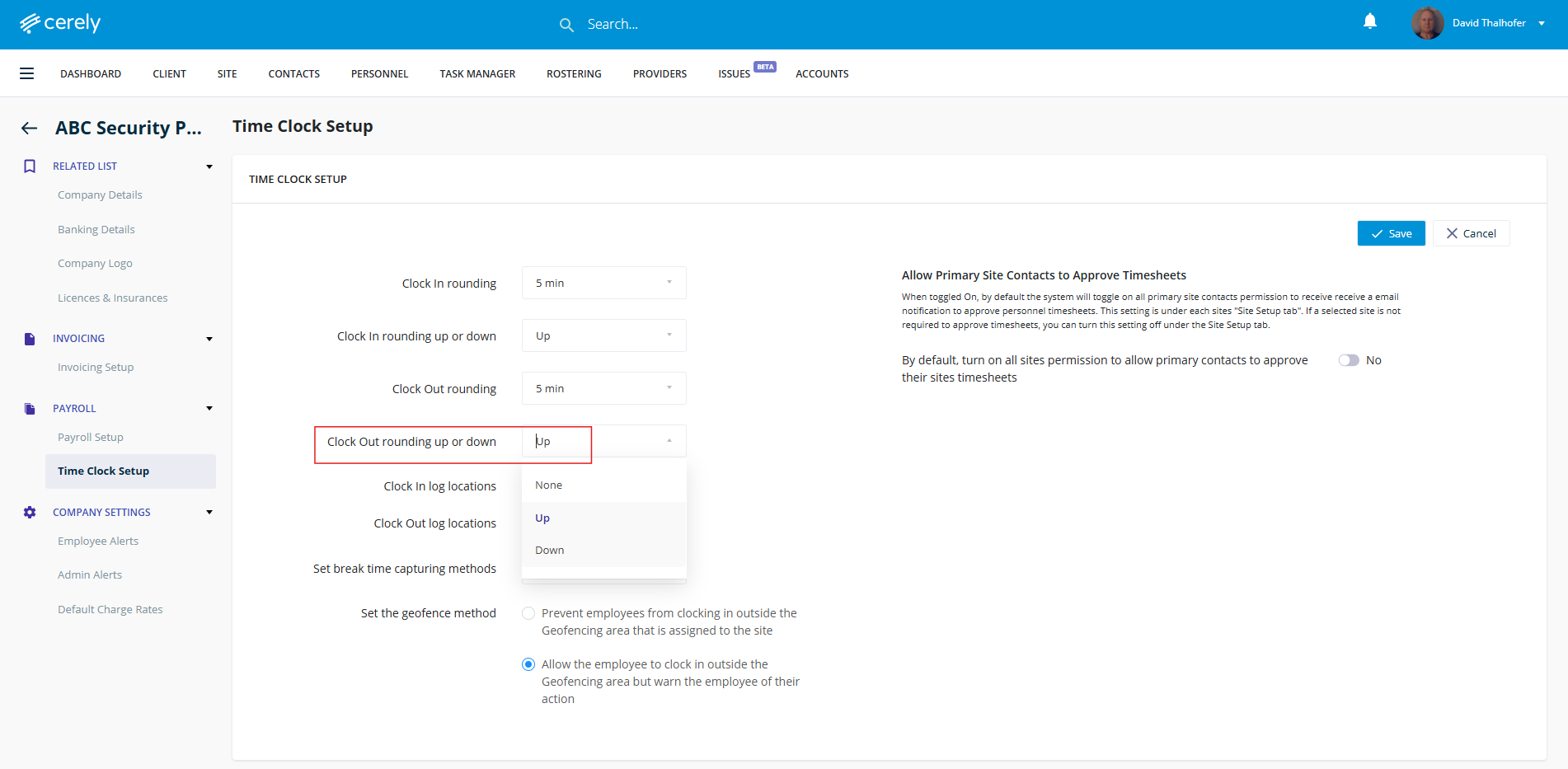
9. Select your clock out rounding option: none, up, or down
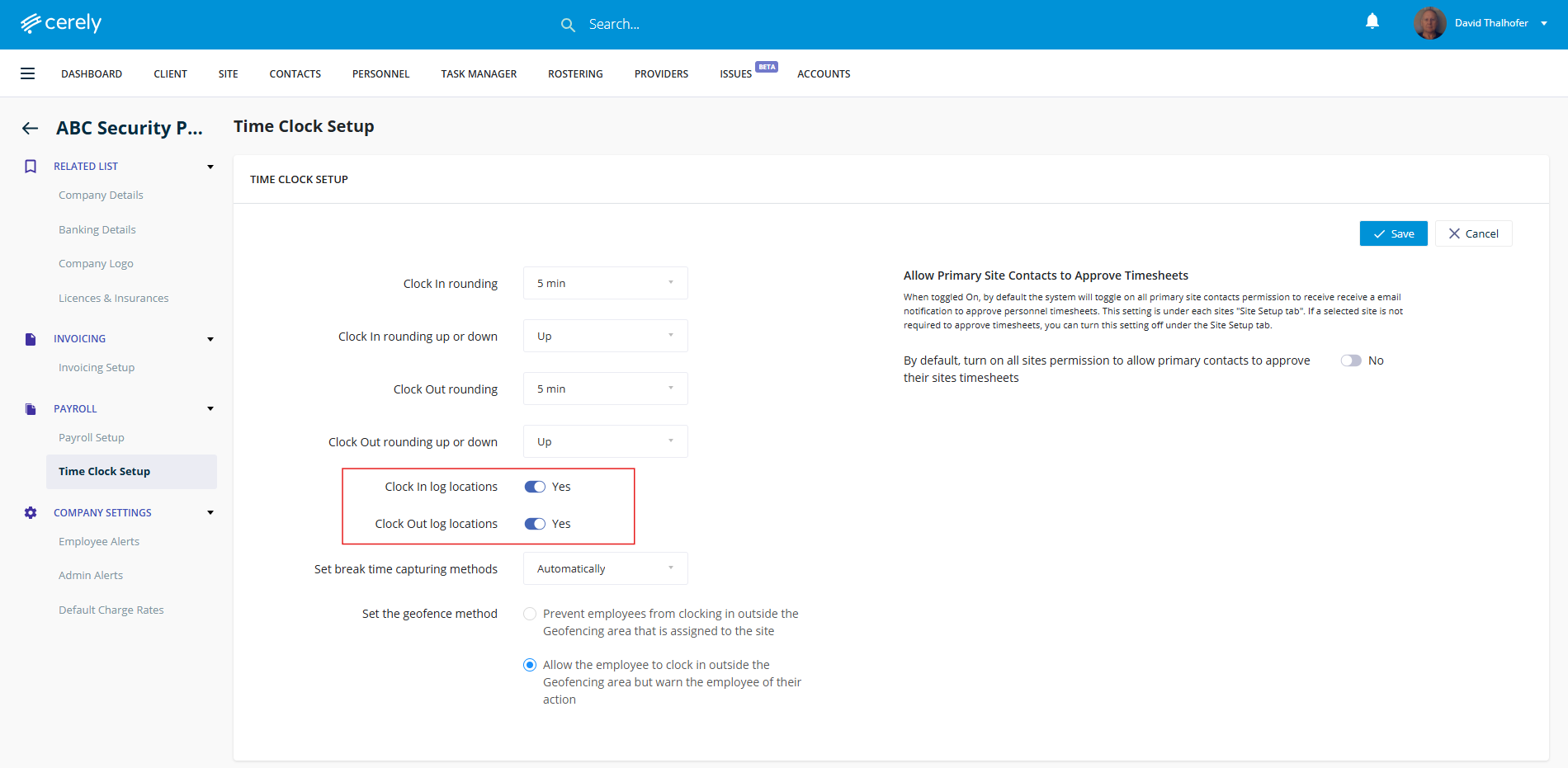
10. Select to toggle on or off the clock in and out location tracking
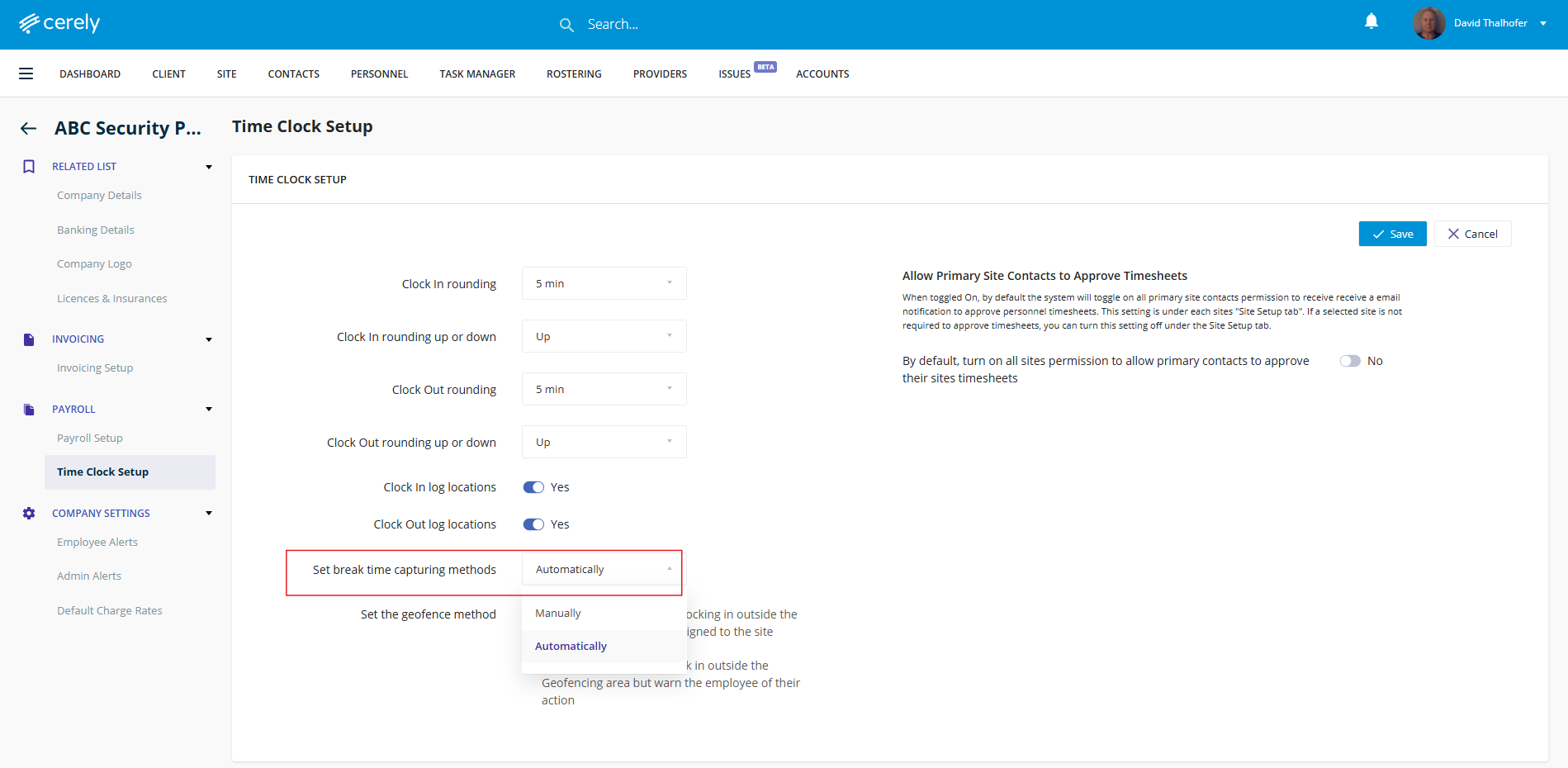
11. Set the break time capturing method to either:
- Automatically: Automatically allocate breaks according to shift rosters
- Manually: Allows employees to manually add breaks to their shifts and timesheets
13. Set the geofence method to:
- Prevent: Stops employees from clocking in or out outside the specified geofence
- Allow: Enables staff to clock in or out outside the geofence location
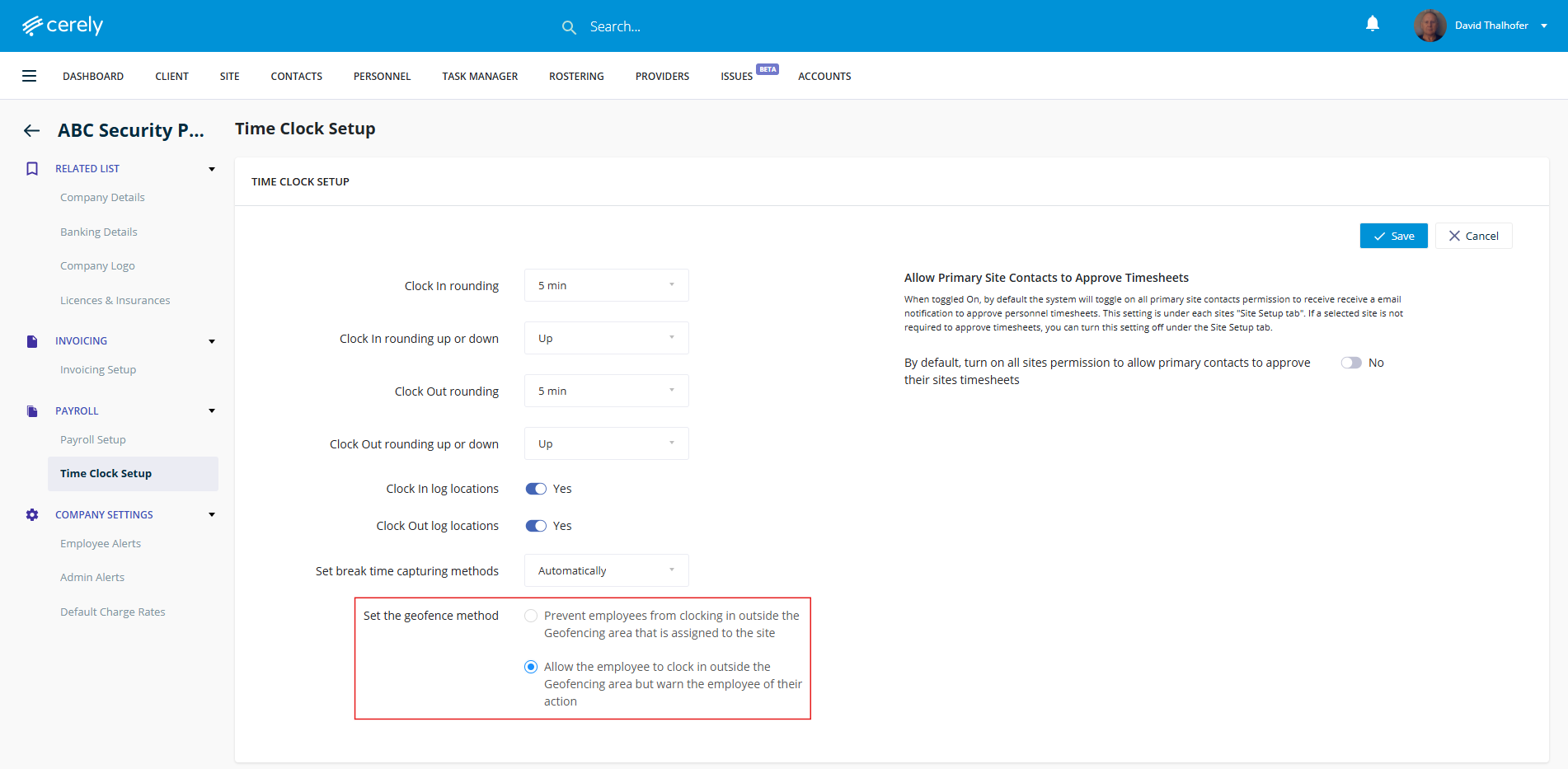
14. Click on the save button to confirm your settings