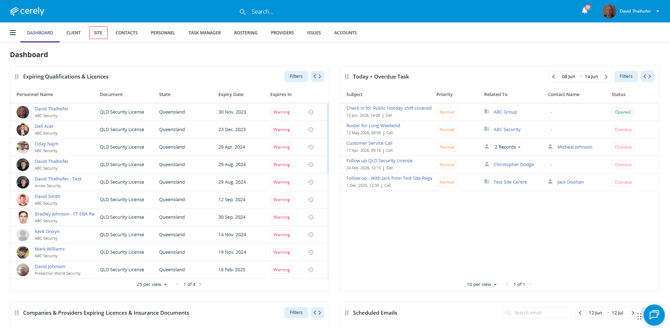
1. From the home screen in Cerely, click on the Sites tab from the Cerely top main menu
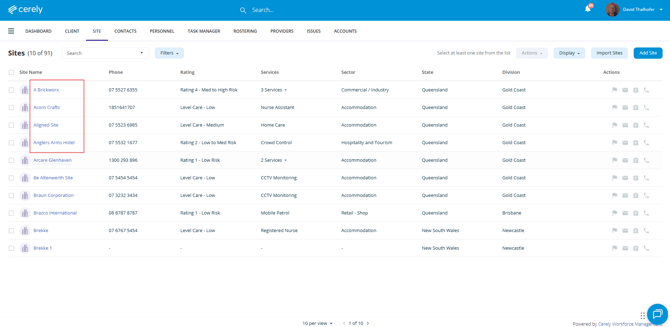
2. Select the Site you would like to configure from the list
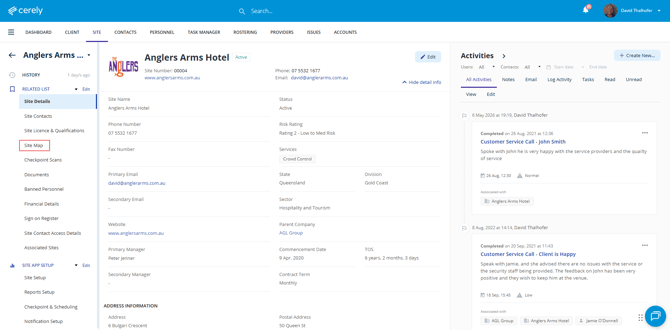
3. From the left-hand menu, click on the Site Map tab
4. Click on the + Add Geofence button
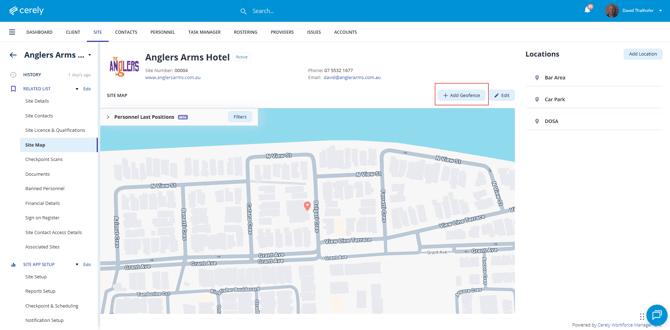
The system will display the available Geofence options:
- Circle
- Square
- Polygon (Custom Draw)
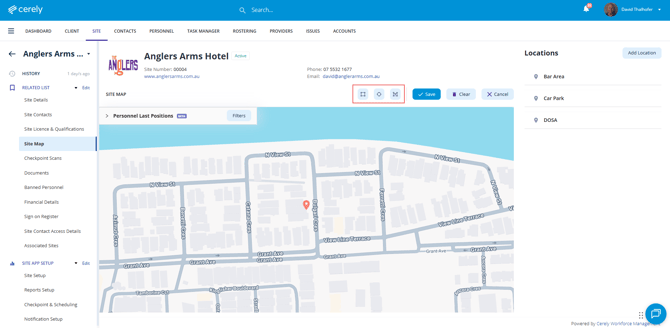
Important Note: By default, the red map pin displays the Site Address location based on Google Maps.
This pin can be repositioned from the Site Maps screen before or after a Geofence has been created.
The red pin represents the centre point used by the Cerely Personnel App when calculating the distance between personnel and the Site location.
For best results, ensure the red pin accurately reflects the physical location where personnel will clock in and out.
How to Add a Circle Geofence
5. Click on the Circle option
6. Position your mouse over the centre of the red Site Address pin
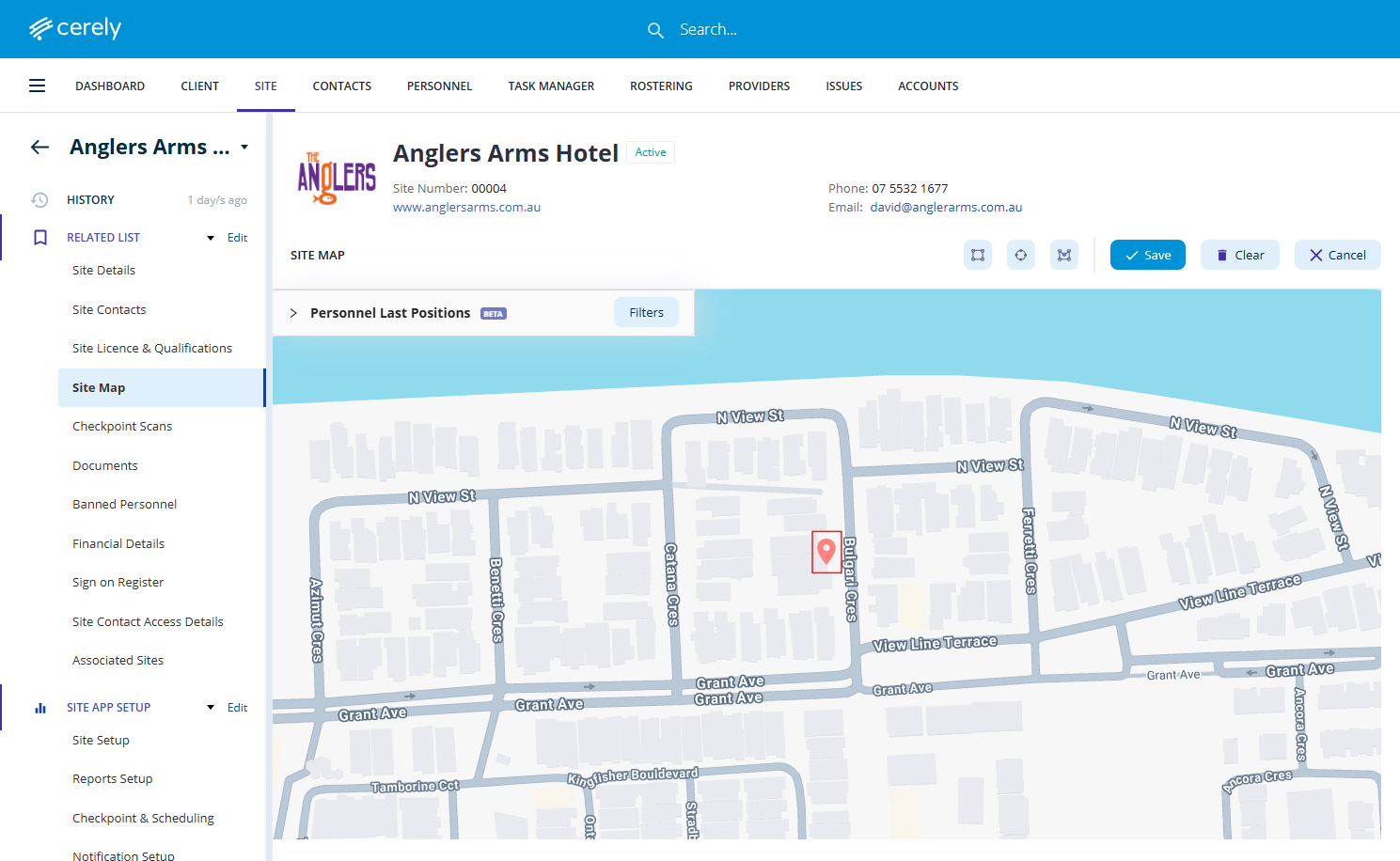
7. Click and hold the mouse button, then drag outward or inward. As you drag the mouse, the Circle Geofence will increase or decrease in size.
8. Release the mouse button when the desired Geofence size has been reached.
The Circle Geofence will now be created.
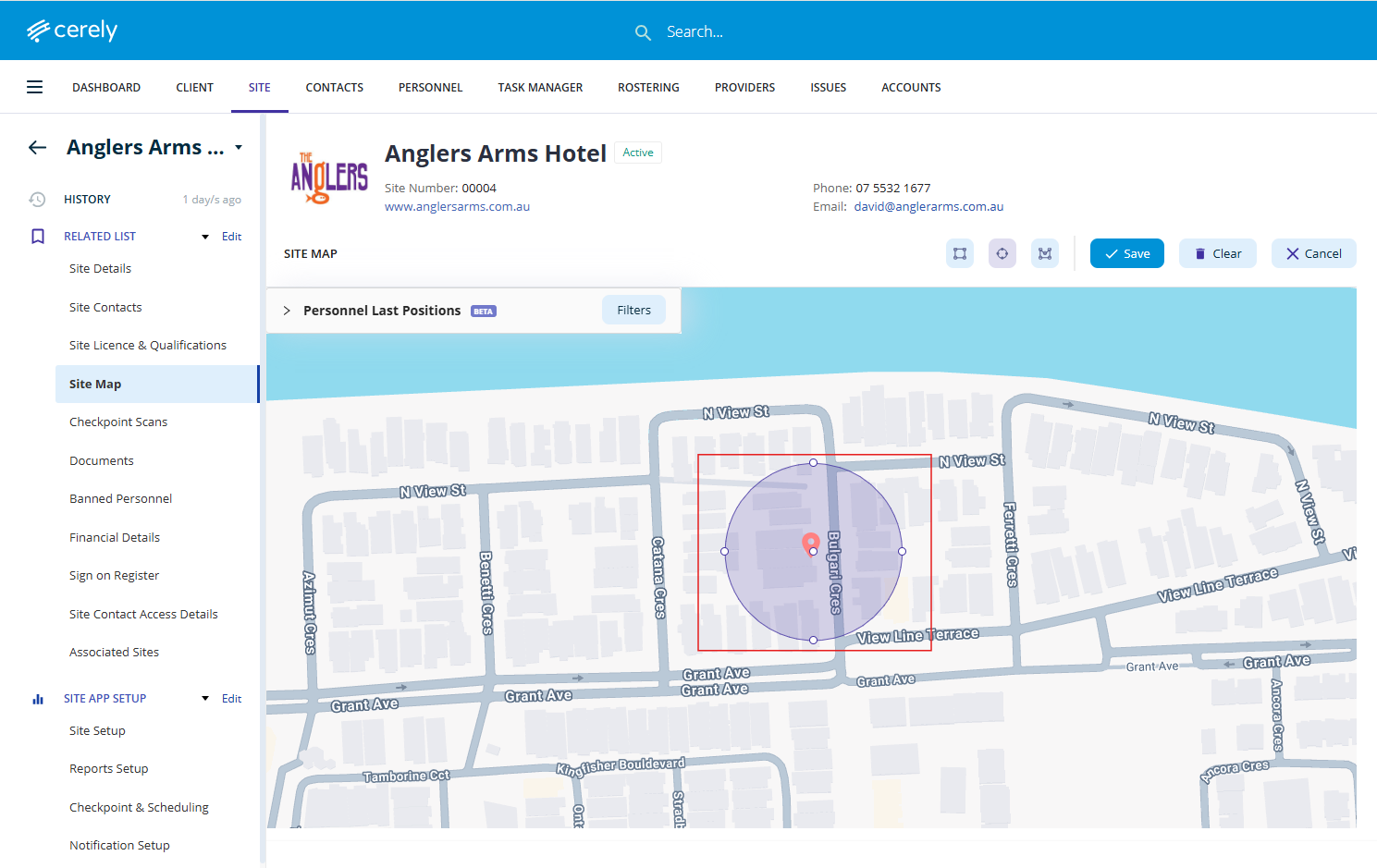
9. Resize the Geofence if required. Click and drag any of the white circular handles located on the edge of the Geofence to increase or decrease its size.
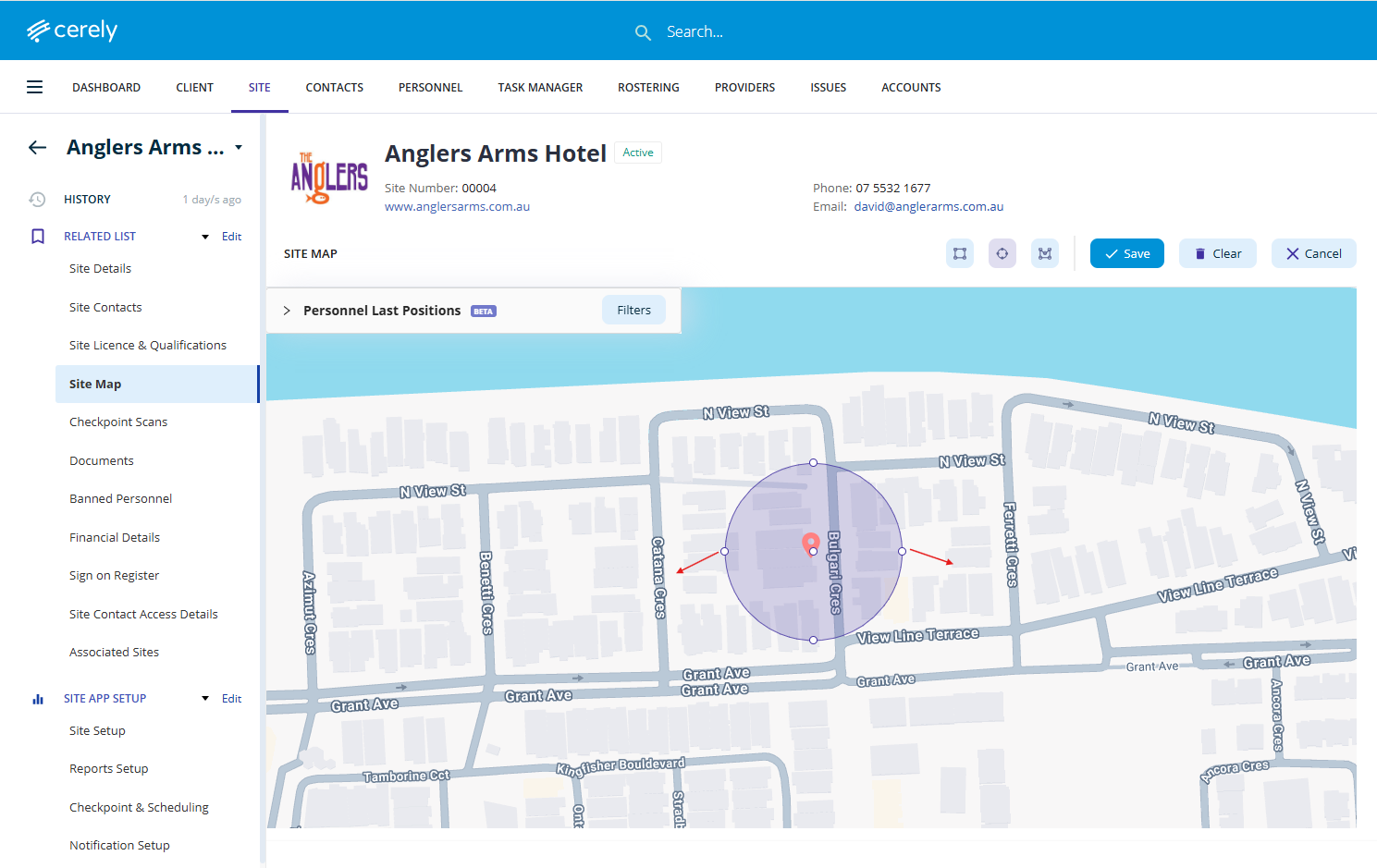
10. Reposition the Geofence if required. Click and drag the Geofence to move it into the correct position.
Important: Ensure the red Site Address pin remains positioned in the centre of the Geofence.
As a general guide, Cerely recommends configuring a Geofence approximately 50 metres in diameter unless a larger area is required.
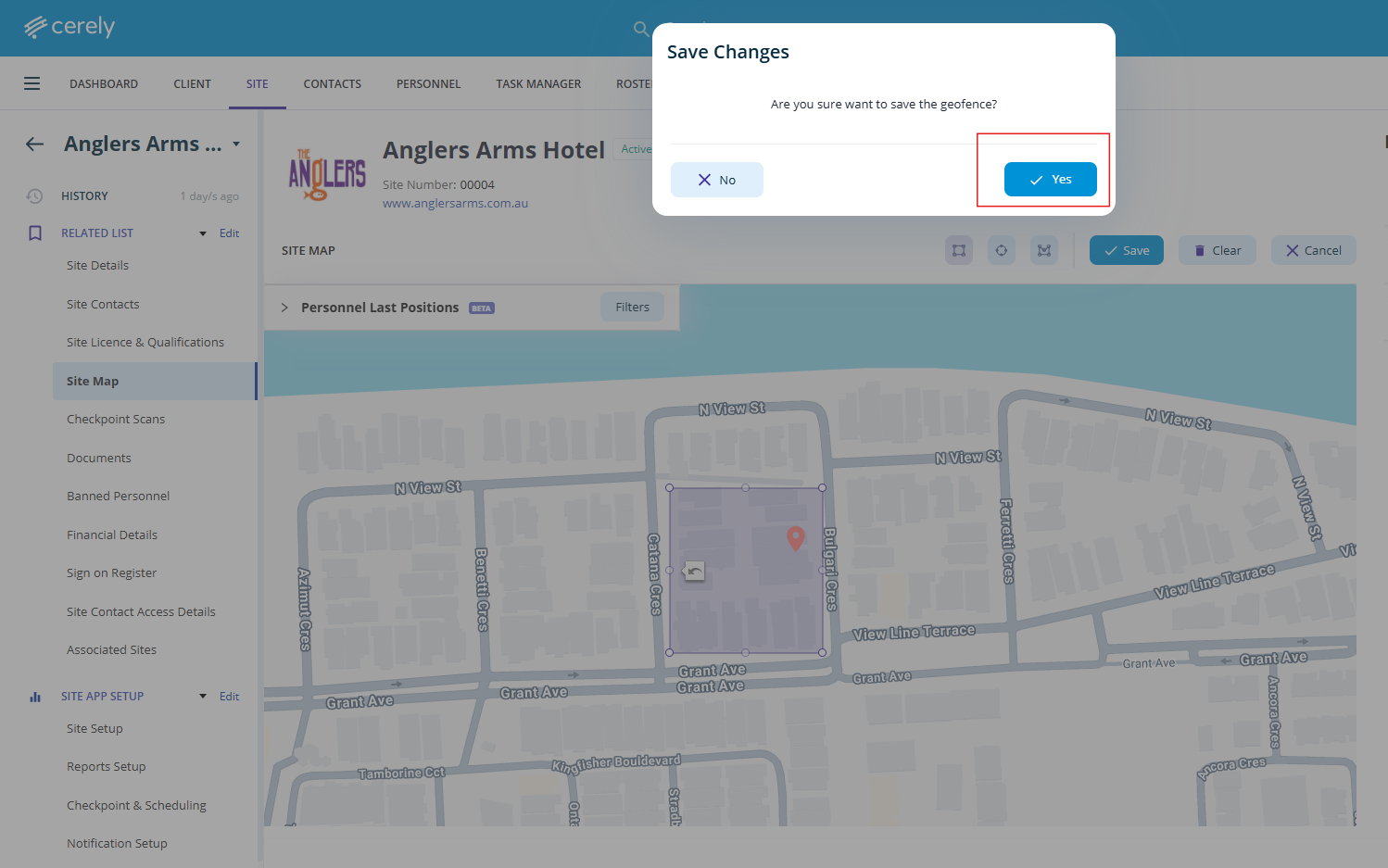
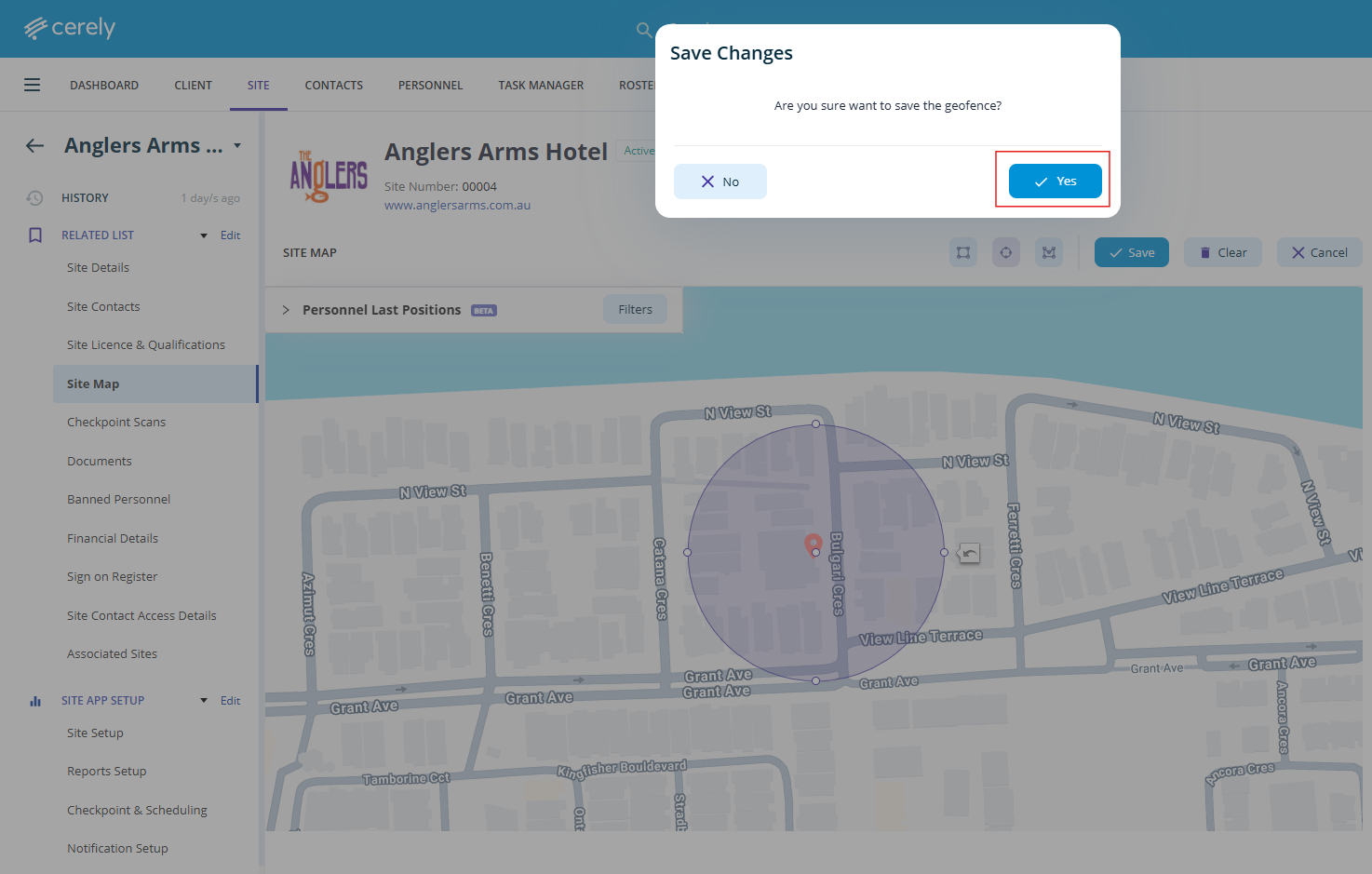
11. Click on the Save button. The system will display a Save Changes confirmation message.
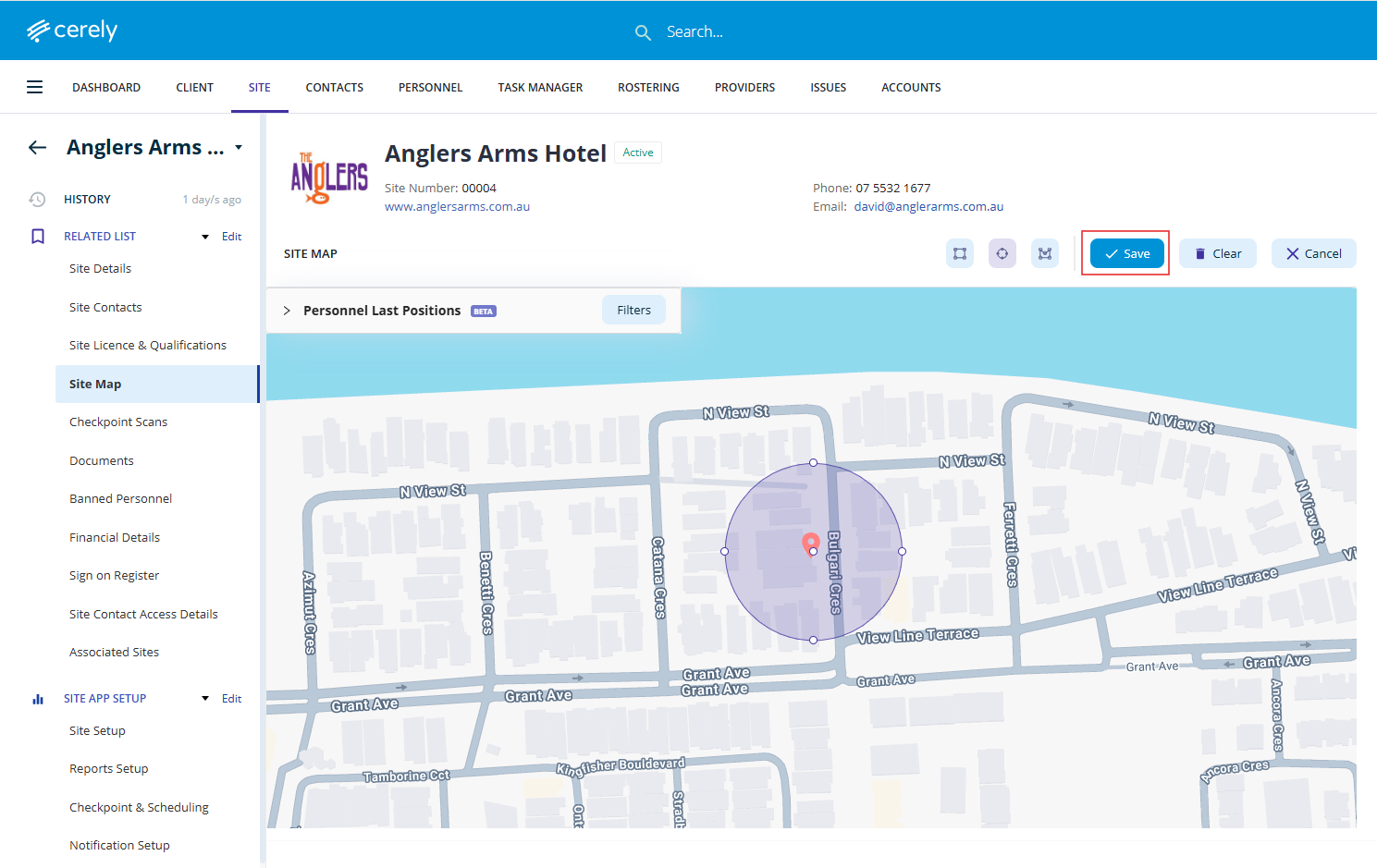
12. Click Yes. The Circle Geofence will now be saved and active for the Site.
How to Add a Square Geofence
13. Click on the Square option
14. Position your mouse slightly above and to the right of the red Site Address pin
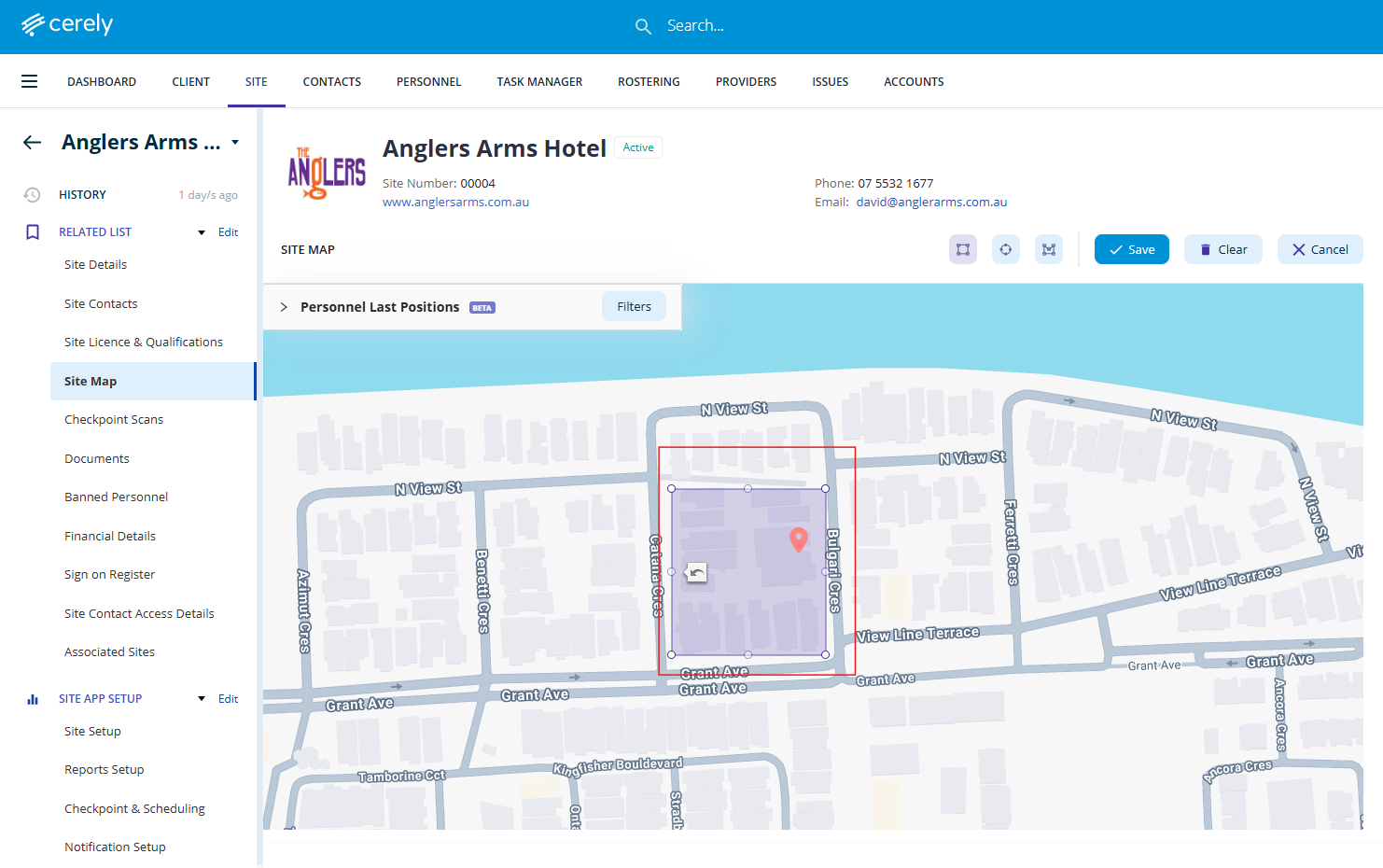
15. Click and hold the mouse button, then drag outward or inward. As you drag the mouse, the Square Geofence will increase or decrease in size.
16. Release the mouse button when the desired Geofence size has been reached. The Square Geofence will now be created.
17. Resize the Geofence if required. Click and drag any of the white circular handles located around the edge of the Geofence. These handles allow you to adjust the size and dimensions of the Geofence.
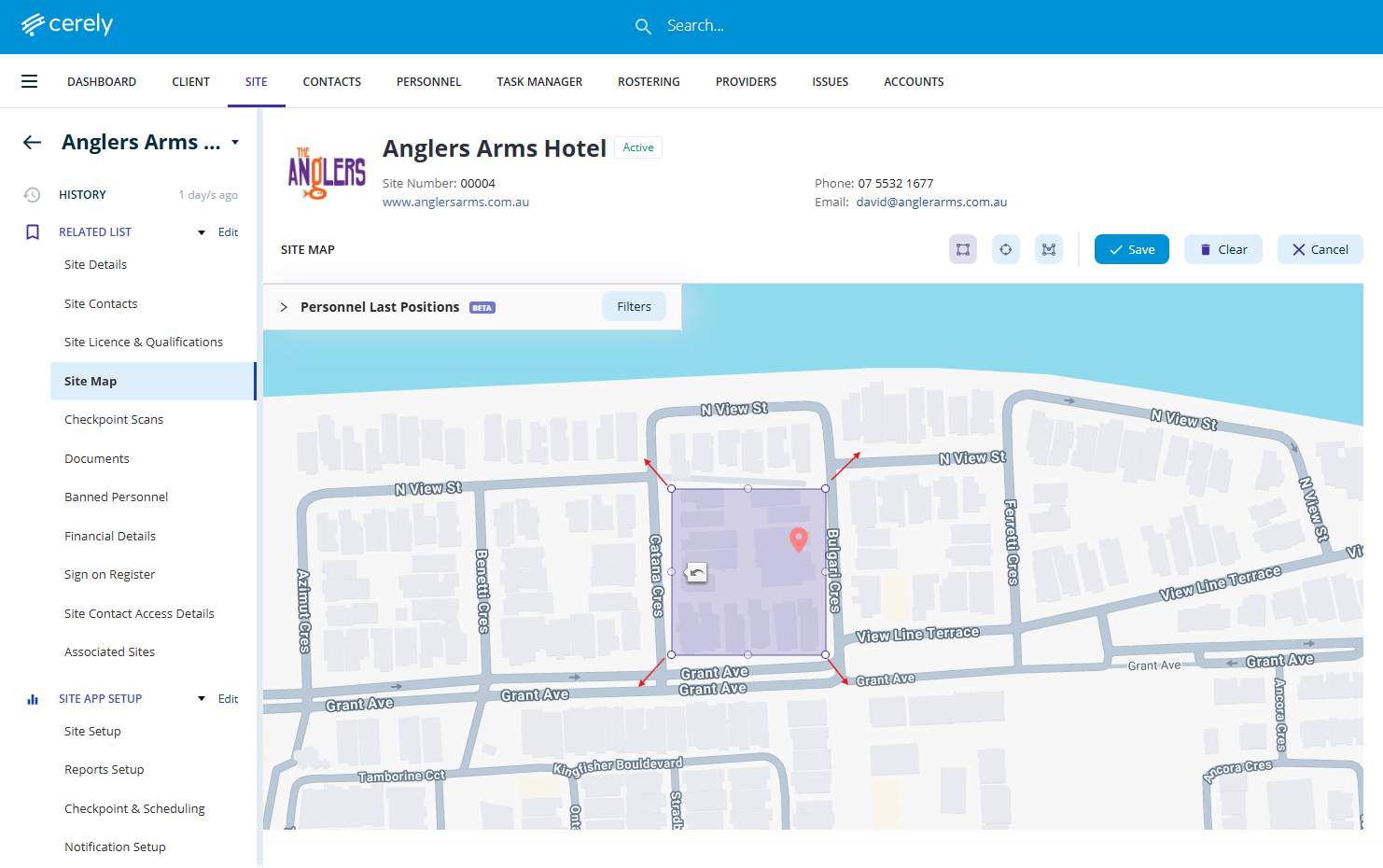
18. Reposition the Geofence if required. Click and drag the Geofence to move it into the correct position over the Site location.
Important: Ensure the red Site Address pin remains positioned within the centre of the Geofence.
As a general guide, Cerely recommends configuring a Geofence approximately 50 metres in diameter unless a larger area is required.
19. Click on the Save button. The system will display a Save Changes confirmation message.
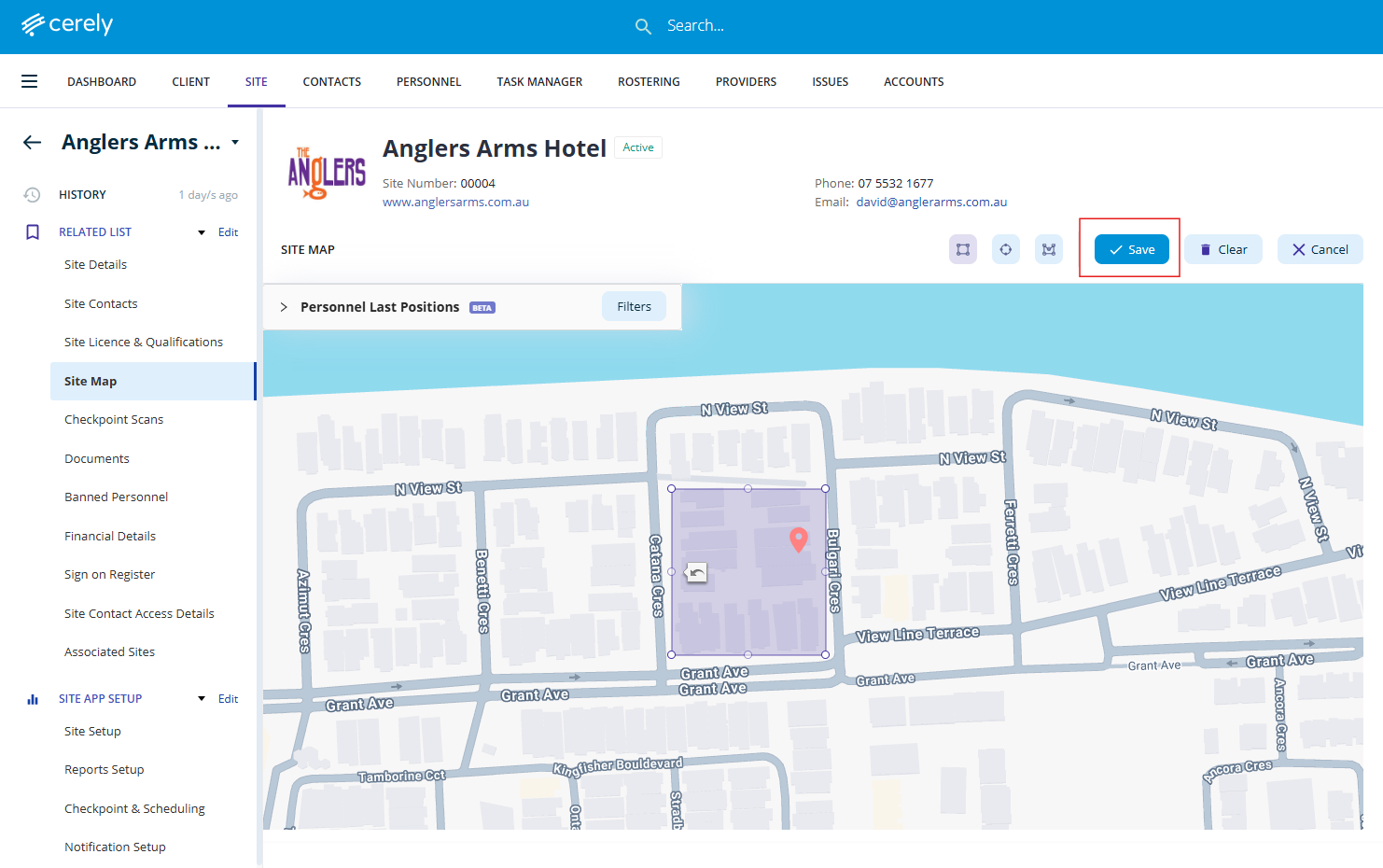
20. Click Yes. The Square Geofence will now be saved and active for the Site.