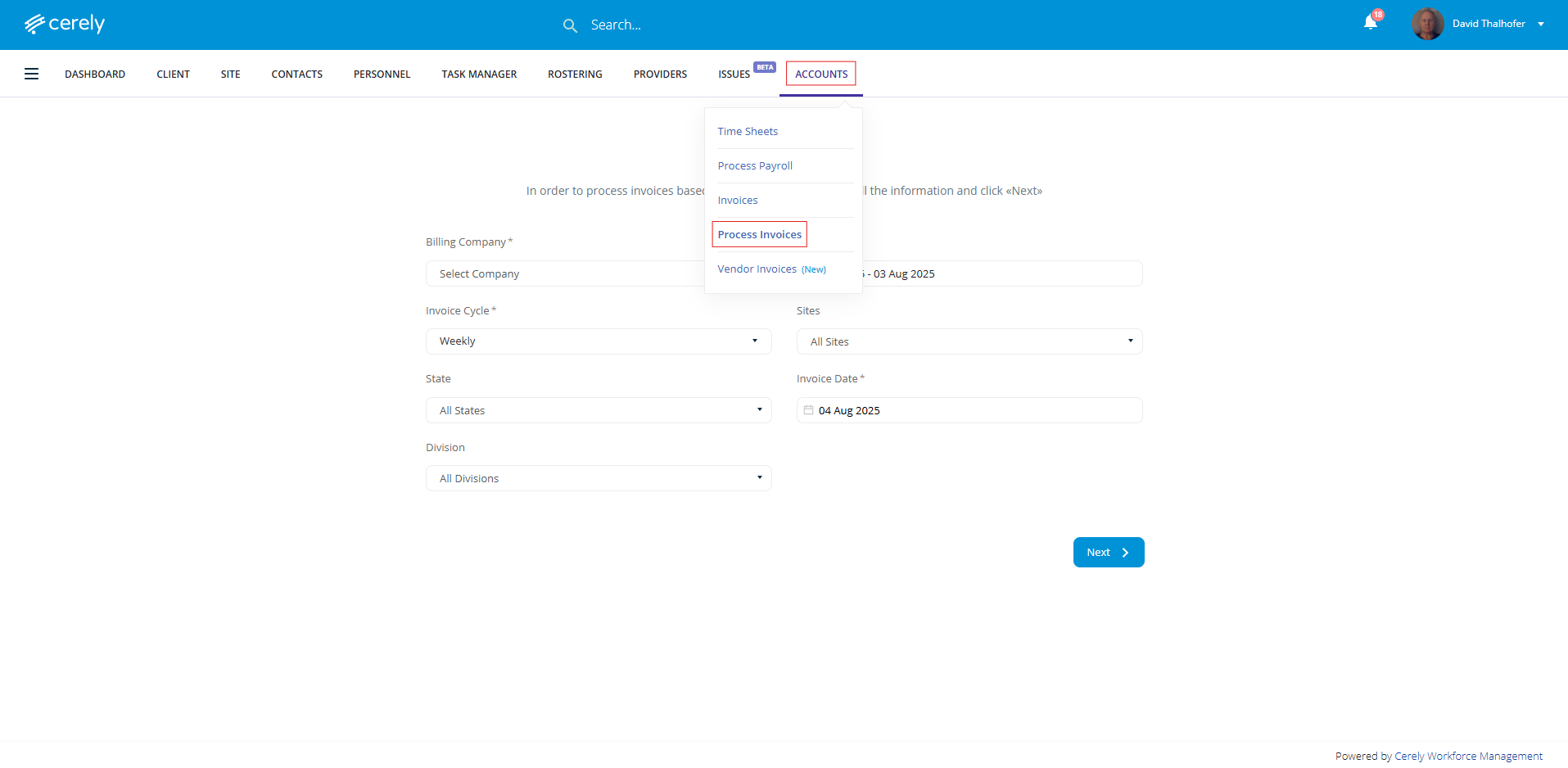
1. From the home screen in Cerely, click on the Accounts tab from the Cerely top main menu and then select Process Invoices from the drop down menu
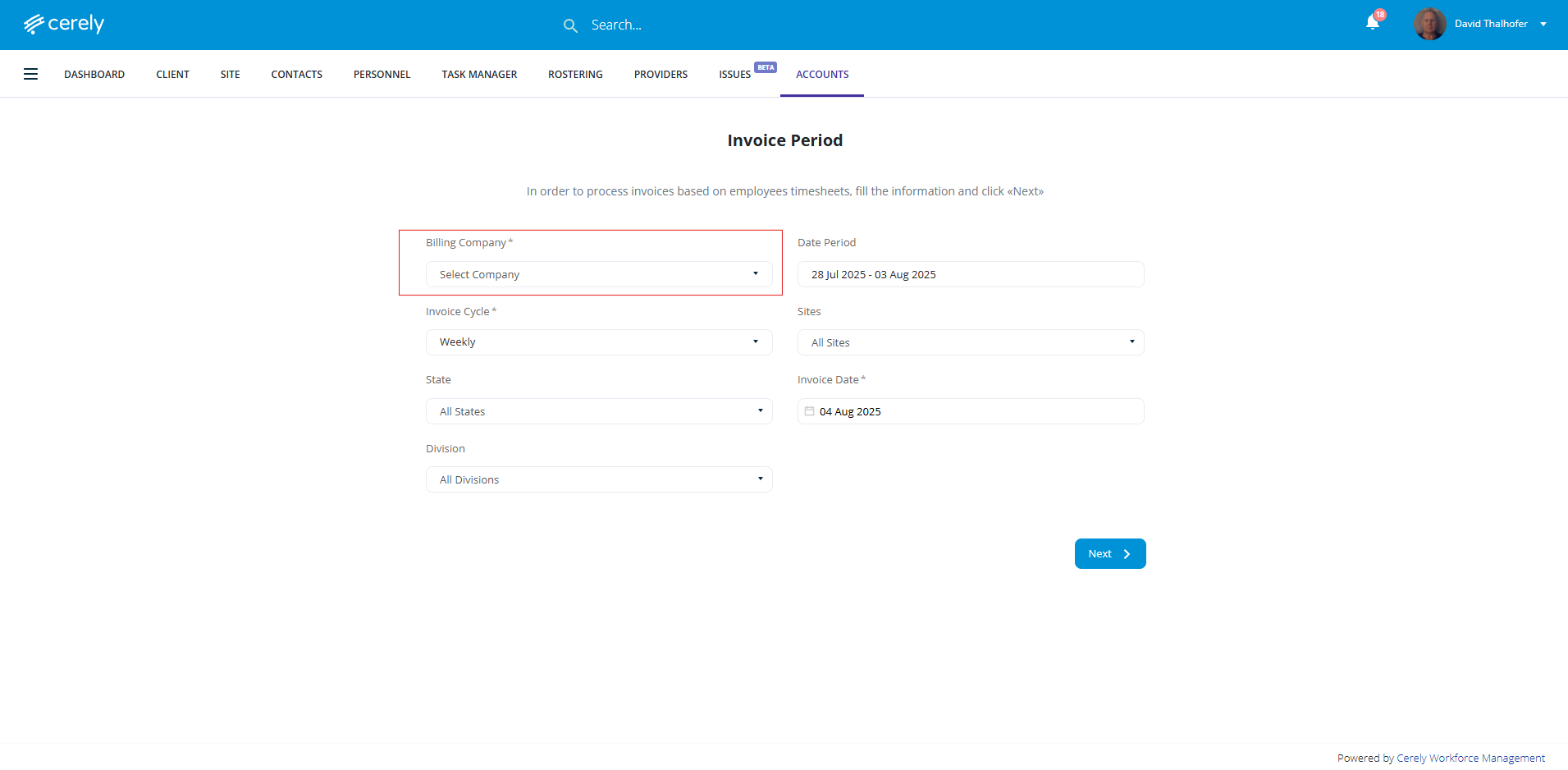
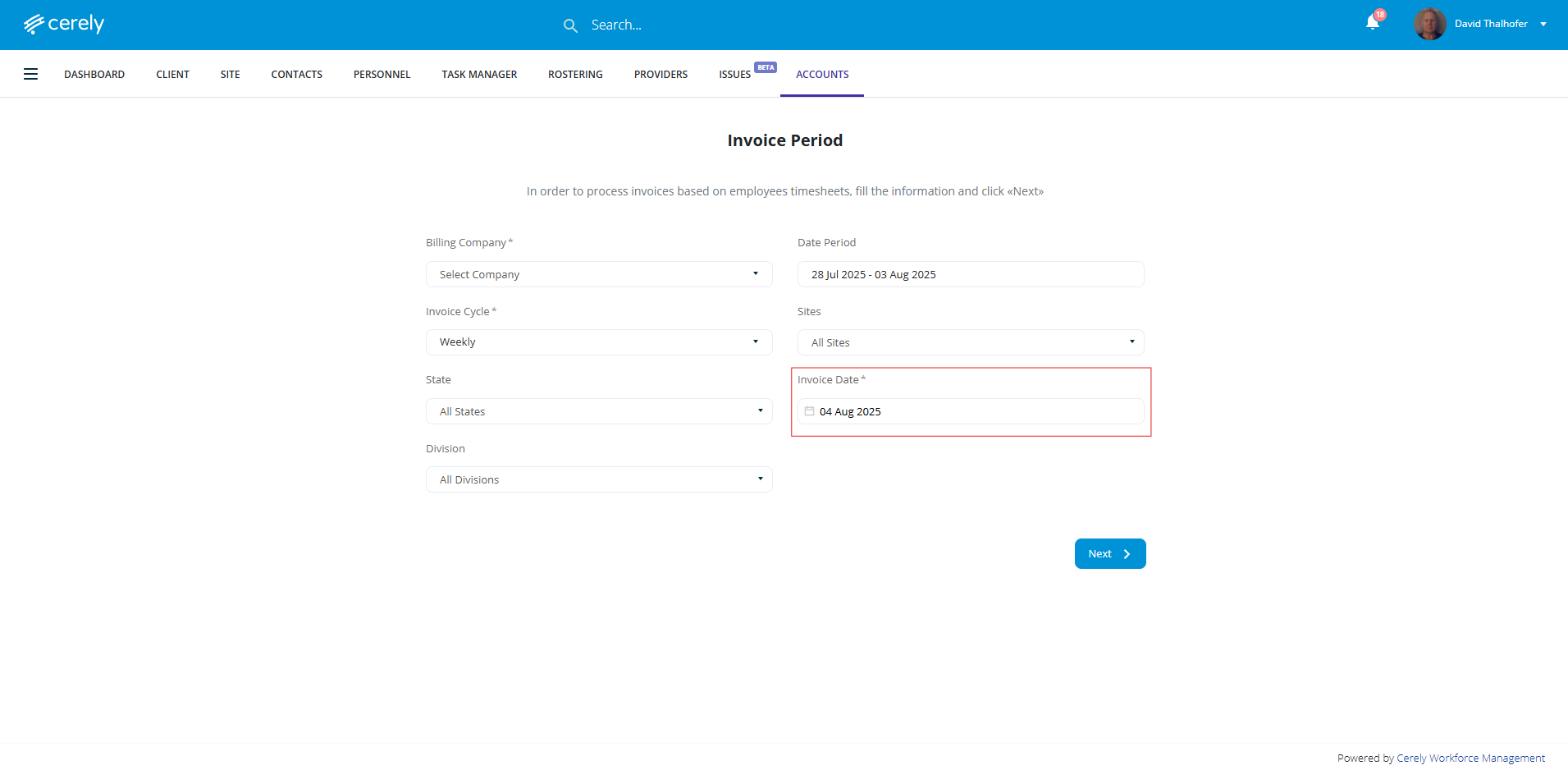
2. The Billing Company tab by default will automatically populate with your Billing Company
If you manage multiple entities, select the from the drop down menu, the correct Billing Company
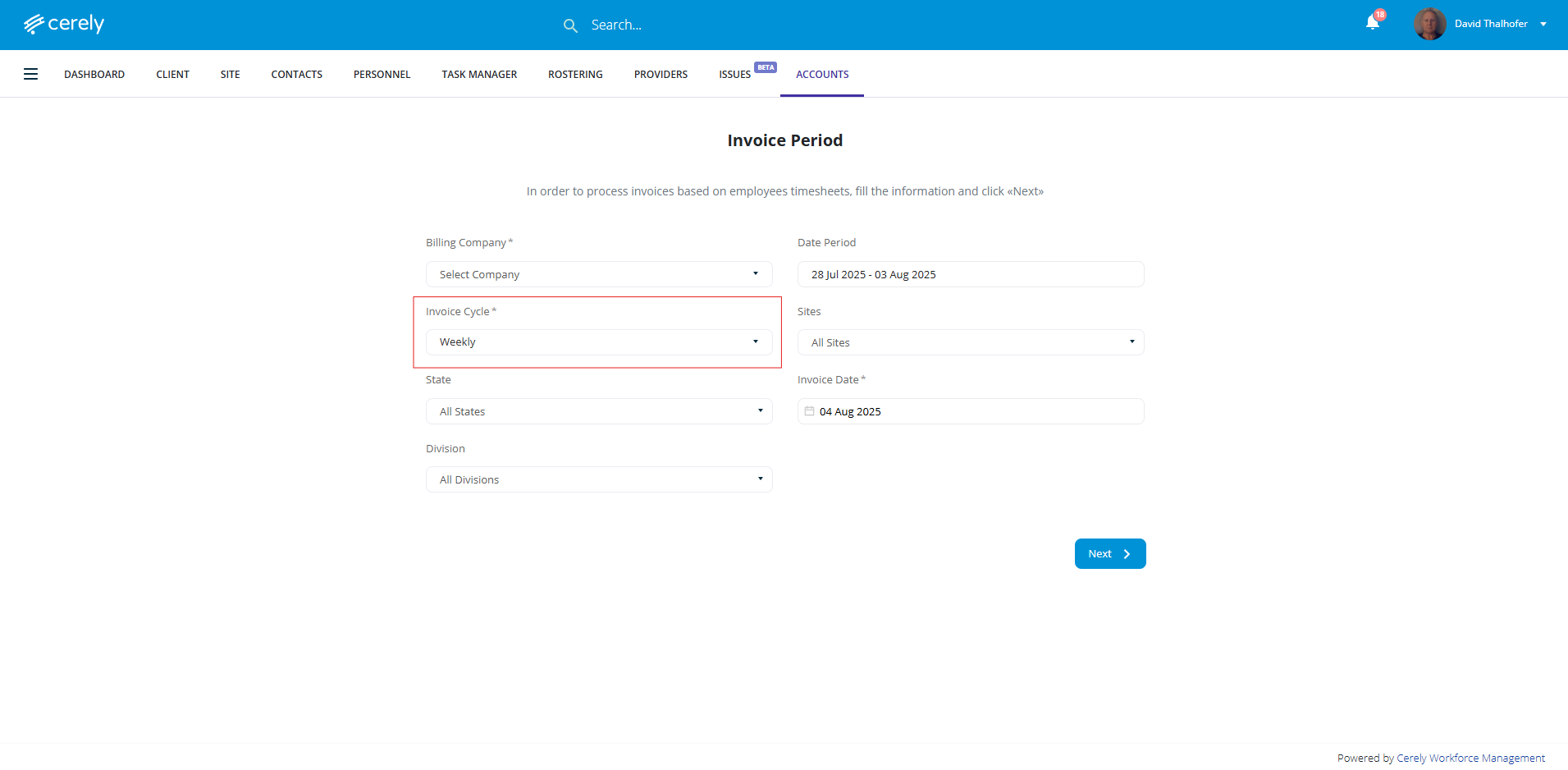
3. The Invoice Cycle tab defaults to weekly (Monday to Sunday for the previous week)
If required, you can choose a different cycle from the dropdown menu
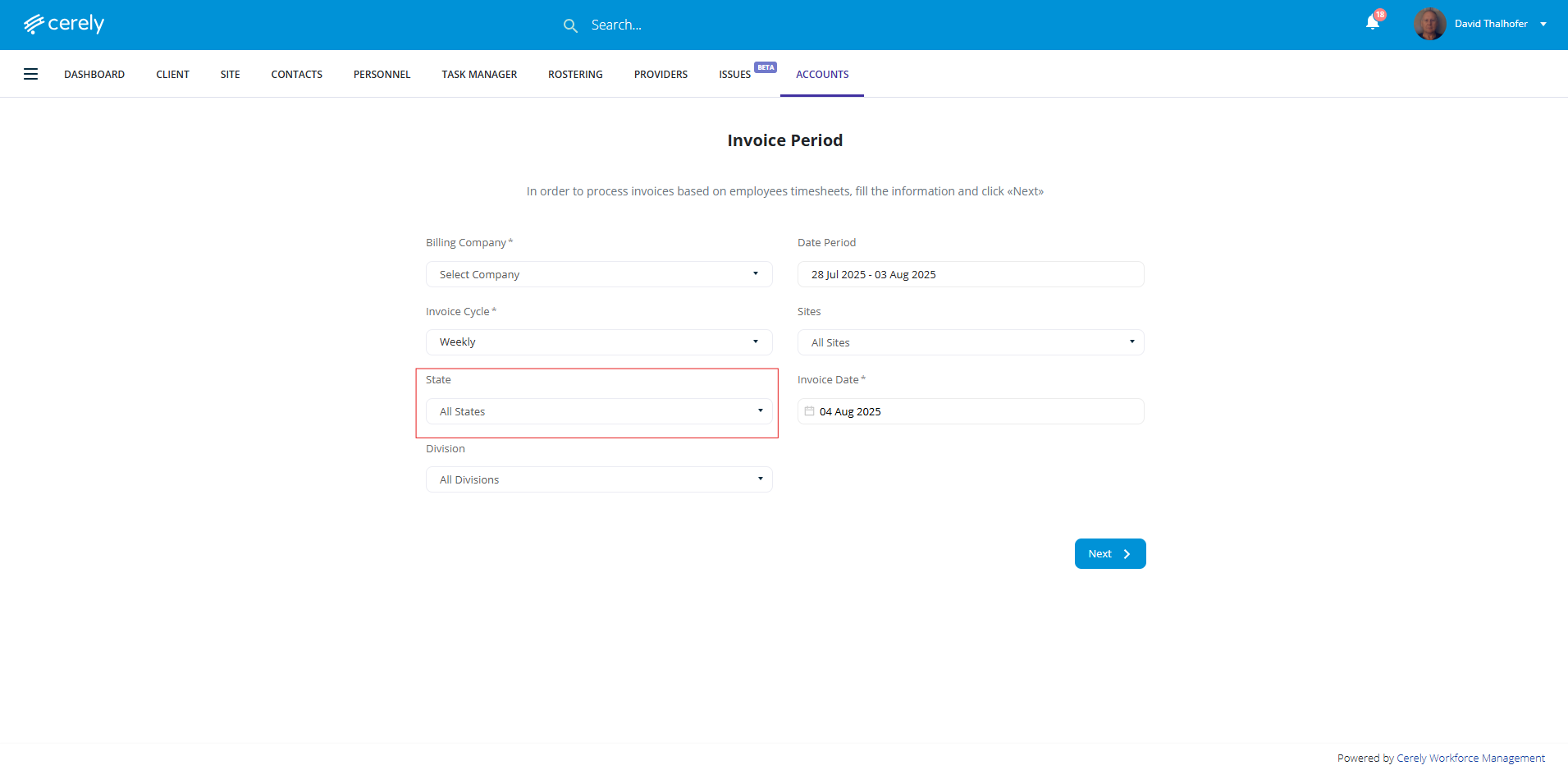
4. The State field will default to All States for users who have access to multiple states. If a user is assigned to only one state, that state will appear automatically.
Use the dropdown menu to filter the invoices for the state and divisions.
When a state is selected, the system will automatically filter the Divisions field to display only the divisions associated with that state.
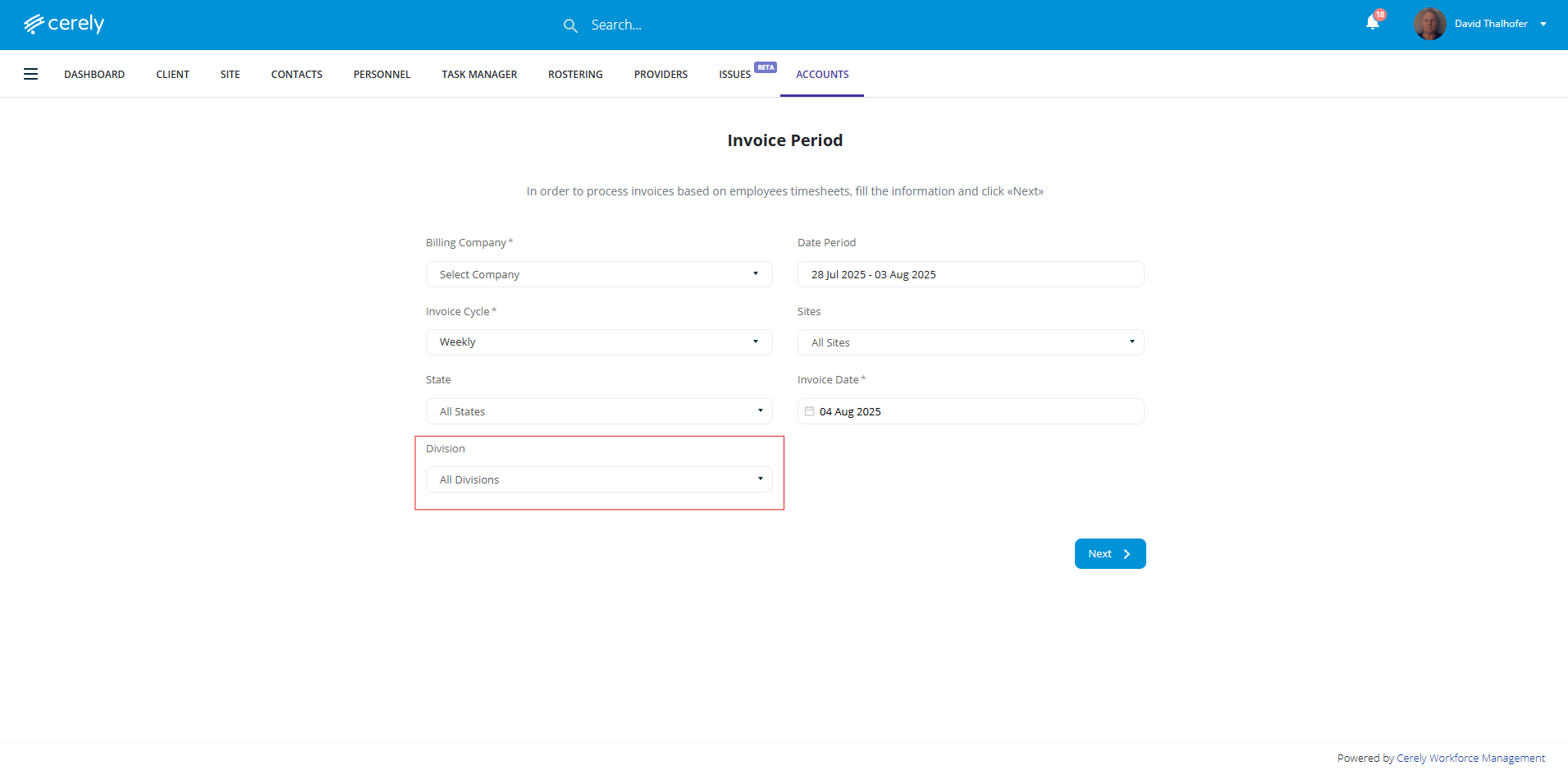
5. The Division field will default to All Divisions for users who have access to multiple divisions.
If a user is assigned to specific divisions only, those divisions will appear automatically.
Use the dropdown menu to filter or select specific divisions as required.
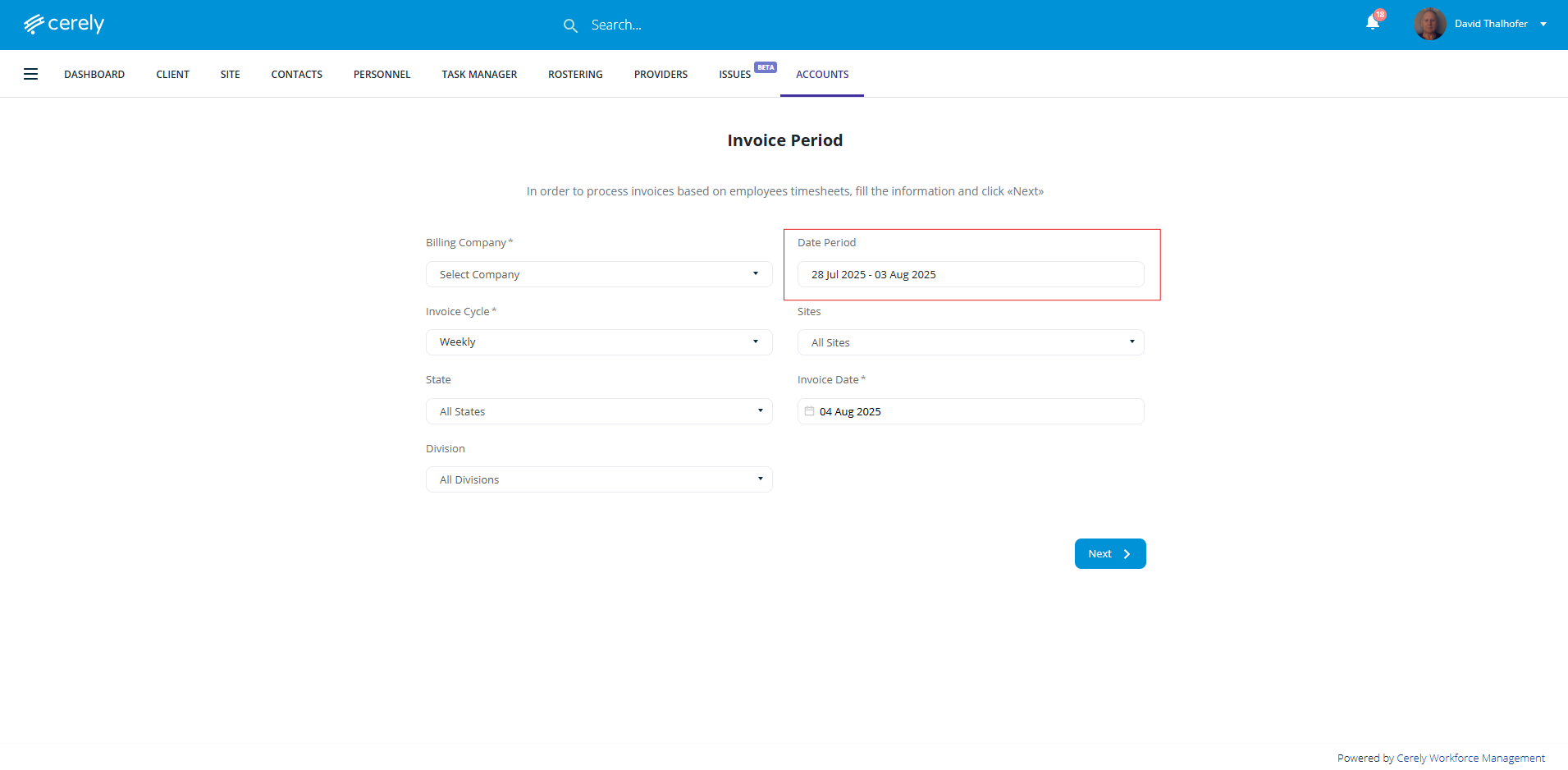
6. The Date Period tab will default to the previous week (Monday to Sunday)
Use the dropdown menu to adjust the date period if necessary
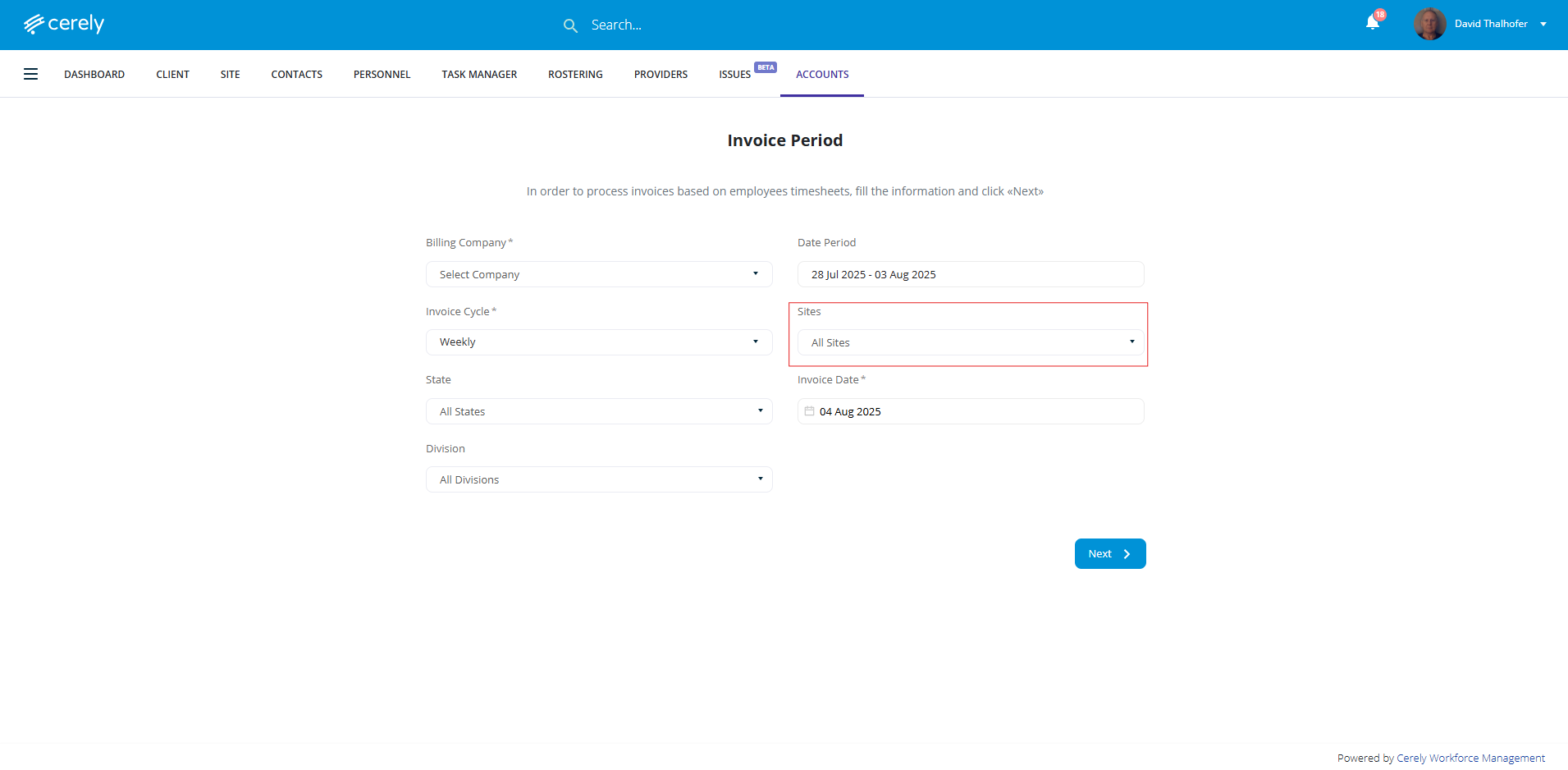
7. The Sites field will default to All Sites for users who have access to multiple sites.
If a user has access to a limited number of sites, only those sites will appear automatically.
The list of sites is also influenced by the filters selected in the previous steps.
-
When a State is selected, the Sites field will display only the sites located within that state.
-
When Divisions are selected, the Sites field will further narrow to show sites linked to those divisions.
Use the dropdown menu to select a specific site or refine your results based on the applied filters.
8. The Invoice Date will default to today’s date
Click on the calander icon in the tab and use the calendar pop up to select a different date rannge
Note: The selected invoice date determines the due date, for example - this will be calculated as the invoice date + 7 days
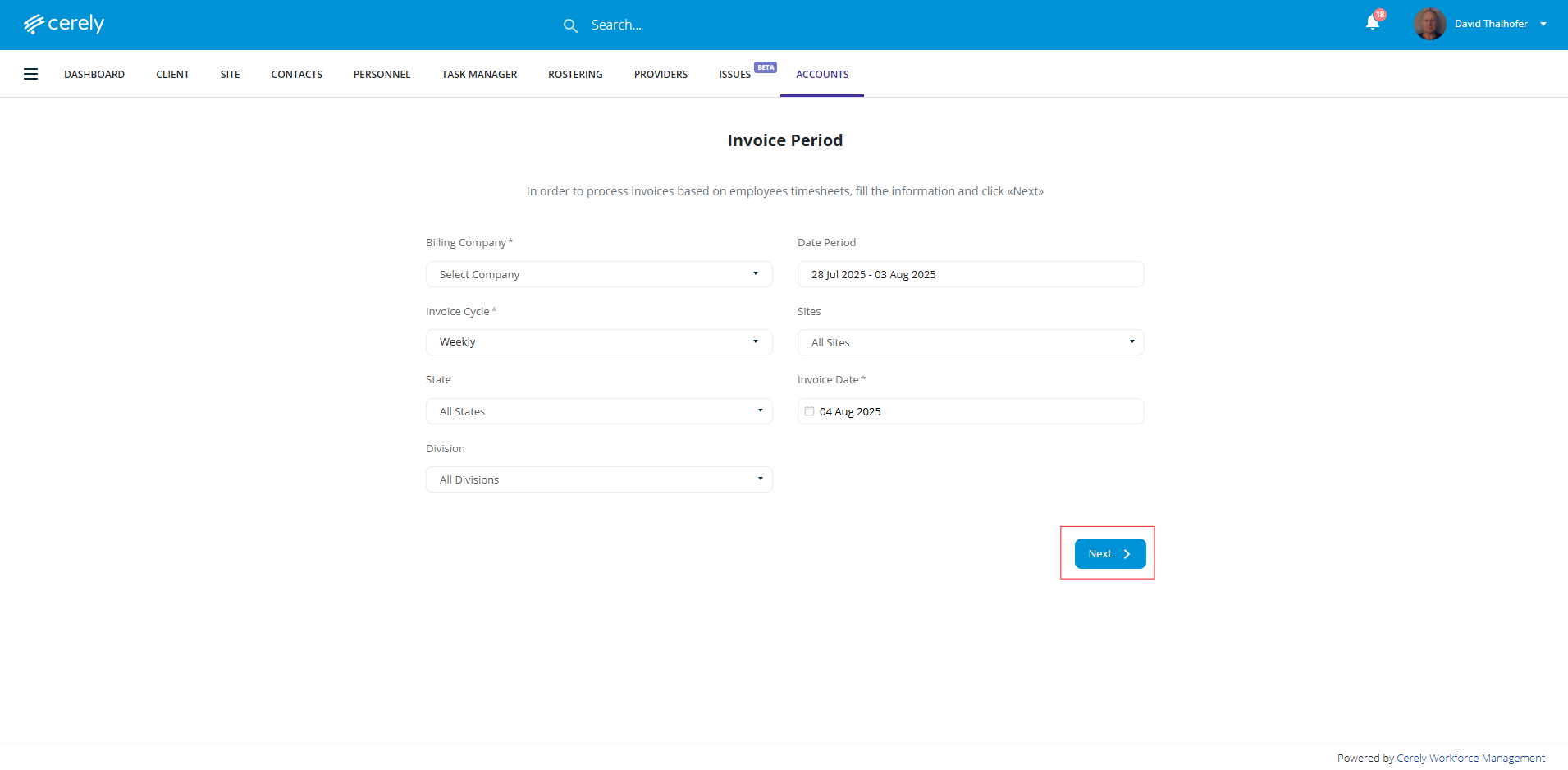
9. Click the Next button
Review and Approve the Invoices
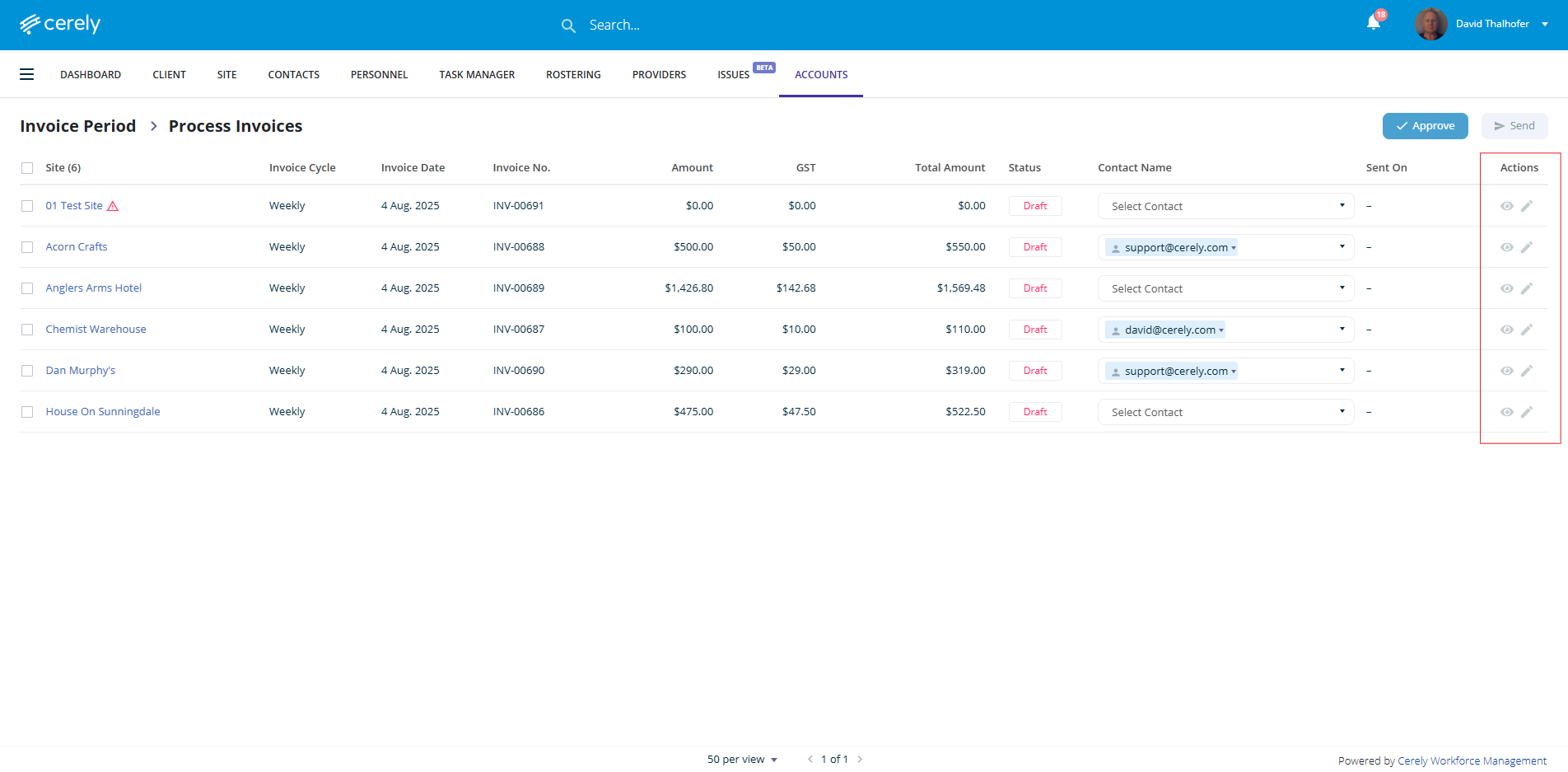
10. A list of draft generated invoices will display for your review and approval
Review each invoice listed or edit *********(INSERT LINK) as required
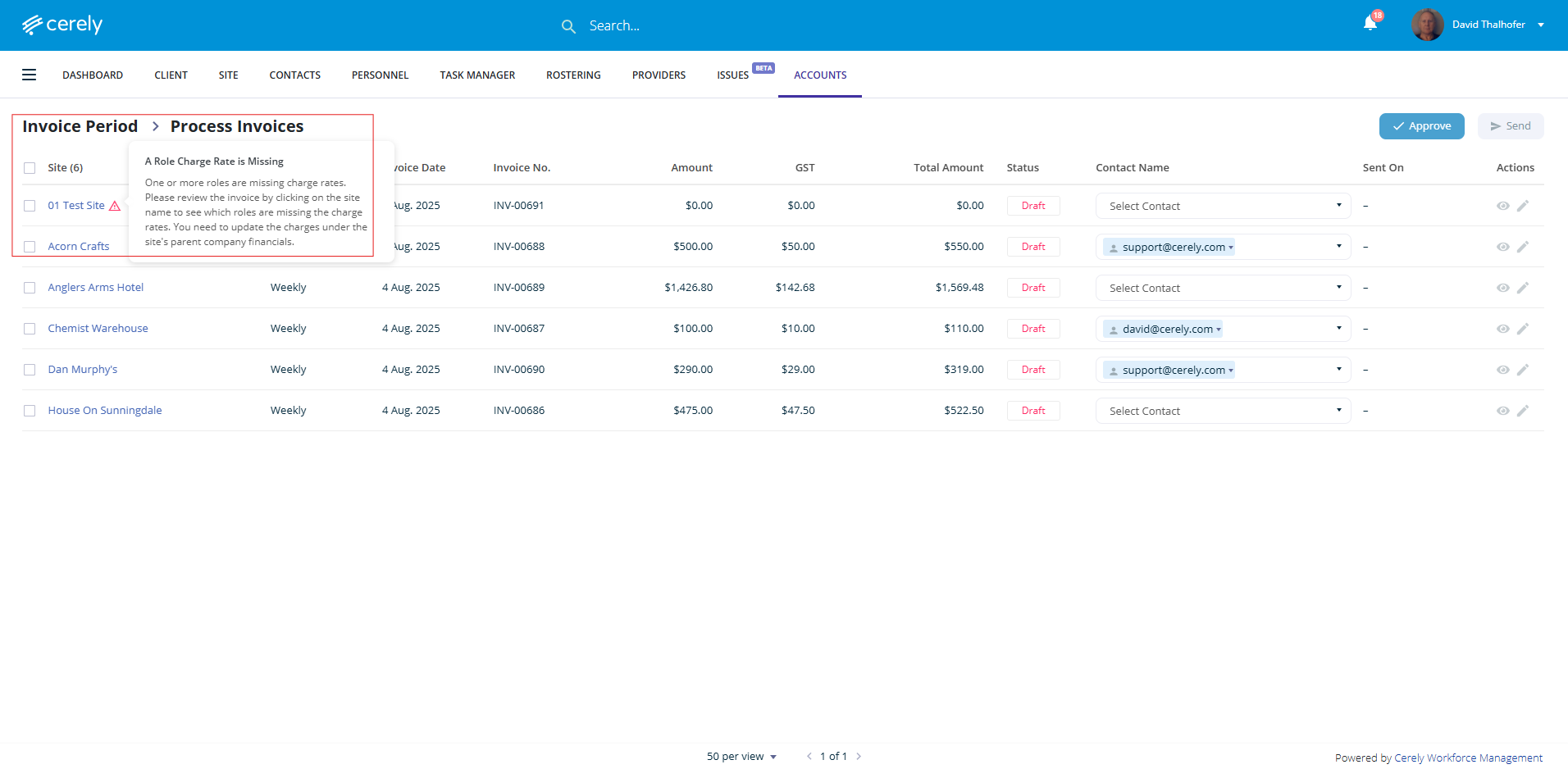
11. Look for any warnings that may require your attention (e.g. missing charge rates based on role or shift type) *******INSERT LINK
Warnings will include a message explaining the issue so you can address it before sending the invoices to the client.
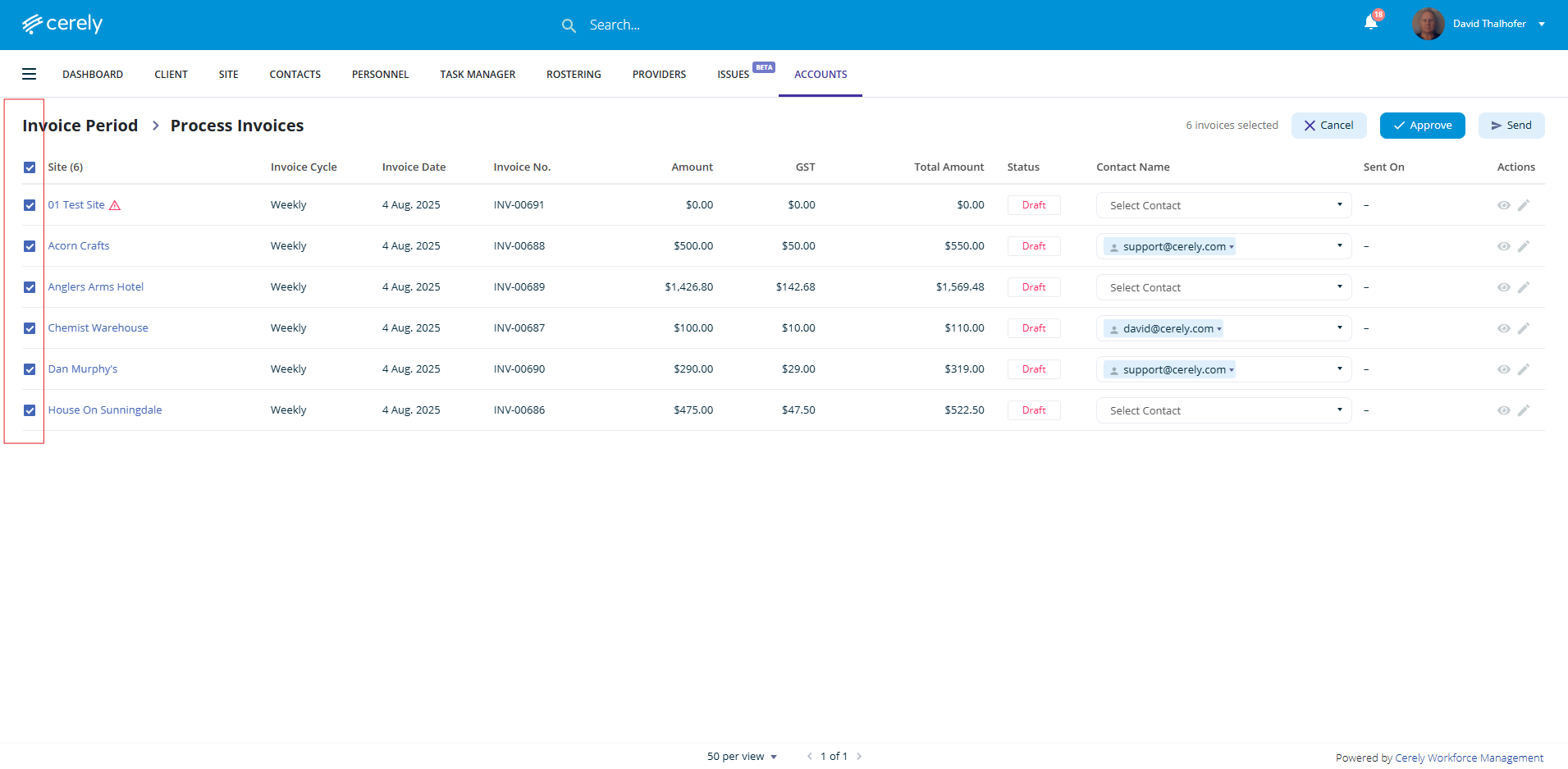
12. Select the invoices to approve individually, or use multi-select to approve in bulk
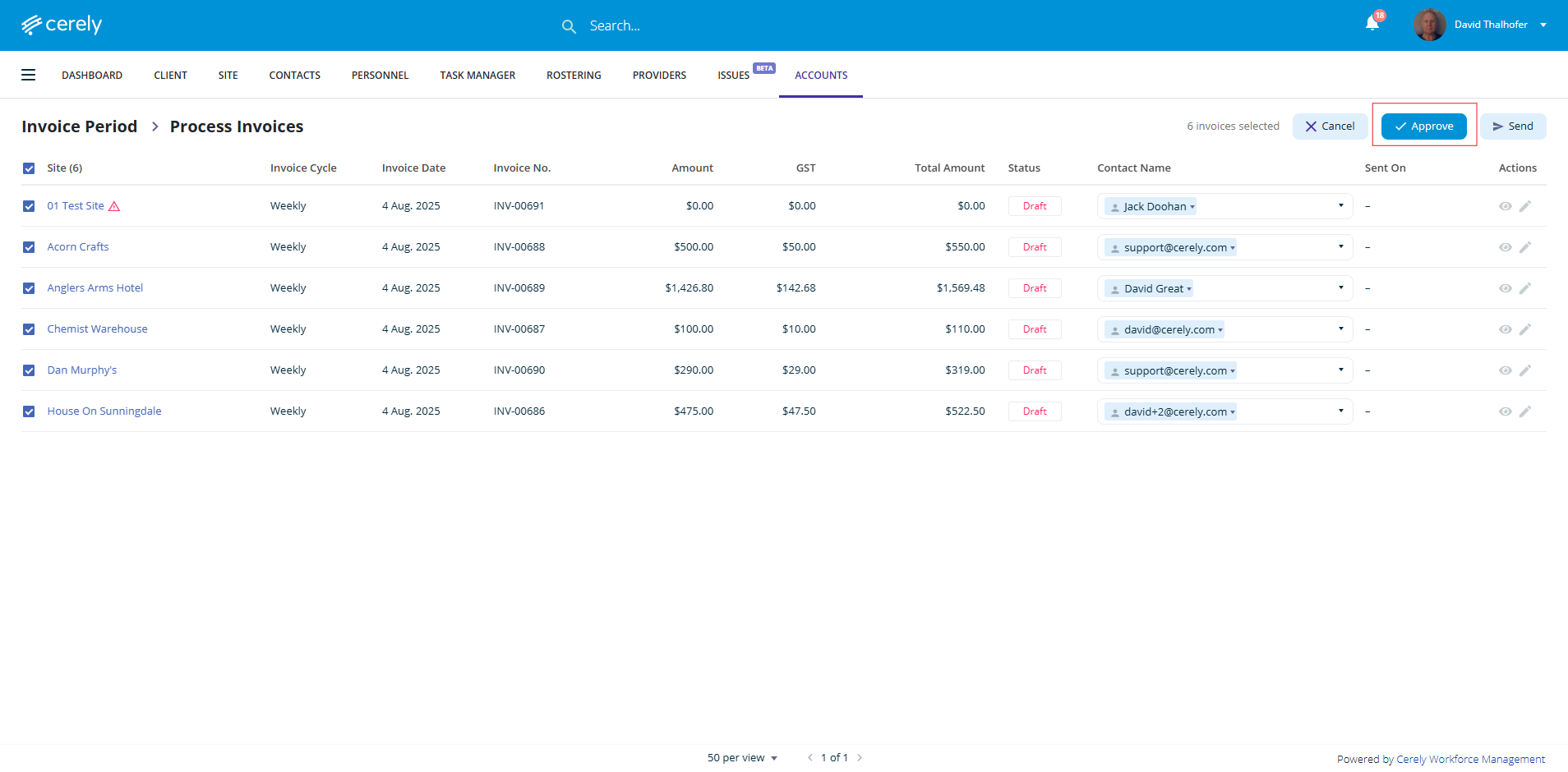
13. Click the Approve button in the top right-hand side menu
Sending Invoices via Email
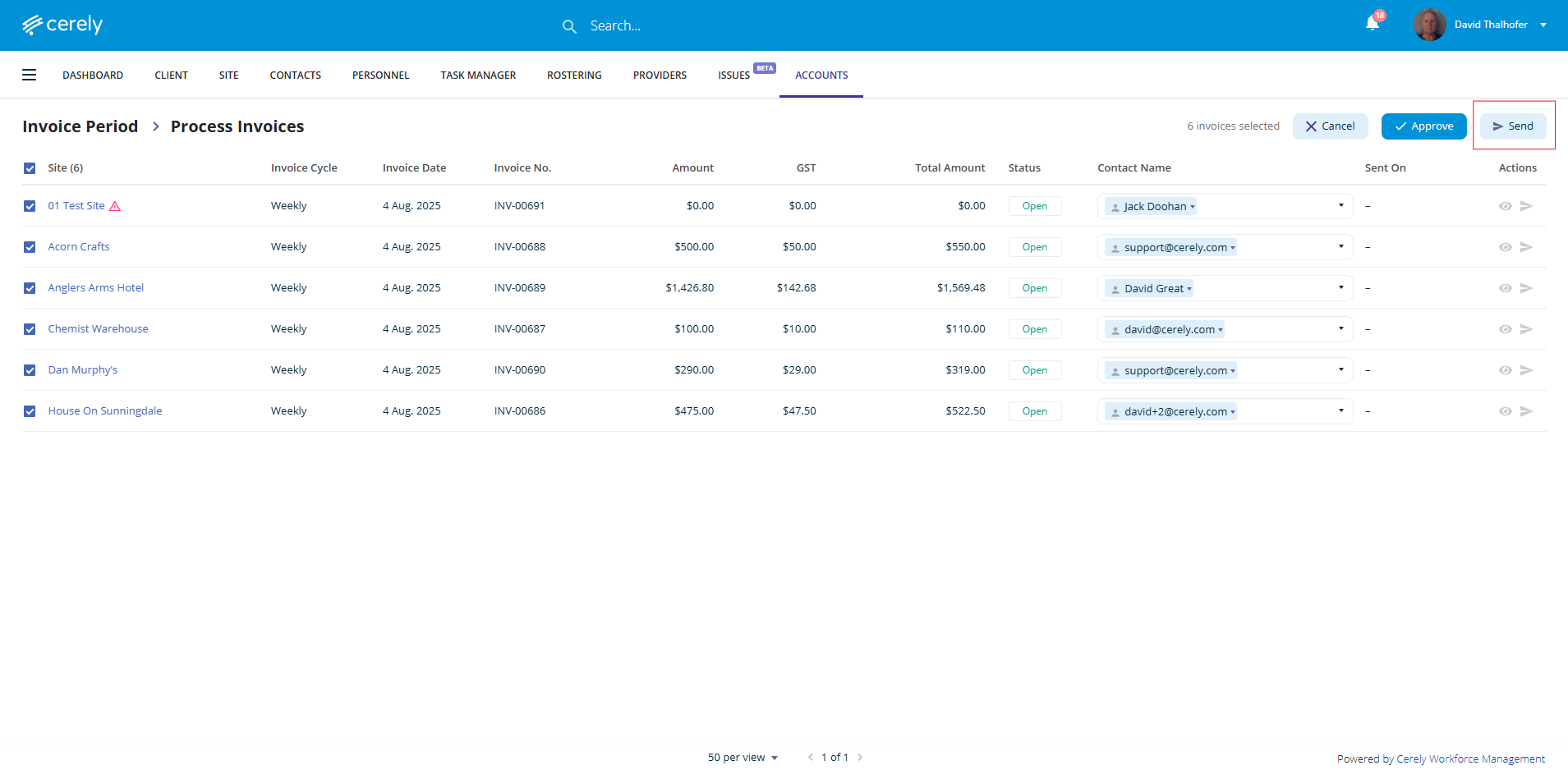
14. After approving the invoices in Cerely, you will automatically return to the invoice list in Cerely and the invoice status will now be open
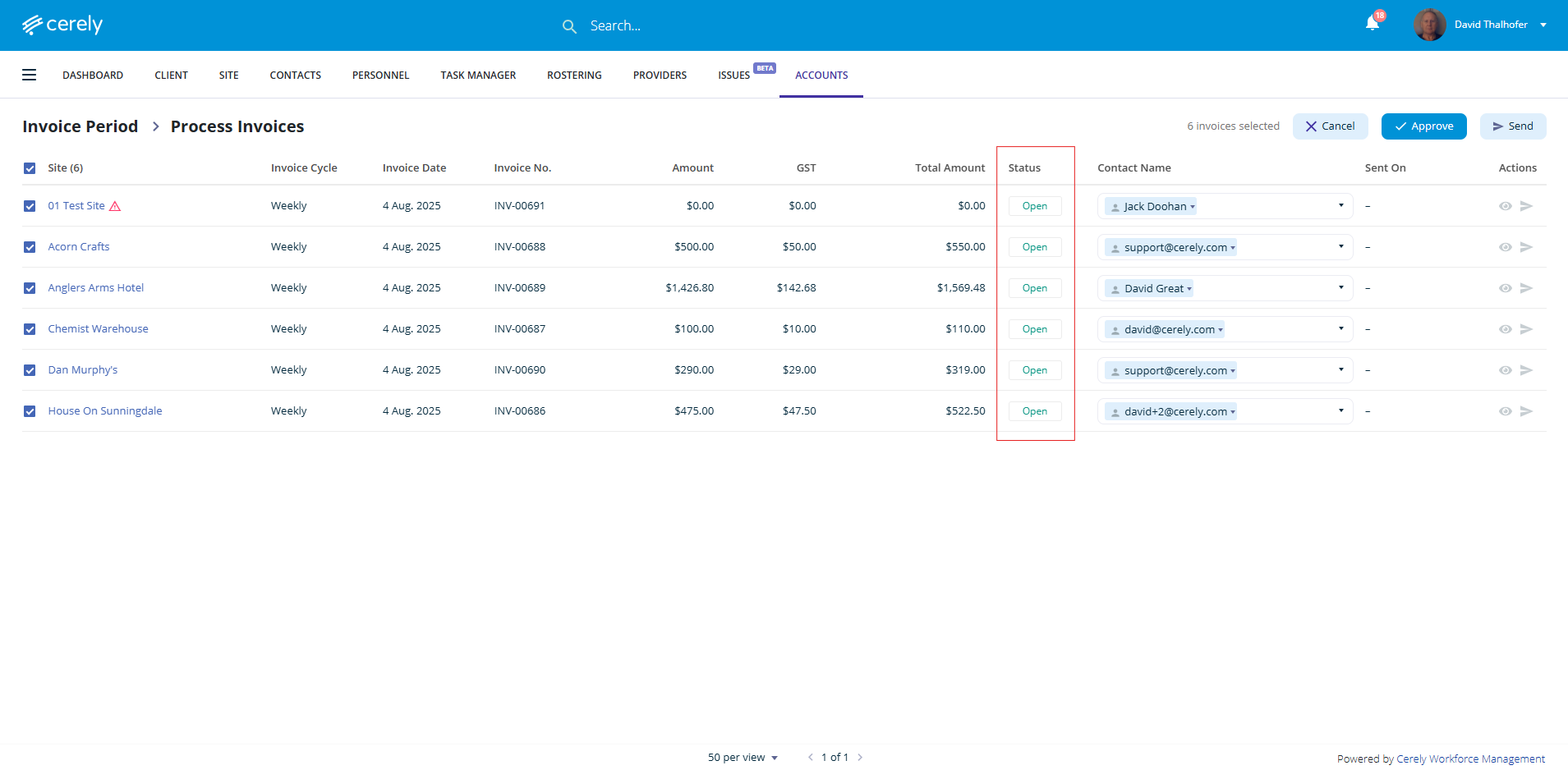
15. The invoices can now be emailed to recipients via email from Cerely, invoices will be sent to the contact email address configured in Site Invoice Setup, which will now display in the Contact Name field and others can be selected or changed by clicking in the contact name field drop down menu.
If you need to add a recipient, and the email address is not listed under the site details it must first be added under Site Invoice Setup ********(INSERT LINK).
Only email addresses saved in the site’s billing details can be selected when sending invoices and multiple email addresses can be selected if required.
You can choose to send invoices individually or in bulk.
-
To send a single invoice, select the checkbox next to the invoice you want to email
-
To send multiple invoices at once, use the checkboxes to multi-select the invoices you want to email
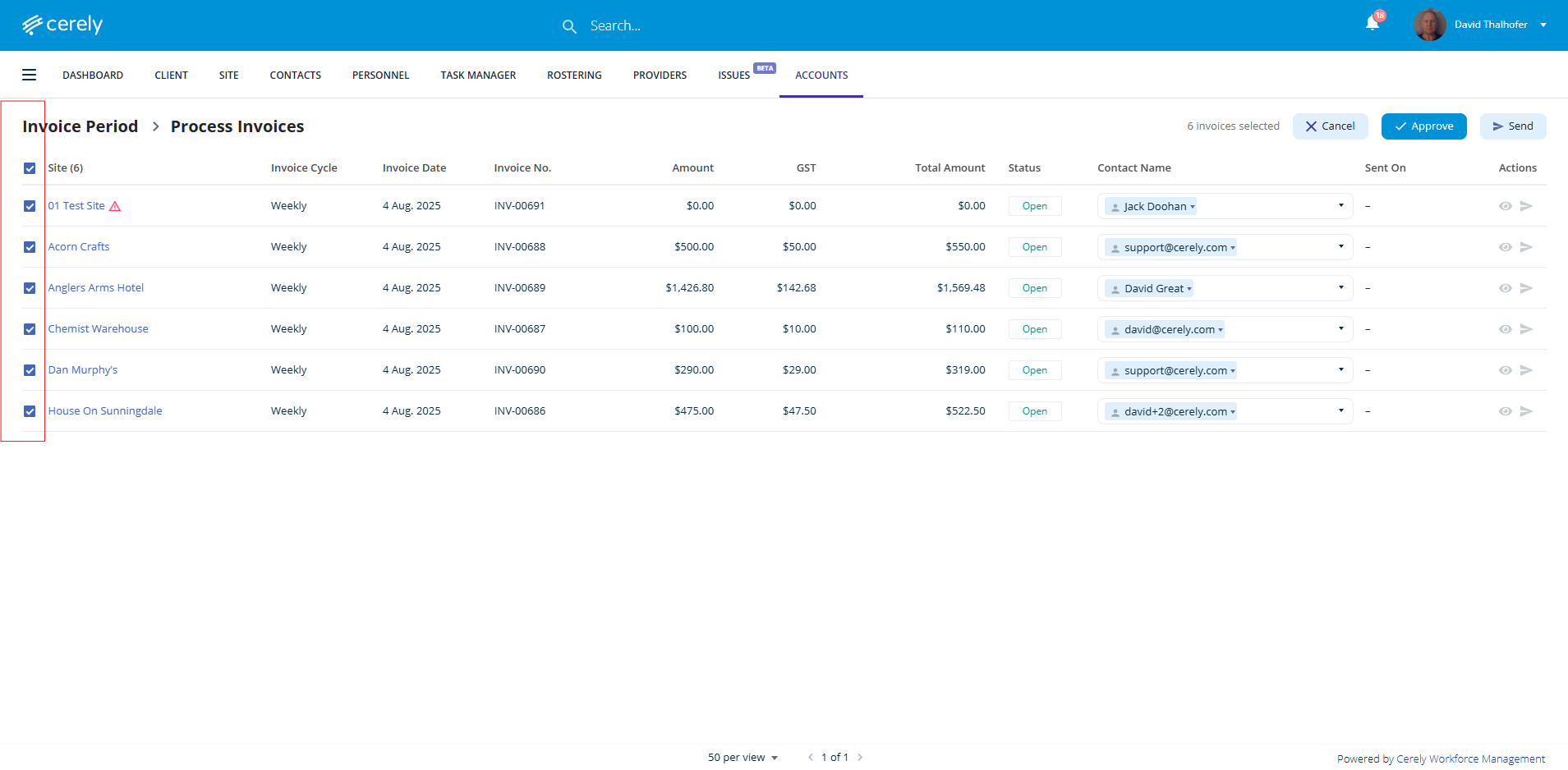
16. Click the Send button in the top right hand side menu to email the invoices from Cerely