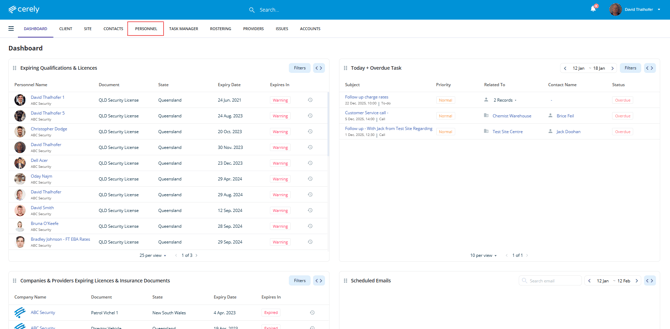
1. From the home screen in Cerely, click on the Personnel tab from the Cerely top main menu
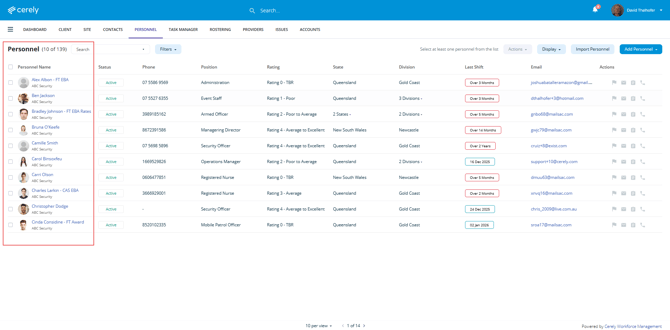
2. Locate and select the employee whose site ban you want to delete
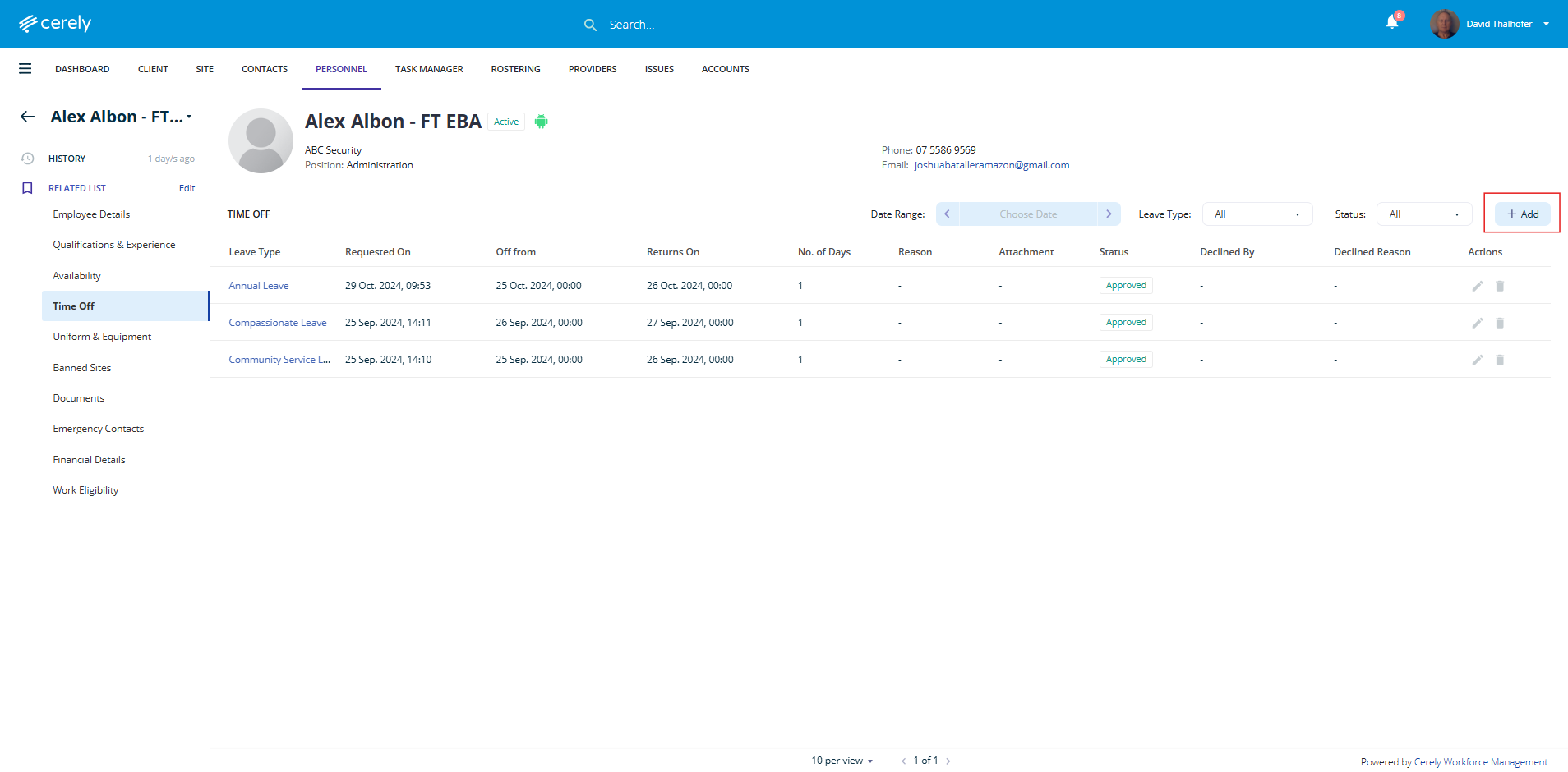
3. From the left-hand side menu within the employee profile, select Time Off
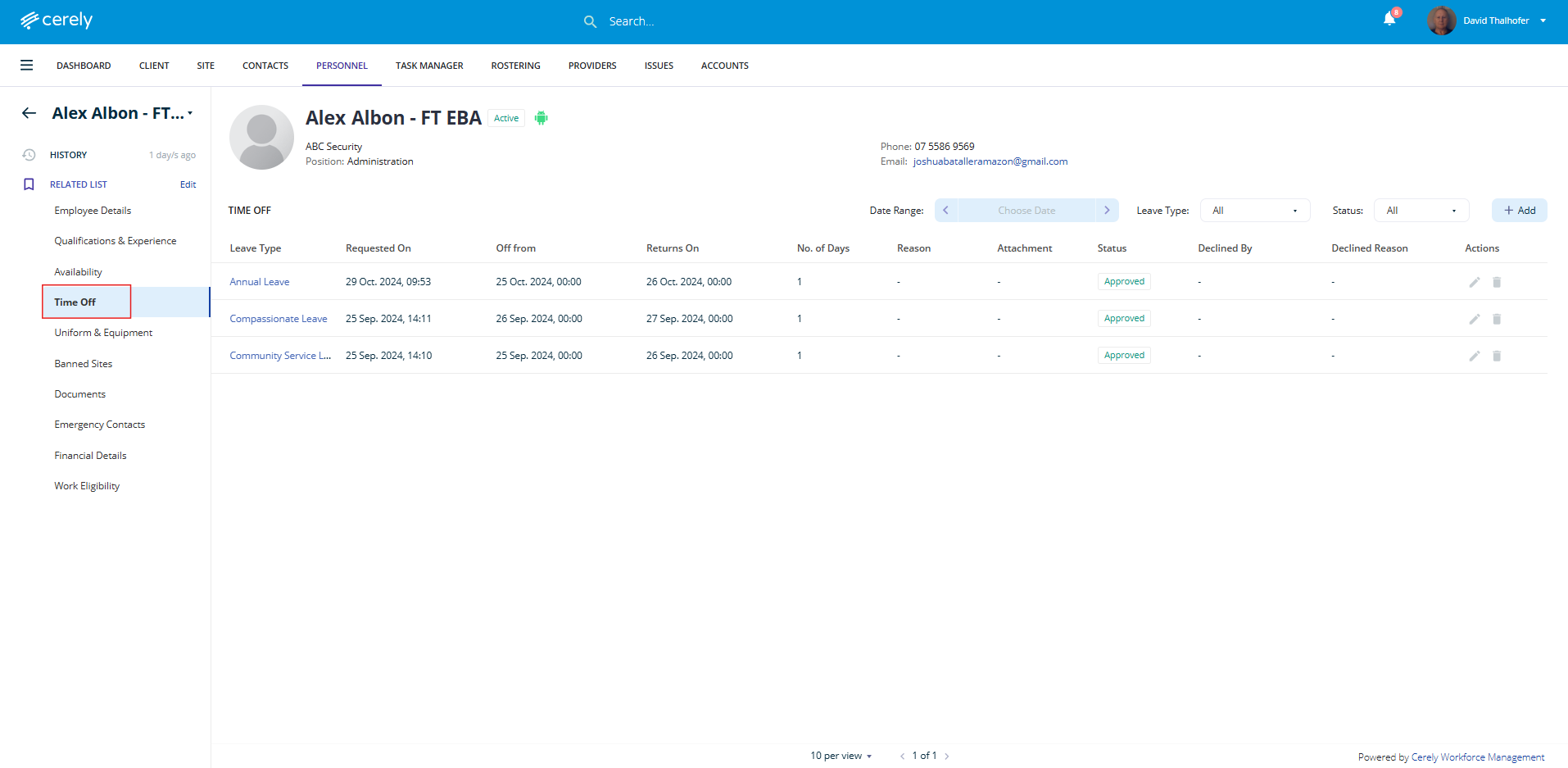
4. On the right-hand side, select + Add to create a new time off record
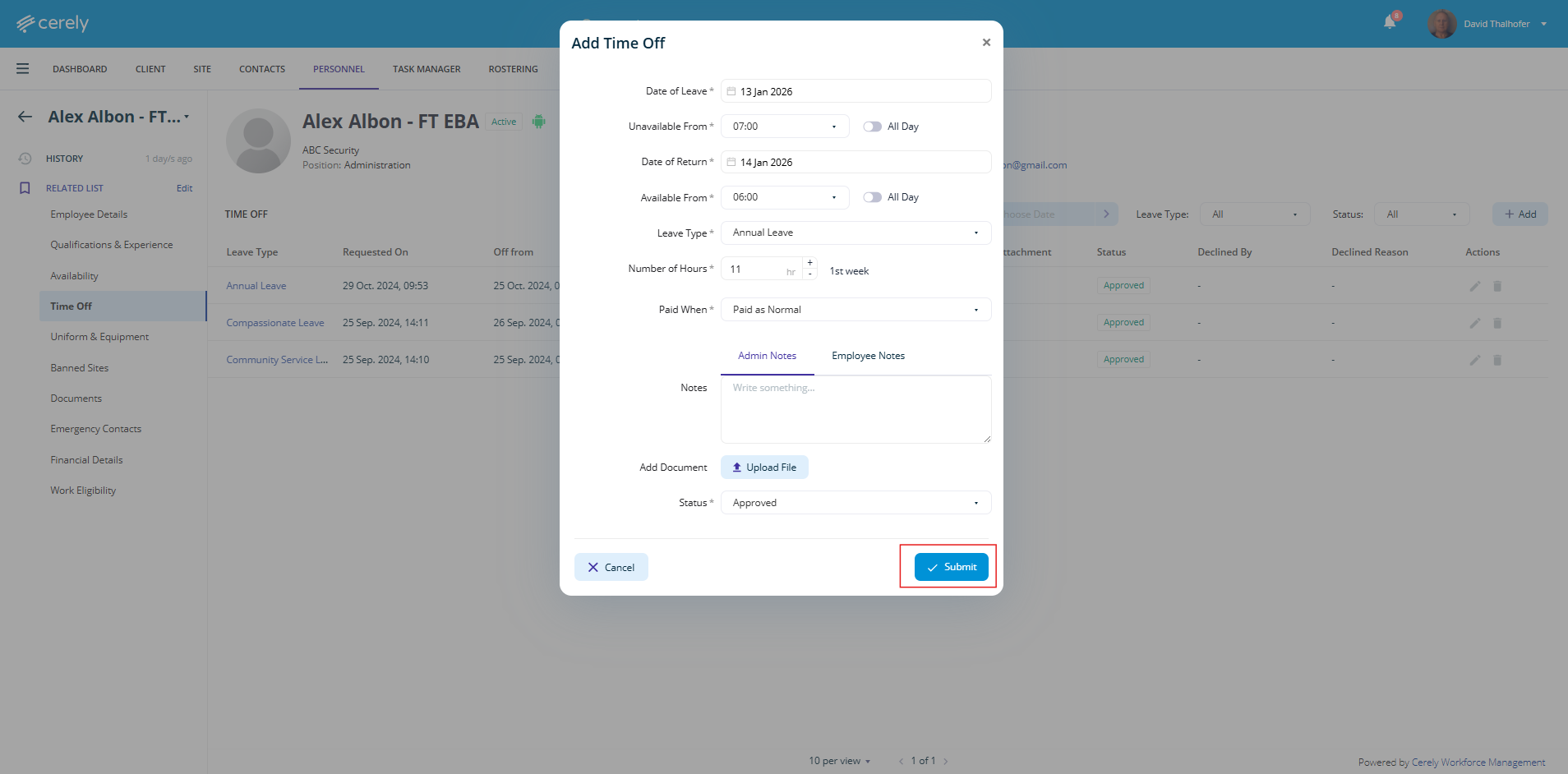
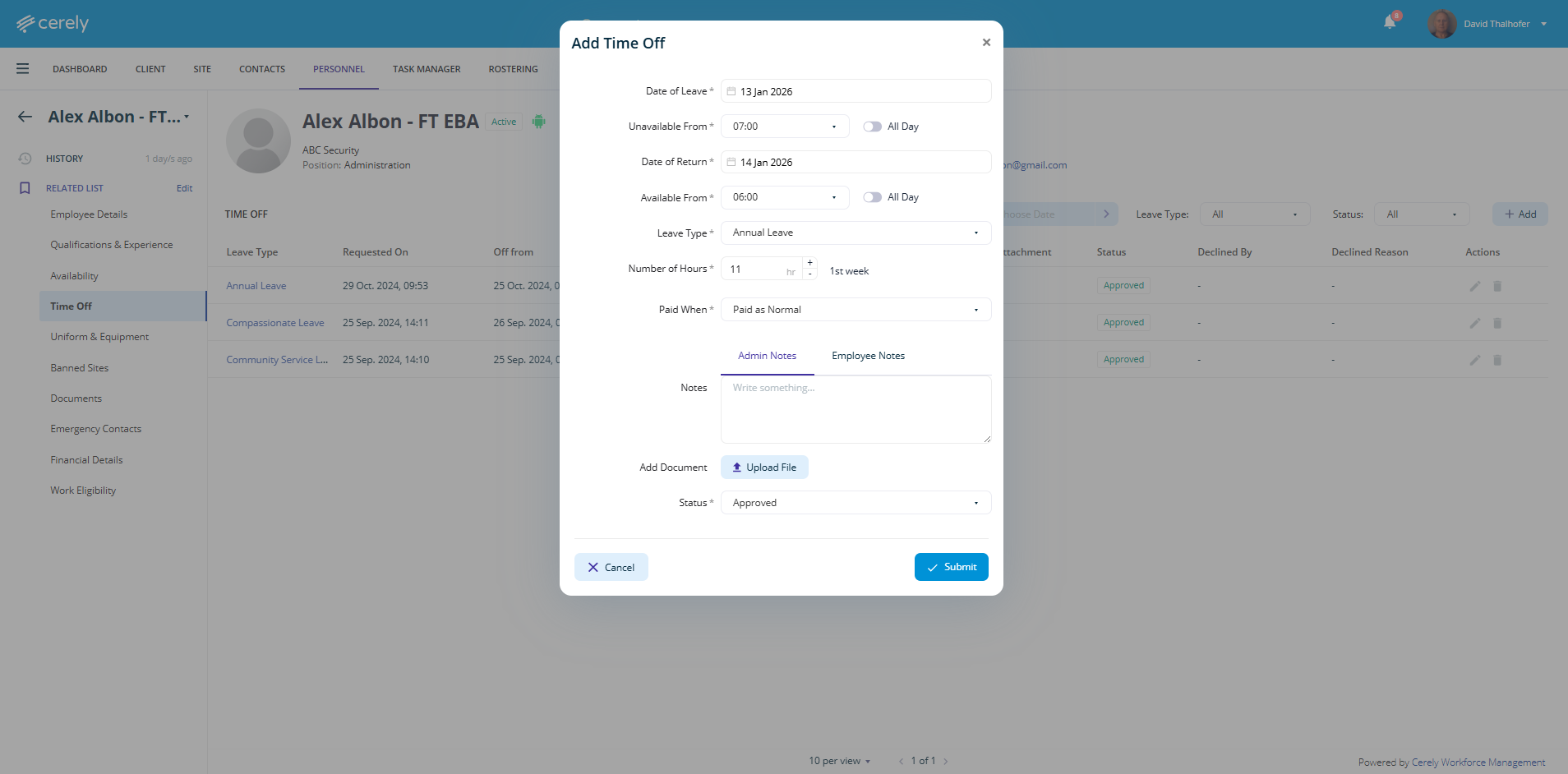
5. In the pop-up window, complete the required fields, including:
-
Date of Leave – Select the date the leave begins
-
Unavailable From – Choose a start time or select All Day
-
Date of Return – Select the date the employee returns
-
Available From – Choose a return time or select All Day
-
Leave Type – Select the appropriate leave type from the dropdown menu
-
Number of Hours – Enter the number of leave hours being taken
-
Paid When – Select when the leave is paid from the dropdown menu
-
Notes – Add any administrative or employee notes if required
-
Attachments – Upload any supporting documents or files (optional)
-
Status – Select the leave status: Approved, Pending, or Declined
Important:
When manually applying time off, it is important to consider how the selected time range interacts with existing rostered shifts:
-
If the time off overlaps a rostered shift, once approved, the employee will automatically be unassigned from that shift.
-
If a shift ends at 6:00am and time off is applied as unavailable for the full day, the system will treat this as overlapping and unassign the employee from the shift.
-
To avoid unintentional un-assignment, ensure the time off start time begins after the employee’s shift end time where applicable.
6. Once all details have been entered, select Submit to apply the time off.