
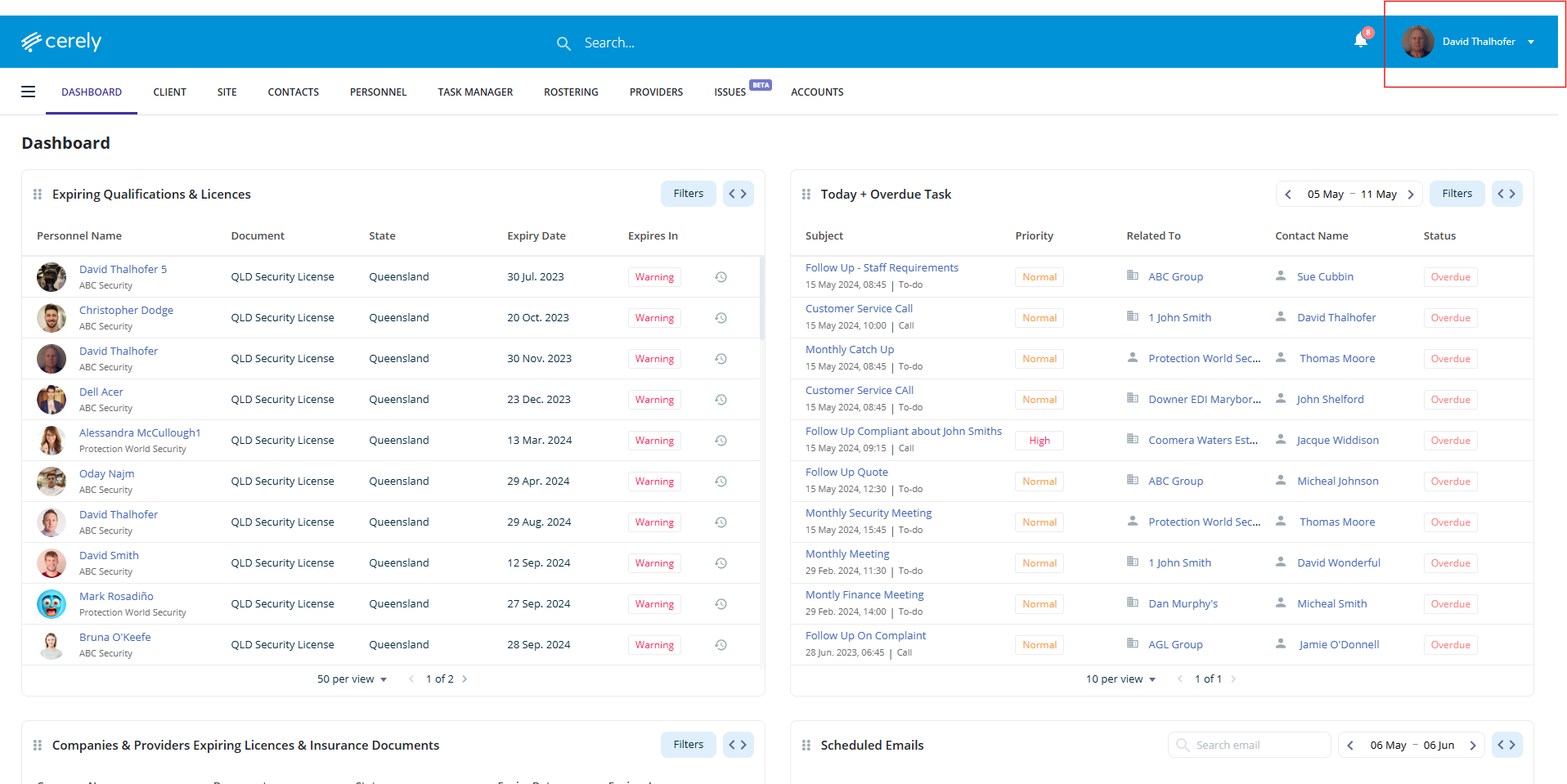
1. Click on your profile icon in the top right-hand corner of the screen
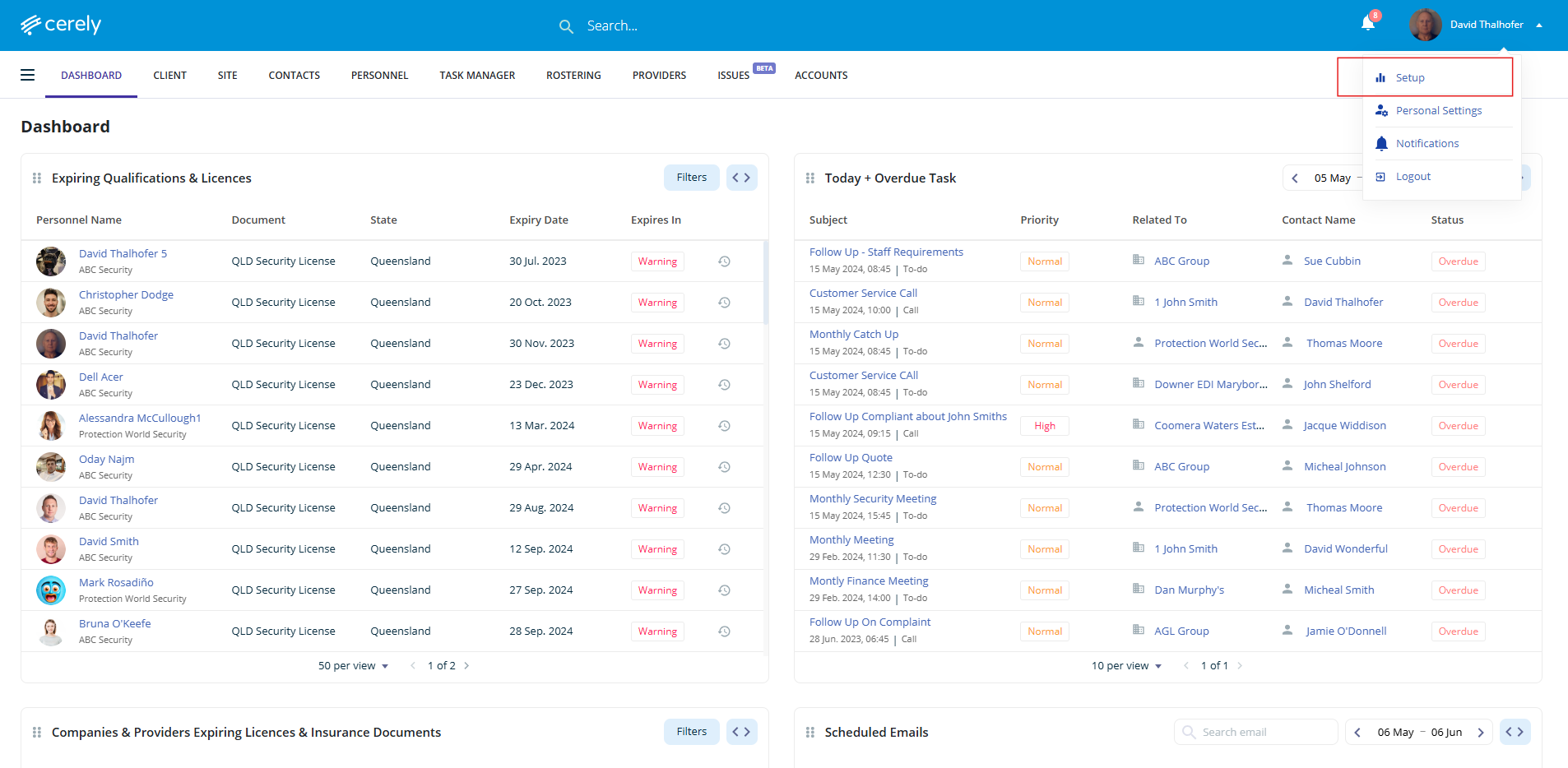
2. Select setup from the dropdown menu
3. Under users & permissions, select permissions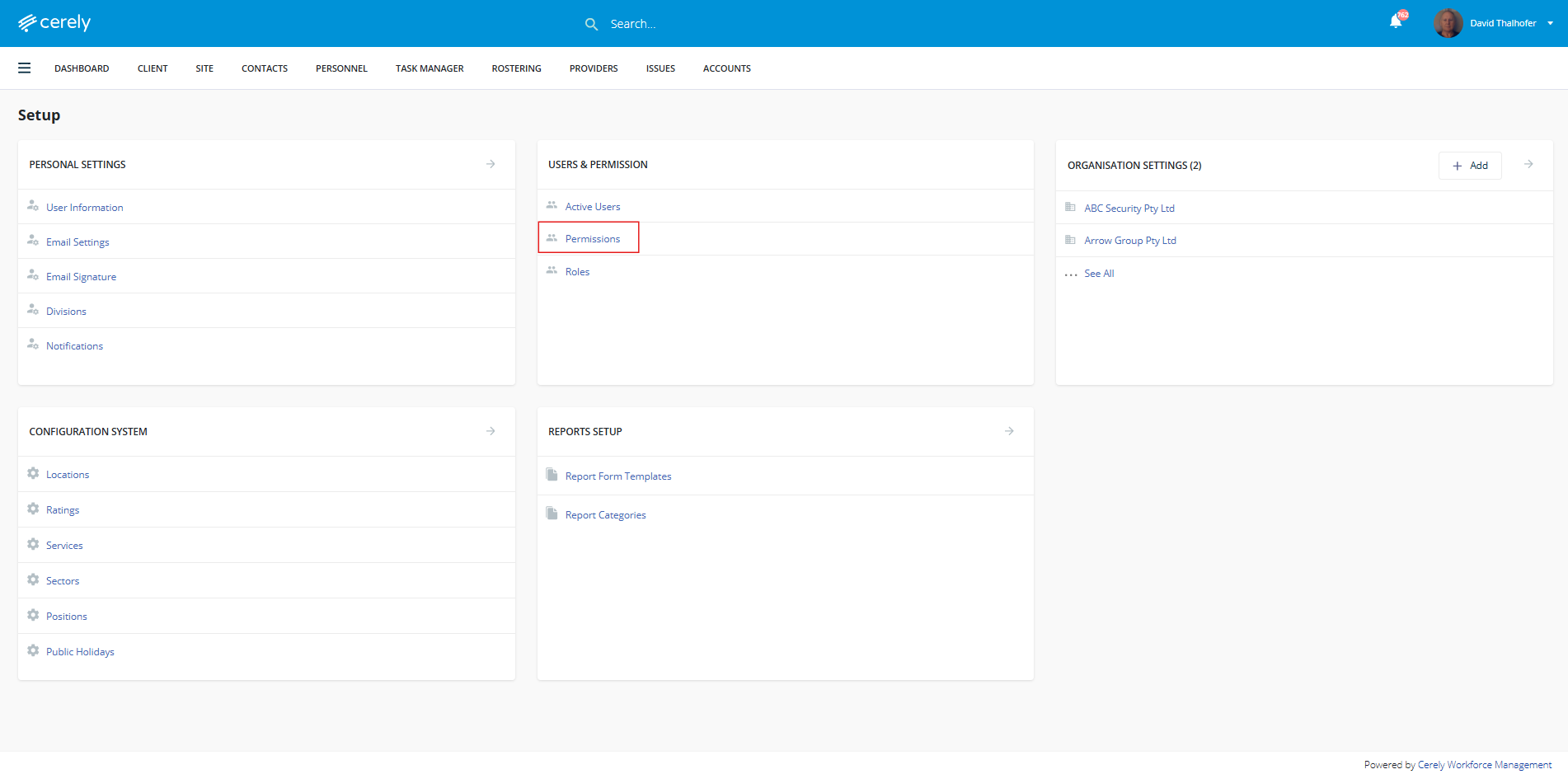
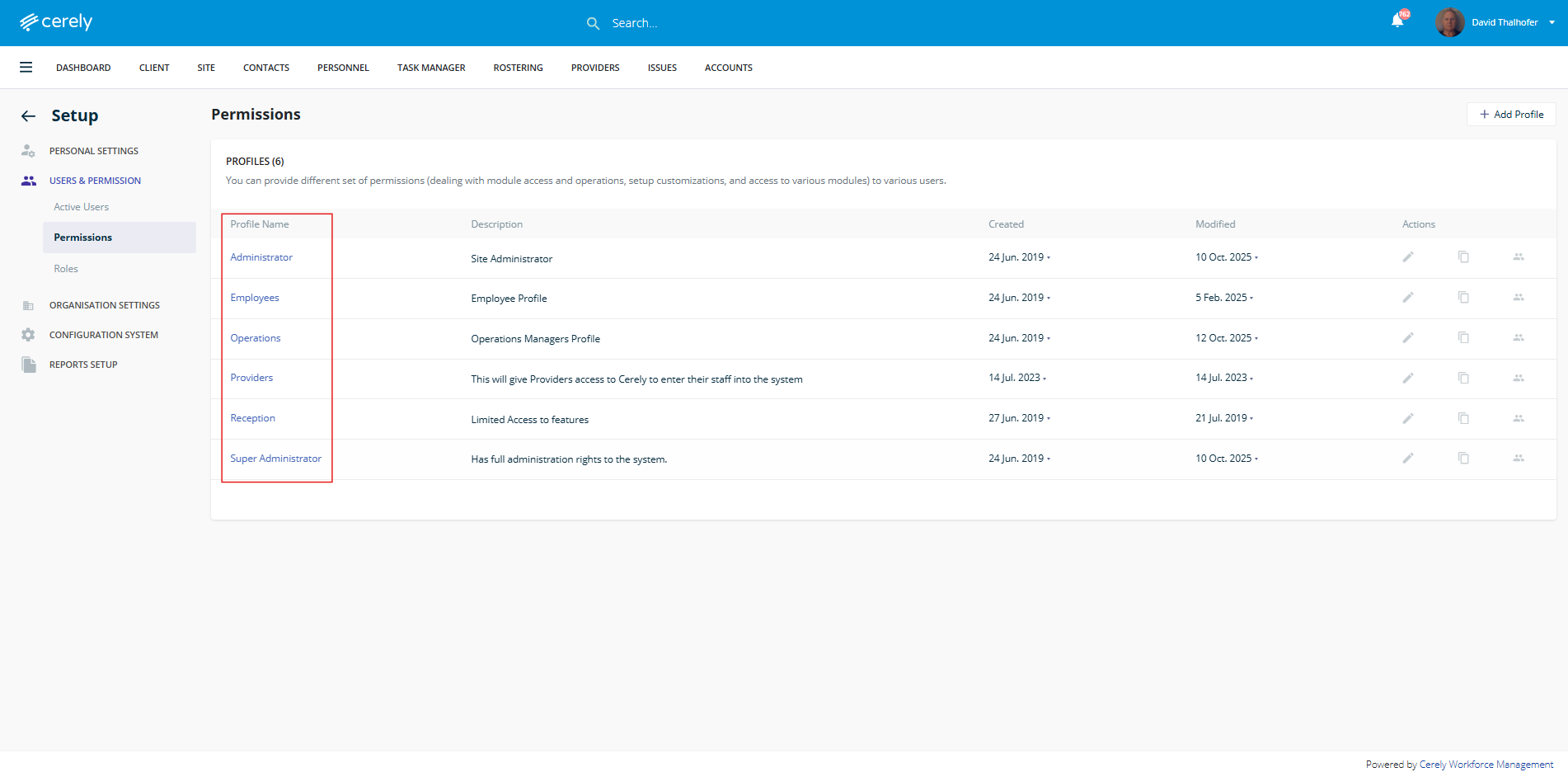
4. Click on a profile name to view the current permission settings
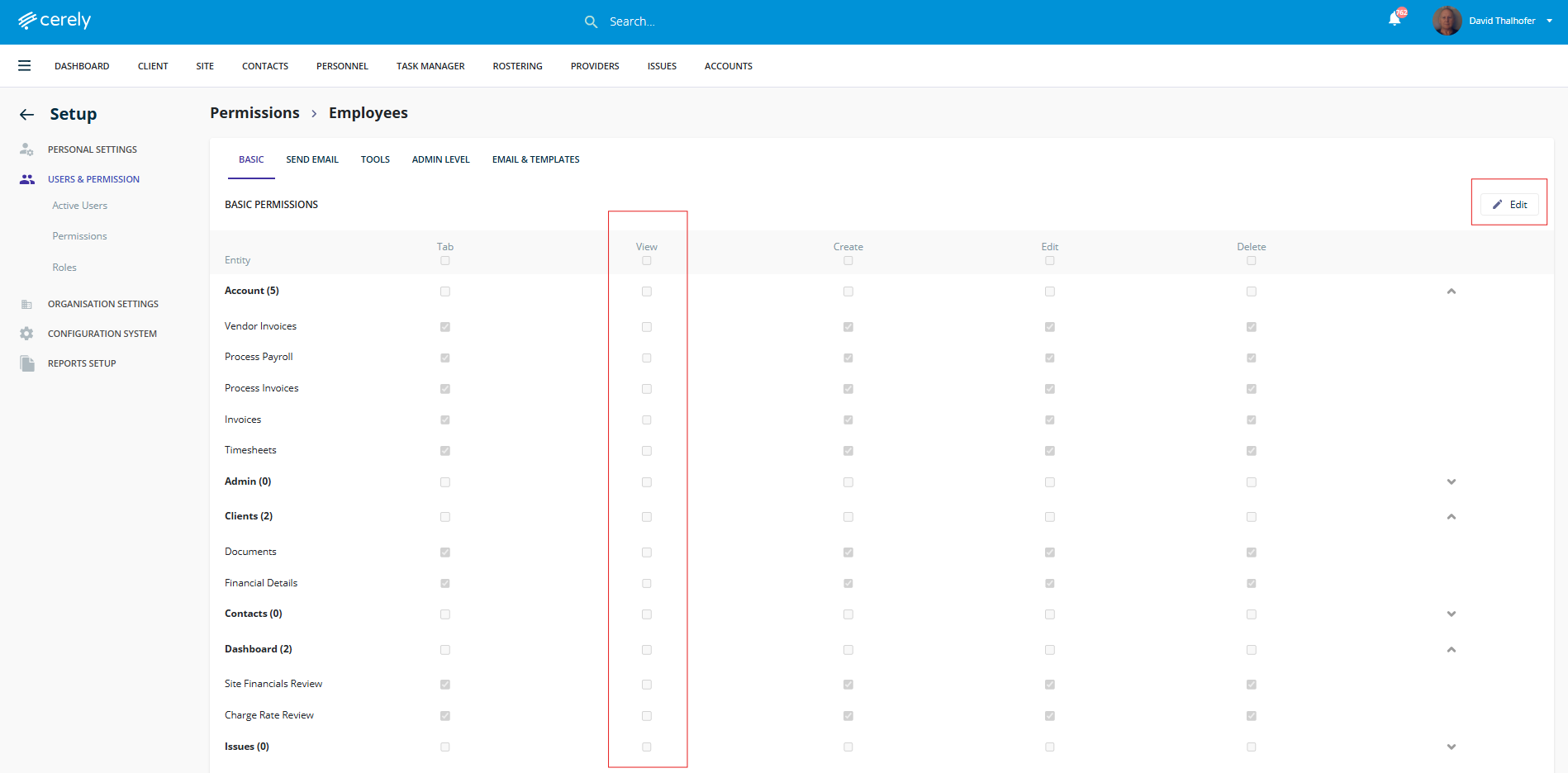
5. Click Edit to enter edit mode
-
Deselect a box to remove access to that section or feature
-
Select a box to grant access to that area
Tip:
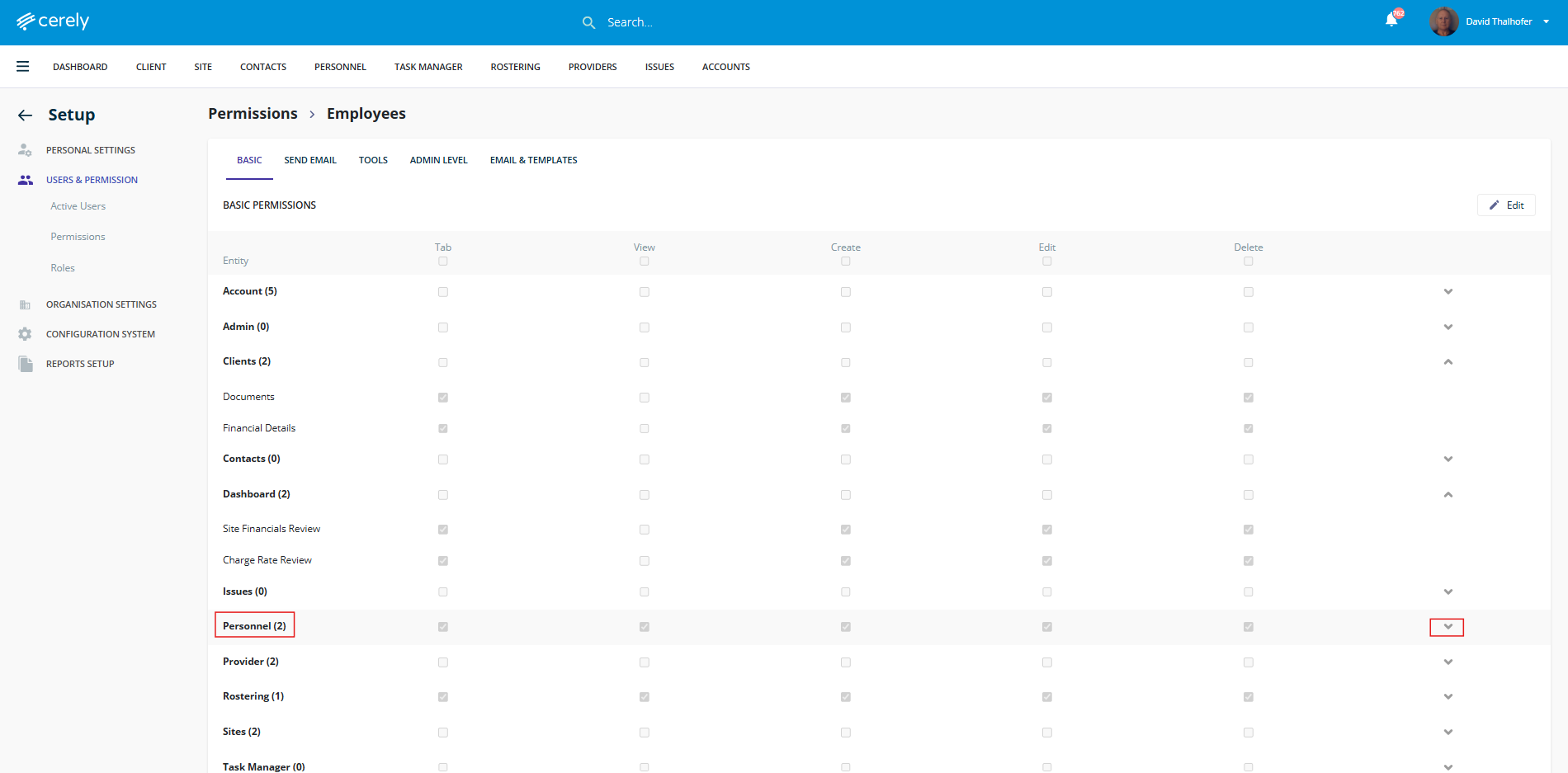
If a category displays a number next to it (e.g. 2), this indicates sub-permissions are available. Click the arrow next to the category to expand and view more detailed options for View and Edit access.
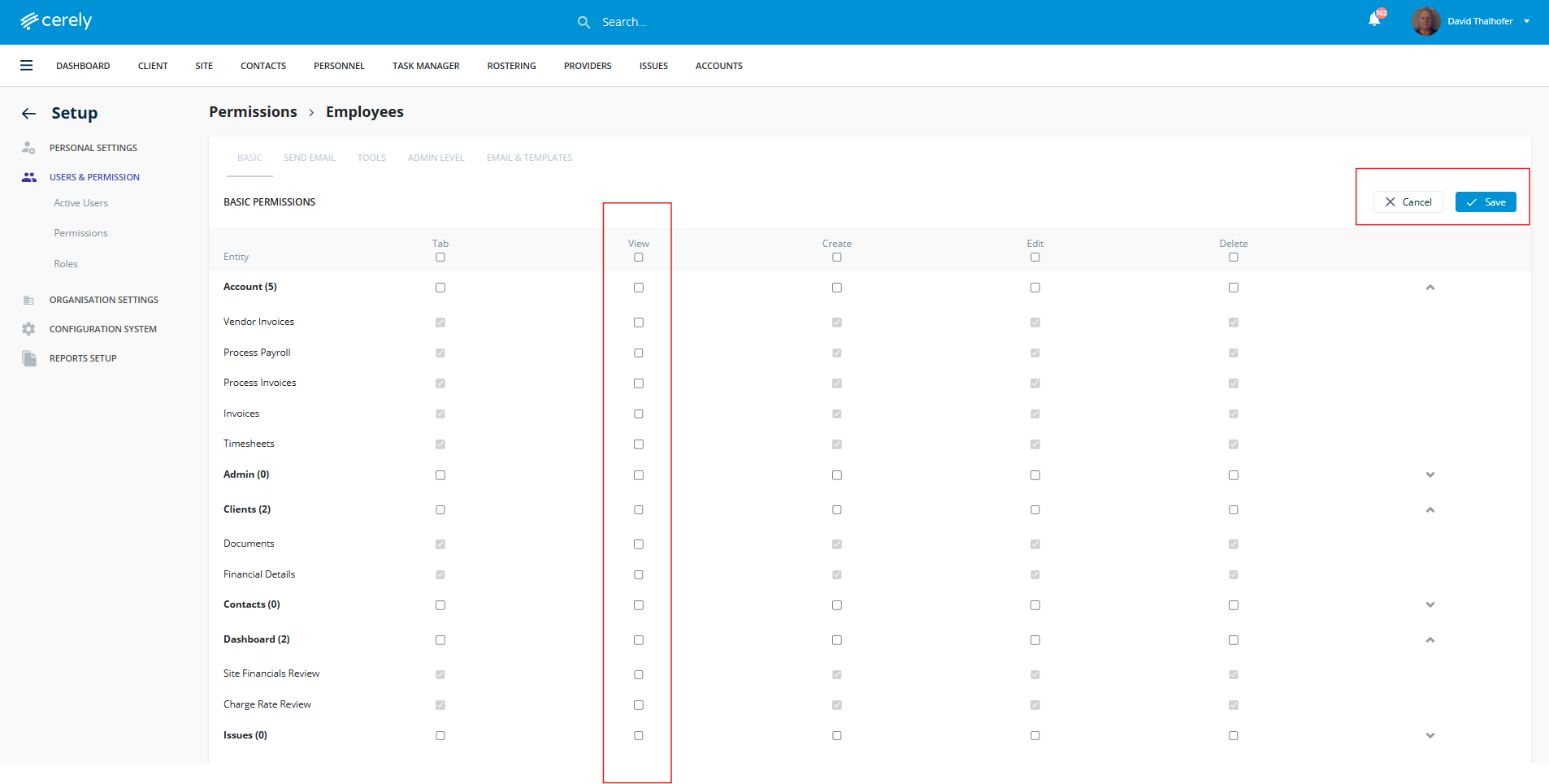
6. When finished, click Save to update the permissions for that role
Note:
Users will need to log out and back in for their new permission settings to take effect.