
1. From the home screen in Cerely, click on the Personnel tab from the Cerely top main menu
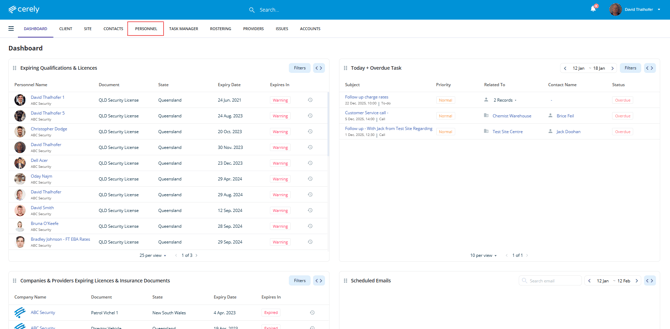
2. Locate and select the employee whose site ban you want to edit
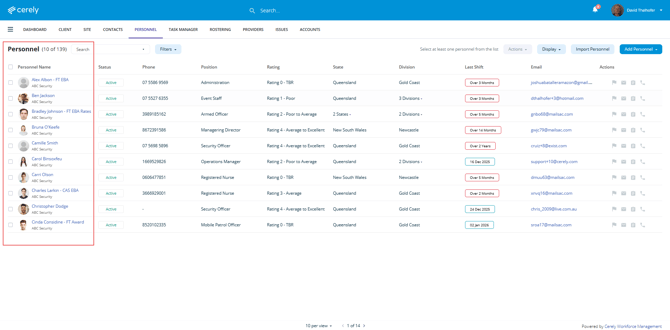
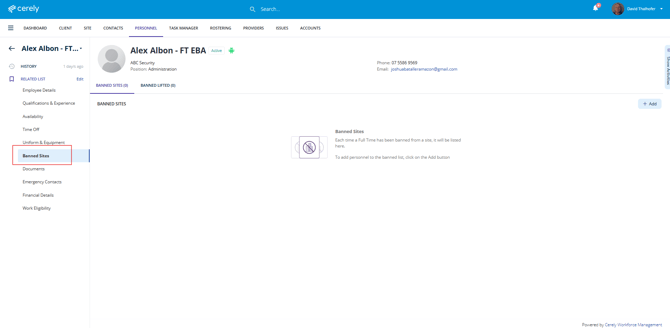
3. From the left-hand side menu within the employee profile, select Banned Sites
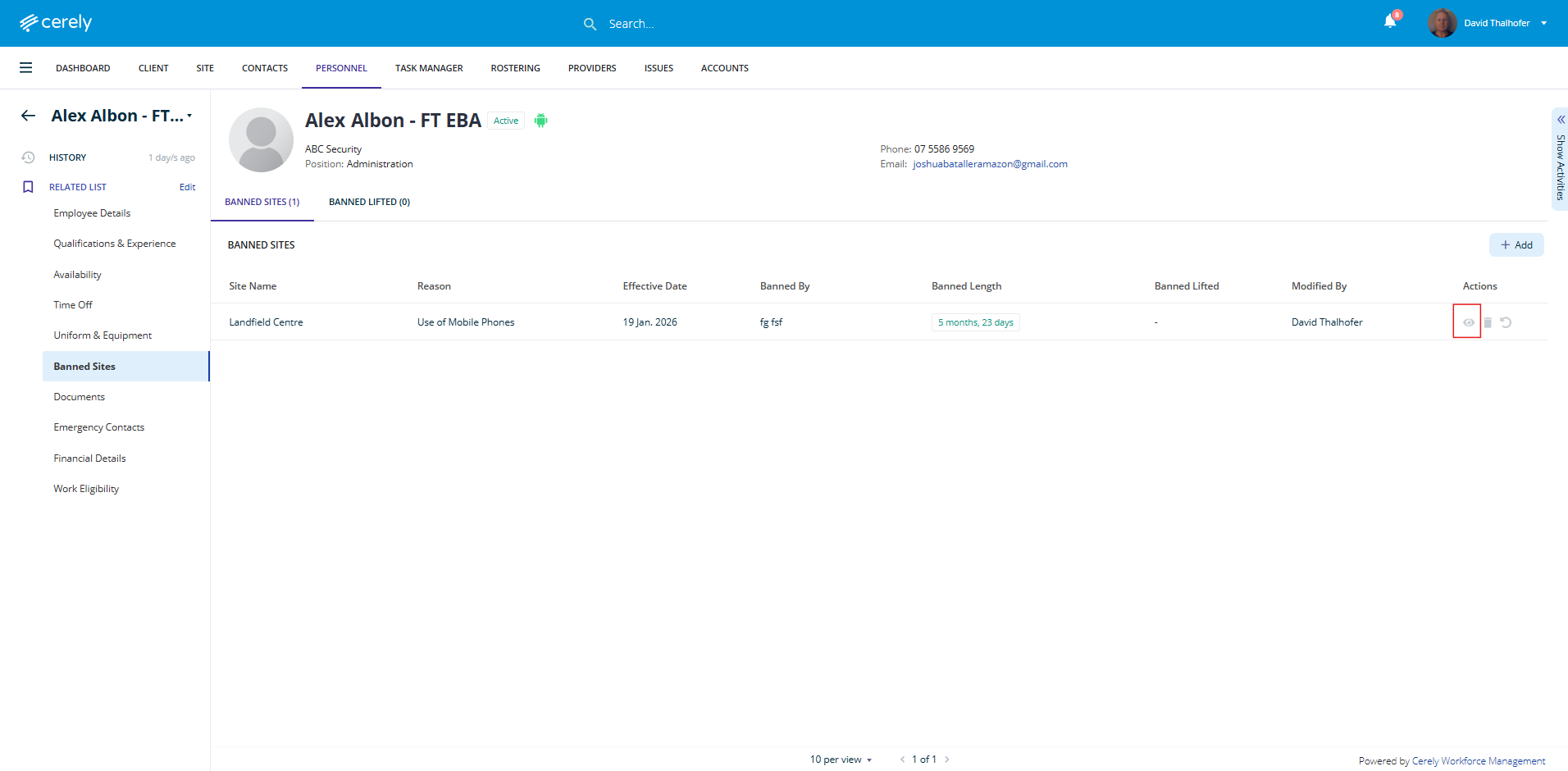
4. Locate the site ban you want to update and select the View icon
5. In the pop-up window, click on the Edit Button, you can then update any of the following fields as required:
-
Client
-
Site
-
Banned By
-
Effective Date
-
Ban Length (predefined period or custom expiry date)
-
Reason
-
Comment or notes
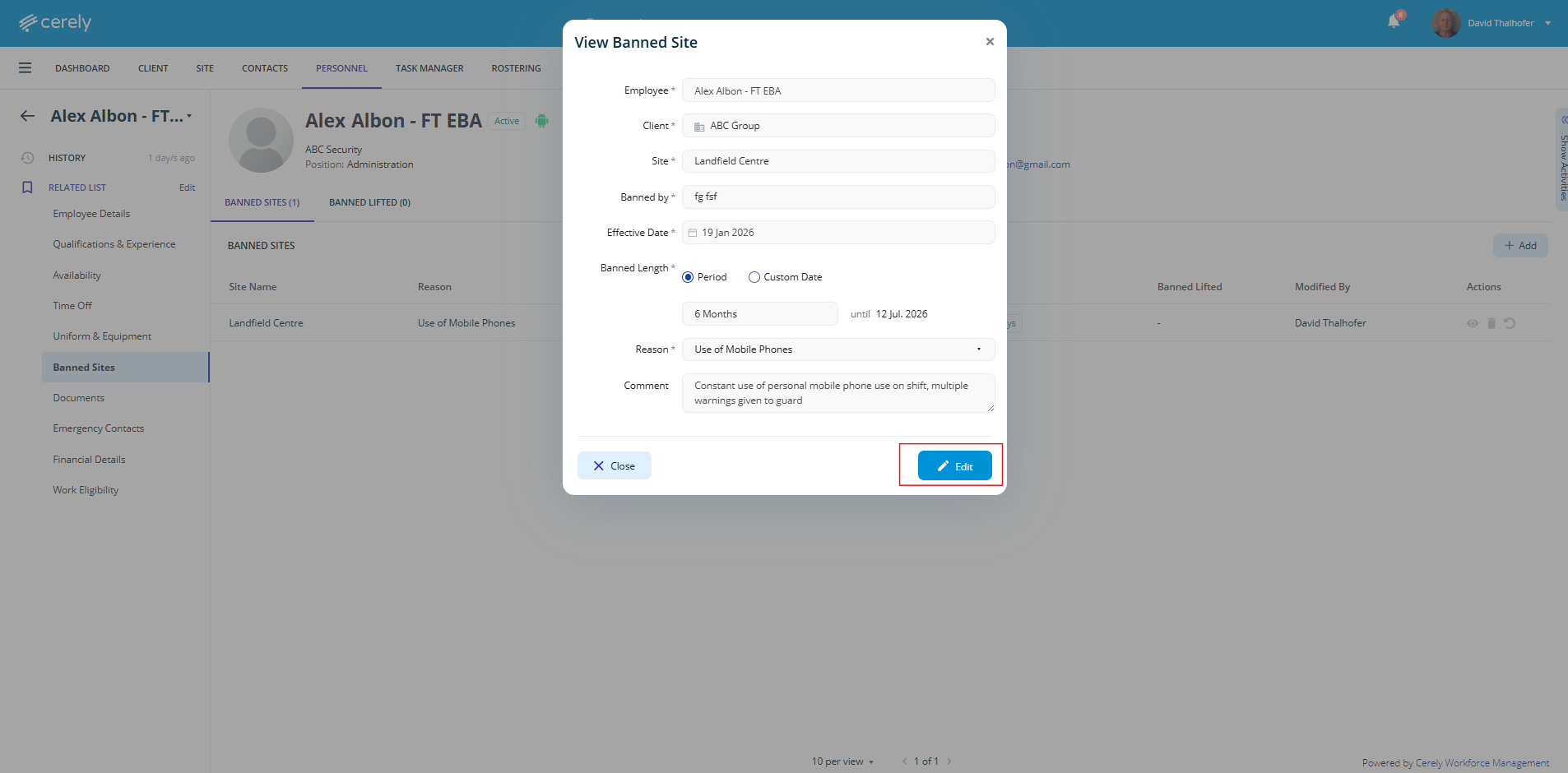
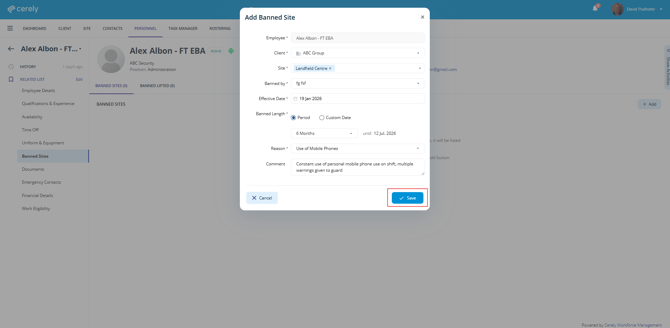
6. Once all required updates are complete click on the Save button
Note:
The site ban has now been updated. Cerely’s rostering algorithm will immediately apply the updated ban details and date range when assigning shifts.