
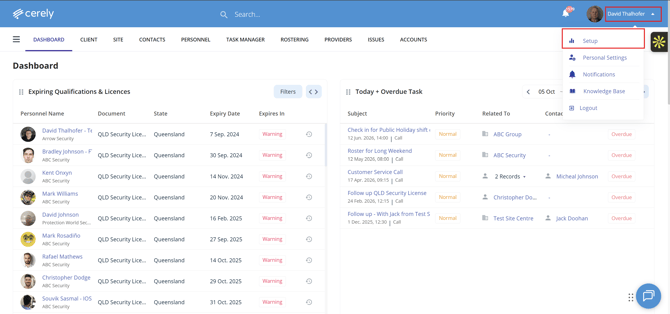
- Log in to the system.
- Navigate to your name in the top-right corner of the screen.
- Click Setup.
Step 2 – Select the Company
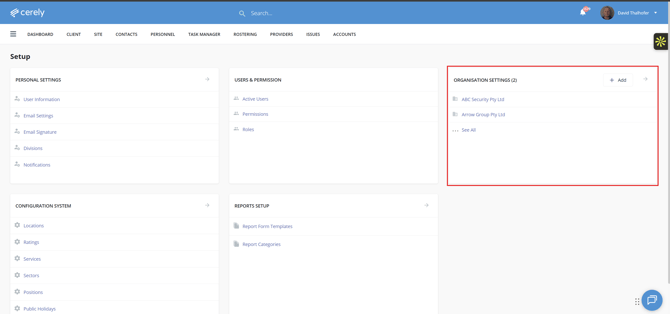
From the Setup screen:
- Locate Organisation Settings.
- Find the company you want to edit.
- Click on the Company Name.
Step 3 – Open Roster Settings
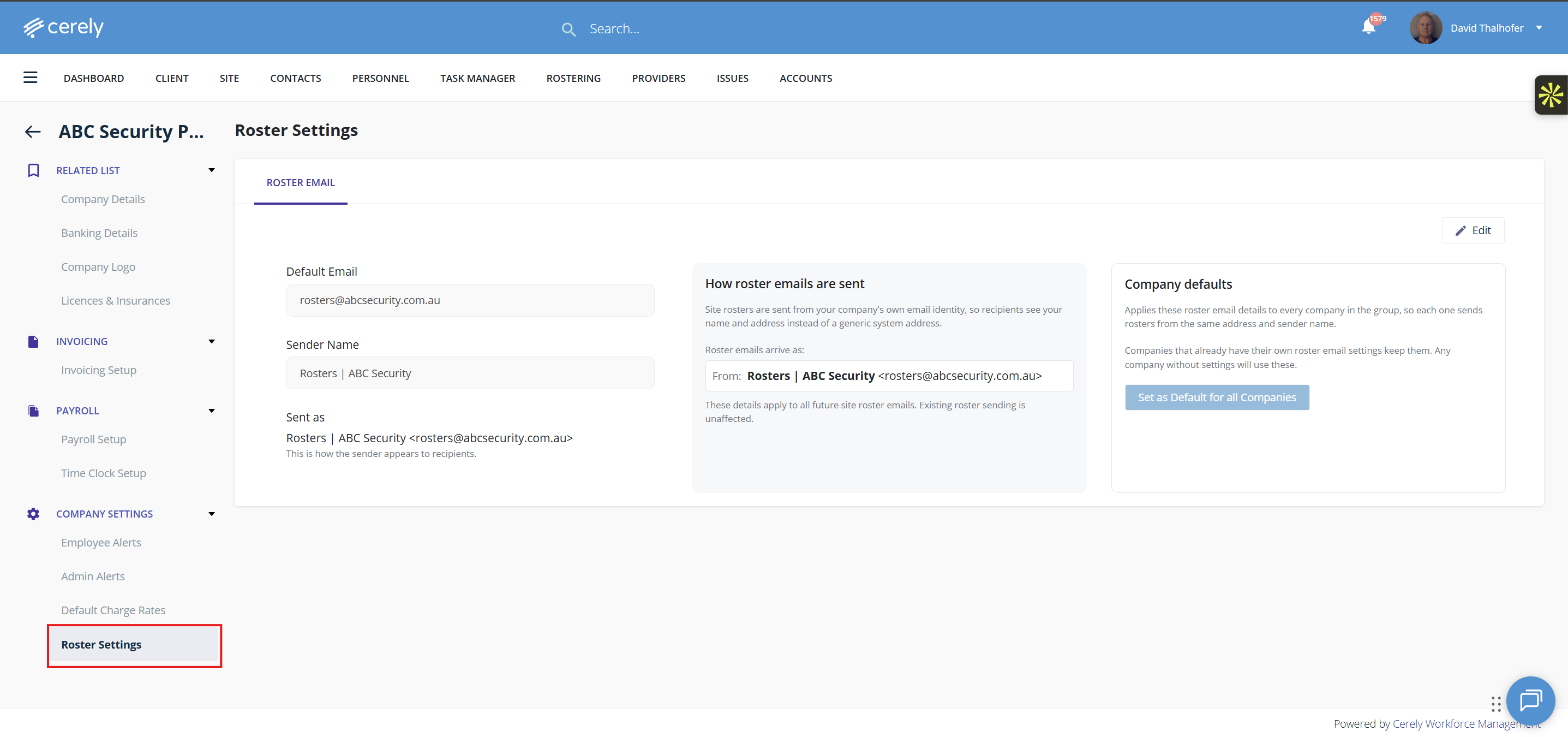
From the company settings:
- Use the left-hand menu.
- Click Roster Settings.
Step 4 – Click Edit
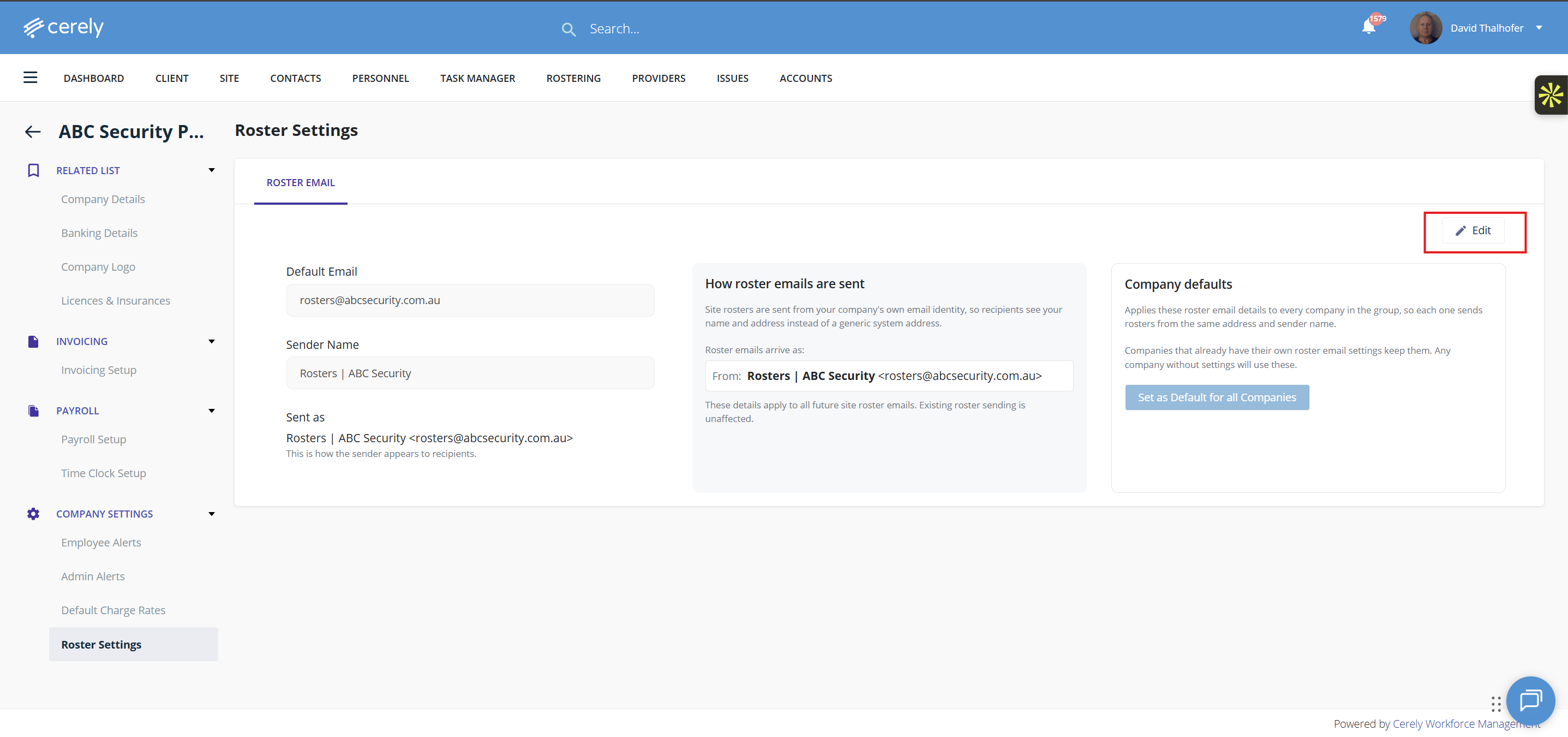
The Roster Settings screen will display the current email address and sender name being used to send rosters.
- Review the existing email settings.
- Click Edit.
Step 5 – Edit the Email Address
In edit mode:
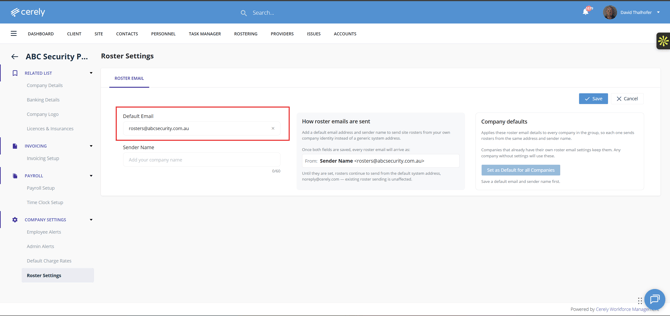
- Locate the Default Email field.
- Update the email address with the new company email address you want to use for sending rosters.
For example:
Default Email: rosters@abcsecurity.com.au
You can change the existing email address to another company email address as required.
Step 6 – Edit the Sender Name
You can also update the name that contacts see when they receive a roster email.
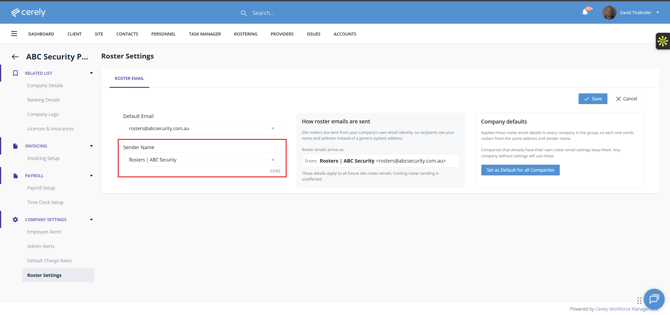
- Locate the Sender Name field.
- Update the name as required.
For example:
Sender Name: Rosters | ABC Security
The Sender Name helps recipients identify who the roster email has been sent from.
Step 7 – Review the Updated Email Details
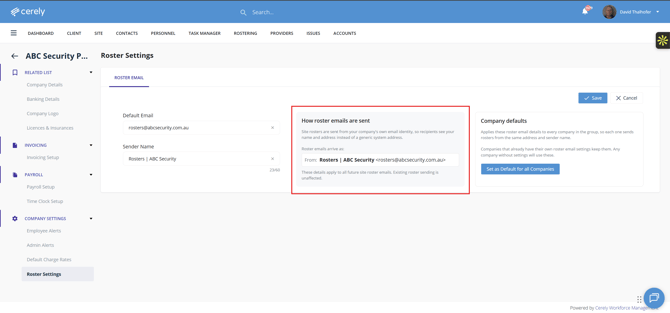
After updating the email address and/or sender name, review the information displayed on screen.
Check that:
- The new email address is correct.
- The sender name is correct.
- The email address belongs to the company you are editing.
Step 8 – Save the Changes
Once you have finished editing the email settings:
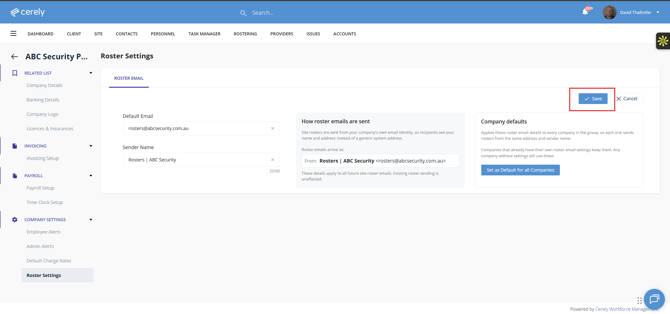
- Review the changes.
- Click Save.
The updated email address and sender name will now be saved for the selected company.
Important
If your organisation has multiple companies, editing the email address for one company will update the settings for that company only, unless you choose to use the Company Defaults option.
If you want the same email address to be used across all companies, use Set as Default for All Companies from the Company Defaults section.
Setup Complete
The company roster email settings have now been updated.
When the system sends Site Rosters or Personnel Rosters by email, it will use the newly saved email address and Sender Name.
Example
Sender Name: Rosters | ABC Security
Email Address: rosters@abcsecurity.com.au