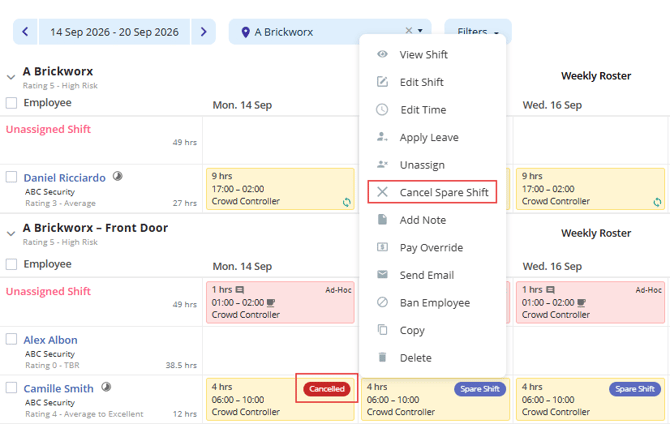
Understanding Spare Shifts
A Spare Shift allows you to roster additional Personnel to a Site as backup or relief coverage. This helps reduce the operational impact of last-minute sickness, no-shows, peak periods or unexpected staffing requirements.
Spare Shifts are particularly useful for:
- Peak operating periods where additional coverage may be required
- Sites where last-minute sickness or no-shows create operational risk
- Events or high-demand periods where staffing requirements may change
- Providing relief Personnel who are already rostered and available if required
If the additional Personnel are required, the Spare Shift can be changed to an Ad Hoc Shift or Permanent Shift.
If they are not required, Cerely will automatically cancel the Spare Shift based on the configured cancellation settings and notify the assigned Personnel.
Example
A Site requires 10 Security Officers on a Friday night. Due to the risk of last-minute sickness or no-shows, you roster an additional Security Officer on a Spare Shift.
If one of the 10 rostered Security Officers becomes unavailable, the Spare Shift can be changed to an Ad Hoc or Permanent Shift, allowing the spare officer to provide the required coverage.
If the additional officer is not required, Cerely will automatically cancel the Spare Shift based on the configured cancellation settings.
Before You Start
Ensure the Site and required Roles have been configured and that you have access to the Rostering module.
Spare Shifts are created through the Site Roster using the same Add Shift workflow as Permanent and Ad Hoc Shifts.
Step 1: Navigate to the Site Roster
From the main top menu, click the Rostering tab, then select Site Roster.
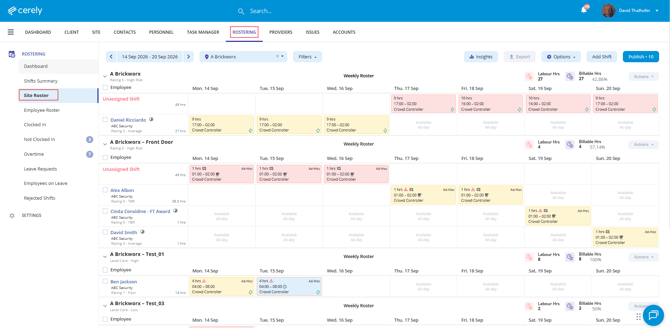
Step 2: Select the Site
From the Site Roster selector, select the Site where you want to create the Spare Shift.
The Site's roster will display, allowing you to add the Spare Shift alongside its existing rostered shifts.
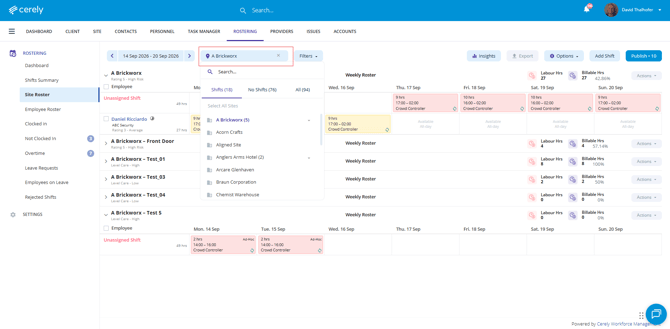
Step 3: Open the Add Shift Window
Click Add Shift to open the Create Shift Pattern window.
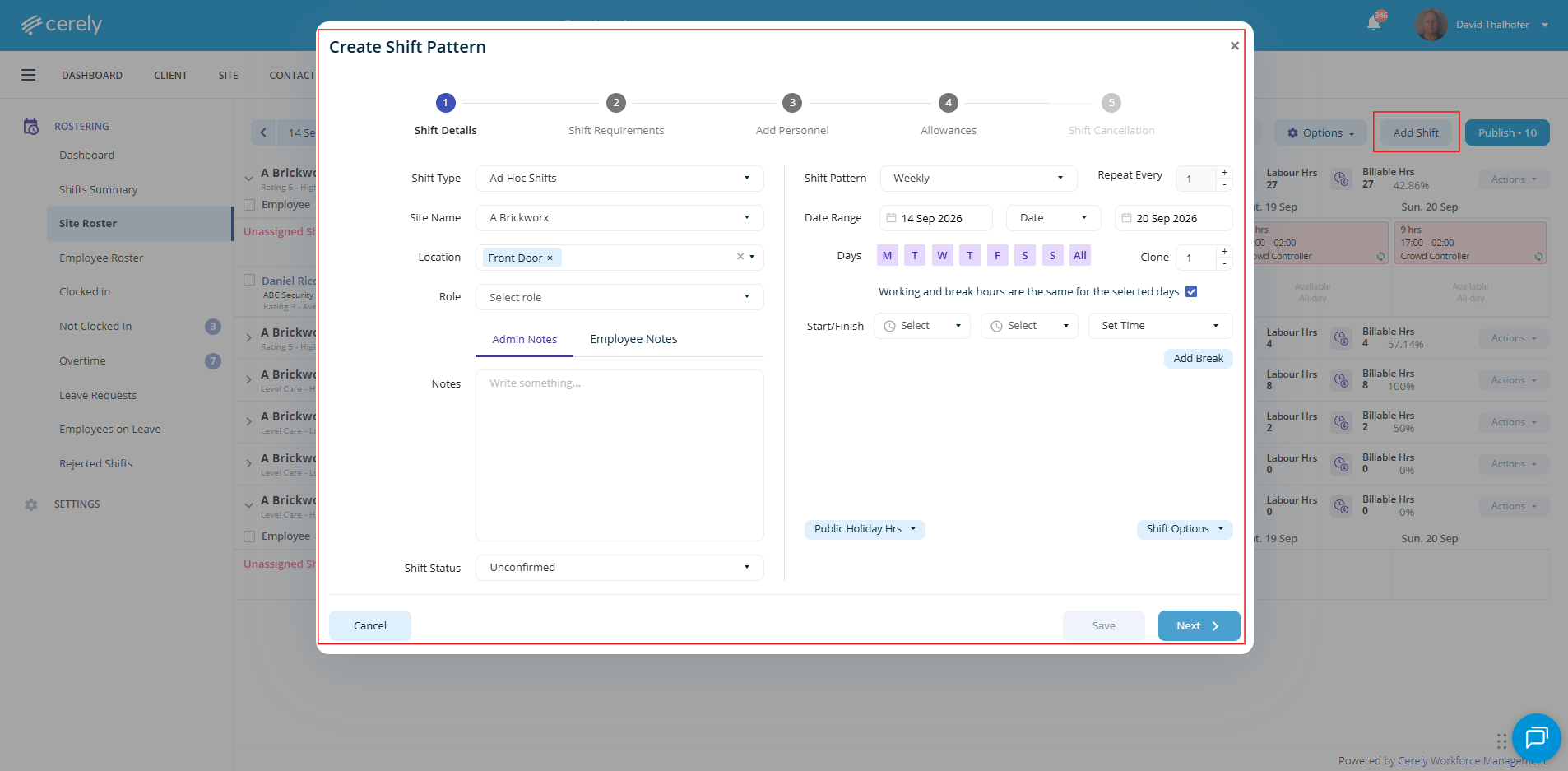
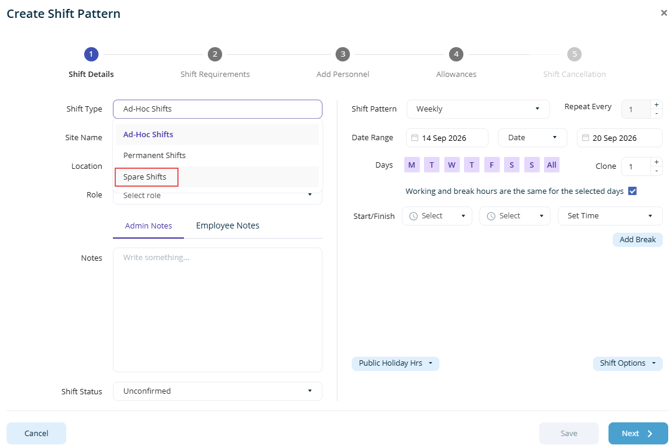
Step 4: Select Spare Shift
Under Shift Type, select Spare Shift
| Shift Type | Purpose |
|---|---|
| Permanent Shift | Used for ongoing recurring shifts. |
| Ad Hoc Shift | Used for temporary shifts for a defined period. |
| Spare Shift | Used for backup or relief coverage. |
Step 5: Complete the Shift Details
Complete the Spare Shift details in the same way you would create a Permanent or Ad Hoc Shift.
| Field | Description |
|---|---|
| Site | Confirm the Site where the Spare Shift is required. |
| Role | Select the Role the Personnel will perform if the Spare Shift is required. |
| Shift Pattern | Select the required shift pattern. |
| Date Range | Select the period the Spare Shift is required for. |
| Days | Select the applicable days of the week. |
| Start & Finish Times | Enter the hours the Personnel will be rostered as backup. |
| Breaks | Add any paid or unpaid breaks if applicable. |
| Notes | Add Admin or Employee Notes if required. |
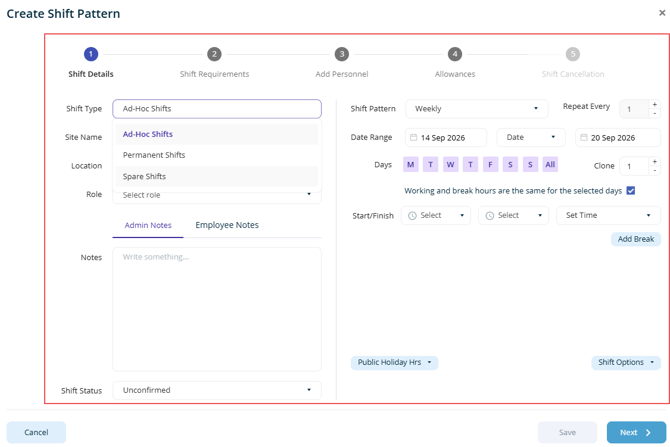
Important:
Ensure the correct Role is selected. Roles are used within Cerely to determine applicable pay rates, Client Charge Rates and Site requirements.
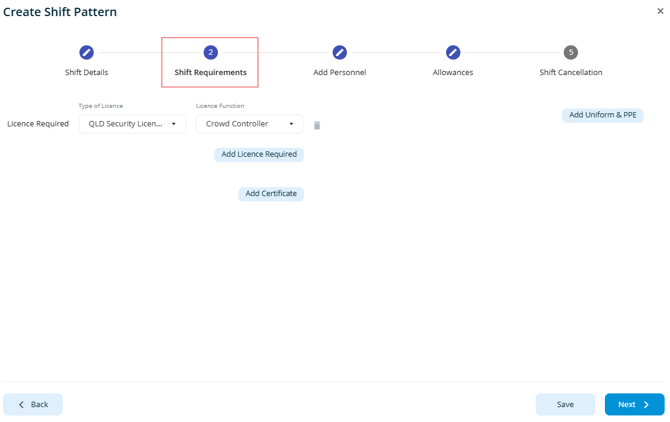
Step 6: Review Shift Requirements
Click the Shift Requirements tab.
The Shift Requirements are populated from the Site Profile based on the selected Role and may include:
- Security licences
- Certifications
- Uniform requirements
Review these requirements to ensure the Personnel assigned to the Spare Shift meet the Site's operational requirements.
Step 7: Add Personnel
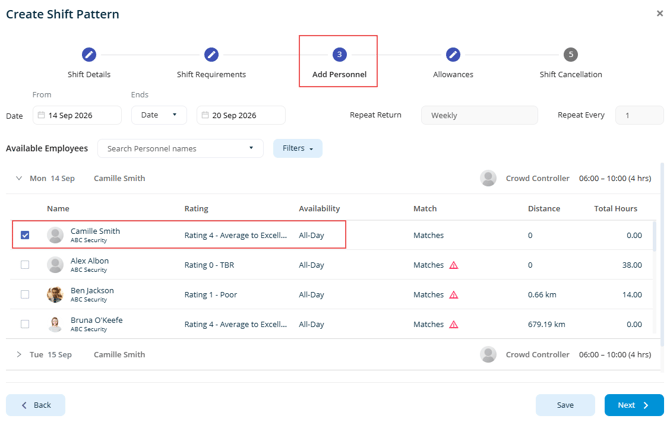
Click the Add Personnel tab and select the employee or contractor who will be rostered for the Spare Shift.
Cerely will display Personnel who match the Site and Role requirements.
Note:
By default, Cerely displays Personnel who are Matching or Matching with Warnings. Personnel who do not meet Site compliance requirements, are unavailable, or have overlapping shifts are hidden from the standard matching results.
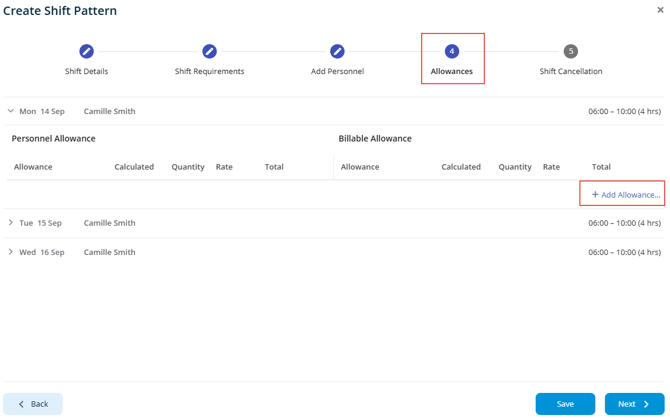
Step 8: Configure Allowances (Optional)
Click the Allowances tab.
If applicable, add any payroll allowances that should apply to the Personnel assigned to the Spare Shift.
If no allowances are required, leave this section unchanged.
Step 9: Configure Shift Cancellation
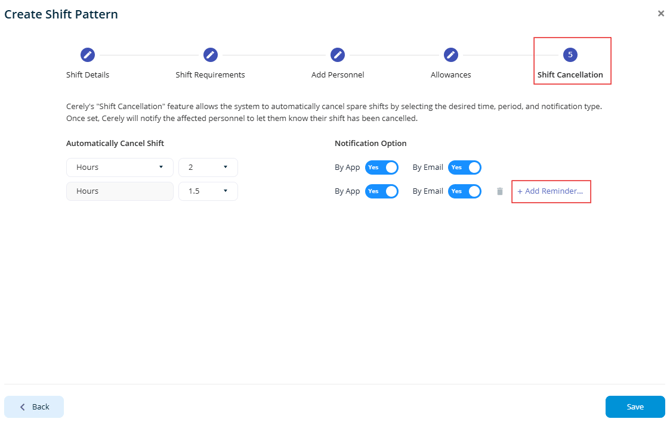
Click the Shift Cancellation tab.
Shift Cancellation determines when the Spare Shift will automatically cancel if the additional Personnel are no longer required.
The cancellation time can be adjusted to suit your operational requirements, with Spare Shifts able to automatically cancel a minimum of 1.5 hours before the shift start time.
You can also configure up to three cancellation notification times and choose whether the affected Personnel are notified through the Cerely Personnel App, email, or both.
| Setting | Description |
|---|---|
| Automatically Cancel Shift | Select how long before the shift start time the Spare Shift should automatically cancel. The minimum cancellation period is 1.5 hours before the shift. |
| Notification Time | Configure up to three notification times leading up to the automatic cancellation. |
| By App | Enable to notify the assigned Personnel through the Cerely Personnel App. |
| By Email | Enable to notify the assigned Personnel by email. |
Important
If the Spare Shift is required for coverage, it must be changed to an Ad Hoc Shift or Permanent Shift before the configured automatic cancellation time.
If the Spare Shift is not changed, Cerely will automatically cancel the shift and notify the affected Personnel using the selected notification methods.
The cancellation and notifications are recorded within Cerely, providing a record that the Personnel were notified if there is ever a query regarding the cancelled shift.
Step 10: Save the Spare Shift
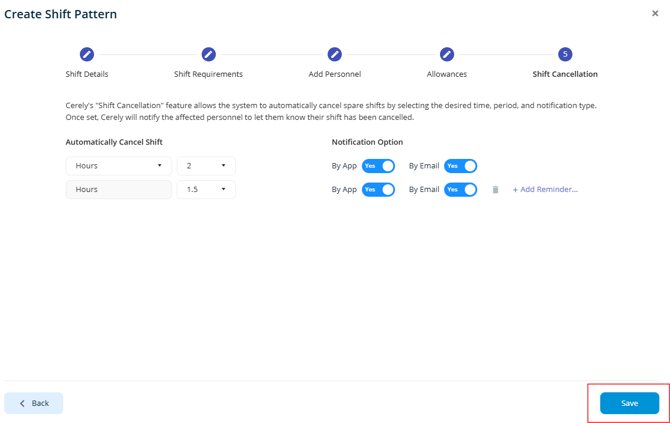
Once all shift details, Personnel and cancellation settings have been configured, click Save.
The Spare Shift will now appear within the Site Roster as backup or relief coverage.
Step 11: Change the Spare Shift When Coverage Is Required
If the assigned Personnel are required to work—for example, due to sickness, a no-show or an unexpected increase in staffing requirements—the Spare Shift must be changed to the appropriate Shift Type.
From the Site Roster, locate the Spare Shift and change the Shift Type to:
- Ad Hoc Shift – Select when the Personnel are providing temporary or additional coverage.
- Permanent Shift – Select when the shift forms part of the ongoing roster requirement.
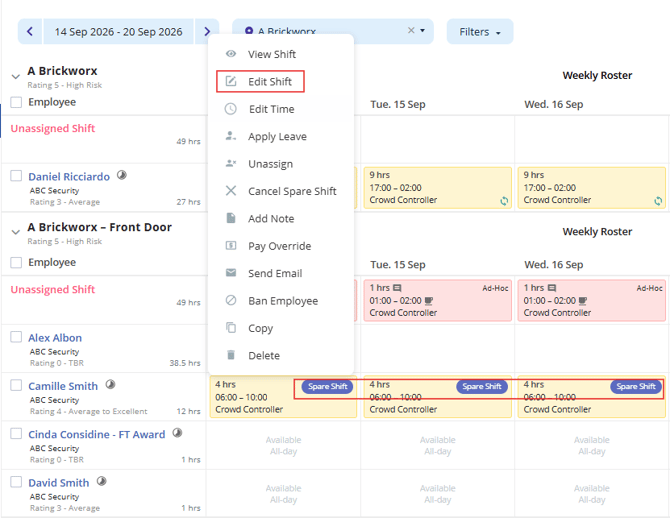
Once changed, the shift will no longer be treated as a Spare Shift and will proceed as the selected Shift Type.
Important
Make sure the Spare Shift is changed before the configured automatic cancellation time. If no change is made, Cerely will automatically cancel the Spare Shift
Step 12: Cancelling a Spare Shift Manually
If the Spare Shift is no longer required and you do not want to wait for the configured automatic cancellation time, you can manually cancel the shift from the Site Roster.
Locate the relevant Spare Shift and select the option to Cancel the shift.
The Spare Shift will be cancelled and the cancellation will be recorded within Cerely.