
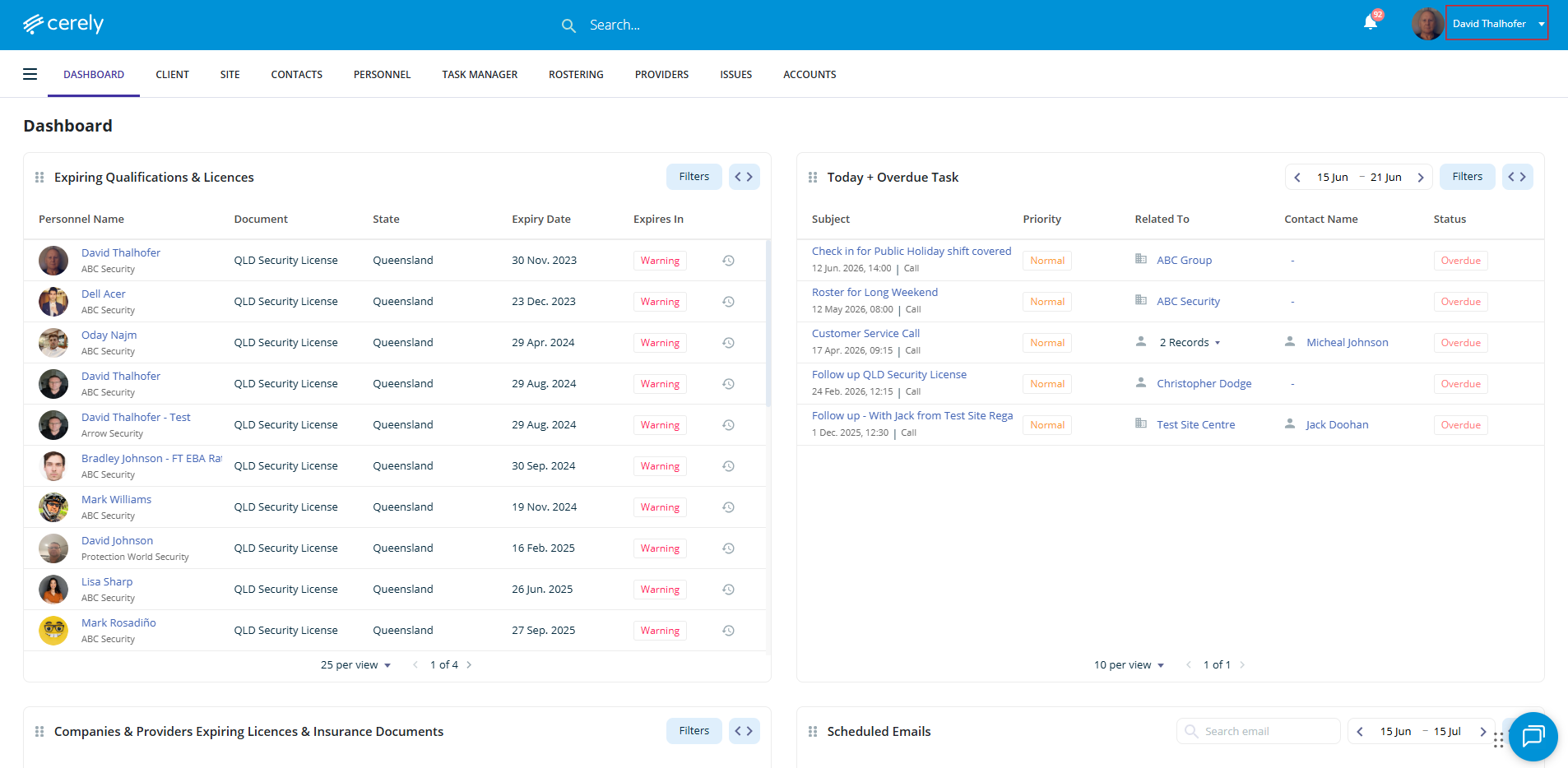
1. Click on your Profile icon located in the top right-hand corner of Cerely
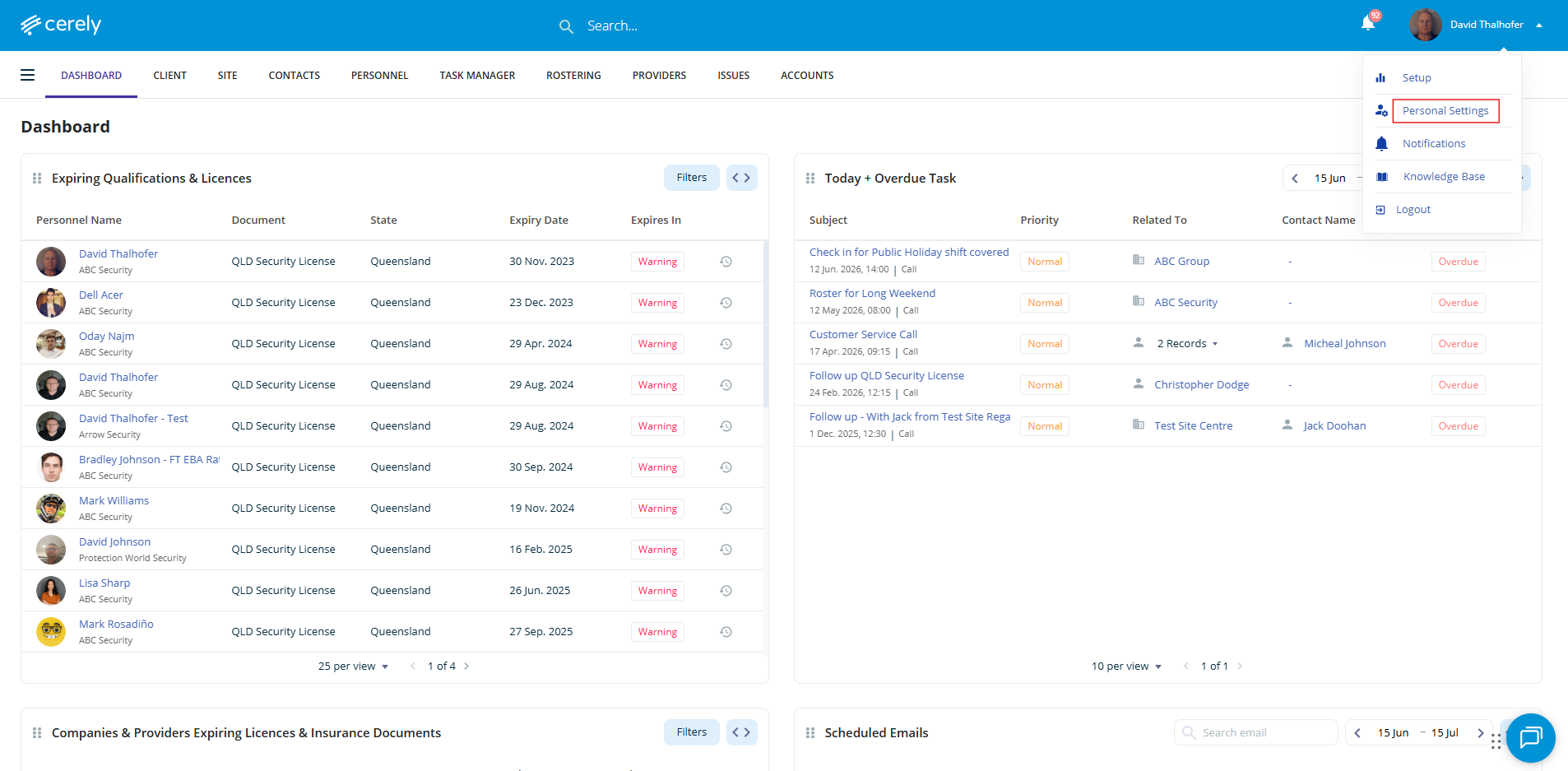
2. From the dropdown menu, click on Personal Settings
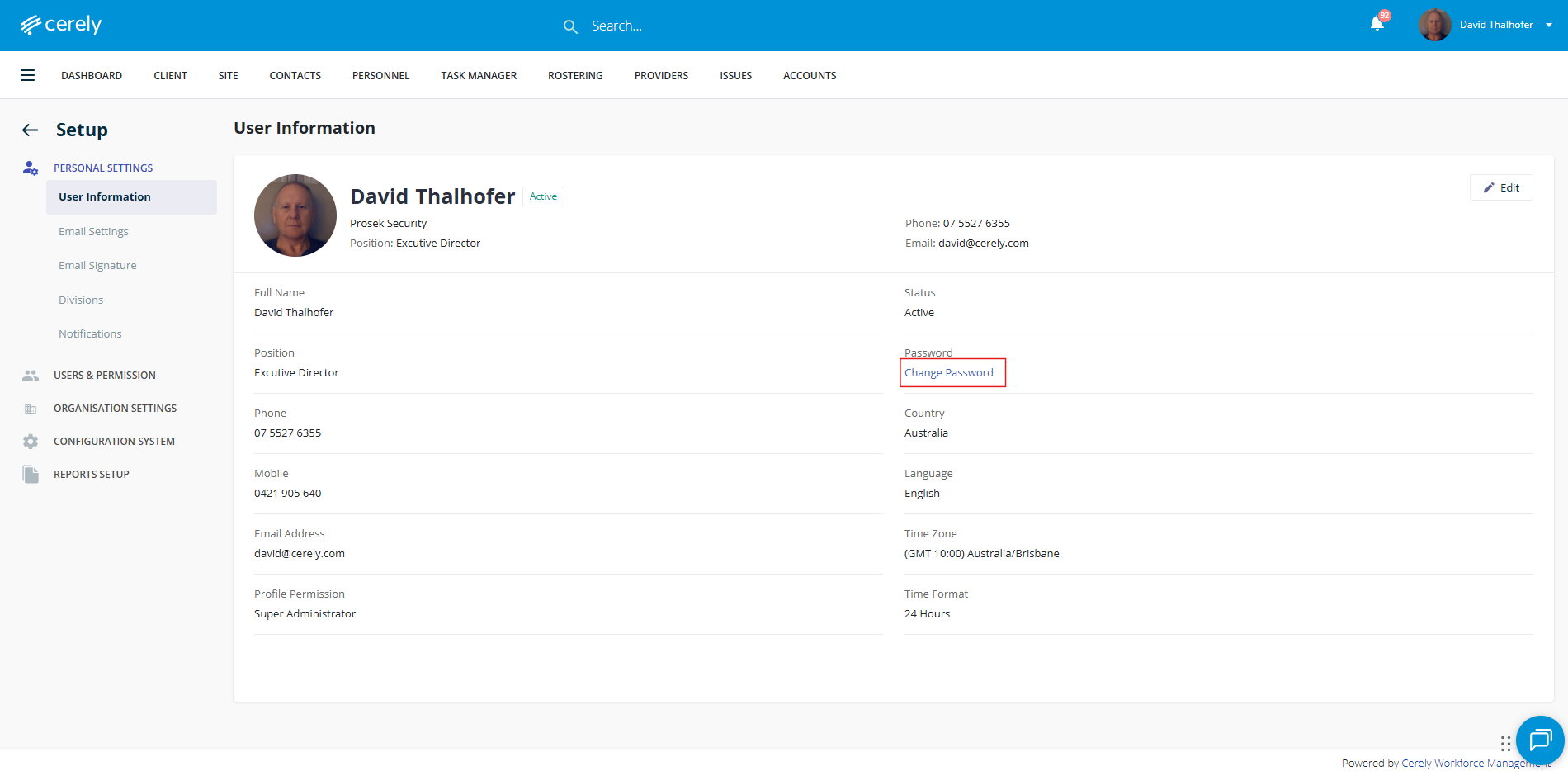
3. Select Change Password
The Change Password window will open
4. Enter your current password. Enter your existing password in the Current Password field
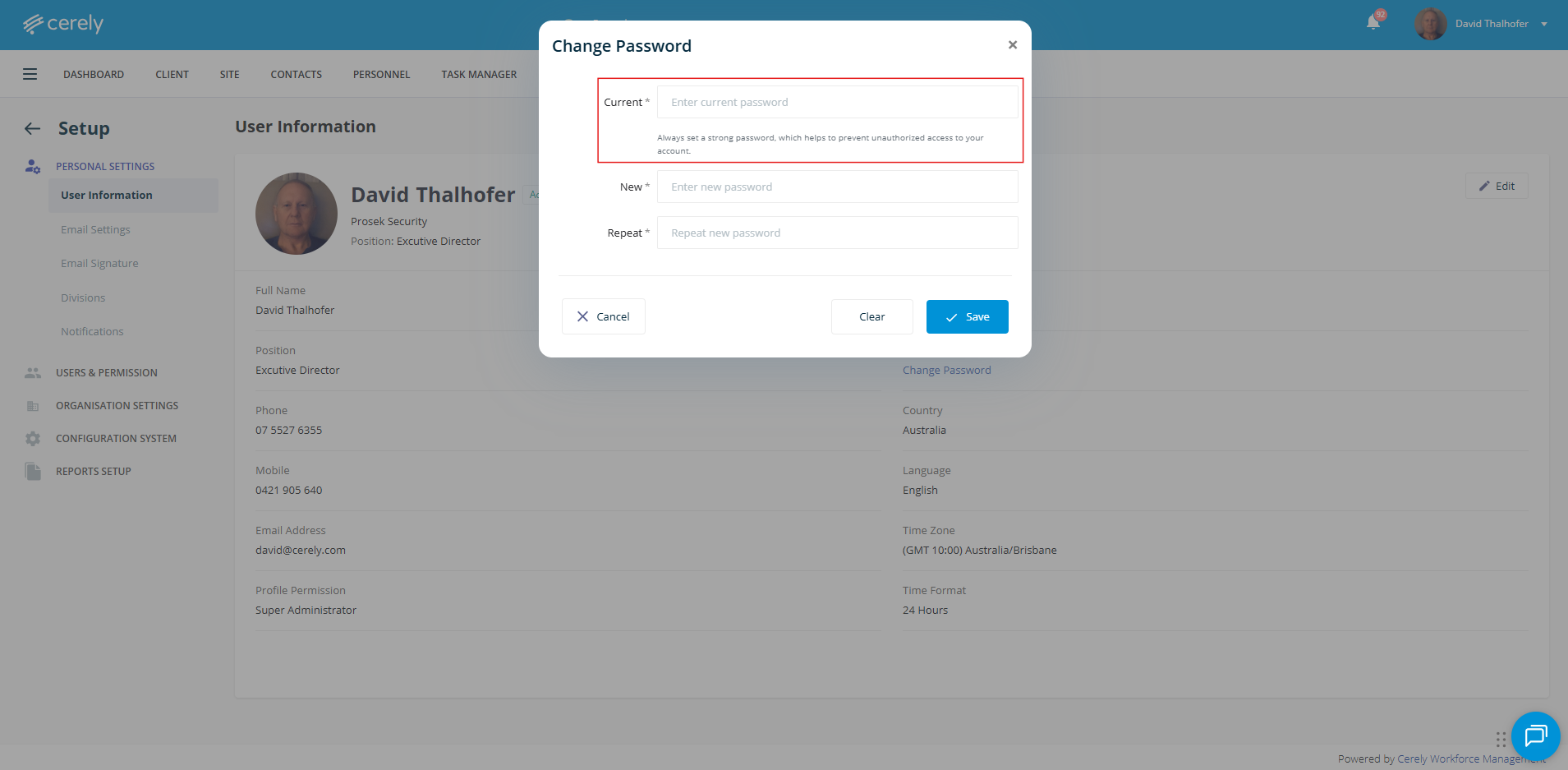
5. Enter your new password. Create and enter your new password in the New Password field
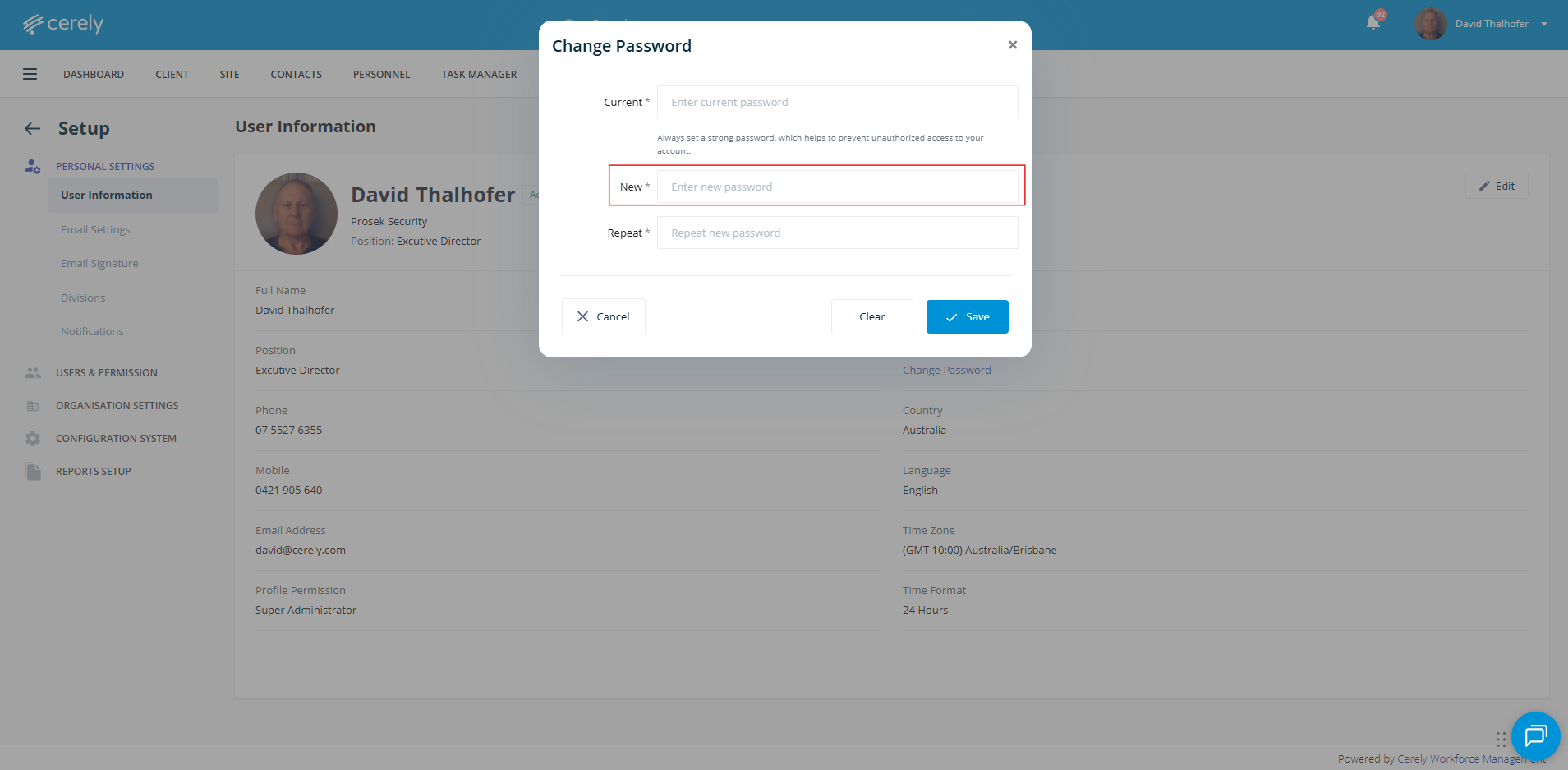
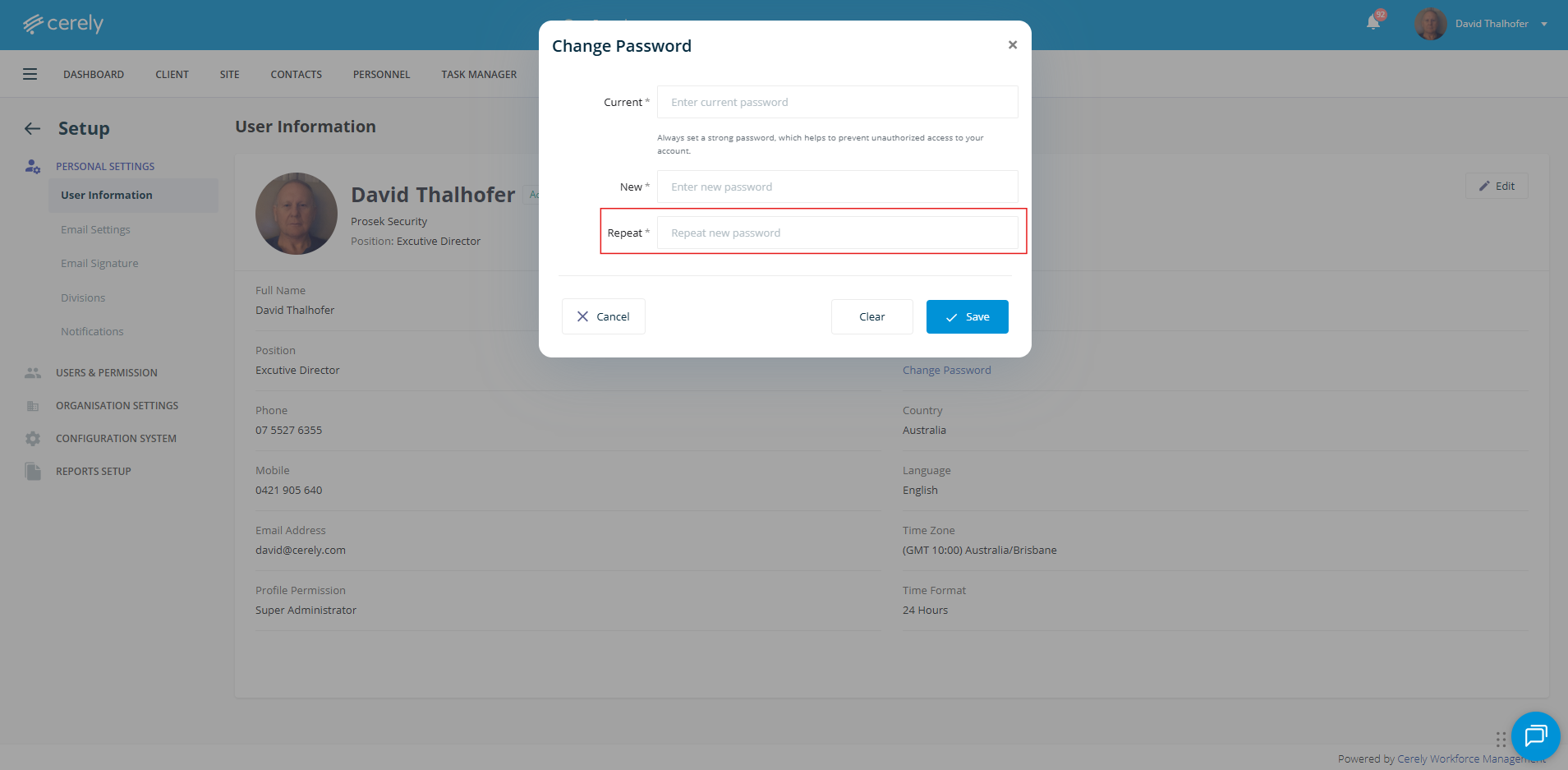
6. Re-enter your new password. Enter the same password again in the Confirm Password field
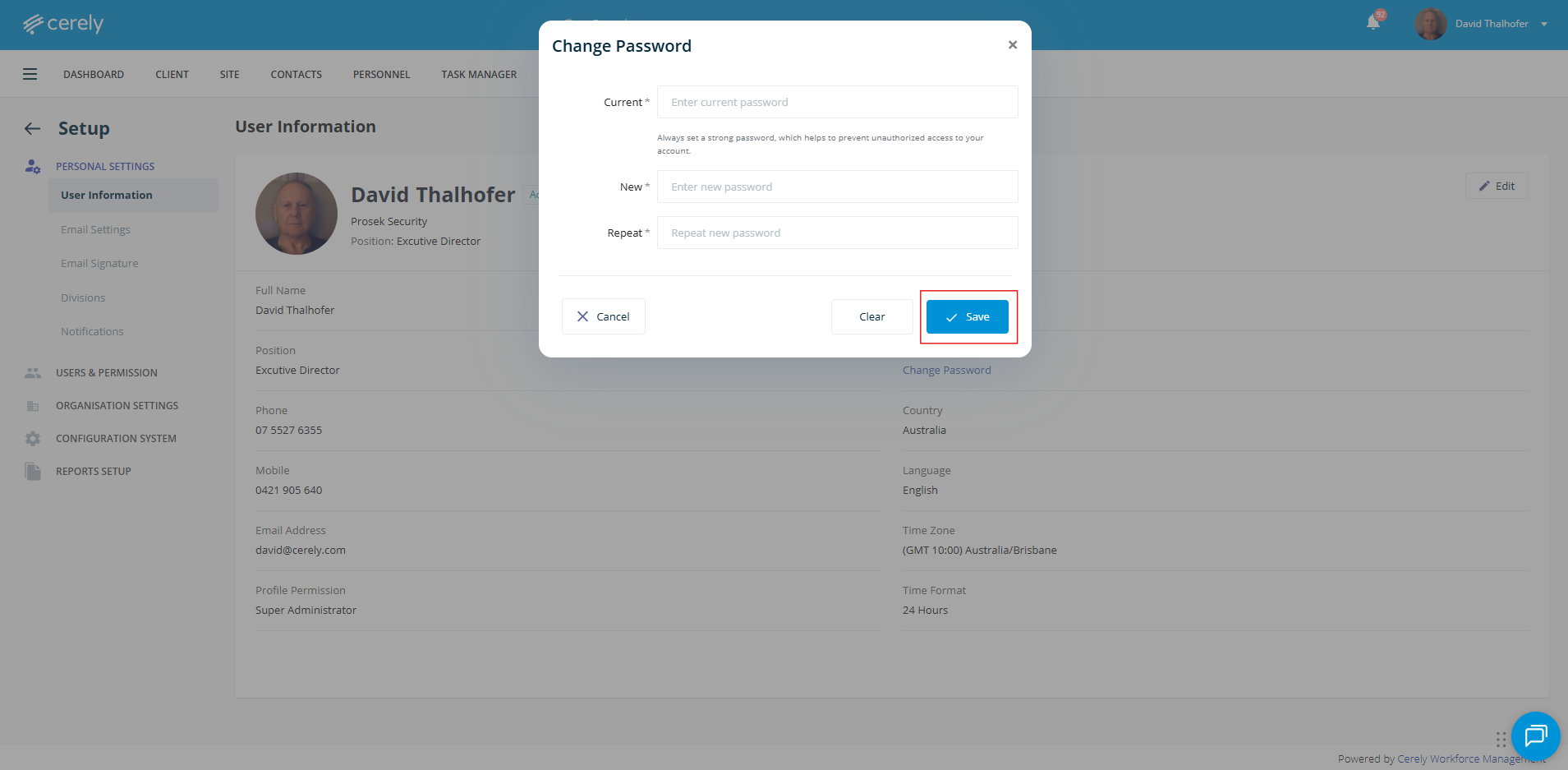
7. Click on the Save button
The system will validate the information and update your password
Your password has now been successfully changed.
Important: For security purposes, choose a strong password that is unique to your Cerely account and avoid sharing your password with other users.