
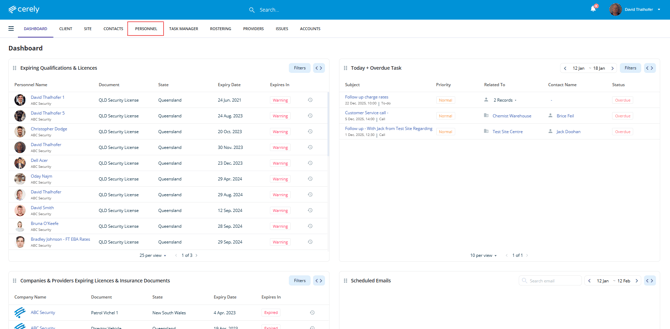
1. From the home screen in Cerely, click on the Personnel tab from the Cerely top main menu
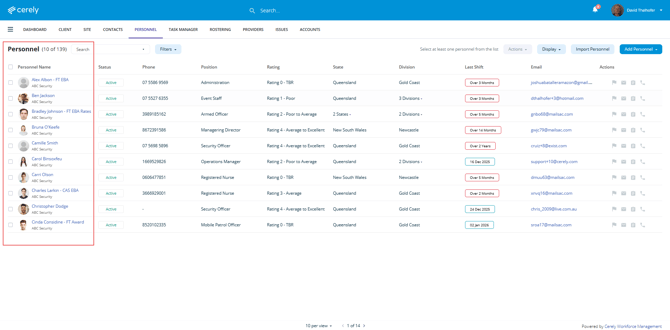
2. Locate and select the employee you want to ban from a site
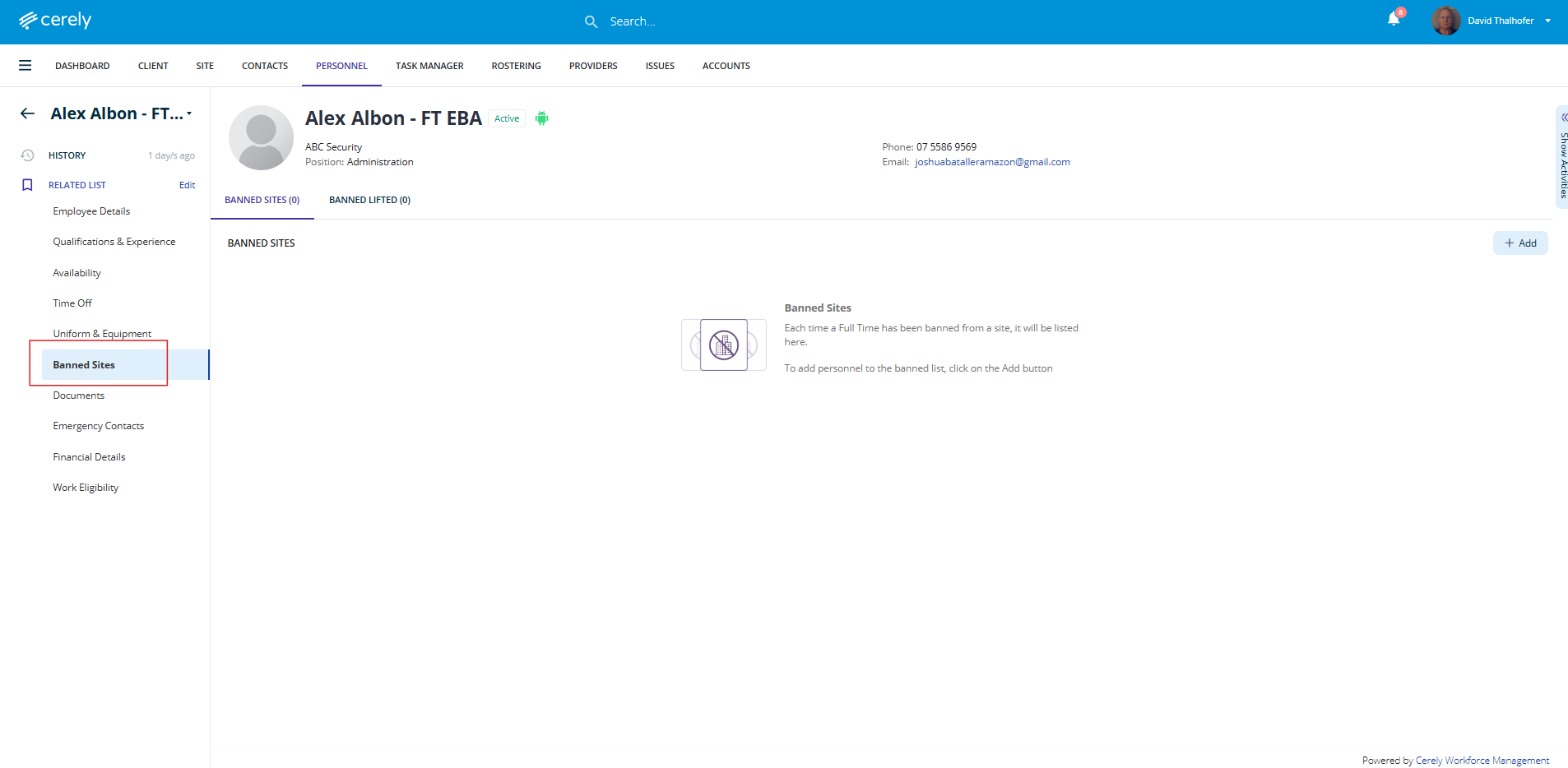
3. From the left-hand side menu within the employee profile, select Banned Sites
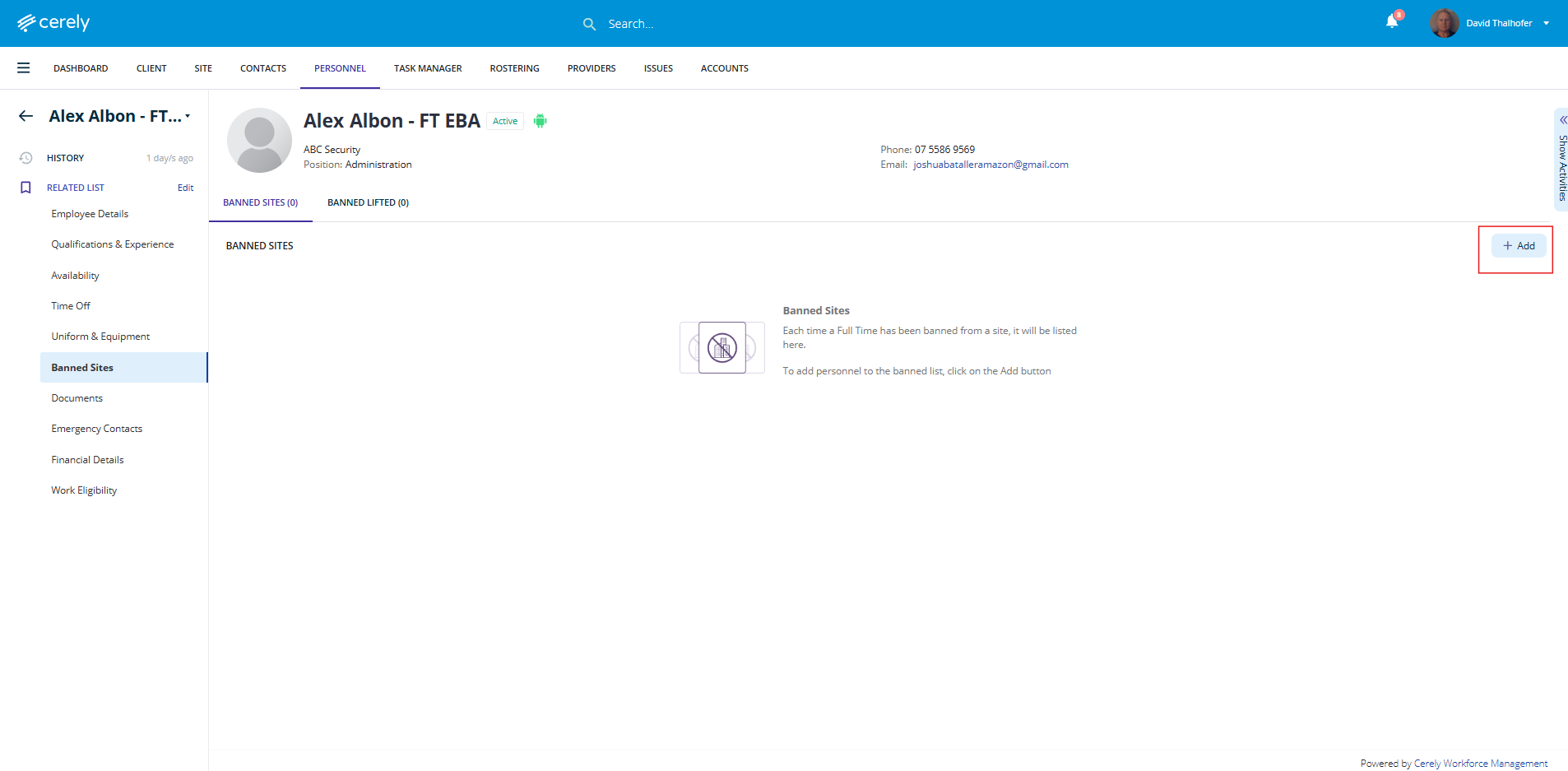
4. On the right-hand side, click on the + Add button
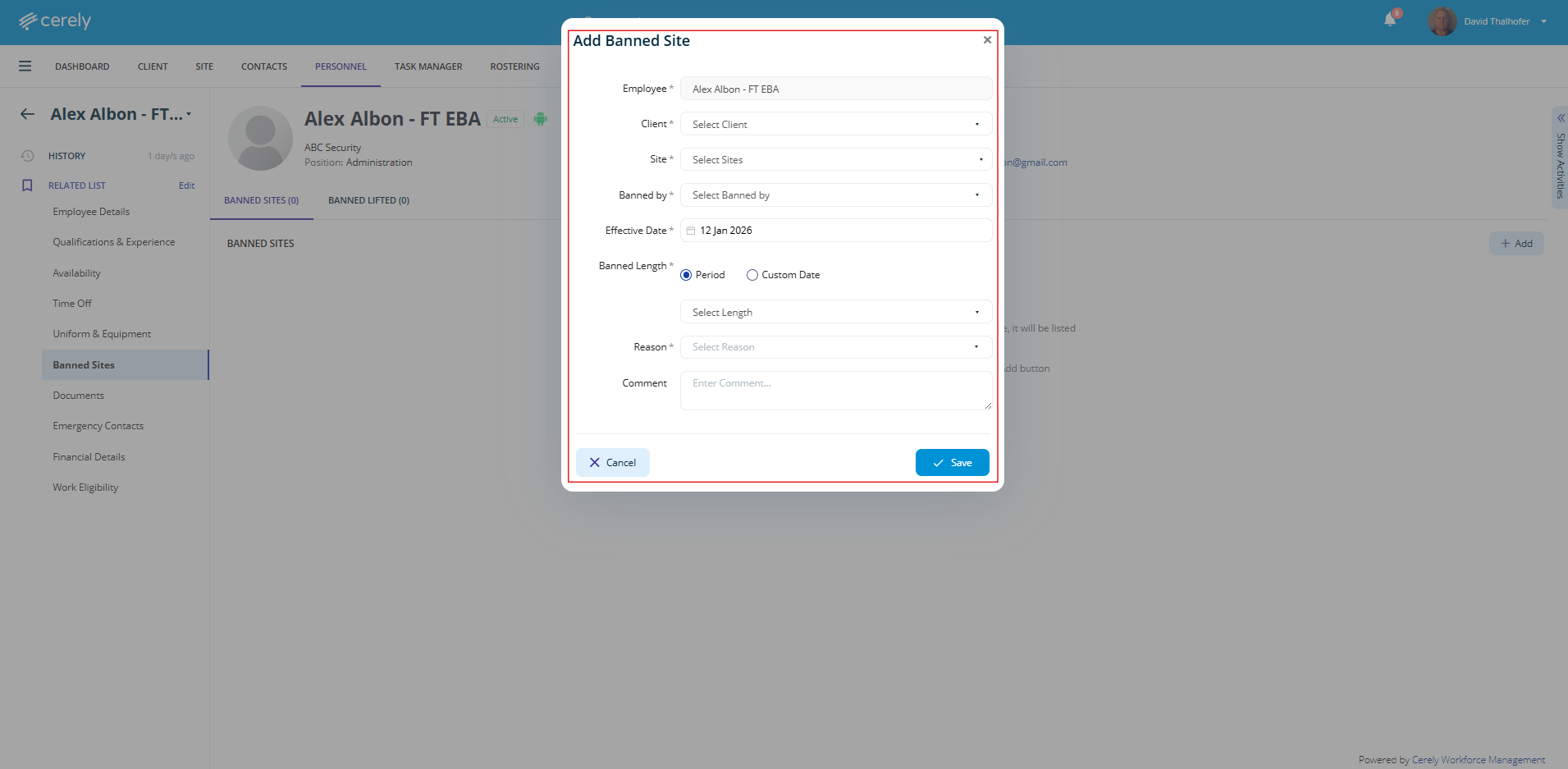
5. In the pop-up window, enter the site ban details by completing the following fields:
-
Client – Select the client associated with the site
-
Site – Select the site the employee is banned from
-
Banned By – Select the person or role responsible for applying the ban
-
Effective Date – Set the date the ban begins
-
Ban Length –
-
Select a predefined period from the dropdown menu, or
-
Choose Custom and enter the date the ban will expire
-
-
Reason – Select a reason from the dropdown menu or add a new reason if required
-
Comment (Optional) – Add any additional notes or context regarding the ban
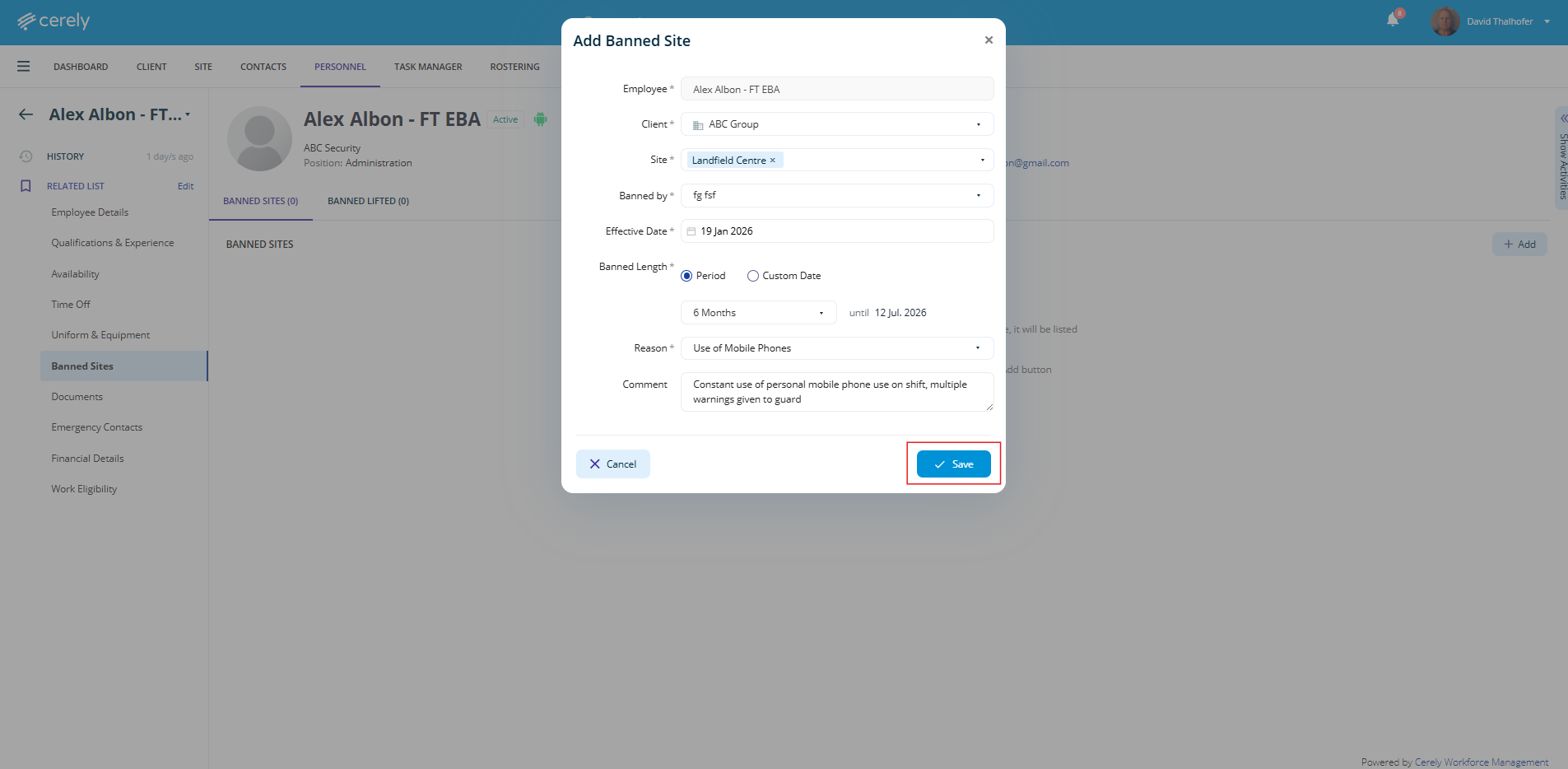
6. Once all required information has been entered, click on the Save button
Note:
Cerely’s rostering algorithm will automatically recognise the site ban and the selected date range. The employee will not be scheduled or assigned to the banned site while the ban is active.