
1. From the main menu on the Cerely dashboard, click on the Client tab
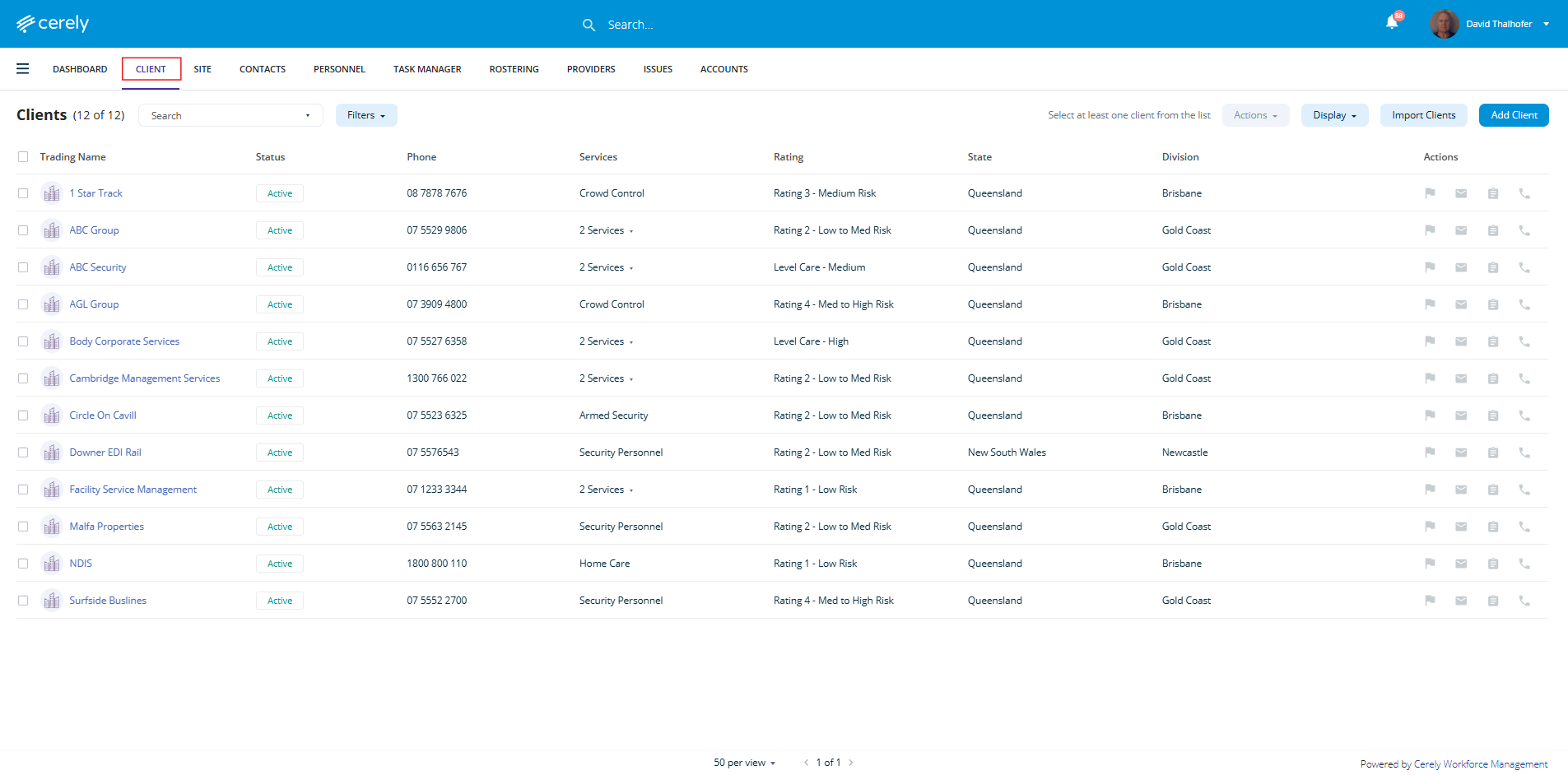
2. From the client list, click on the client name you wish to upload documents to

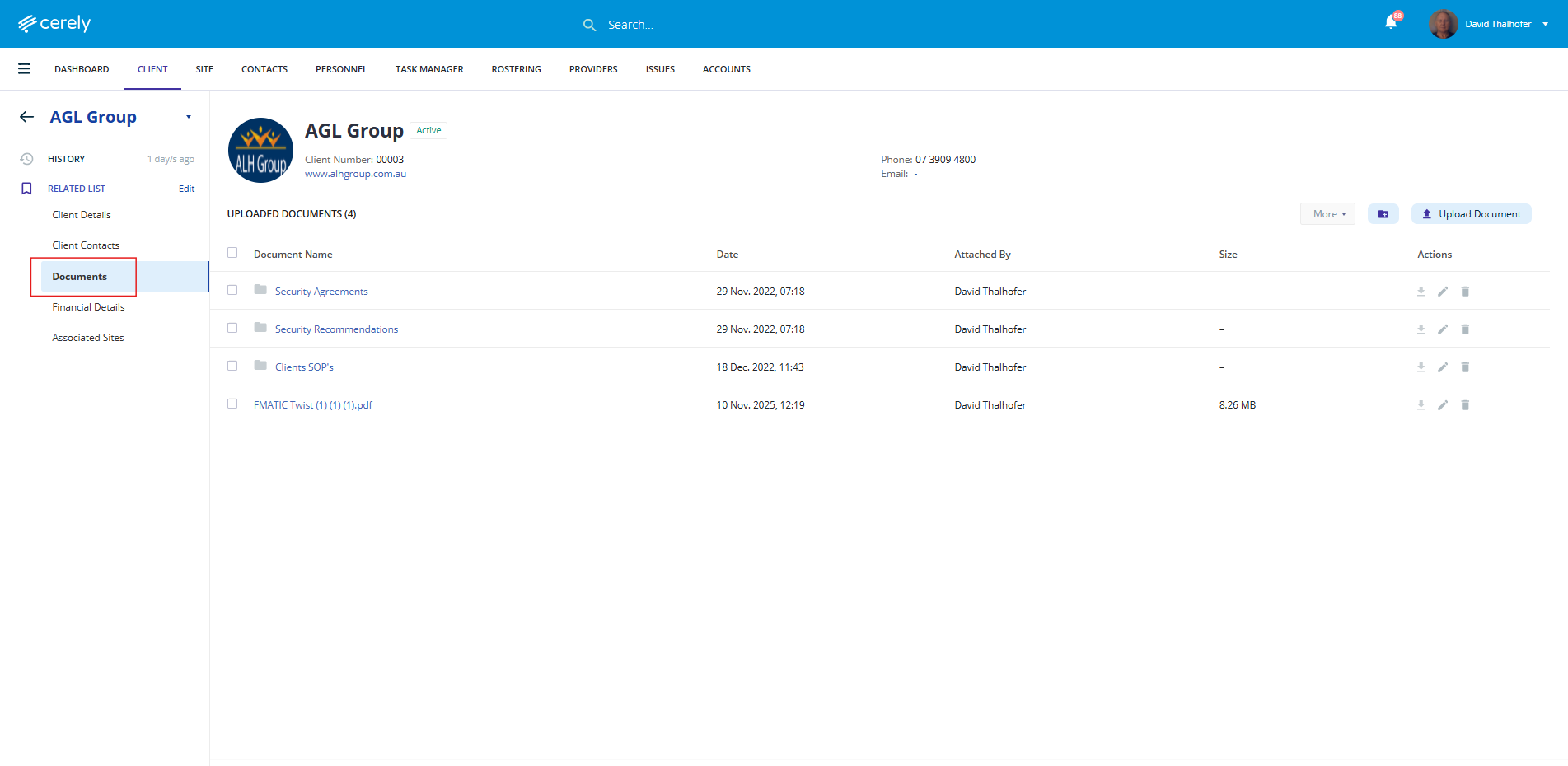
3. From the left-hand menu, select Documents
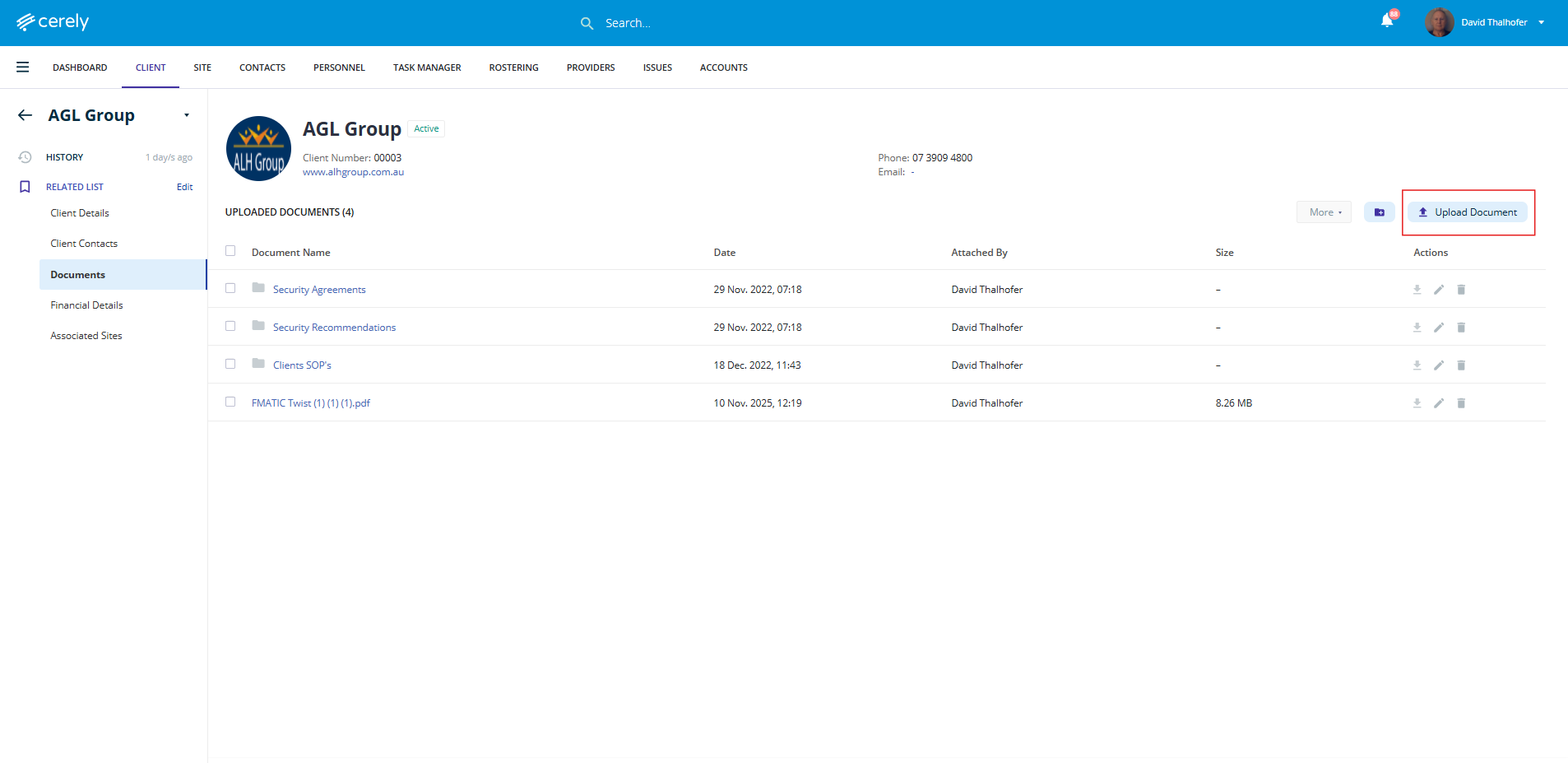
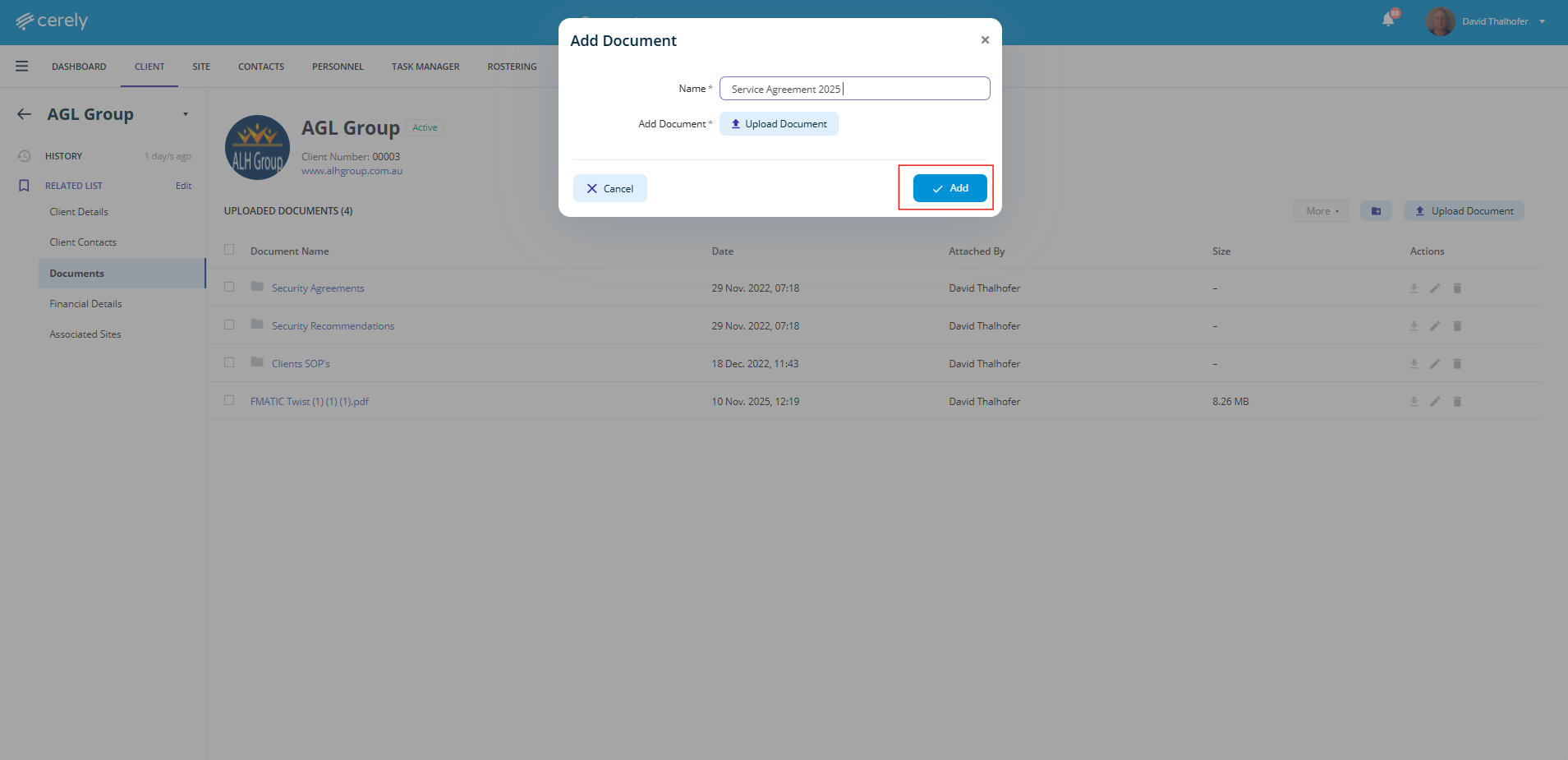
4. Click the Upload Document button on the right-hand side
5. Enter your preferred document name. Give the file a clear and relevant name (e.g., 2025 Service Agreement) and select upload file to locate from your computer to save to the client file
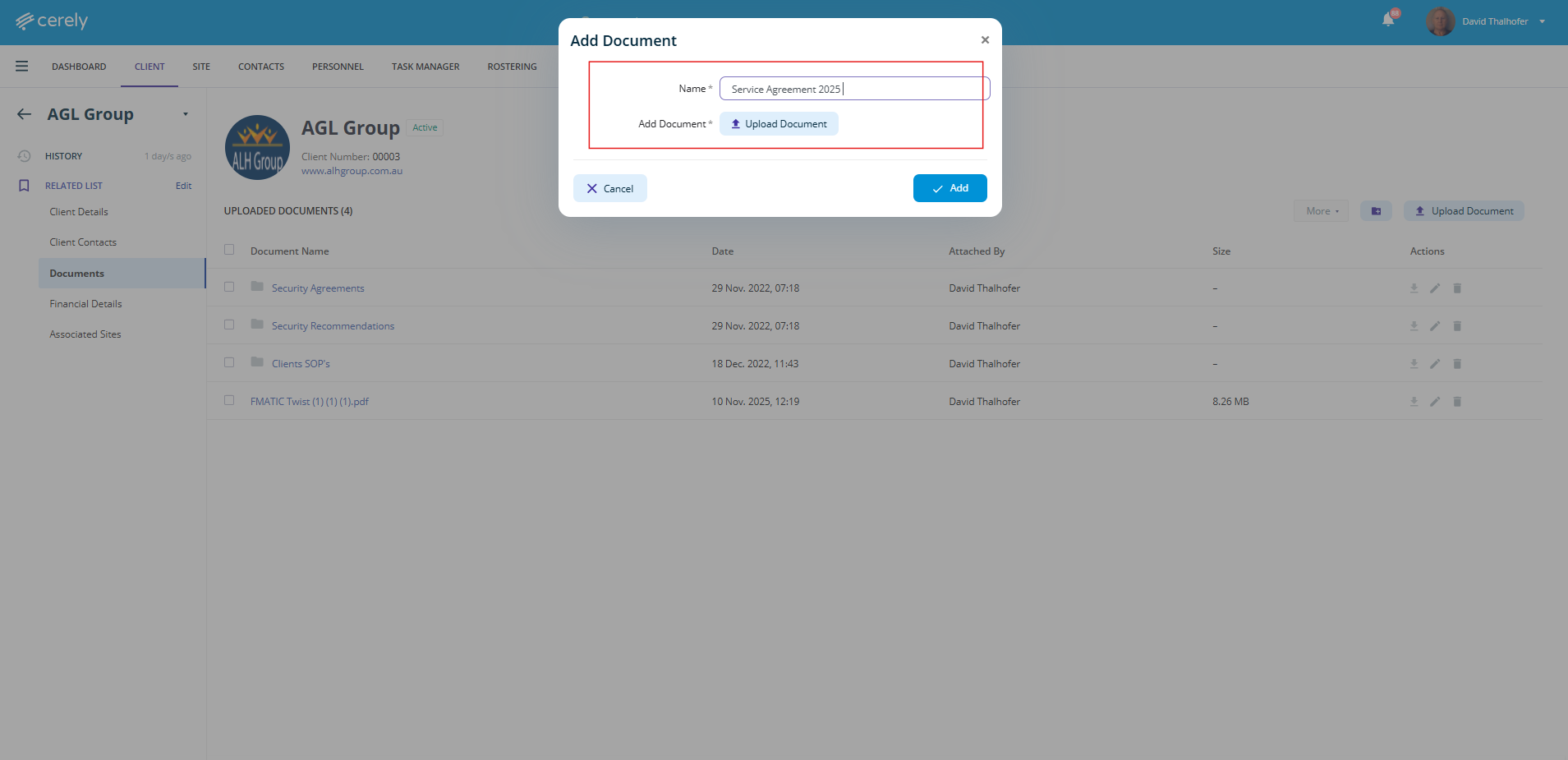
6. Click on the Add button
Your document will now be stored securely in the client’s profile and can be viewed, downloaded, or deleted by users with the appropriate permissions.